Integrate Google Sheets with your chatbot
Integrate with Google Sheets to allow your chatbot to read and add data to your spreadsheets in real time. This can help you log new leads as rows, keep your order tracker up to date, or pull students' lesson progress into chatbot replies.
Let's walk you through how to integrate Google Sheets with your chatbot.
Connect your Google account
Go to Bot settings > Integrations. Next to Google Sheets, click Grant access.
In the pop-up, read and accept the Terms of Service and Privacy Policy, then click Sign in with Google.
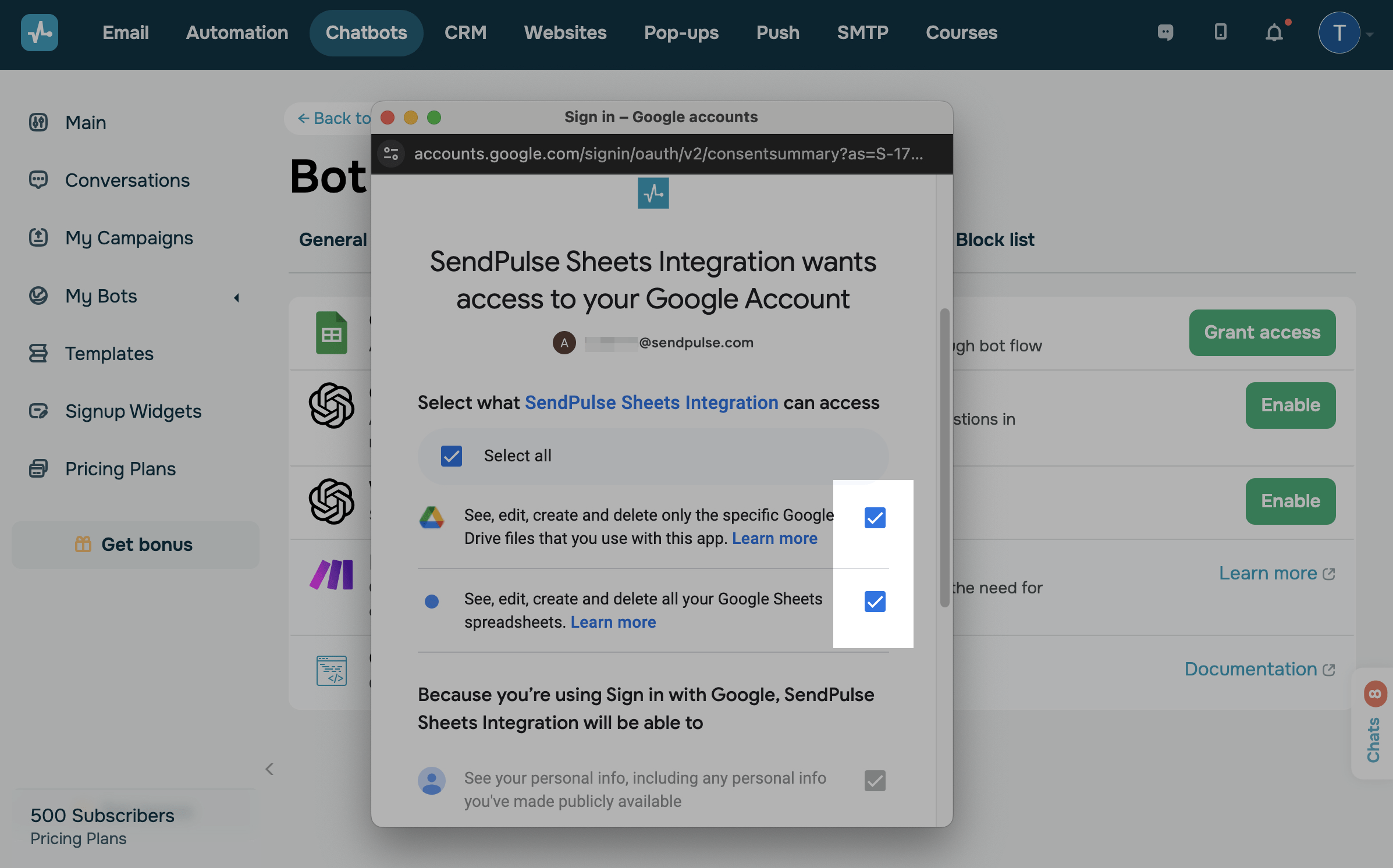
Sign in to the Google account you want to use and click Continue. Allow SendPulse Sheets Integration to view and edit your spreadsheets and files, then click Continue again.
You might also see a Google prompt asking permission to use your cookie data — accept it to continue.
Choose spreadsheets
Select the spreadsheets SendPulse should have access to. The search bar helps you find files quickly if you have a lot of them.
Once the integration is live, the list of shared spreadsheets cannot be changed. To add a new file or remove one, disconnect and then reconnect the integration.
Disconnect the integration
Go to Bot settings > Integrations. Next to Google Sheets, click the three dots and select Unlink Google Sheet integration.
You can disconnect the integration for the current chatbot only or for all chatbots connected to your Google account. Select an option in the confirmation pop-up.
Use the integration
With the integration connected, open a chatbot flow and add the Action element. In its settings, the three Google Sheets actions are now available:
- Insert Google Sheets row in the Action element — add a new row.
- Find and update Google Sheets row in the Action element — update an existing row by lookup.
- Retrieve data from Google Sheets row in the Action element — pull data back into chatbot variables.
Last Updated: 29.04.2026
or