The CRM Product element in chatbots
Use the CRM Product element to show product cards as chatbot messages and automate the checkout process. For example, you can add a CRM product or subscription to a chatbot flow so that customers can complete their purchase using your selected payment provider.
Let’s talk about how to add and configure the CRM Product element in a chatbot message.
Add the element
Before getting started, create a CRM product. Read more: Add a product.
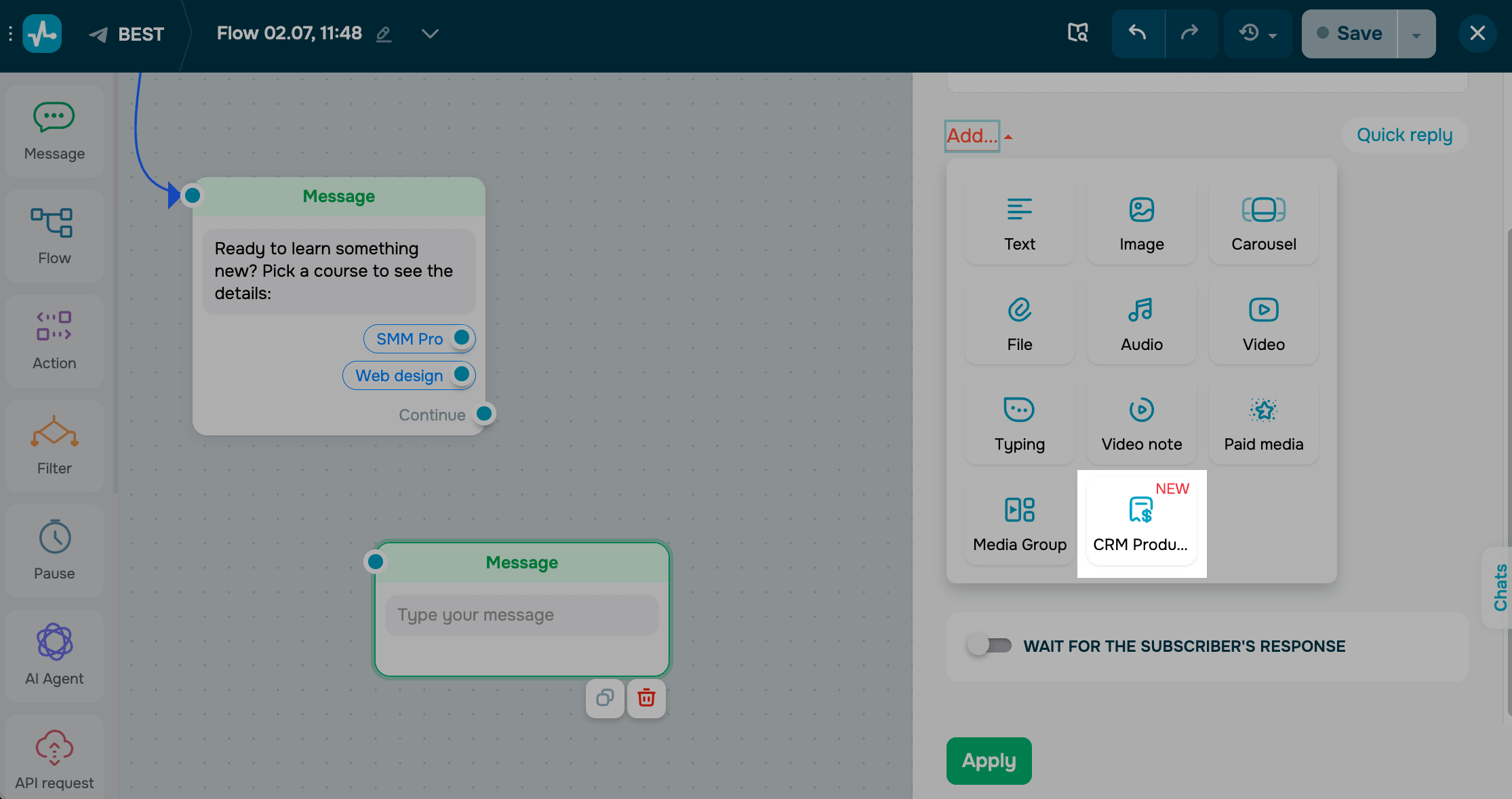
In the Message element, click Add and select CRM Product.
Choose a payment provider
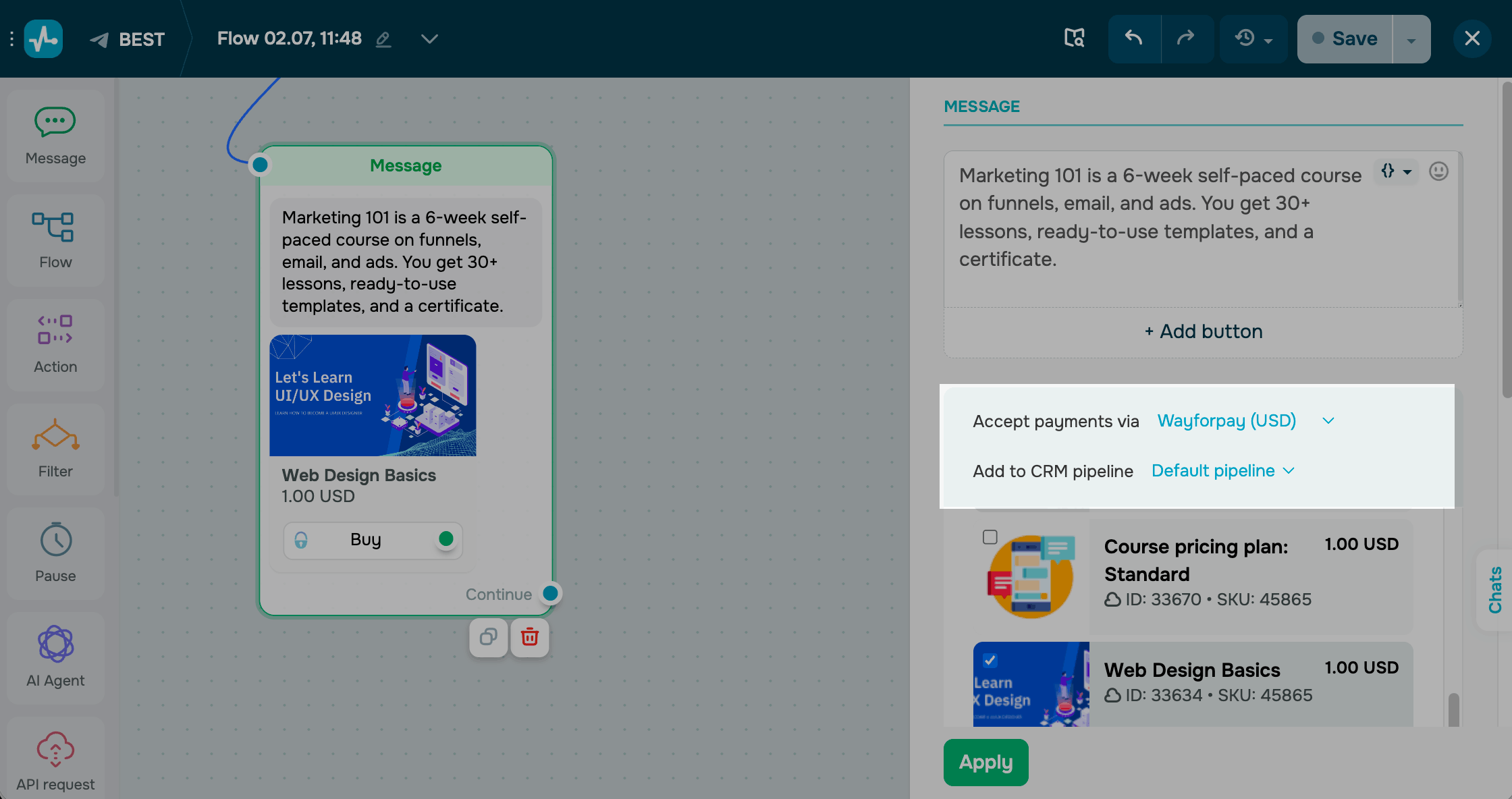
Choose a payment provider that customers will use to complete their payments. One-time payments support all available payment providers. Subscriptions are supported only through WayForPay.
Make sure the product currency matches the selected payment method currency. If the currencies don’t match, select a payment method with the same currency or update the product currency in the CRM system.
Select the CRM pipeline where new deals and contacts will be created.
Choose a CRM product
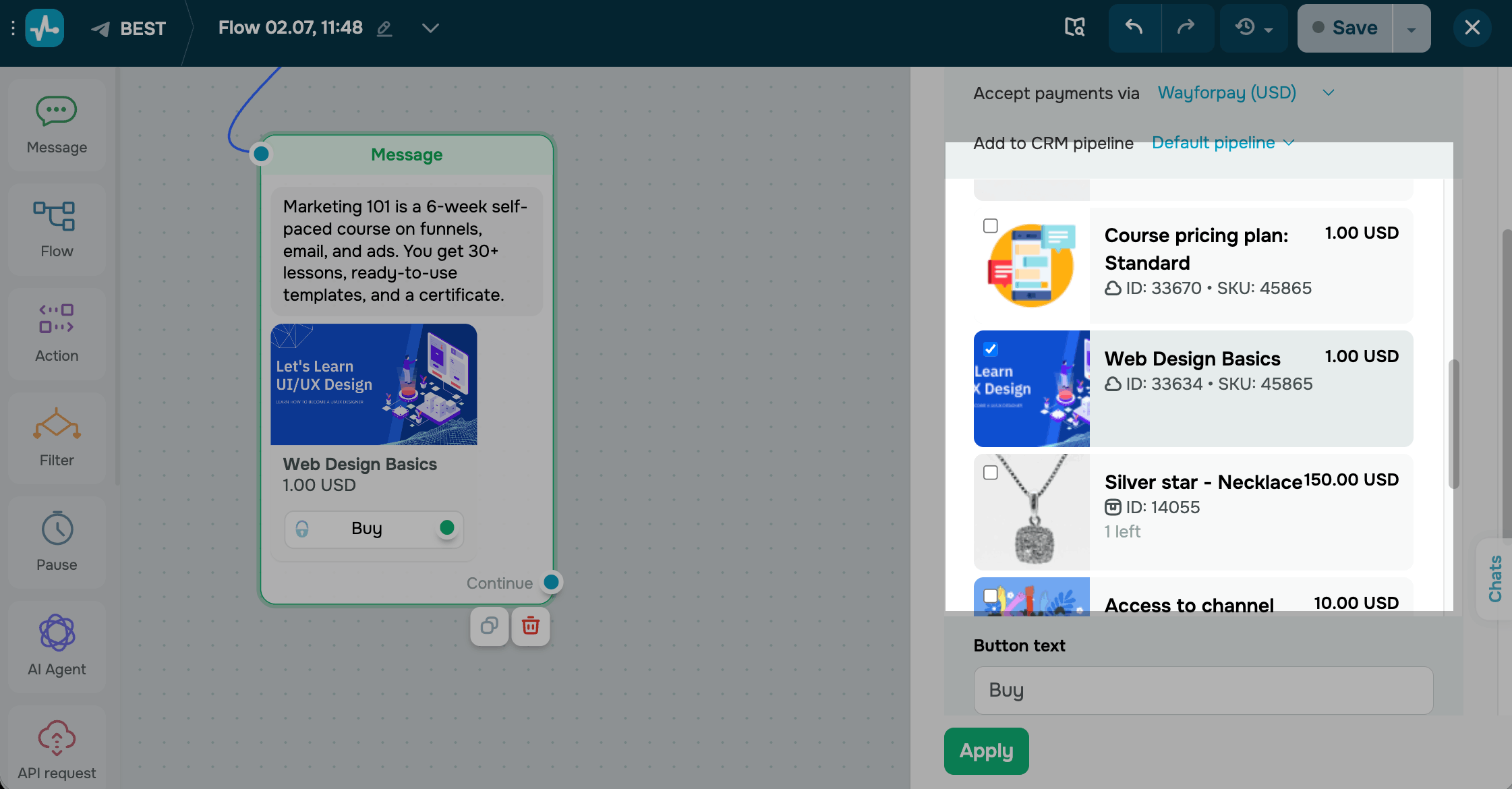
Choose products that will appear in the chatbot message. Select the products and subscriptions you want to show as product cards. You can select up to 3 products.
You can select only visible products. To add a digital product with a subscription, see Accept recurring payments.
In the Button text field, enter a button label.
Once you finish customizing the element, click Apply to save the changes. The element will show your selected product cards and accept payments whenever a subscriber reaches this step.
Set up your flow
After a subscriber completes the payment, the flow continues from the green dot on the payment button. Use this branch to confirm the purchase and give the subscriber immediate access to what they bought.
To build it, link the next element to the green dot on the payment button.
For example, you can add a Message with a Text block to confirm the payment and deliver the digital product — a download link, or the file itself as a media element. You can also add an Action to grant access to a linked course or mark the contact as a paying customer for segmentation.
Read more: Use chatbot builder elements.
Last Updated: 24.02.2026
or