The Goal element in chatbots
The Goal element helps track key user actions in the chatbot, including purchases, registrations, or other goals, and sends this data to Meta Ads Manager or TikTok. This allows you to assess how flows affect conversions more accurately and enhance ad campaign performance.
Using these events, you can run retargeting ads, optimize your bids automatically, and easily see which chatbot flows actually work.
Let’s talk about how to set up the Goal element and send chatbot events.
Getting started
To use the Conversions API and the Goal element, create an ad in your WhatsApp chatbot. Then, connect the Conversions API in your Meta Ads Manager account and copy the Dataset ID. You will need to add it to the SendPulse settings so that your chatbot can send events through server-side requests.
If you are creating a new dataset, click Create new dataset and Connect.
Learn more: How to create a WhatsApp ad via Facebook to start a chatbot conversation and How to send SendPulse chatbot events with Conversions API.
Add the Goal element
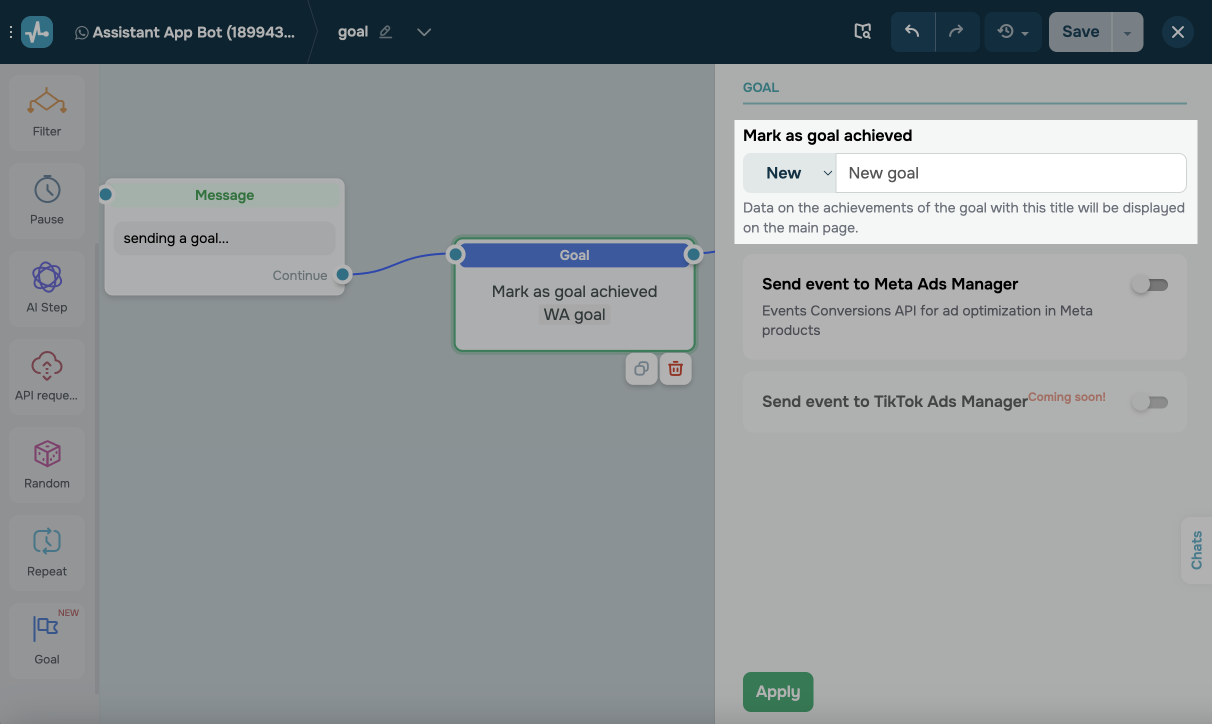
Drag the Goal element into the flow editor at the end of the branch where you need to mark your goal as achieved. In the Mark as goal achieved section, select a goal:
| New | Creates a new goal. All subsequent settings in this element will be saved to it.
Enter a goal name. |
| Saved | Applies the settings of a previously created goal.
Select a goal. |
Send events to Meta
You can optionally enable event sending to Meta Ads Manager or TikTok Ads Manager. If neither toggle is turned on, the element will collect general SendPulse chatbot statistics.
Turn on the Send event to Meta Ads Manager toggle and select an event type.
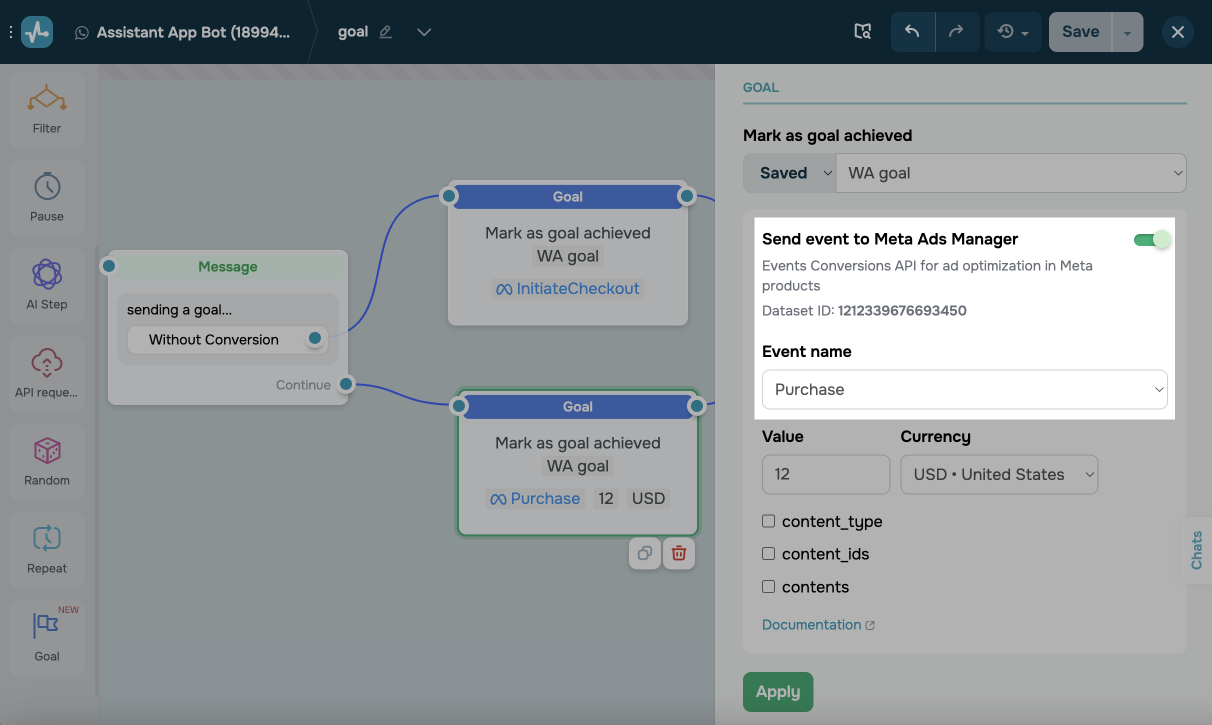
You can track the following events:
Purchase |
Triggered when a user completes a purchase or places an order, typically by reaching the thank-you or order confirmation page. Used to track sales accurately. |
LeadSubmitted |
Triggered when a user submits their contact information by filling out a form or showing interest in a product or service. Helps collect leads through your chatbot and send data to Meta Ads Manager for campaign optimization. |
InitiateCheckout |
Triggered when a user starts checking out by clicking a "Checkout" button or landing on the checkout page. Shows intent to purchase. |
AddToCart |
Triggered when a user adds a product to their cart through your chatbot or website. Helps identify purchase intent and optimize ads for interested users. |
ViewContent |
Triggered when a user views a specific page, such as a product page. Helps identify user interest even if no further action is taken. |
OrderCreated |
Triggered when an order is placed through your chatbot. Confirms that the order exists in your system and sends data to Meta for tracking through the Conversions API. |
OrderShipped |
Triggered when an order is shipped. Helps track order processing and understand post-purchase customer experience. |
When selecting the Purchase, OrderCreated, and OrderShipped event types, set a value and currency:
| Value | Set a numeric value for your goal, such as a target purchase amount. |
| Currency | Choose a currency. The system will convert the goal value accordingly. |
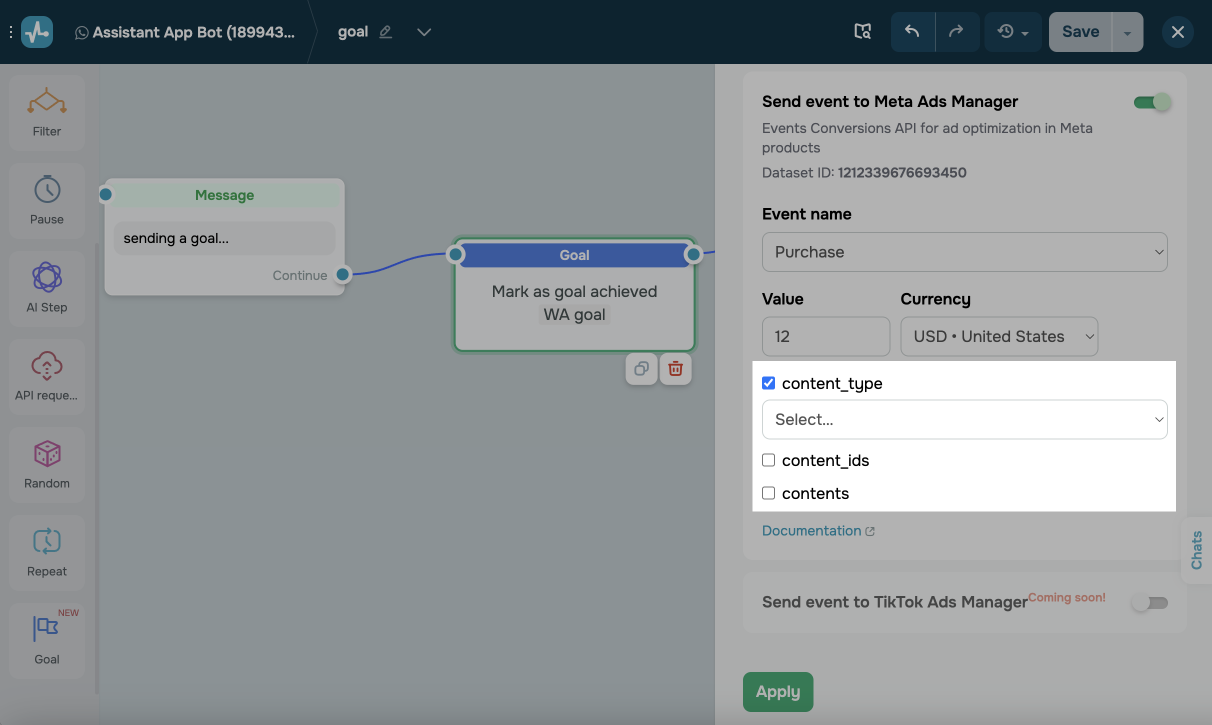
You can also choose standard and custom event parameters defined in Meta Ads Manager:
content_type |
An event content type. It can be product or product_group, depending on whether individual product IDs or groups of products are sent. |
content_ids |
An array of content IDs, such as product SKUs related to the event. Used to link the event to specific products. |
contents |
An array of objects detailing products related to the event. Every object typically contains id and quantity, and sometimes other fields like item_price. Helps send more detailed data about multiple products within a single event. |
num_items |
Total number of items related to the event (for example, the sum of quantity fields in contents). Used for analytics when knowing the overall item count in the event is important.
Applicable only to the |
Learn more: Object Properties.
Use custom events as needed, following the Meta Pixel naming rules. Before configuring, verify that the required events exist in Ads Manager.
View statistics
You can view event statistics on your chatbot’s main page or in Meta Ads Manager.
To view chatbot event statistics in your Meta Ads Manager account, go to Data sources and select a chatbot from the list. Events and their statistics will appear in the Event activity and Events sections.
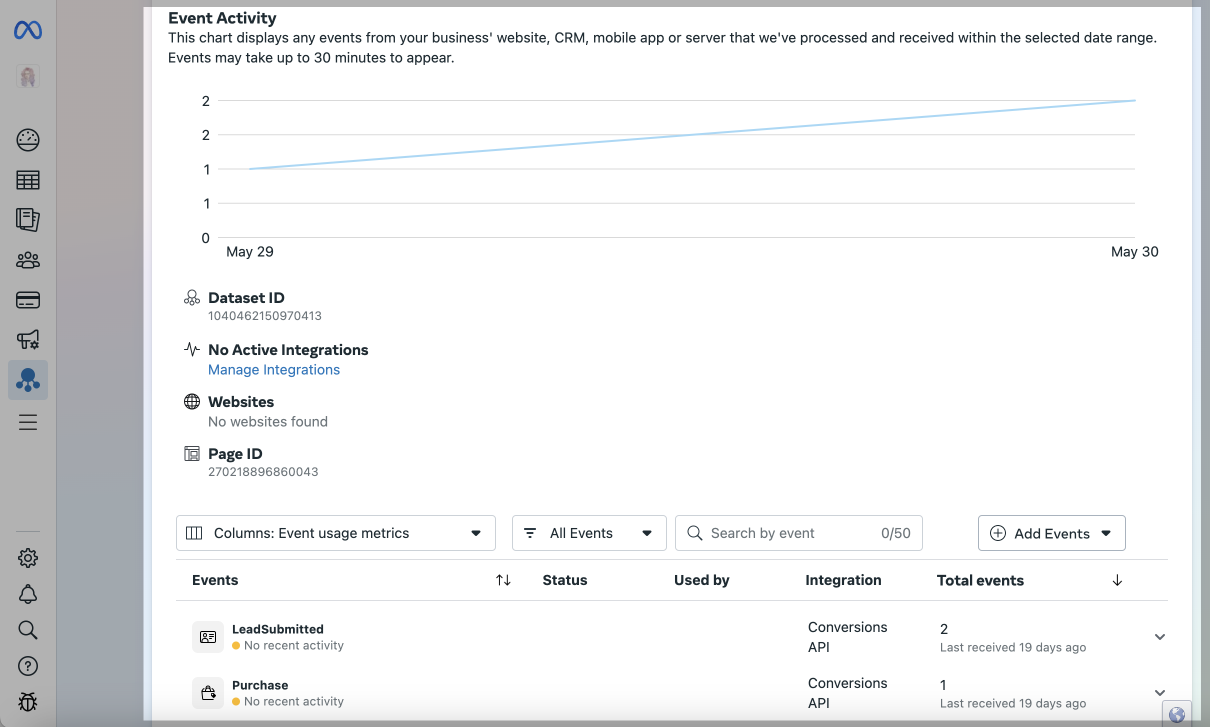
You’ll see the name of the most recent ad your subscriber engaged with in conversations. The message itself will include a link to that ad post.
Learn more: How to create a WhatsApp ad via Facebook to start a chatbot conversation.
Last Updated: 23.06.2025
or