Add course recommendations
You can add related courses to the student dashboard. This helps students quickly find other content that matches their interests and supports their skill development.
For example, if your course teaches Python programming basics, students may also be interested in advanced Python or Python web development.
Go to Settings > Recommendations.
Set recommendation placement
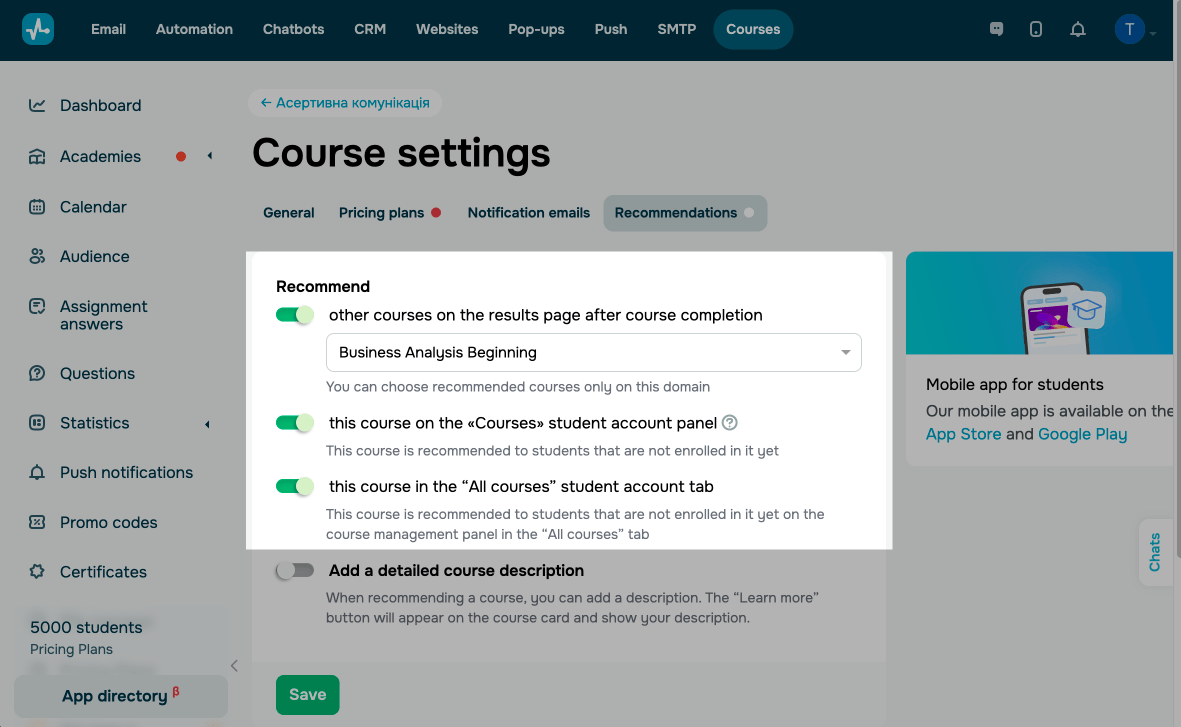
You can show course recommendations in the following places:
| Other courses on the result page after course completion | Show course recommendations on the course results page once students complete your course. Choose a course to recommend. You can only choose active or scheduled courses with the same domain. |
| This course in the “Recommended courses” student account tab | Show your current course on the main student account page in the Recommended courses tab, regardless of whether they have started your course or not. |
| This course in the “All courses” student account tab | Show your current course on the main student account page in the All courses tab, regardless of whether they have started your course or not. |
Customize the appearance
By default, a recommended course card shows its name on the preview.
You can also add a “Learn more” button. When clicked, it opens a window with your course’s detailed description.
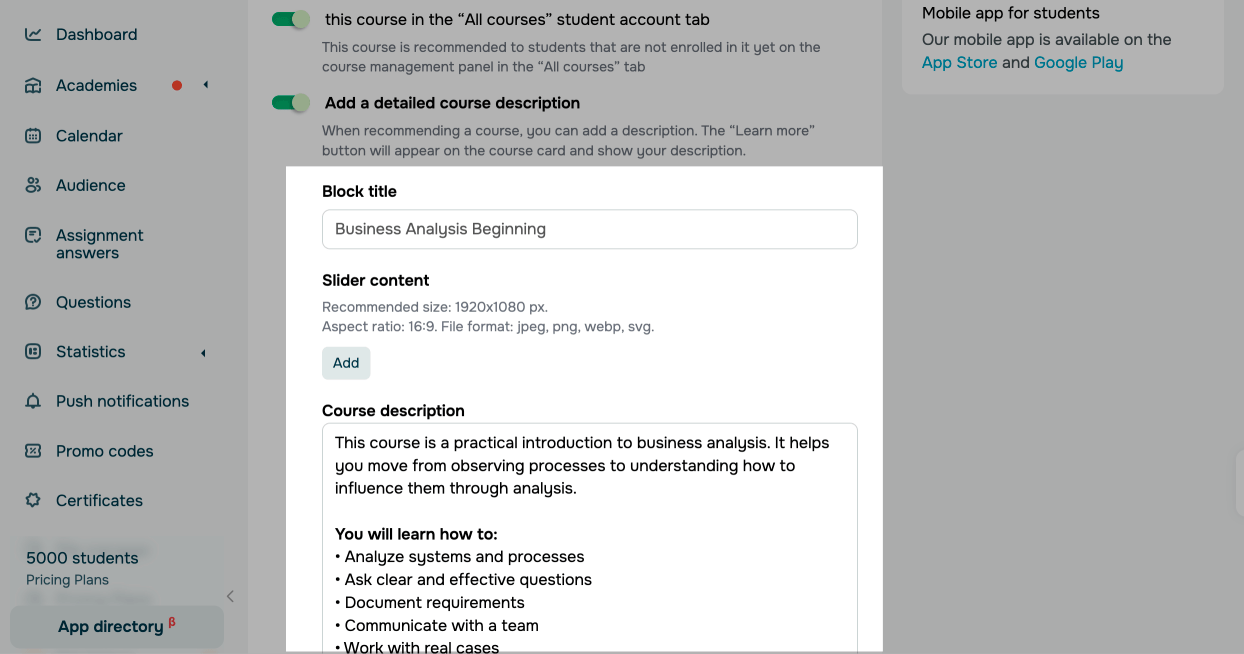
Turn on the Add a detailed course description toggle and configure the settings.
| Block title | Enter your course name. |
| Slider content | Click Add and choose images to show as a carousel. The recommended size is 1920×1080 px, with a 16:9 aspect ratio. Supported file formats are JPEG, PNG, WEBP, and SVG.
|
| Course description | Enter a detailed course description. To format the text, click within the field. |
Once you finish configuring the settings, click Save.
Last Updated: 28.11.2025
or