Manage contacts in your mailing list
Use contact management tools in a mailing list to control subscribers’ engagement, data, and ability to receive email campaigns.
You can disable contacts before a specific campaign, assign tags to segment audiences, remove contacts when requested, verify email addresses, or move contacts across mailing lists.
Let’s talk about how to manage your mailing list contacts.
Manage a specific contact
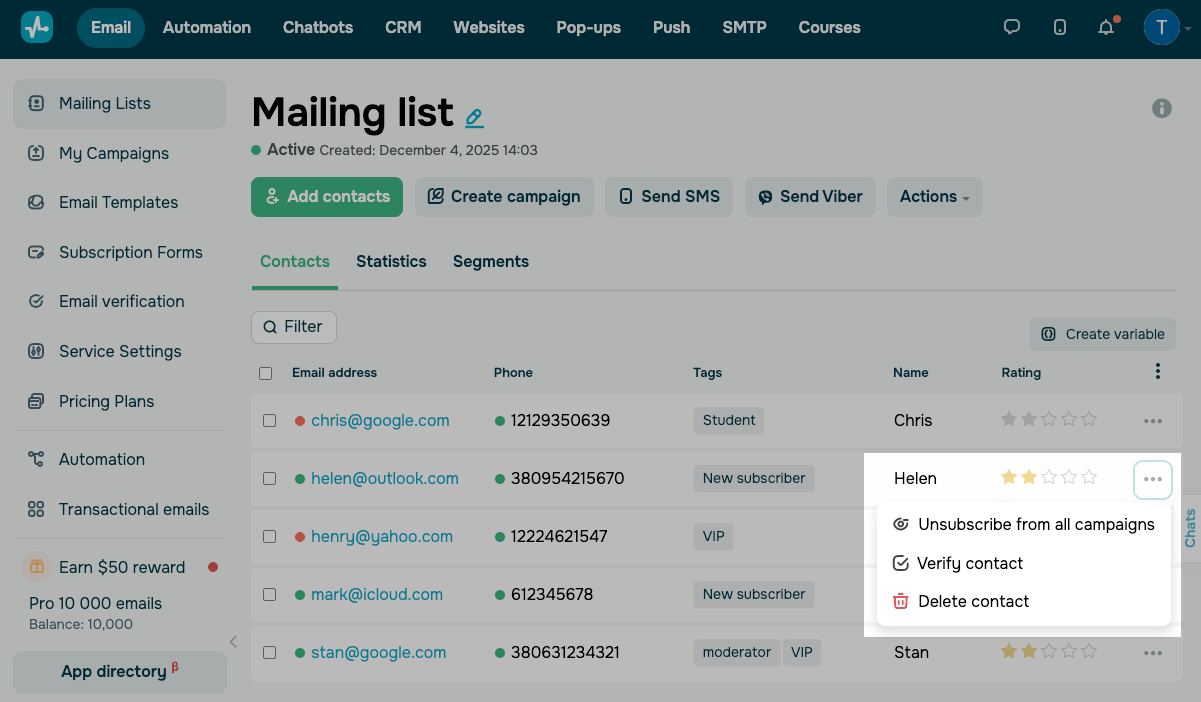
Find a contact in your list, click the three dots next to them, and select an action.
| Unsubscribe from all campaigns |
Unsubscribes the contact from all emails in this mailing list. Use this option when a user asks to stop receiving emails or when you need to remove a contact without deleting their data. |
| Verify contact |
Runs email verification to check if the contact’s email address is valid and reachable. Use this option before sending campaigns, especially after importing contacts. |
| Delete contact |
Permanently removes the contact from your mailing list. Use this option when a contact asks you to remove them from your mailing list or is no longer needed. |
| Replace contact |
Replaces the contact’s email address while retaining related data. This option is available only for contacts with the Disabled status. |
Manage multiple contacts
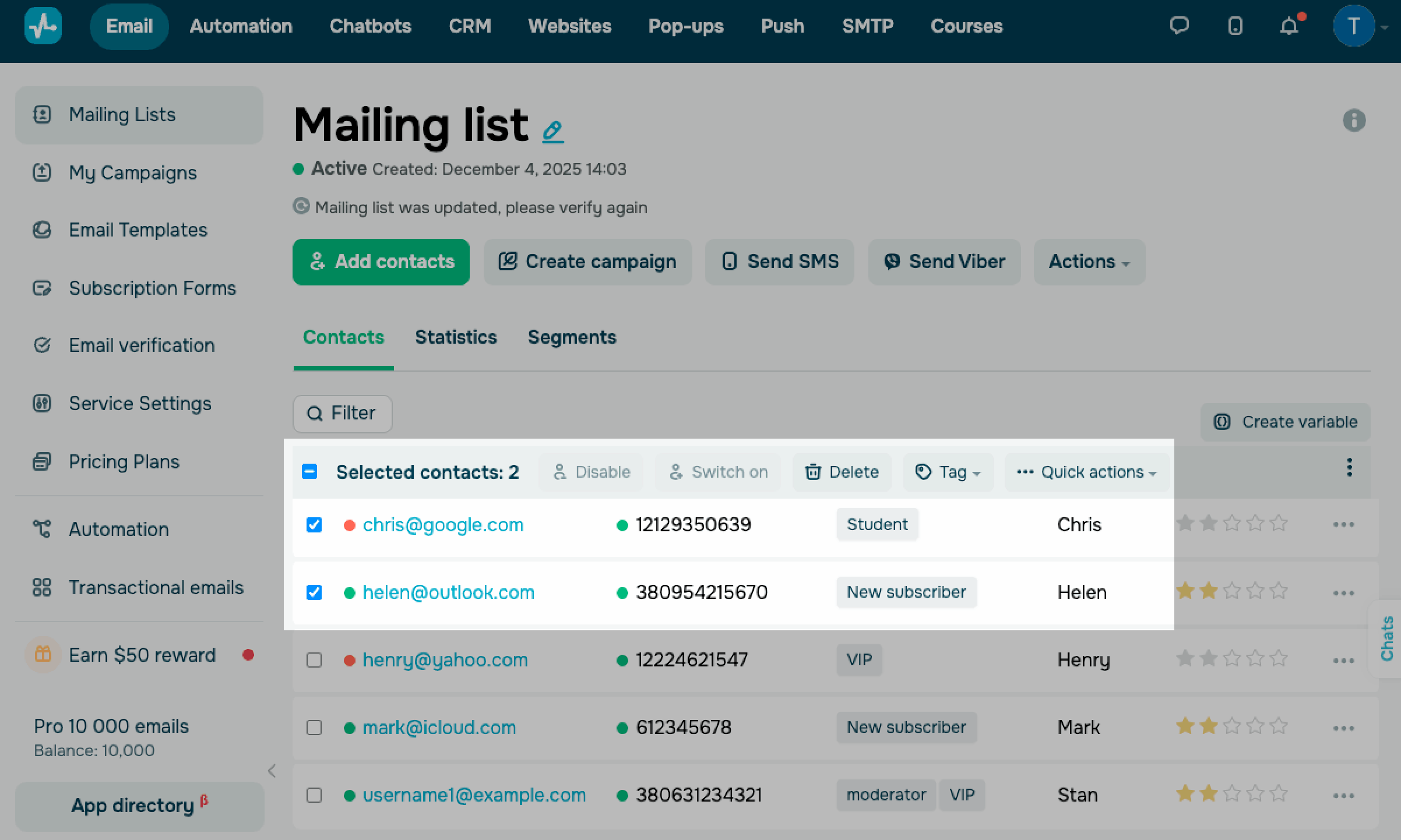
To apply an action to multiple contacts, select the checkboxes next to them, then choose an action. You can also apply filter criteria to target a specific segment.
| Disable | Keeps contacts on your mailing list but excludes them from campaigns. |
| Switch on |
Restores contacts' ability to receive your campaigns. Only active contacts can be disabled and enabled. |
| Delete |
Permanently removes contacts from this mailing list. If a contact appears in multiple mailing lists, deleting them removes them only from the current list. |
| Tag |
Manages tags of your selected contacts. Options include: Assign one or more tags to your contacts. Delete selected tags in your contacts. |
| Quick actions |
Applies quick actions. Options include: Copy contacts on your current list and add them to another one. Move contacts from your current list to another one. Export selected contacts to a file. |
Last Updated: 15.01.2026
or