View contact information
Contact statistics help you understand how subscribers engage with your campaigns and evaluate their interest in your content. Contact cards bring together all key information about their activity.
Let’s talk about how to view contact statistics.
Go to your mailing list and click an email address on the list. The contact card with campaign statistics will appear.
General information
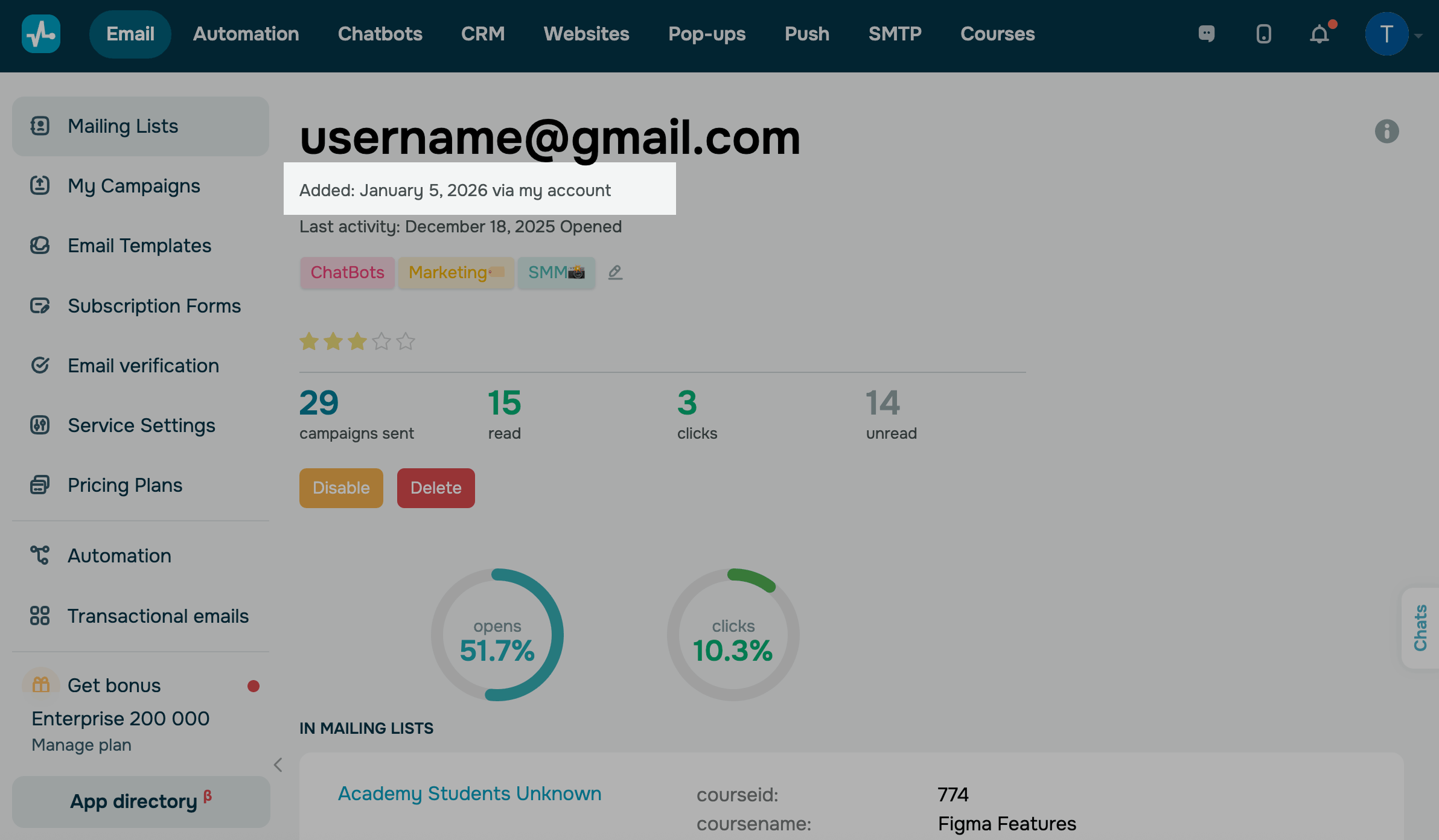
Under the email address, you'll see the date the contact was added and the source — via your account (manually, through integrations, from subscribe and payment forms on your website, or chatbots) or via a subscription form. You can also view the contact’s tags.
Activity indicators
In the Last activity section, you can see the date and type of the contact’s most recent activity, such as Opens or Clicks.
You’ll also find the contact’s rating, which is shown as stars.
Below, you can view their overall activity:
- number of sent emails;
- number of opened emails;
- number of click-throughs;
- number of unopened emails.
This section also includes subscriber management buttons you can use to take the following actions:
| Disable | Deactivates the contact's subscription to your emails. You will be able to reactivate it later if needed. Their data remains in the system, but they will not receive emails from you. |
| Delete | Permanently removes the subscriber and all their data from your mailing list. |
Below, you will see the average open and click rates, which are shown as percentages.
Mailing list information
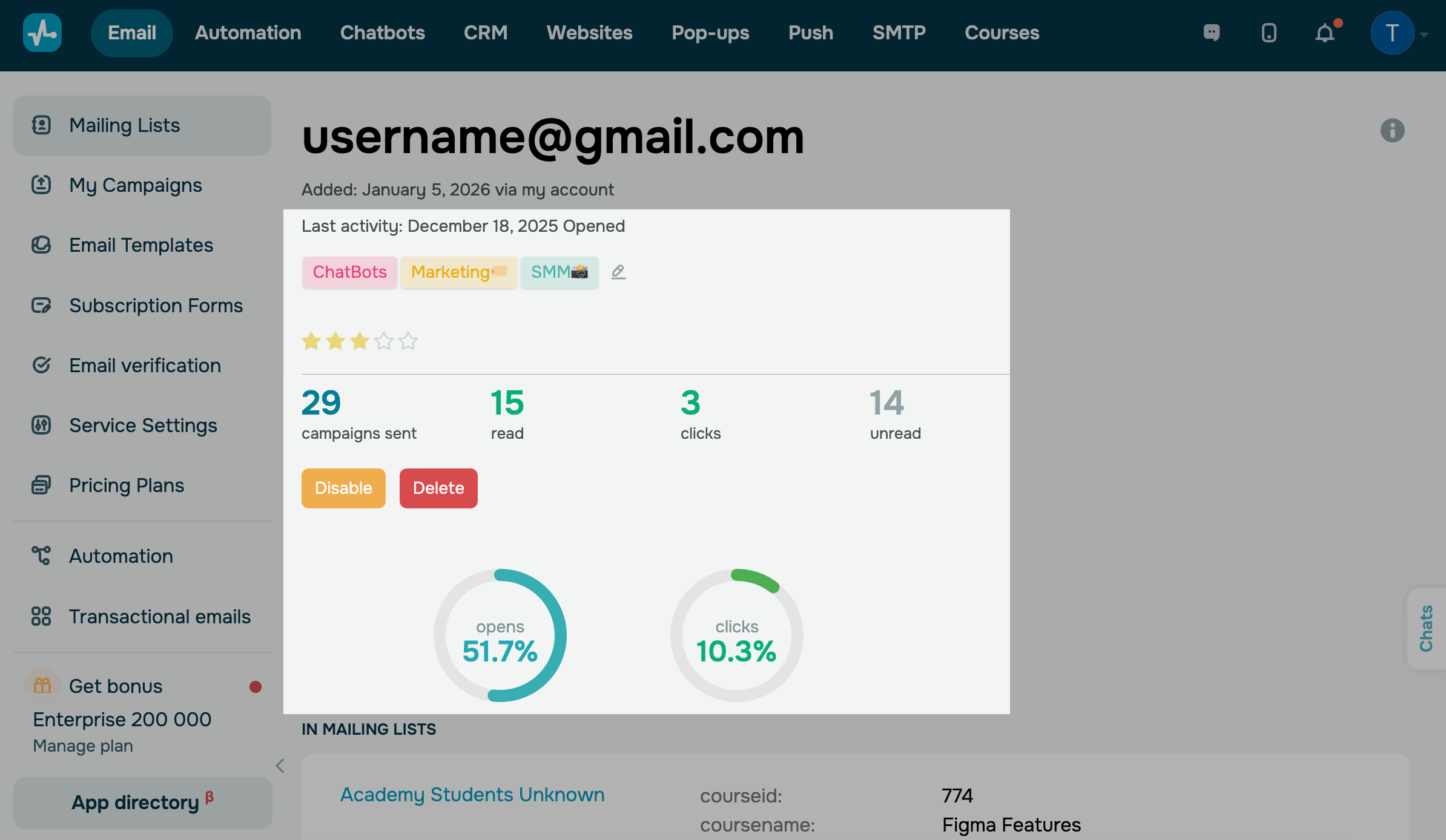
In the In mailing lists section, you can see which mailing lists the contact is listed in and which variables are assigned to them.
Automation activity
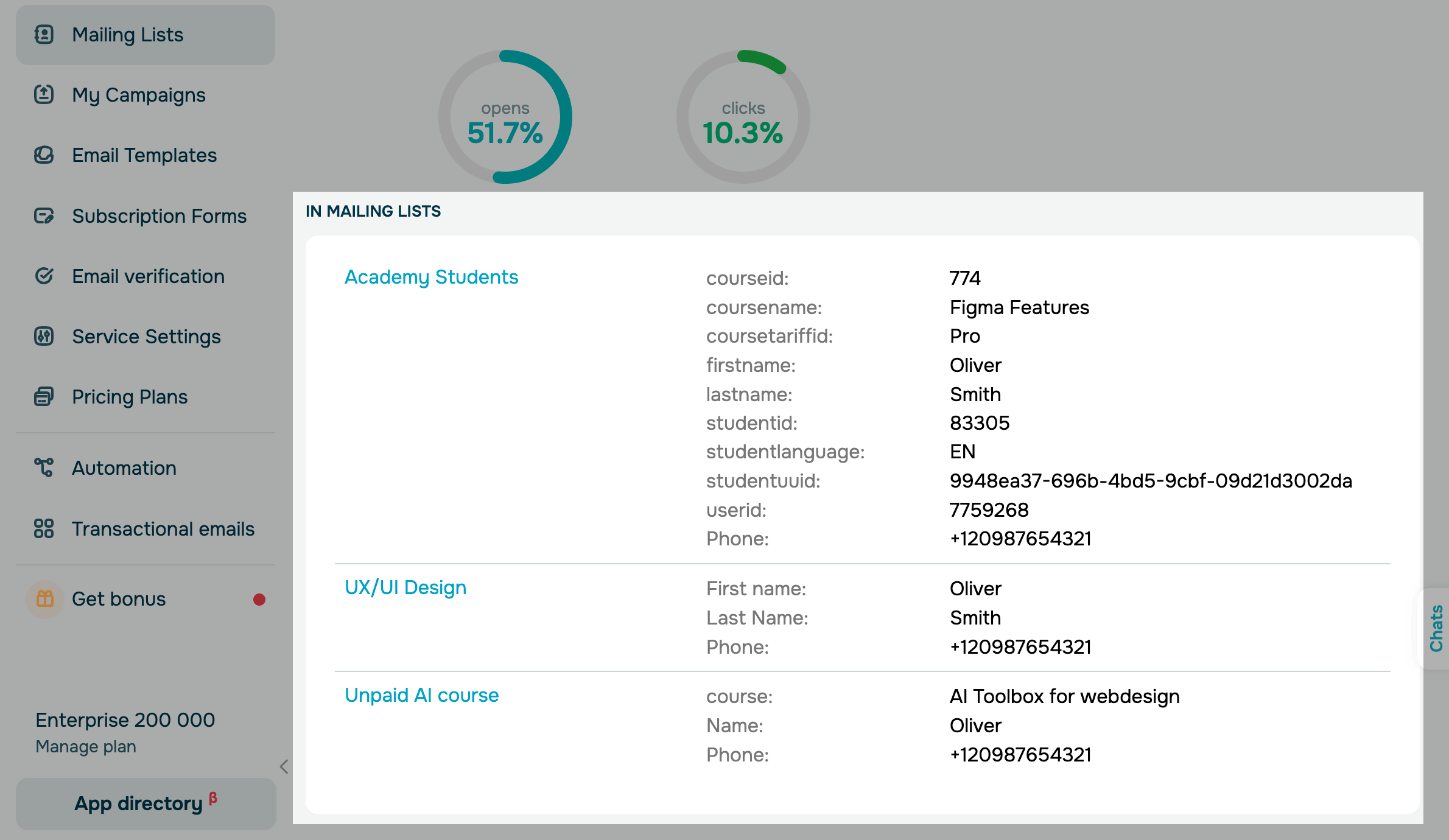
In the In automation flows section, you can see which automated flows a contact has joined. You’ll see the flow names, the launch date and time for this contact, and the number of emails sent.
To see a flow scenario, click its name. To see the contact's path to the last reached element, click Show path.
Activity in campaigns
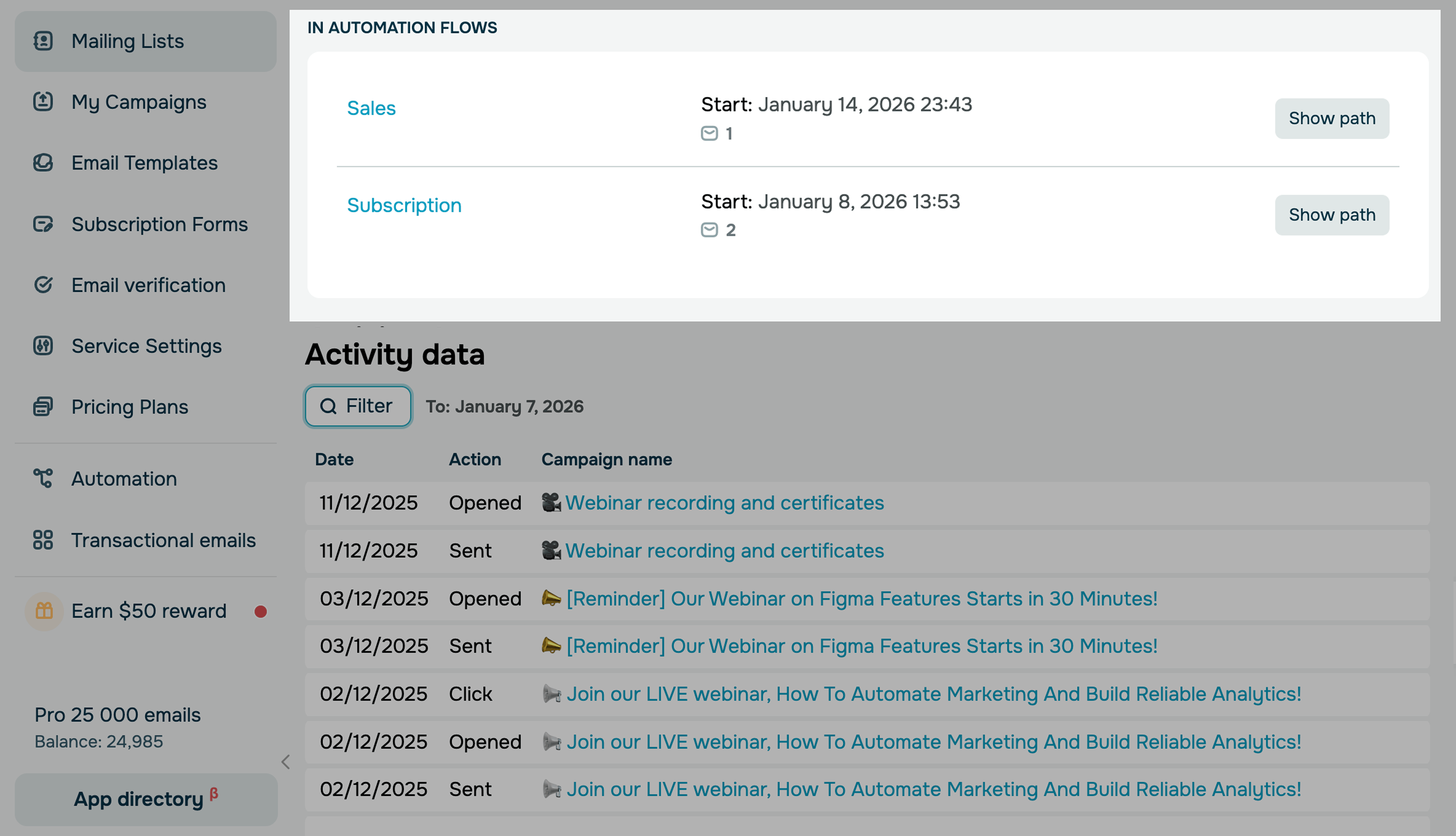
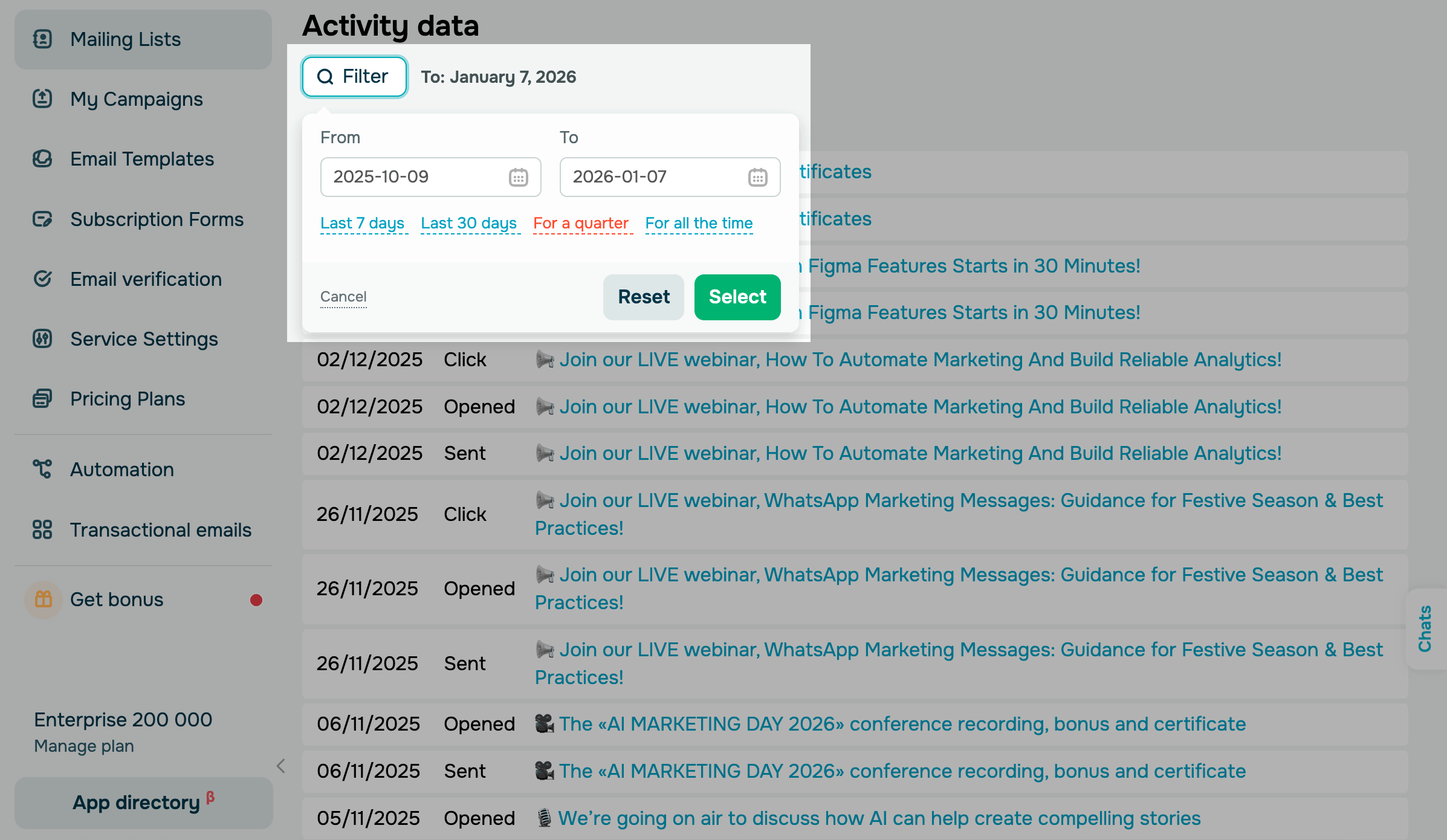
In the Activity data section, you can view the list of sent campaigns and the contact’s activity status for each one:
| Sent | The contact received the email. |
| Opened | The contact opened the email. |
| Click | The contact clicked at least one link in the email. |
| Unsubscribed | The contact clicked the unsubscribe link in the email. |
To view data within a specific timeframe, click Filter and select a date range.
Last Updated: 12.01.2026
or