Edit CRM deal in the Action element
The Edit CRM deal action updates the status of an existing deal when a subscriber takes a specific action. For example, it can confirm a purchase request that needs manual approval or submit files. Use this action to move deals through your pipeline automatically.
Let's walk you through how to set up the Edit CRM deal action.
Add the Action element
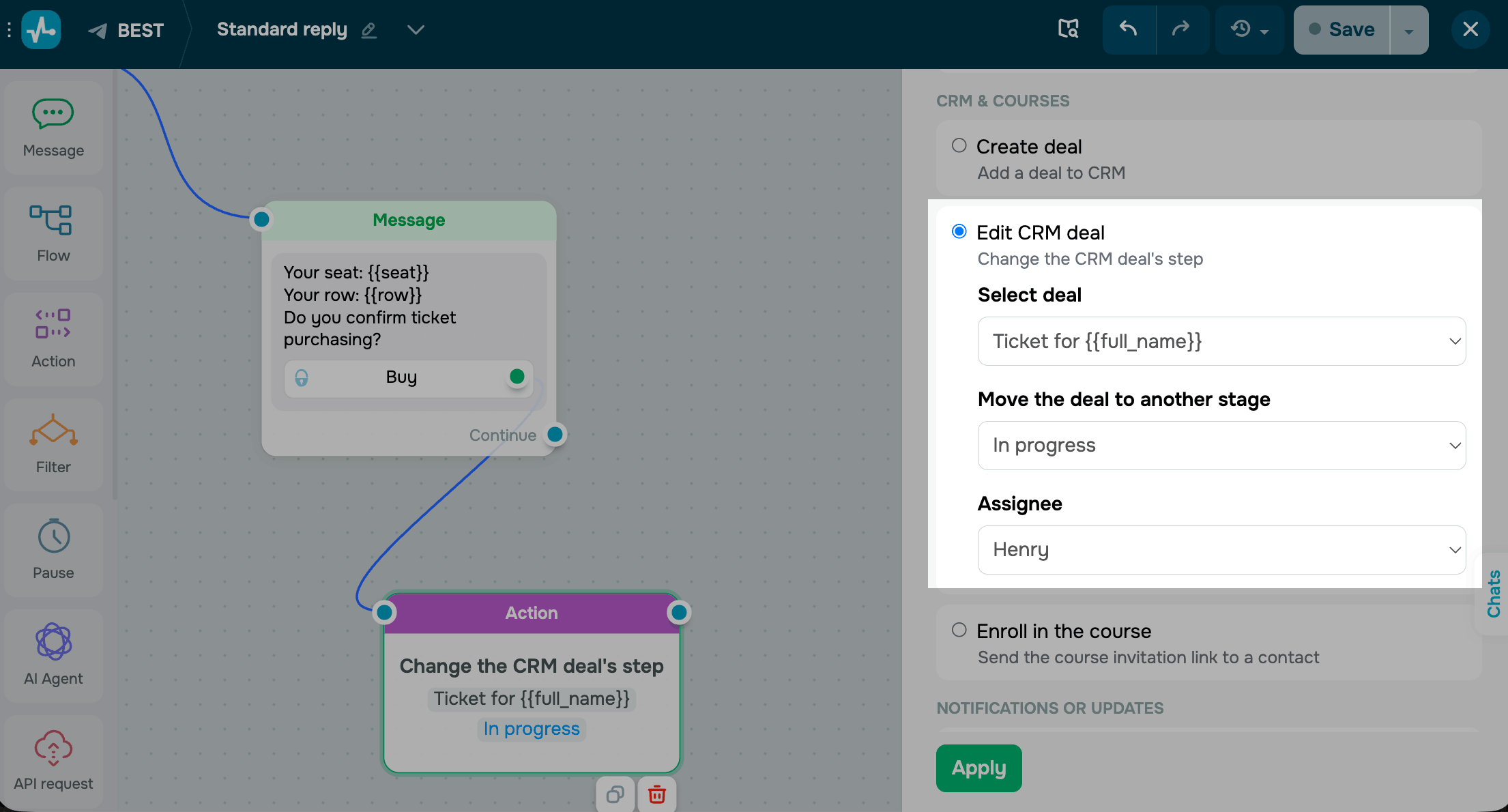
Drag the Action element to the workspace. In the settings that appear, select Edit CRM deal. You can edit deals created in this flow or your contact's last deal created in another flow. To do this, select the Last contact deal option
Select the deal and the target deal stage.
If you need to reassign the deal, select a new assignee. By default, the Leave current responsible option is enabled, so your deal stays with its current assignee.
Save the element
Click Apply. The element is now ready and will move the selected deal to the new stage each time a subscriber reaches this step. If selected, the assignee will also be updated.
To test the setup, run the flow once and open the deal in CRM — it should appear at the new stage.
Last Updated: 01.05.2026
or