Remove tags in the Action element
The Remove tags action removes one or more tags from a subscriber. Use it to reset state when something changes, for example, remove the abandoned_cart tag once the person pays or clear the trial tag when they upgrade.
Let's walk you through how to set up the Remove tags action.
Add the Action element
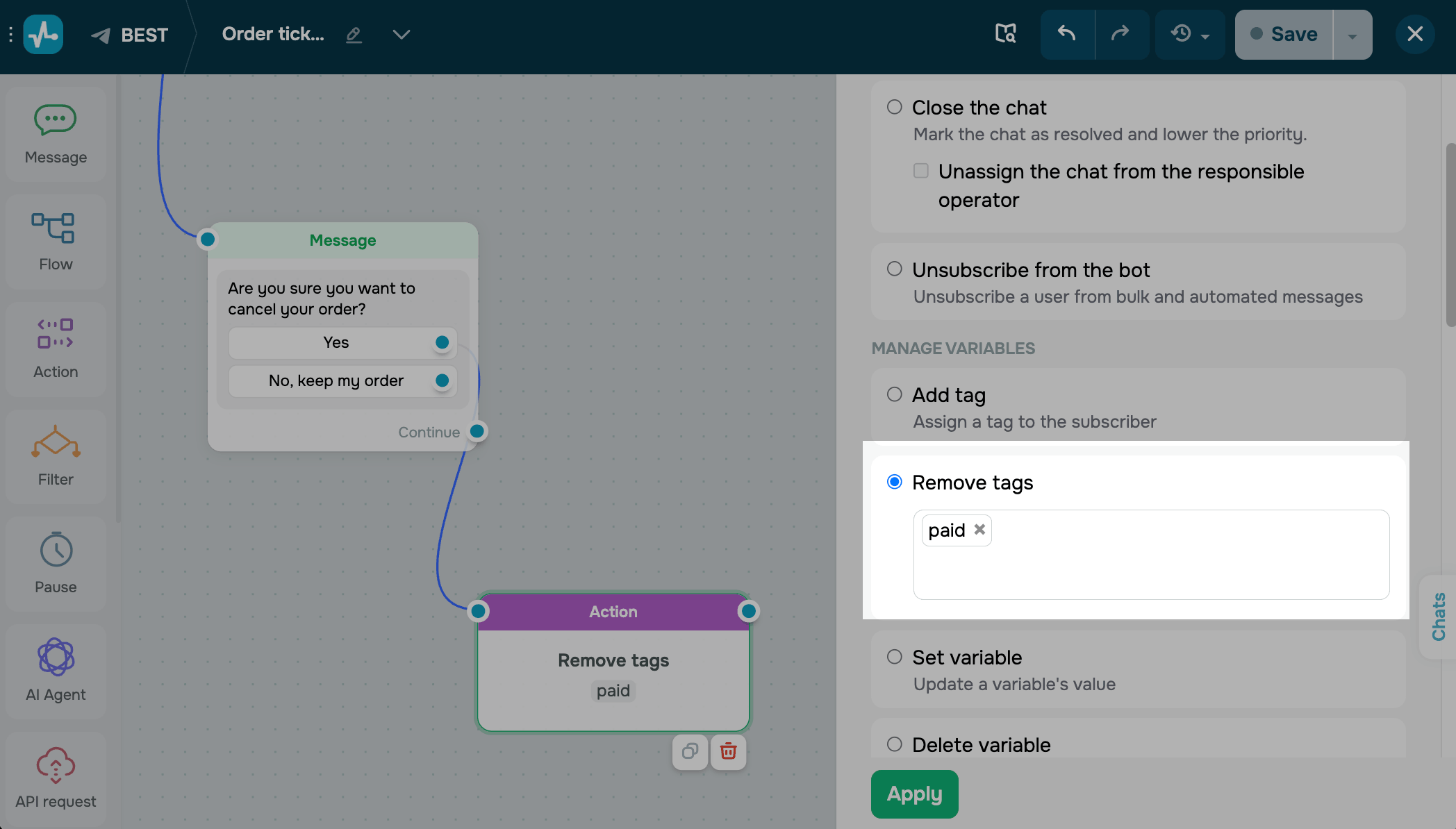
Drag the Action element to the workspace. In the settings that appear, select Remove tags.
Click the field and choose tags from the drop-down. You can select multiple tags at once.
Save the element
Click Apply. From now on, every subscriber who reaches this step will have these tags removed from their profile.
To test the setup, run the flow and open the subscriber's profile — the tags should be gone.
Last Updated: 28.04.2026
or