Set up an AI model in your chatbot
Use an AI model from OpenAI, DeepSeek, or Claude in your chatbot to generate responses tailored to user requests and conversation context.
AI can generate text based on your prompt, search for up-to-date information online, or reply using conversation history. You can also adjust generation settings to fine-tune response style and accuracy.
Let’s go over how to choose an AI model, set a conversation context size, tokens, and temperature.
In the chatbot flow builder, select the AI Agent element, click a model name in the upper right corner, and fill in the fields.
Add an AI model
In Model, select an AI model to generate responses.
In API key, decide how to authorize requests (inherit the token from your settings or use a dedicated token for this chatbot).
Read also: Connect ChatGPT and other AI models to your chatbot.
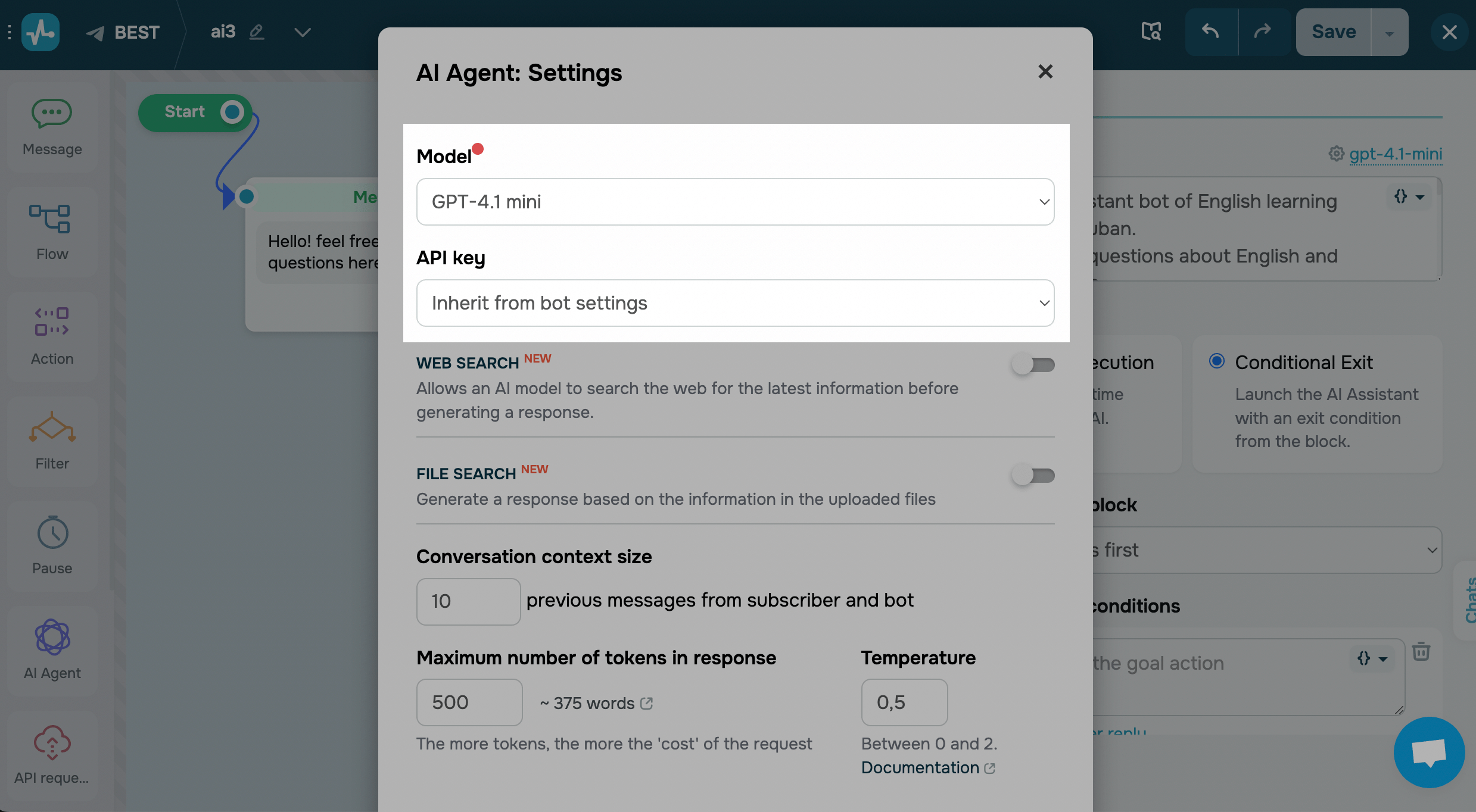
Set up your model
Available settings vary based on your chosen AI model and billed at your AI provider’s rates. Read more: OpenAI API Pricing, Anthropic API Pricing.
Enable web search
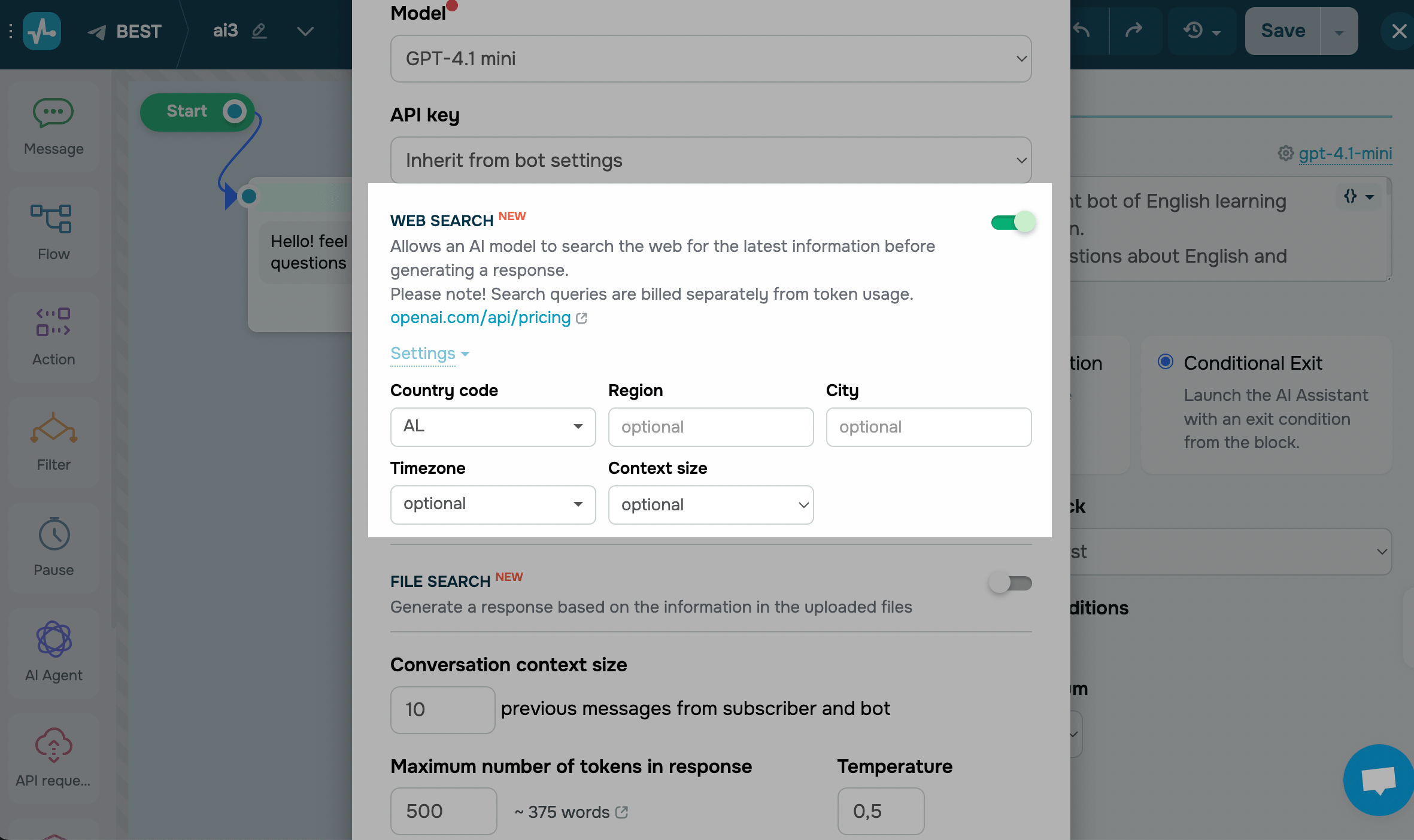
Turn on the Web search toggle to allow the AI model to look up information online before generating a response. The model will search the internet only when it needs current data to deliver a full and accurate reply.
If you’re using an Anthropic model, you can also set a domain and time zone. With other models, you can set a country, region, or city to make search results more relevant.
If web search is turned off, the model will rely only on your prompt, conversation context, and data available at the time of its training.
Connect an MCP server
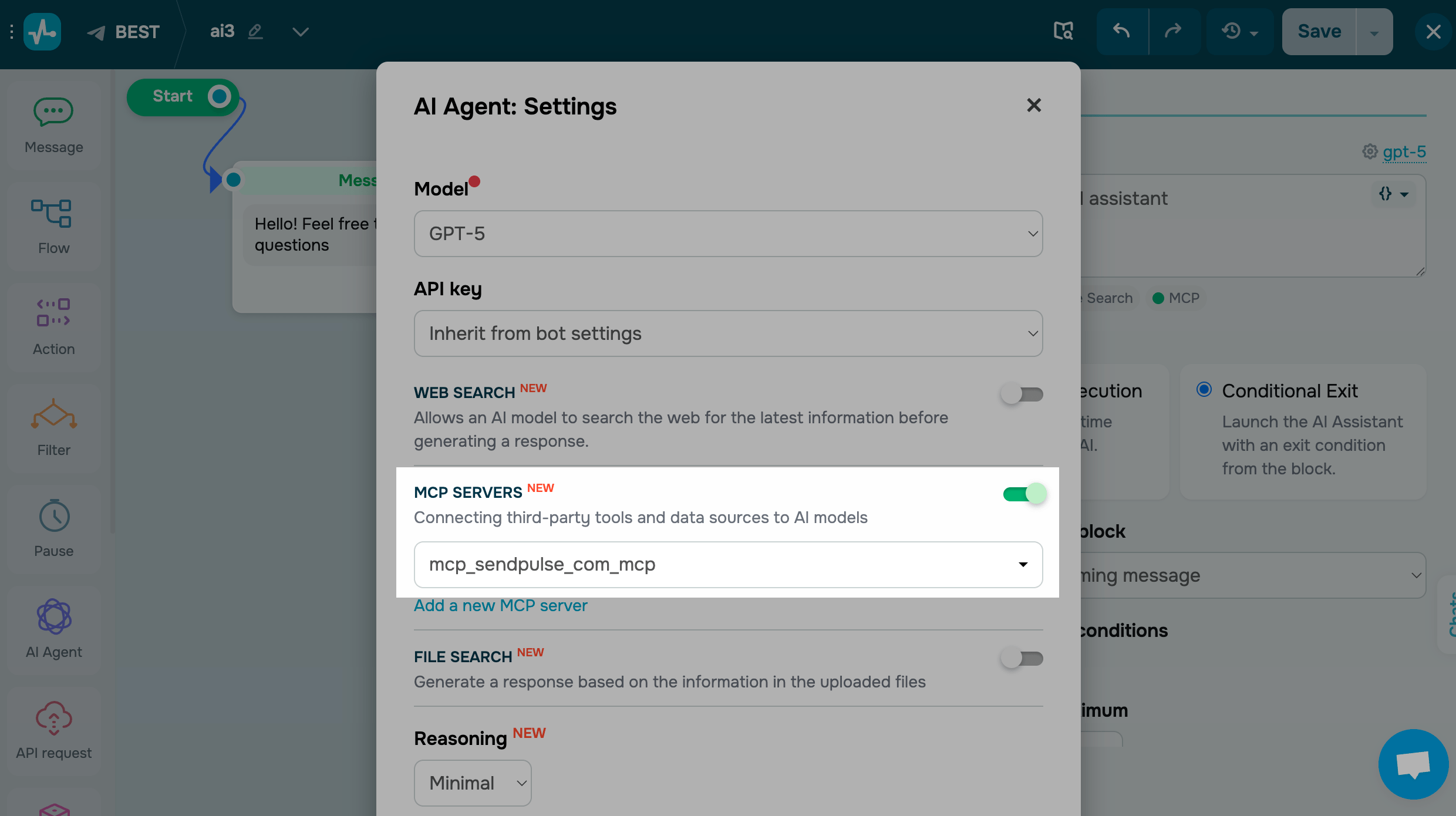
Turn on the MCP servers toggle to add a connection to a remote MCP server. Select a connection from the list of MCP servers you’ve added in your chatbot settings.
Requests to MCP servers are not billed, unlike web or file search. However, adding more tools means sending more data with each request to the AI model, which increases your token usage.
Once you add an MCP server, the AI model gains access to its tools. Based on them, it can then retrieve product catalogs, send messages, create orders, or take other actions.
Enable file search
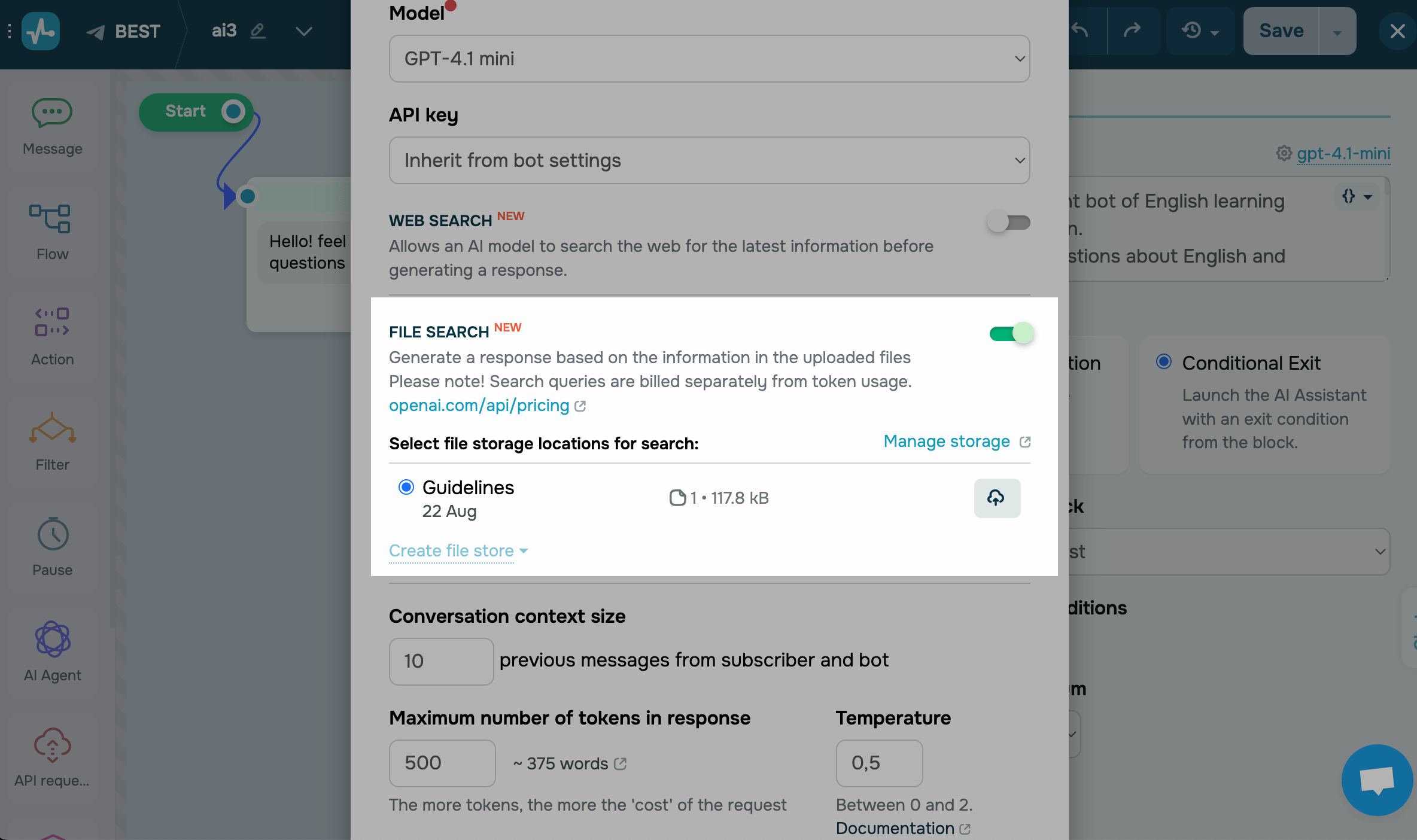
Turn on the File search toggle to allow the AI model to generate responses using the information in your uploaded files.
Suppose your files include inventory records and contracts. AI can check if a product is in stock, extract a specific clause from your contract, and retrieve other relevant data on demand.
Once you enable this feature, select a file storage location from your OpenAI account. You can save multiple files to one storage.
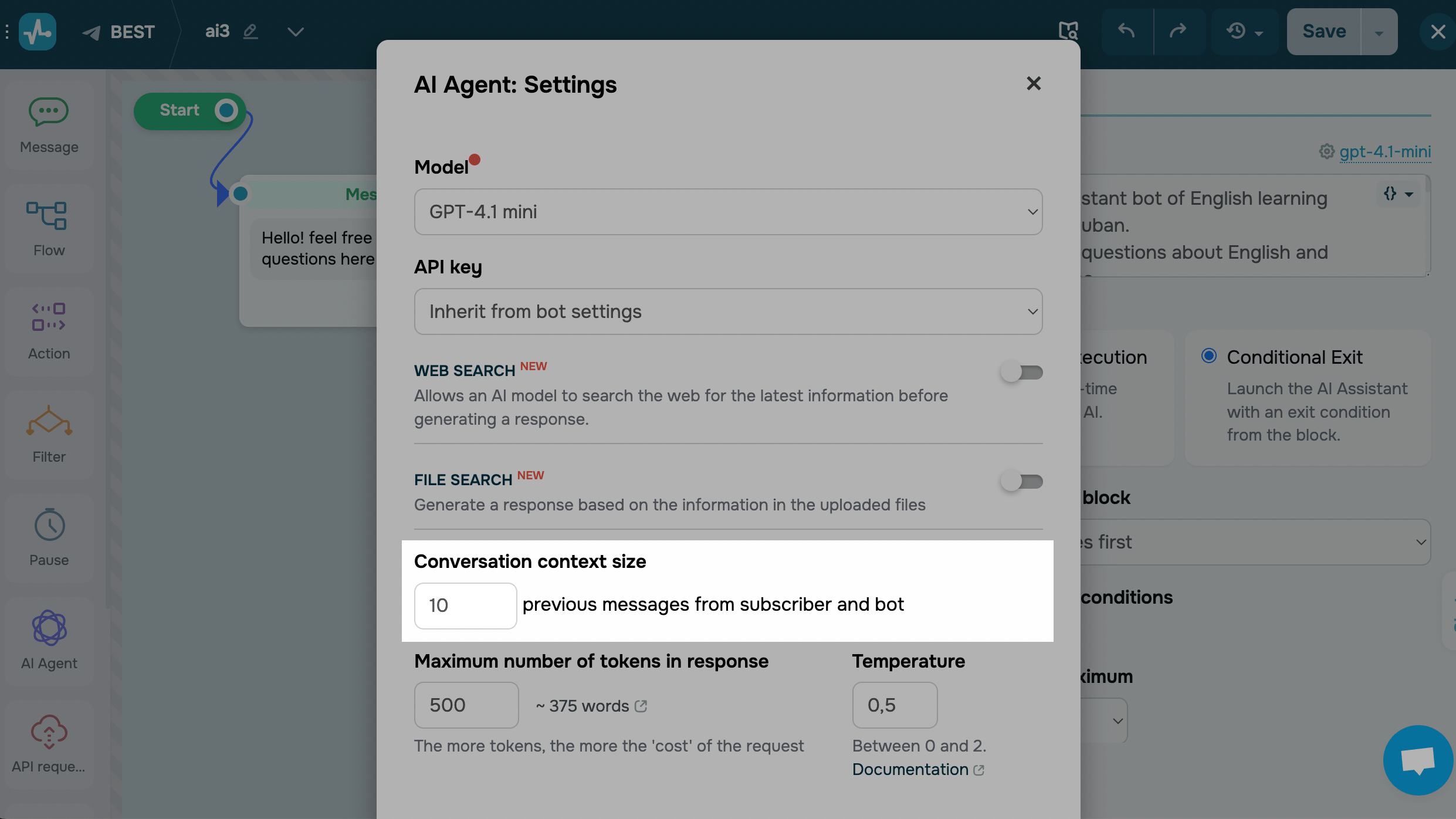
Set a conversation context size
In the Conversation context size field, type in the number of recent messages from your subscriber and chatbot you want to include in your AI request as conversation context.
Configure other settings
Some models let you fine-tune extra settings that affect how long responses are and how much they vary.
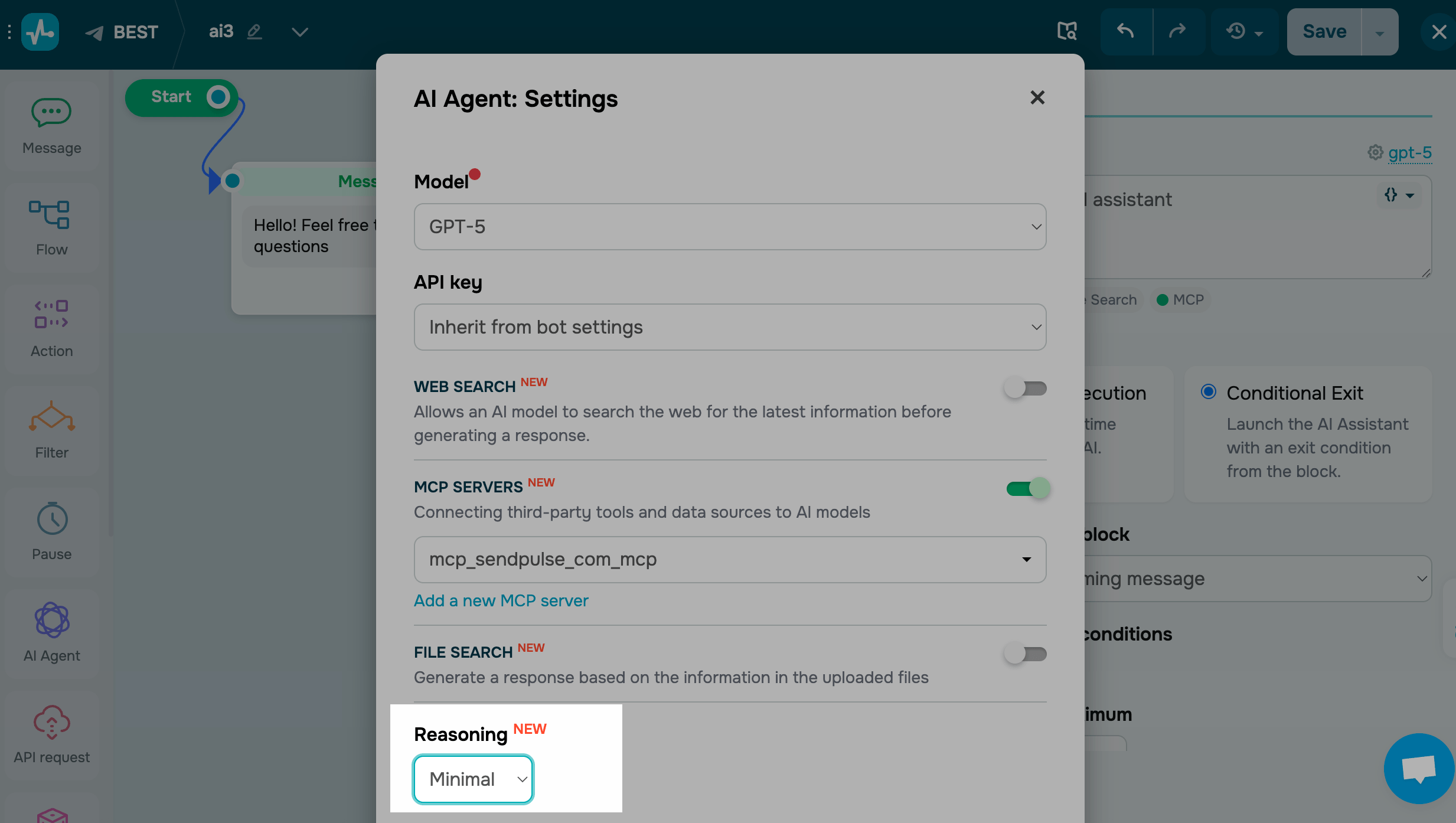
In GPT-5* models, the Reasoning option determines the level of analysis the model applies to requests before it responds.
Select one of the levels:
| Minimal | The fastest responses with the lowest token usage. |
| Low | A basic level of analysis suitable for most requests. |
| Medium | In-depth processing that improves accuracy but may slow responses. |
| High | The most thorough analysis, with the highest token usage and the longest response time. |
Any tool you use, including MCP, web search, and file search, requires at least a Low level of Reasoning.
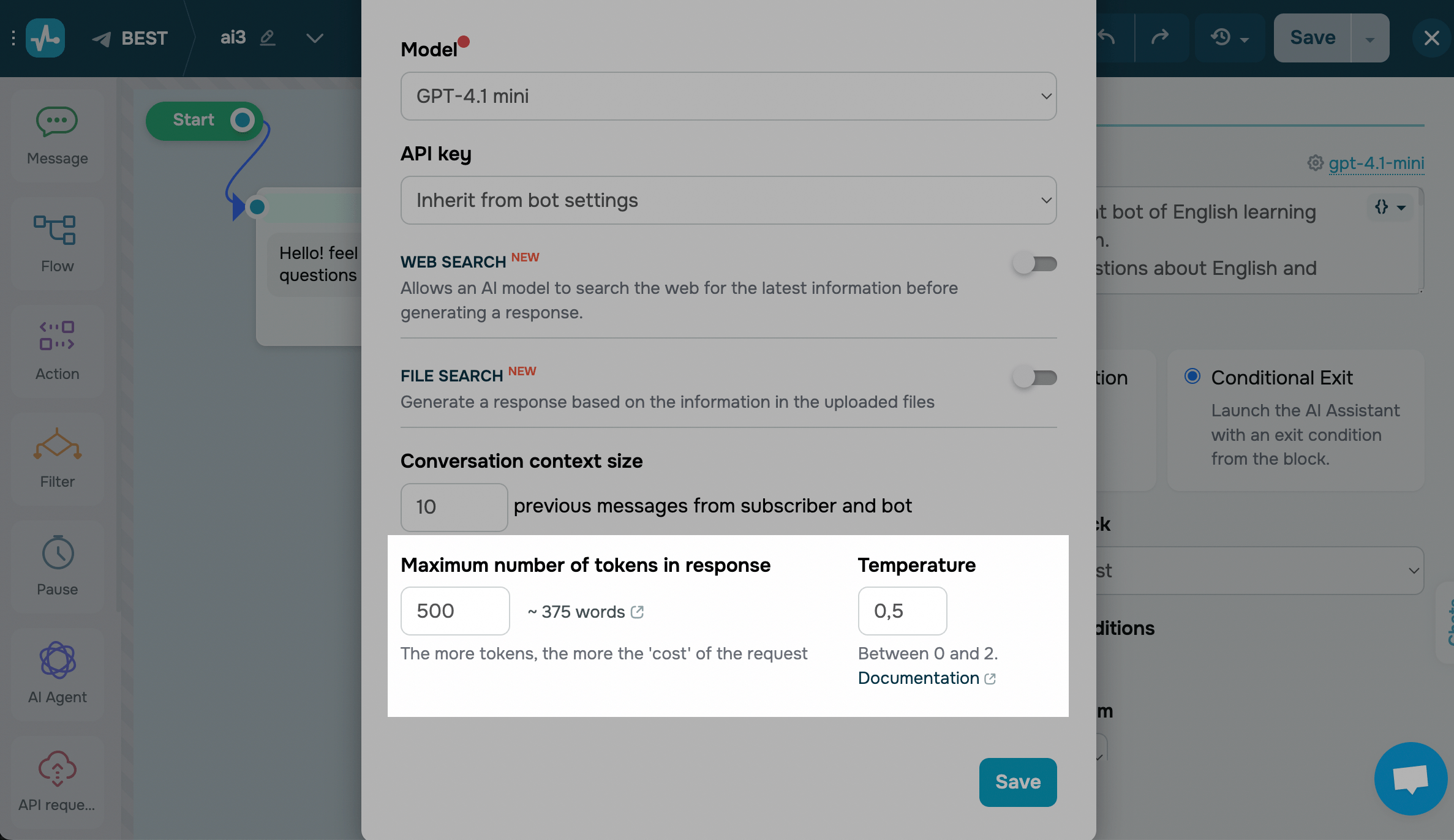
In the Maximum number of tokens in response field, set a number.
A token is a part of a word used for natural language processing. For English text, 1 token equals approximately 4 characters or 0.75 words. For other languages and more accurate calculations, use the OpenAI calculator.
In the Temperature field, choose a value between 0 and 2.
Temperature is a setting that controls how creative or precise the response is. For example, if you ask a question, the output will vary according to the selected temperature and be more abstract or more precise.
Higher temperatures, such as 1.3, will make replies varied and unpredictable. Lower temperatures, such as 0.2, will make them more comprehensive while retaining the same meaning.
Once you fill in the fields, click Save and test your chatbot.
Last Updated: 18.11.2025
or