View products
In the Products section, you can find and view your products. Let’s talk about the filters that can help you find products quickly and the product data you can view.
Find products
To find a product, enter its full name or item number in the search field.
When searching by partial name, you need to enter at least 3 characters.
You can also find products by criteria. Click Filter and select a criterion:
| Date created | Specify your time range, or select the Last ... days option |
| Type | Displays products by type (digital or physical). |
| Visibility |
Displays products with specified visibility. Choose whether to show hidden products or those displayed in your product catalog. |
| Stock |
Displays your stock. Enter an operator (equals, greater than, less than) and a number, and select a unit of measurement. |
| Purchases | Displays the number of product orders. Enter an operator (equals, greater than, less than) and a number. |
| Price |
Shows the product price. Enter an operator (equals, greater than, or less than), enter a number, and select a currency. If you’ve selected the Digital product type, you can filter products by subscriptions or one-time payments. |
| Category | Displays one or more categories. Select categories from the list. |
| Attribute set | Displays a specific attribute group. |
| Attribute | Displays attributes if you’ve selected a group. |
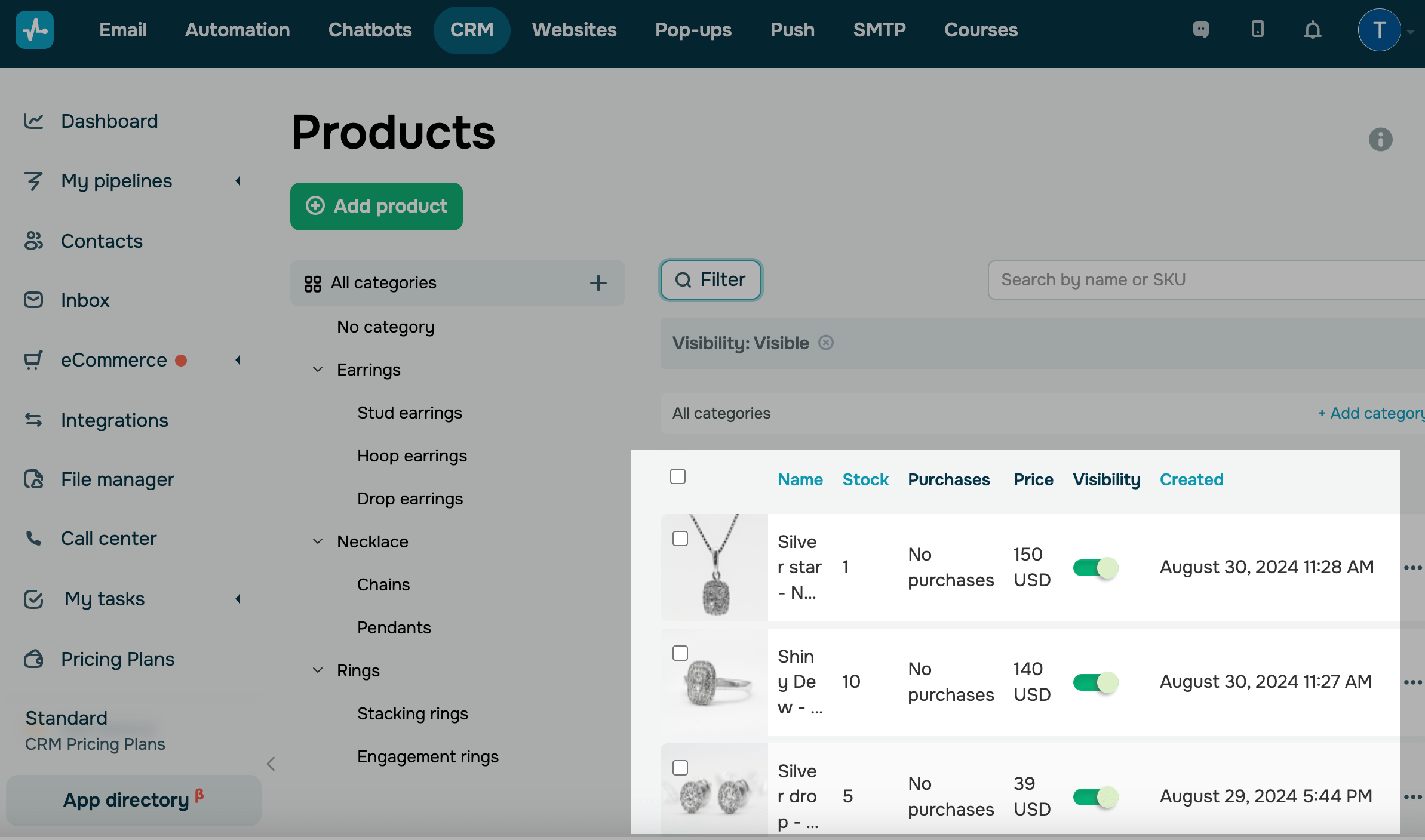
You can also click a blue column header to sort products by that column.
Last Updated: 20.01.2026
or