Edit your course status
Your course actions help you manage the course lifecycle — from launching to stopping or removing it. This way, you can reuse course templates, and keep your workspace organized.
In this article, we'll talk about how to manage course status.
Course actions
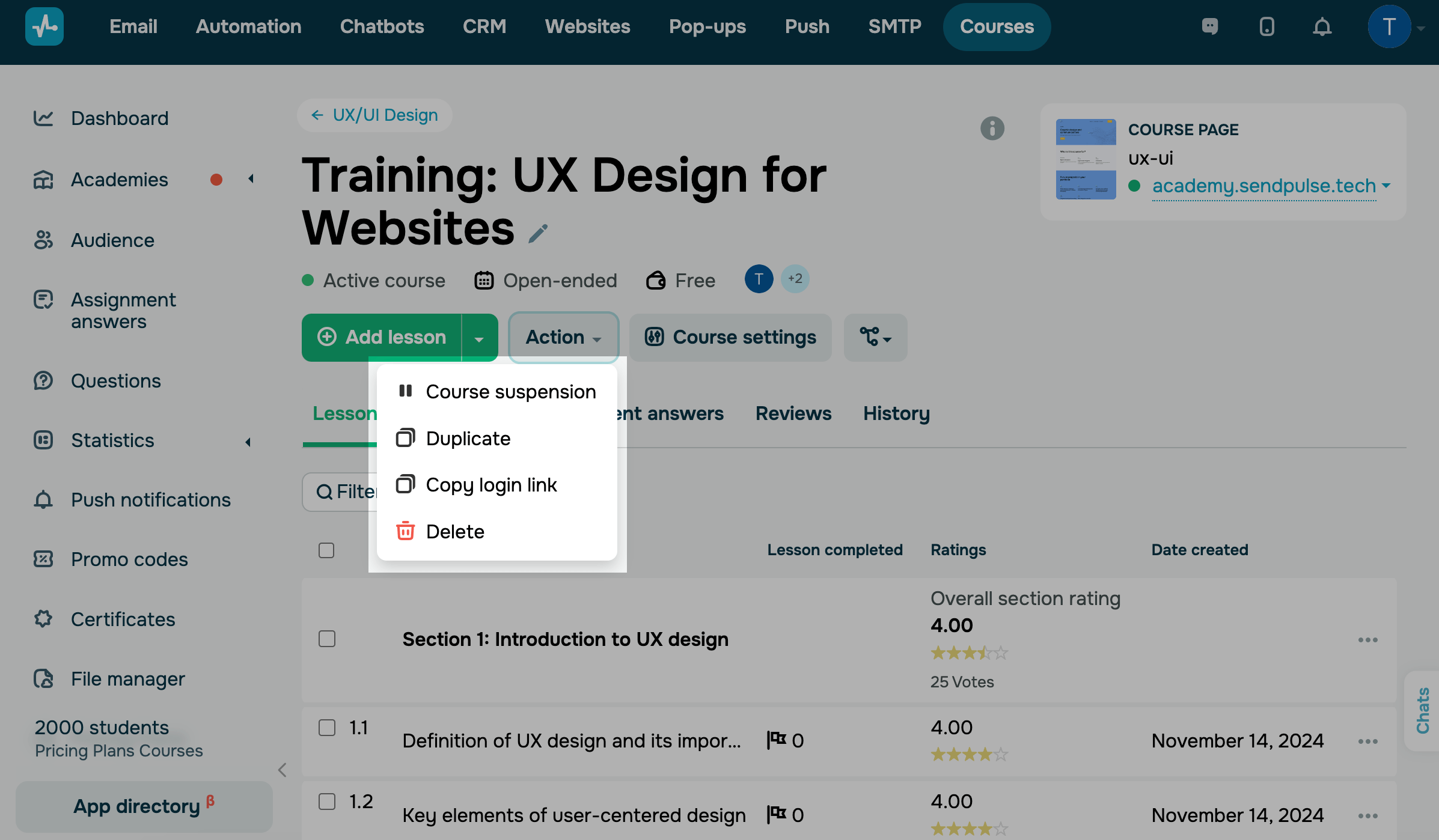
You can start, stop, duplicate, and delete your courses. To do this, click Action and select an action.
| Course suspension |
Your course will be stopped — it will become unavailable to students but will still be displayed in your account with the Students’ contact info and progress status will be saved, and those who passed your course will be able to view it even if it is inactive. Students’ certificates will also be saved in their accounts if they were received before the course was stopped. |
| Duplicate | Your course will be used as a template to create. To create a new course, enter your course name and add its link. Your program and course settings will be copied from the source course. |
| Copy login link | A student account login link will be copied to the clipboard. |
| Delete | Your course will be deleted from your account. Student data will be stored in their CRM contact cards, but all progress data and certificates will be permanently deleted. Your course content (uploaded images, videos, and other files) will be stored only in the file manager. |
Course availability
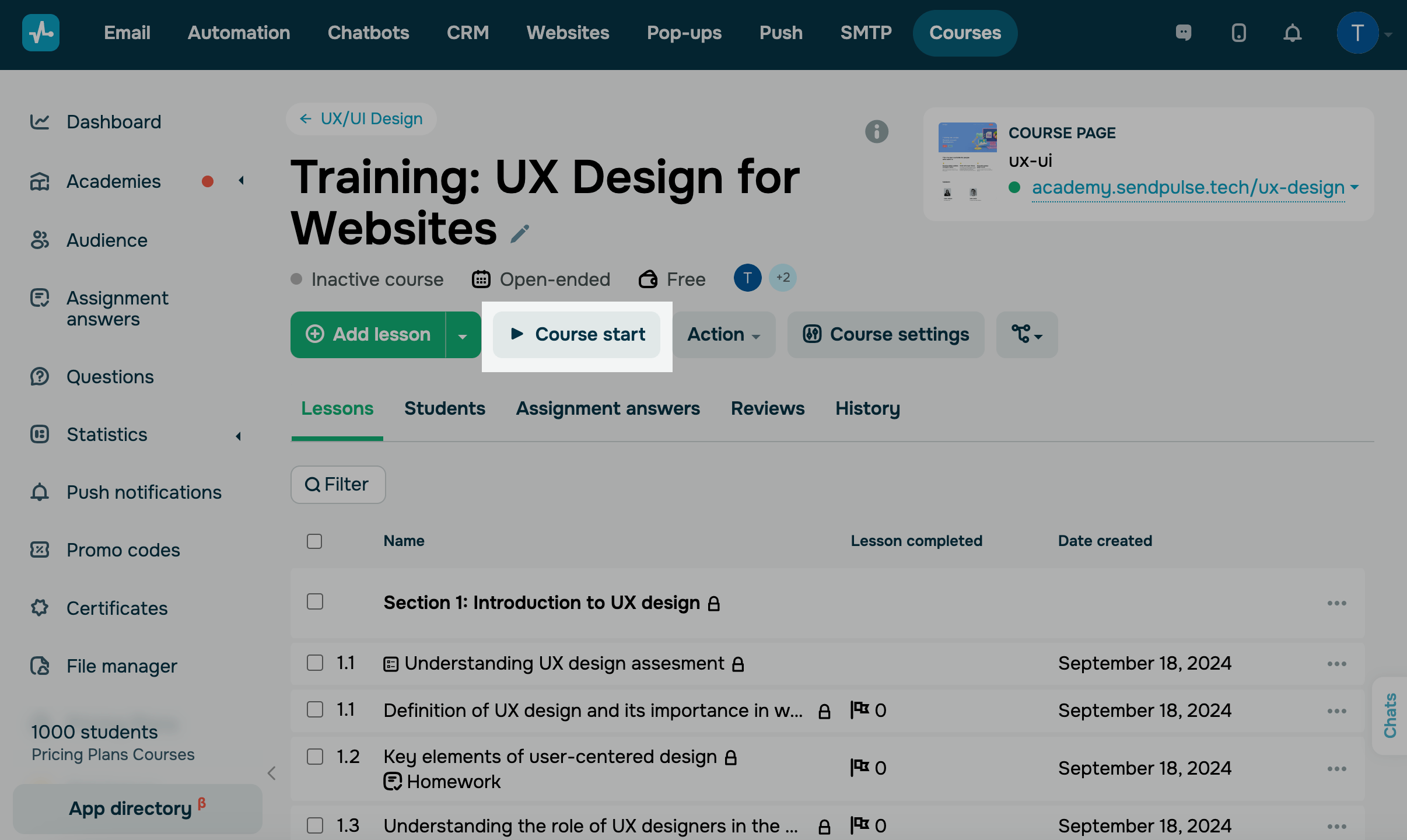
If your course hasn't started yet or has been paused, you can make it available to students. To do this, click Course start.
Afterward, your course will appear in the accounts of students who signed up for it.
Once your course is launched, you will not be able to change its payment settings.
Last Updated: 19.05.2025
or