Enroll students in a course via a pop-up
With the pop-up service, you can draw students to your course using your website. You can also allow students to quickly enroll or pay for your course via your pop-up form.
In this article, we will talk about how to set up a course registration pop-up.
Create a pop-up
You can create a pop-up in the Courses or Pop-up section.
In Courses
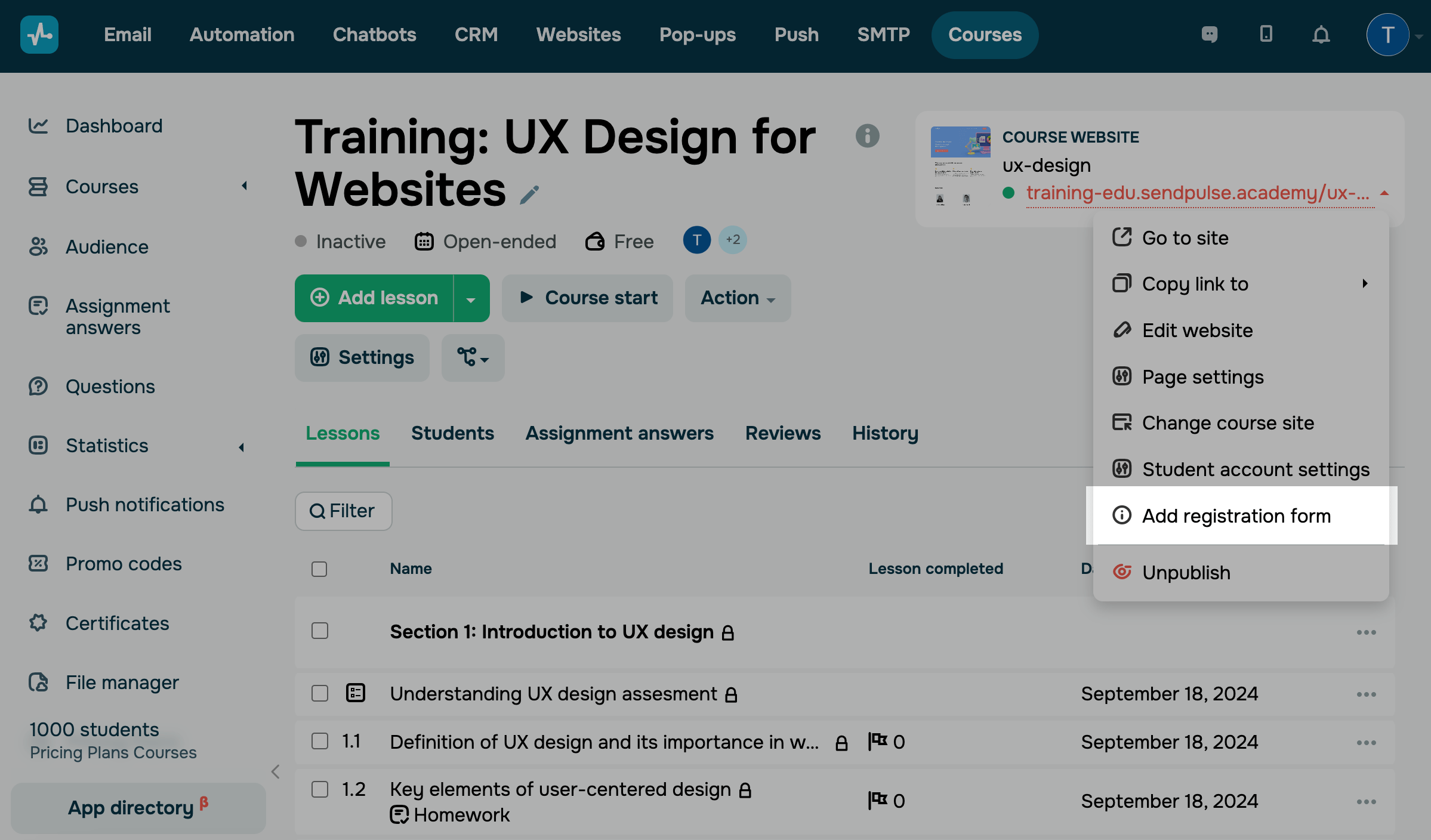
Go to Courses, select an academy or course if it has a dedicated page, and click the arrow next to the link in the upper right corner. Select Add registration form.
You will be redirected to Pop-ups to create a project and add a pop-up with a registration form. Read more about this in the following sections.
In Pop-ups
Go to Pop-ups, select a project, and create a pop-up.
Set up student enrollment
In the pop-up builder, add the Courses element.
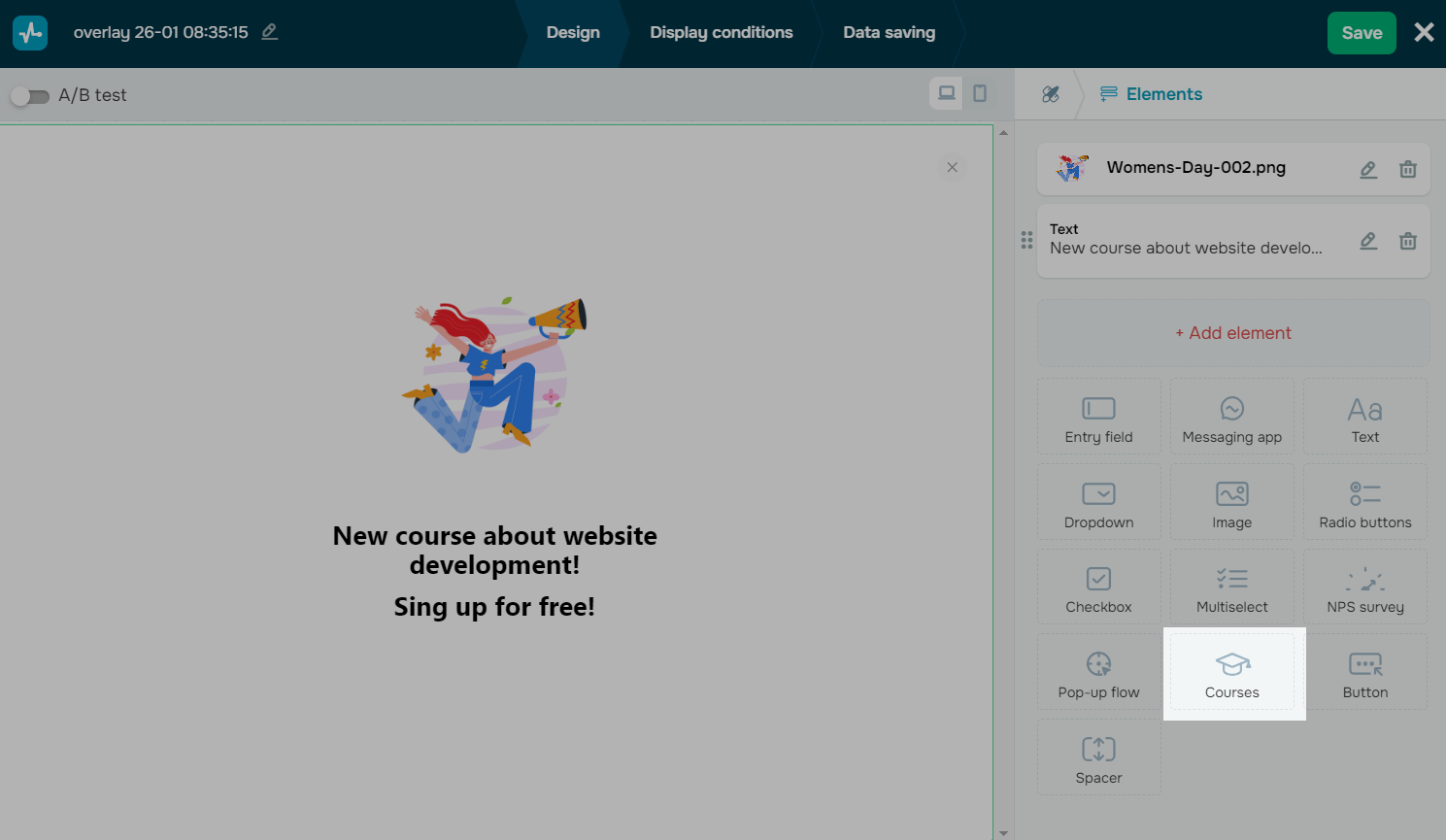
You can use a pop-up for any course.
If your course is free, visitors will need to fill out your registration form to enroll.
If your course is paid, users will be directed to your payment page after filling out your form.
For a paid course
In the left panel, turn on the Enroll users in a paid course toggle, and select a course in the List of courses field.
You can select only paid courses in your account.
To add a paid course or enable payments in an existing one, click Add payment type. Afterward, you will be redirected to the course builder, where you can create a course and configure pricing options.
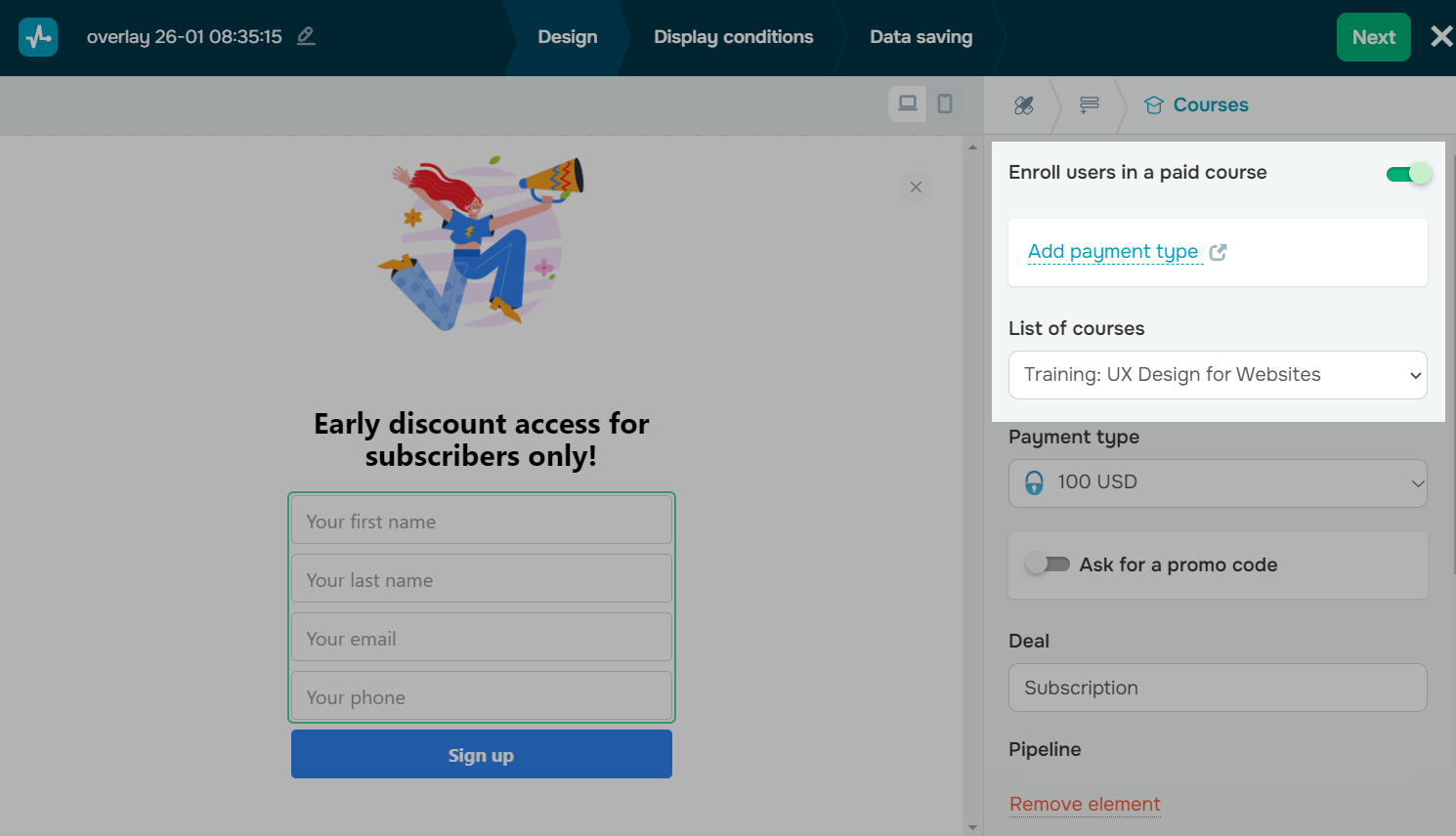
Select a payment method.
You can select a payment method only if you have previously selected it in your course settings.
You can also add promo codes to your courses. Students will be able to use them to get a discount when paying for courses.
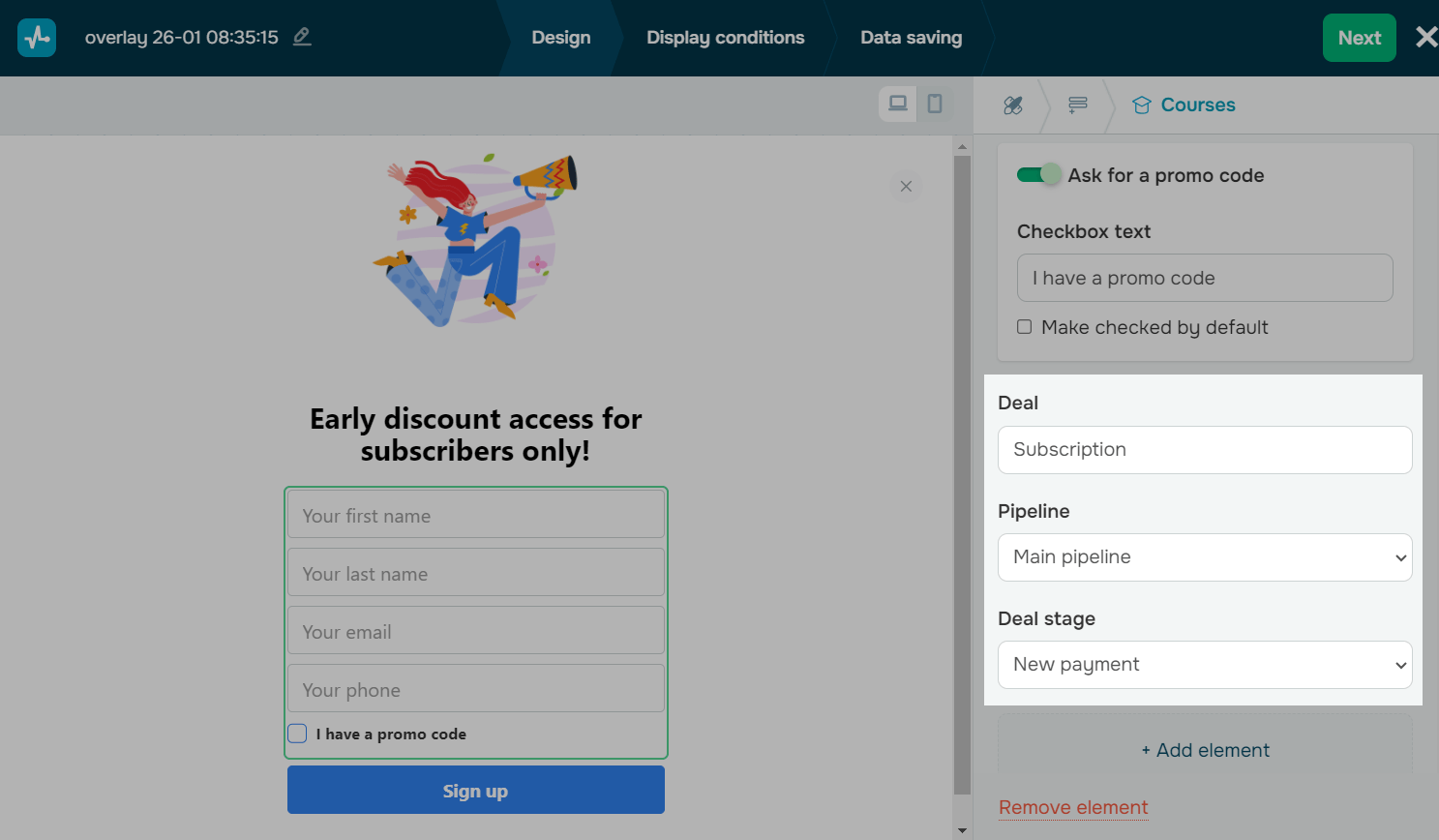
Turn on the Ask for a promo code toggle, and enter the text for your checkbox that students will be able to select to enter their promo codes. To show your promo code checkbox as selected, select the Make checked by default option.
Read also: How to manage and use promo codes.

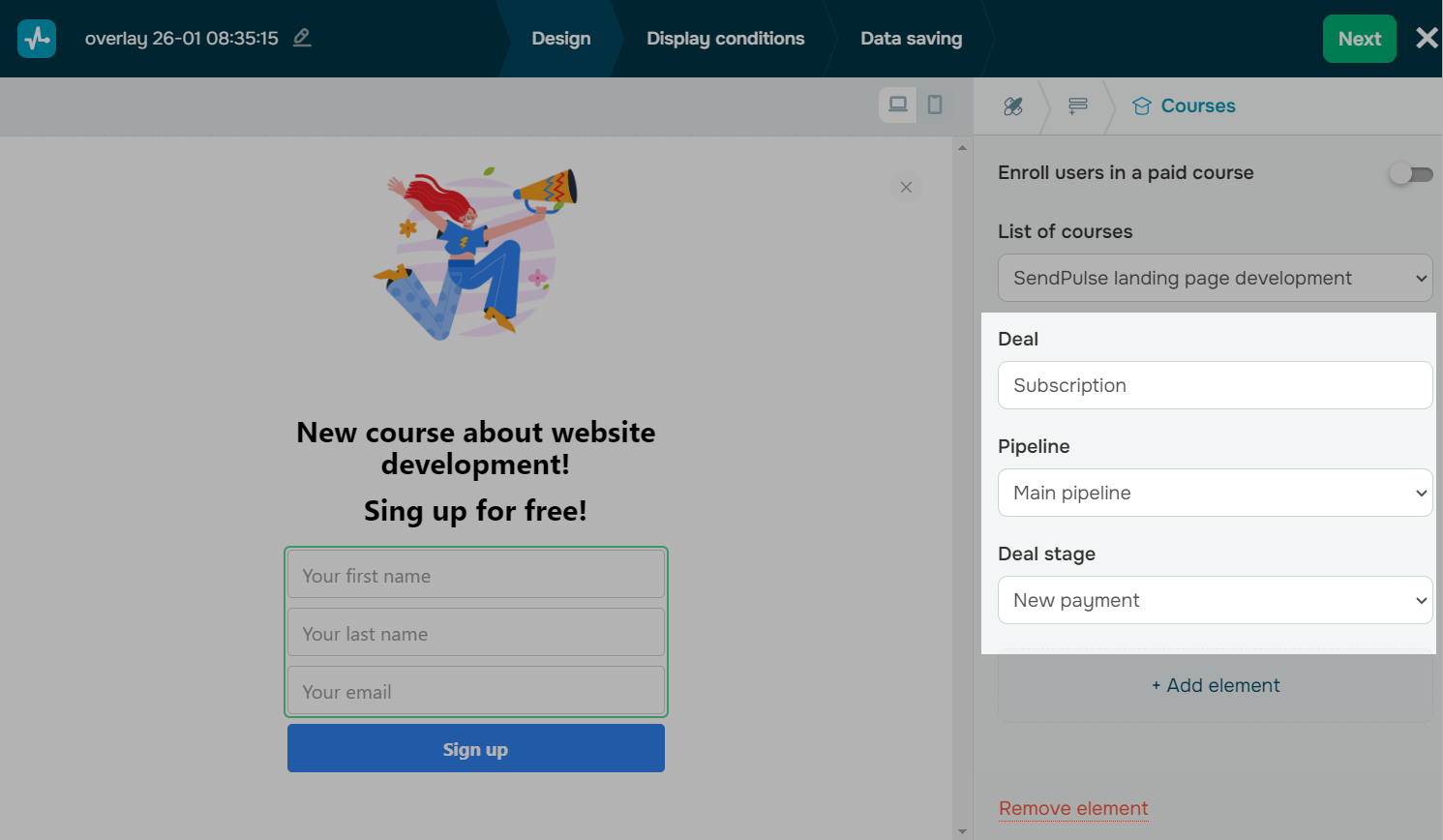
The contact is also saved to the CRM system during every payment. You can type in a deal name, and select a pipeline and its stage.
For a free course
In the left panel, turn off the Enroll users in a paid course toggle, and select a free course in the List of courses field.
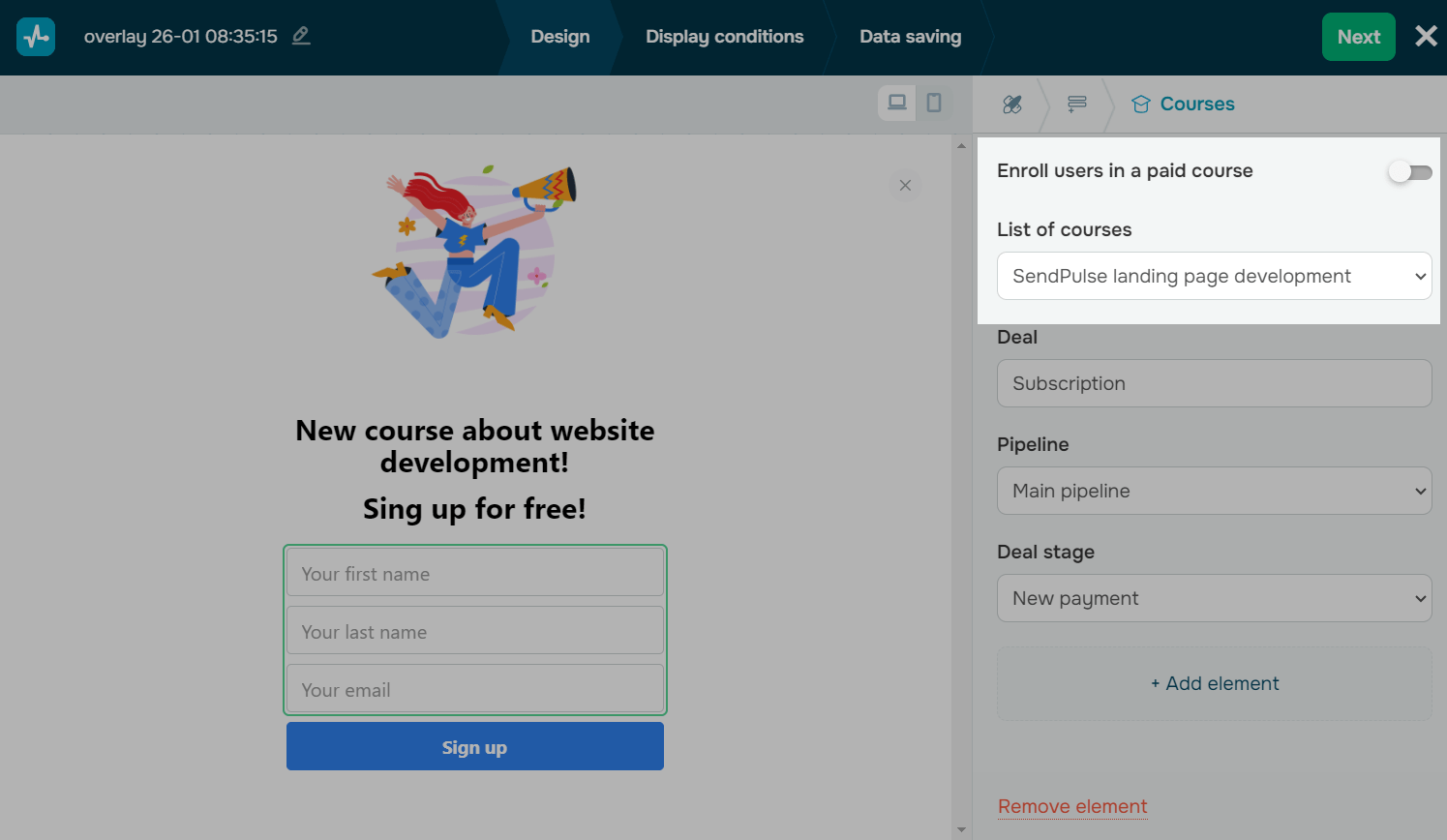
Afterward, configure CRM contact saving. You can type in a deal name, and select a pipeline and its stage.
Once you configure all the settings, click Save and publish.
All of your pop-ups are displayed in the Pop-ups section as separate tabs. Once you create your pop-up, you will be able to view it, track its statistics, and edit it.
Last Updated: 26.09.2024
or