Create and manage redirects in cPanel
Redirects seamlessly lead website visitors from one page to another when a link changes and help maintain search rankings and manage website traffic.
You can set up redirects for your SendPulse-powered website in the DNS panel where your domain is connected.
Let's talk about how to create and manage redirects through the DNS panel for various scenarios in cPanel.
Create a redirect
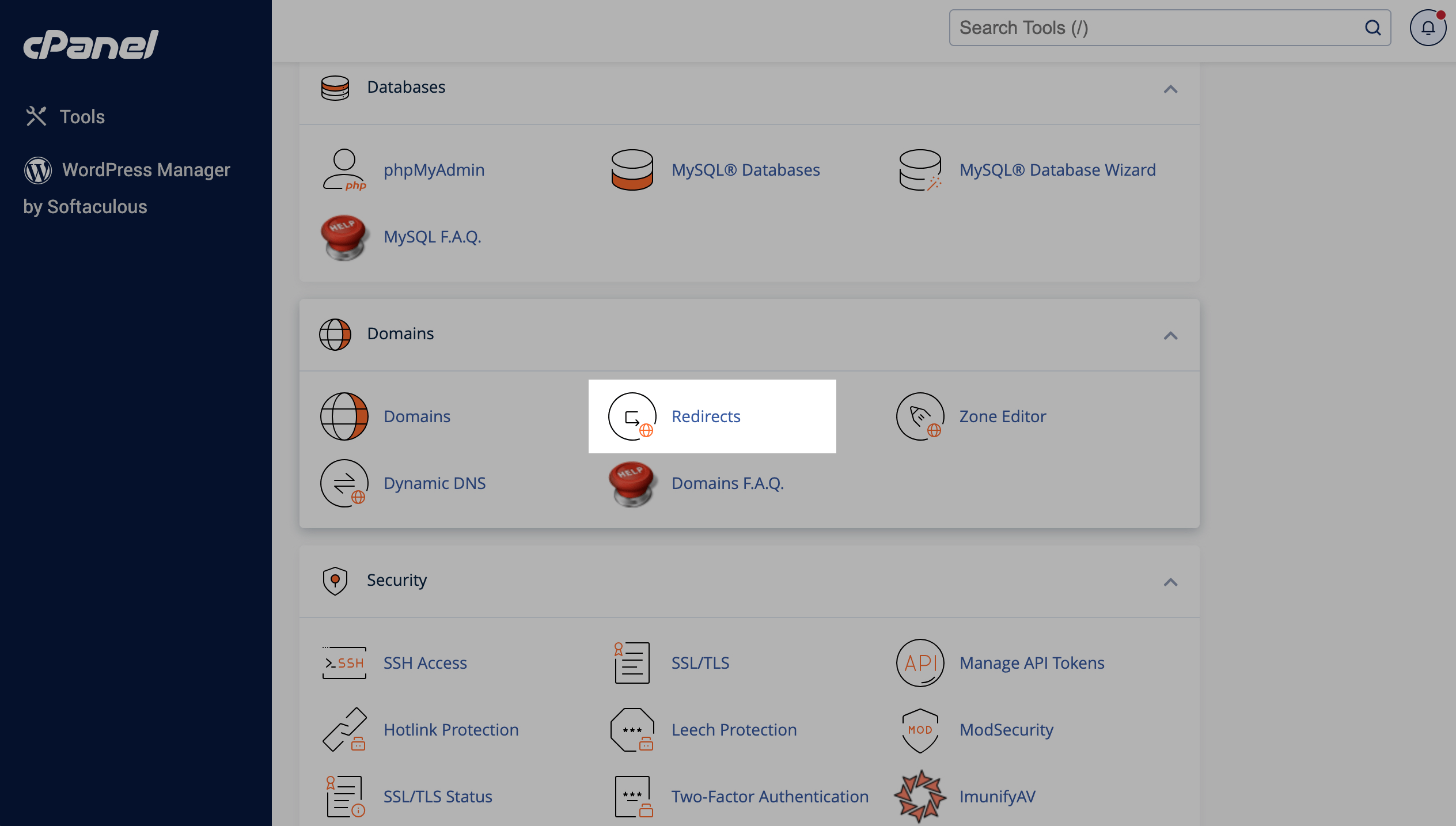
Go to Domains > Redirects.
Select a type
In the Type field, select a redirect type:
| Permanent (301) | Used when a page is moved permanently. It transfers the entire page weight and ranking and caches the new URL. |
| Temporary (302) | Used when a page is temporarily unavailable or moved. It does not transfer page weight and ranking and does not cache the new URL. |
Set up additional parameters
In the www. redirection field, select redirect rules for links with the www prefix:
| Only redirect with www | The redirect will apply to links with the www prefix. |
| Redirect with or without www | The redirect will apply to links with or without the www prefix. |
| Do not redirect www | The redirect will not apply to links with the www prefix. |
You can also select the Wild card redirect checkbox to redirect all your old domain URLs to the same URLs with your new domain and keep the same URL path.
Once you have selected the redirect settings, click Add.
Manage redirects
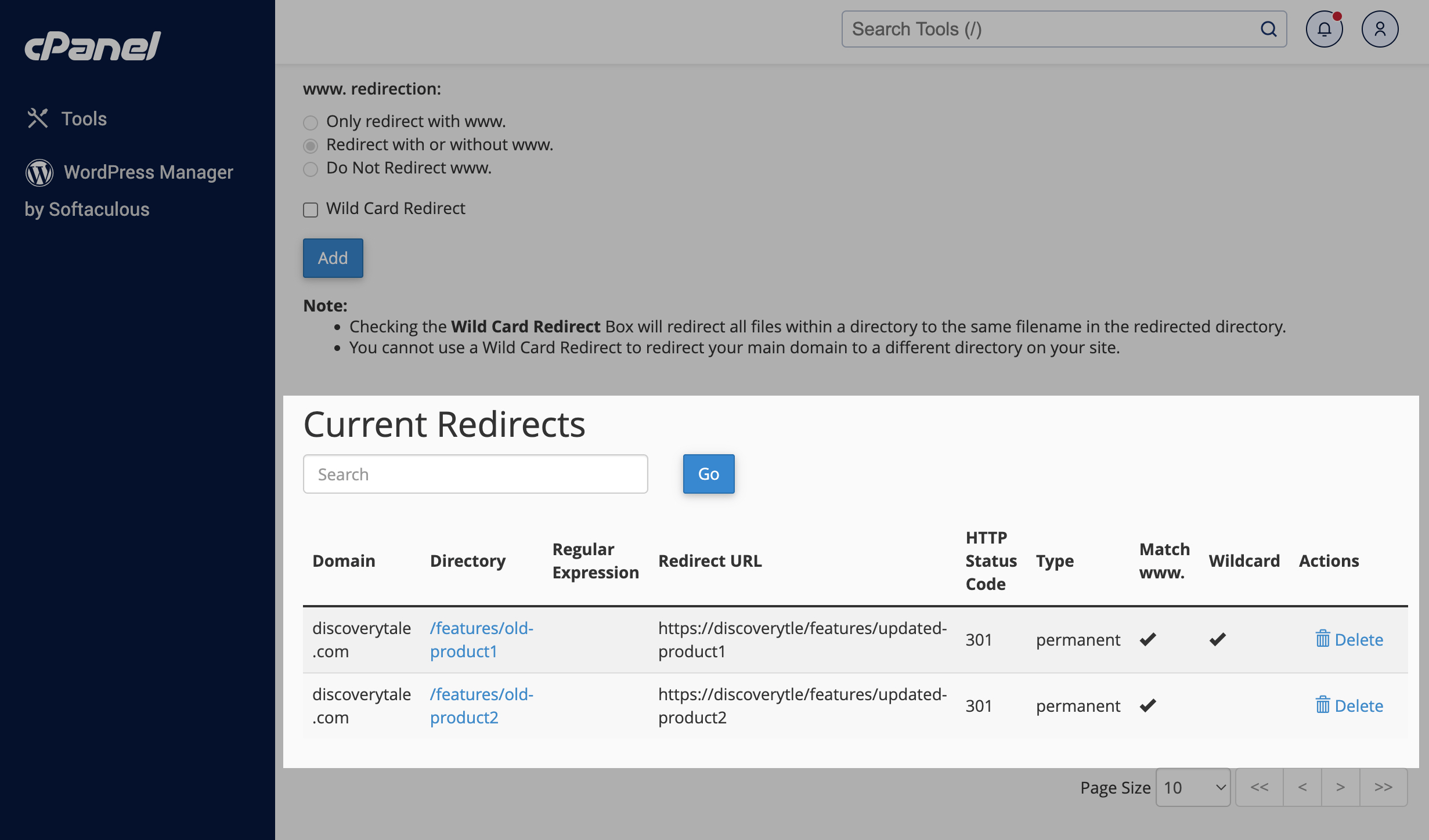
To view all your redirects, go to Domains > Redirects, and scroll down to the Current Redirects section. You can also use the search bar to find your domain.
You cannot edit redirects. To make changes to a redirect, you need to delete it and create a new one.
To delete a redirect, click the trash can icon next to it.
Redirect examples
Let's explore some common redirect scenarios and learn how to set them up properly.
Redirect from HTTP to HTTPS
SendPulse automatically redirects pages from HTTP to HTTPS if an SSL certificate is enabled — no additional configuration is needed.
Learn more: How to connect an SSL certificate to a domain.
Redirect from URL with www to URL without www
If you need to open all website pages without www and remove page duplicates, select the following settings:
| Type | Permanent (301) |
| Domain | Your website's domain.
Leave the next field blank. Example: |
| Redirect to | Link to your homepage.
For example: Your website homepage link will remain the same except for its protocol. |
| www redirect | Redirect with or without www |
| Wild card redirect | ✓ |
To set up more complex redirects, such as bulk duplicate redirects or additional rules, you'll need to make changes to the .htaccess file.
Last Updated: 07.11.2024
or