Show blocks based on conditions
You can show or hide website blocks to manage content visibility for specific users, at certain times, or based on URL parameters.
For example, offer a discount only after a user follows a link with specific UTM tags or display more content for logged-in visitors.
Let’s talk about how to set display conditions in blocks.
Select an action
Go to your block settings and click the pencil icon in Show block based on conditions.
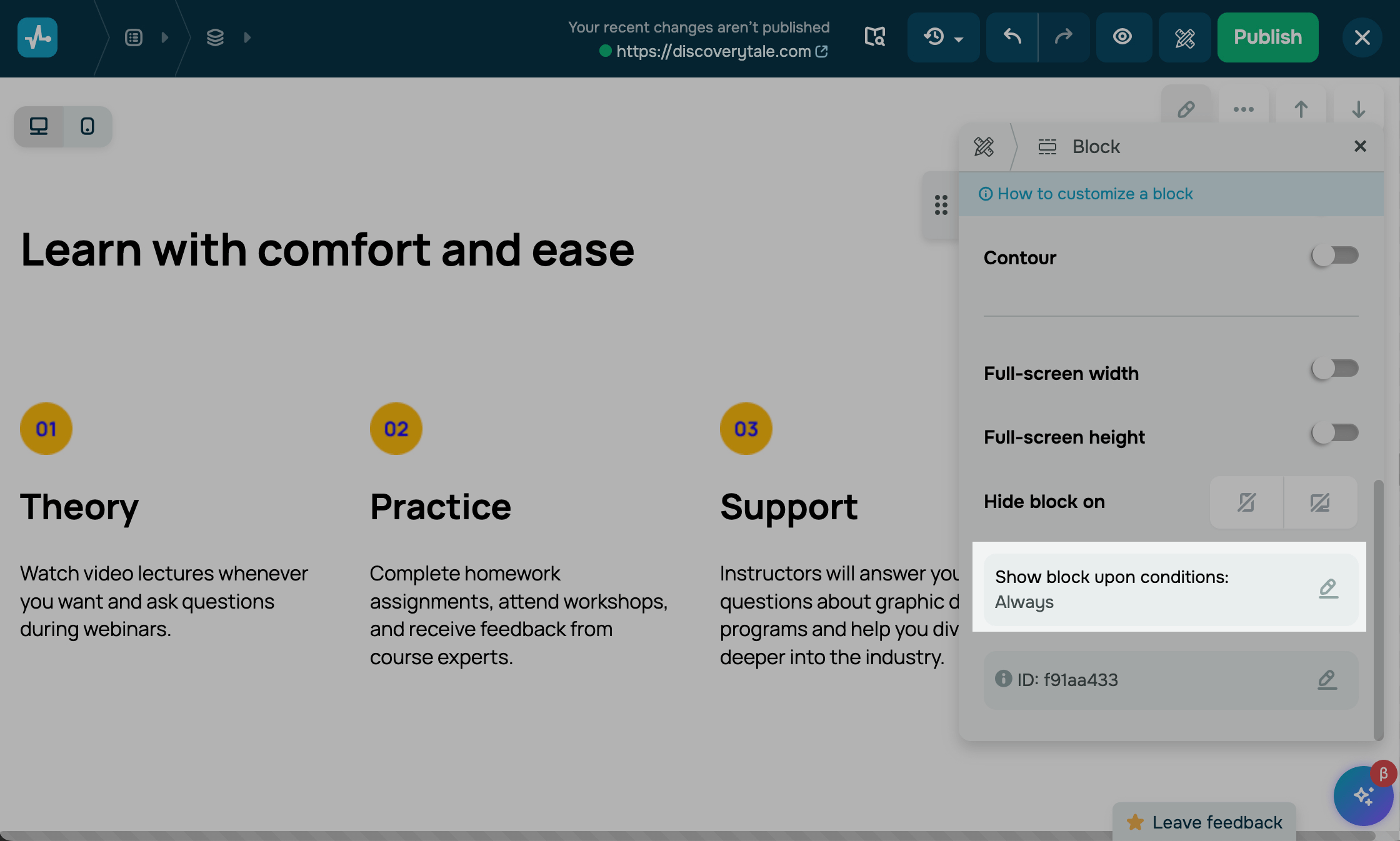
Choose an action to take:
| Show | Shows the block if your selected condition is met. |
| Hide | Hides the block if your selected condition is met. |
Select a condition
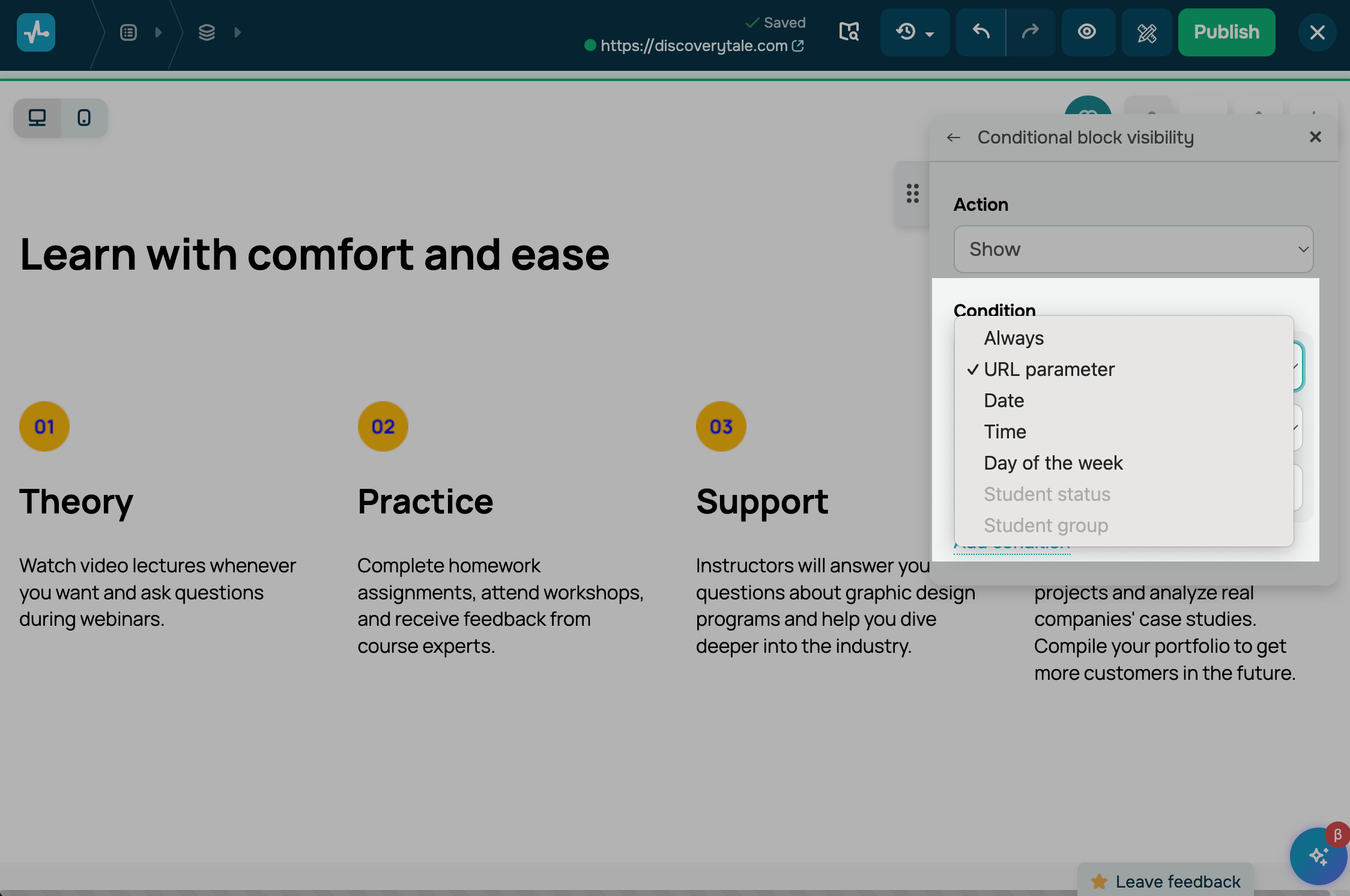
Choose a condition to show or hide the block:
| Always | Controls block visibility regardless of any conditions. |
| URL parameter | Controls block visibility based on link parameters.
Select the equals/does not equal/contains operator and enter the URL parameter. For example, show a block with a discount if the link contains the ?promo=true parameter. |
| Date | Controls block visibility on selected dates.
Select the equals/does not equal operator and choose a date. Dates are verified using your account time zone. |
| Time | Controls block visibility at specific times.
Select the equals/does not equal operator and choose a time. Dates are verified using your account time zone. |
| Day of the week | Controls block visibility on specific days of the week.
Select the equal /does not equal operator and choose days of the week. Dates are verified using your account time zone. |
| Student status | Controls block visibility based on student status.
Select the equals/does not equal operator. Then, select Logged in or Logged out in student account. For example, hide your login prompt block for authorized students. Applicable only to course websites. |
| Student group | Controls block visibility based on student group.
Select the equals/does not equal operator and choose a student group. For example, show a block with extra resources only to your advanced students. Applicable only to course websites. To identify a student’s group, they need to be logged in to their account. |
Combine conditions
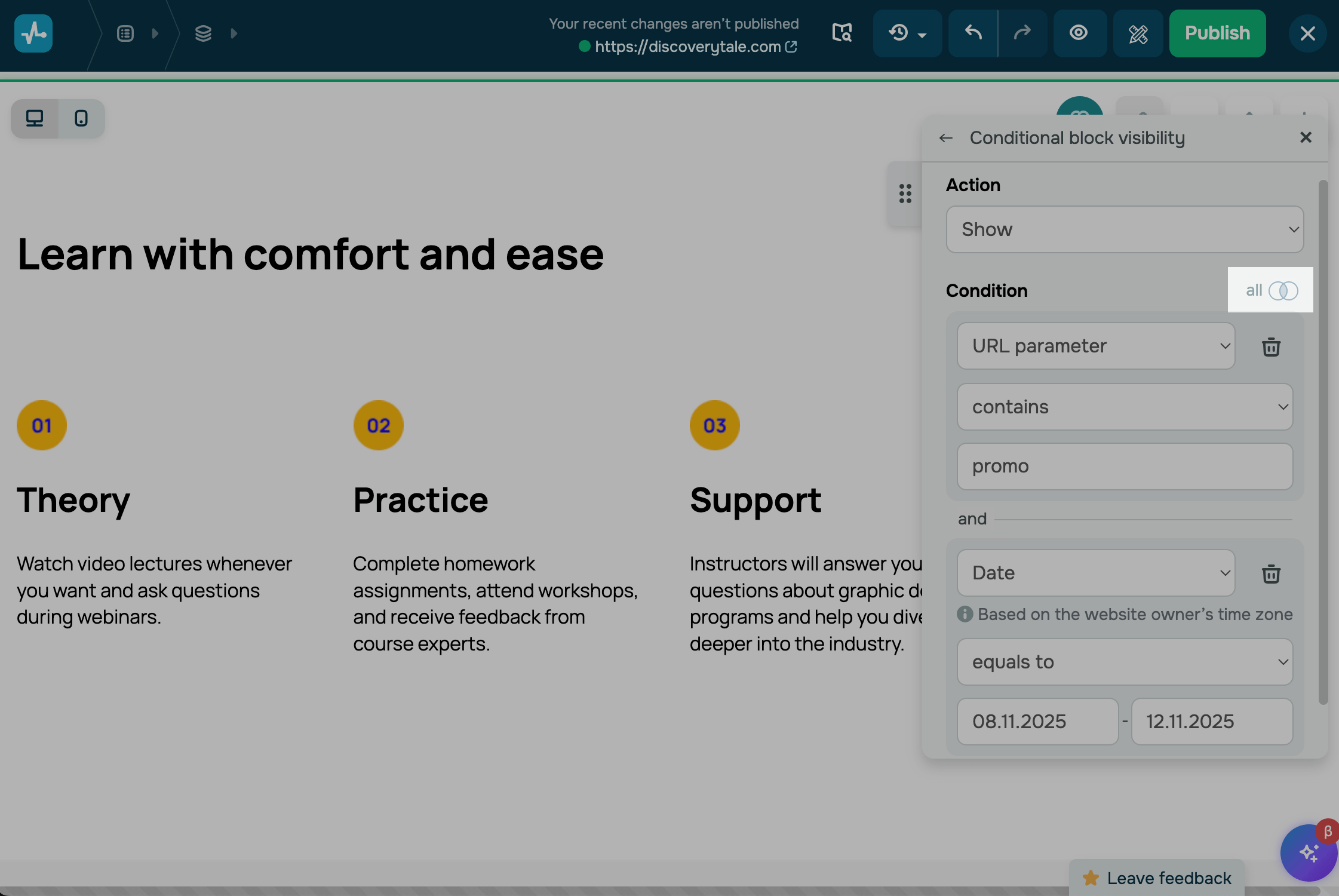
You can also combine conditions to create more flexible or precise content display scenarios.
To add related conditions, click Add condition and set it up the same way.
Select an operator to connect the conditions.
| and | Adds dependent conditions and checks if all conditions are met. |
| any | Adds alternative conditions and checks if any condition is met. |
Last Updated: 08.11.2025
or