The Image pop-up element
Use this element to add more images to your pop-up, enhance users’ experience, or attract attention.
Unlike the Cover element, the Image element does not fill your pop-up.
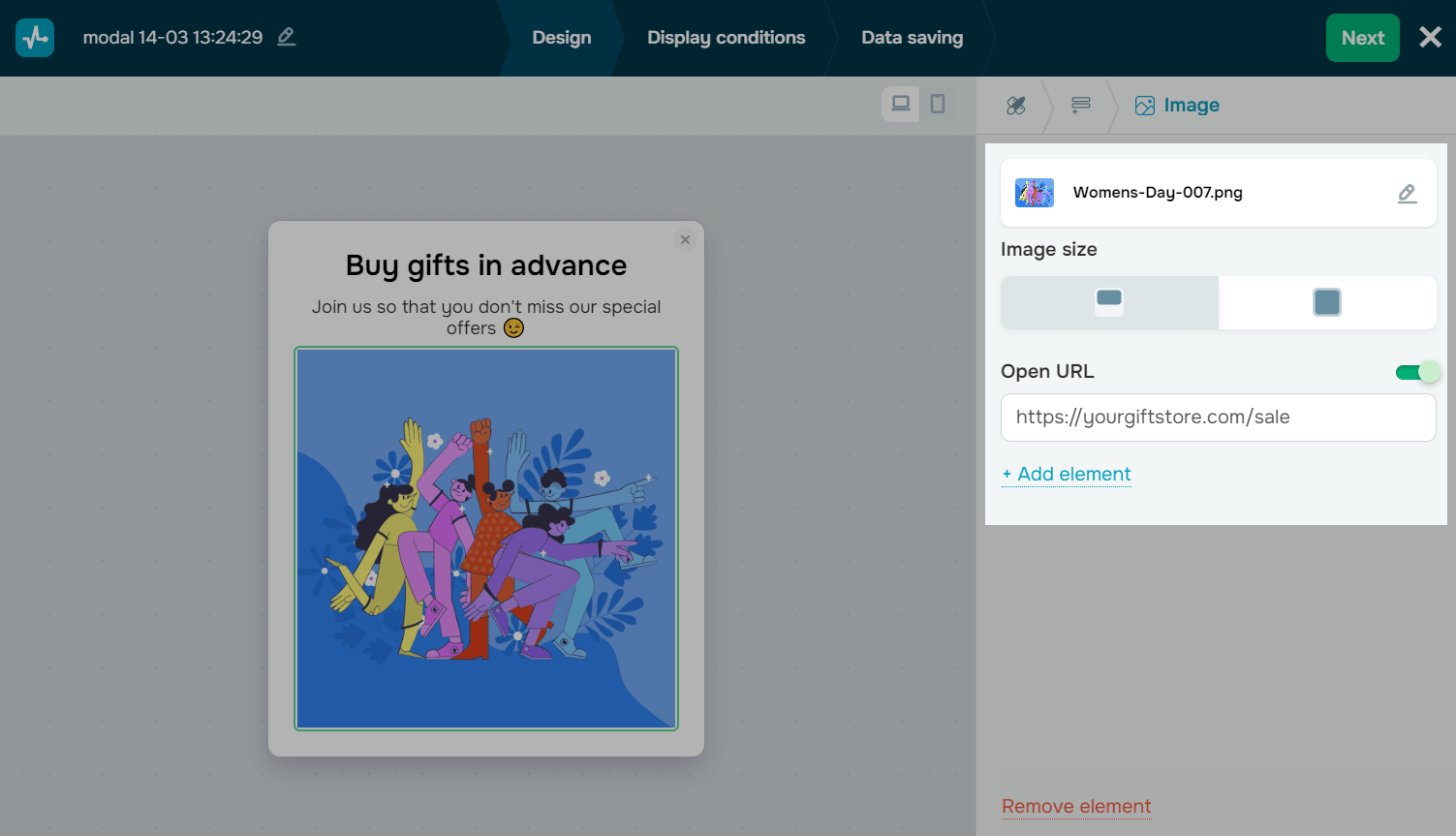
In the pop-up builder, select the Image element and go to settings.
Add an image
Click Upload image and select it from the file manager.
To generate an image using AI, click the icon on the right side of the button.
Customize the image
Customize your image in the following sections:
| Appearance |
Configures how the image appears in your pop-up. Decide how to show the image. Options include: Fit (left icon) keeps the full image within your pop-up. Fill (middle icon) scales the image to fill the available space. Parts of the image can be cropped. Free position (right icon) resizes and repositions the image, such as placing it outside your pop-up. |
| Width |
Sets the image width in pixels. Increase the value to make the image wider than your pop-up. Applicable only to Free position. |
| Position |
Places the image relative to its default position. Adjust the position to draw more attention to the image. Options include: X moves the image left or right in pixels. Use negative values to move the image left and positive values to move it right. Y moves the image up or down in pixels. Use negative values to move the image up and positive values to move it down. Rot. rotates the image in degrees. Applicable only to Free position. |
| Rounding |
Rounds image corners in pixels. |
| Open URL upon click |
Redirects users to an external page when they click the link. Use this option for banners and promo images instead of adding a button. Turn on the Open URL upon click toggle and add a link. |
Last Updated: 16.06.2025
or