View chats
Chats from different bots are organized in a single list. You can filter them by messaging app, chat type, and assigned team member. You can see messaging app icons on each bot tab.
Messaging app
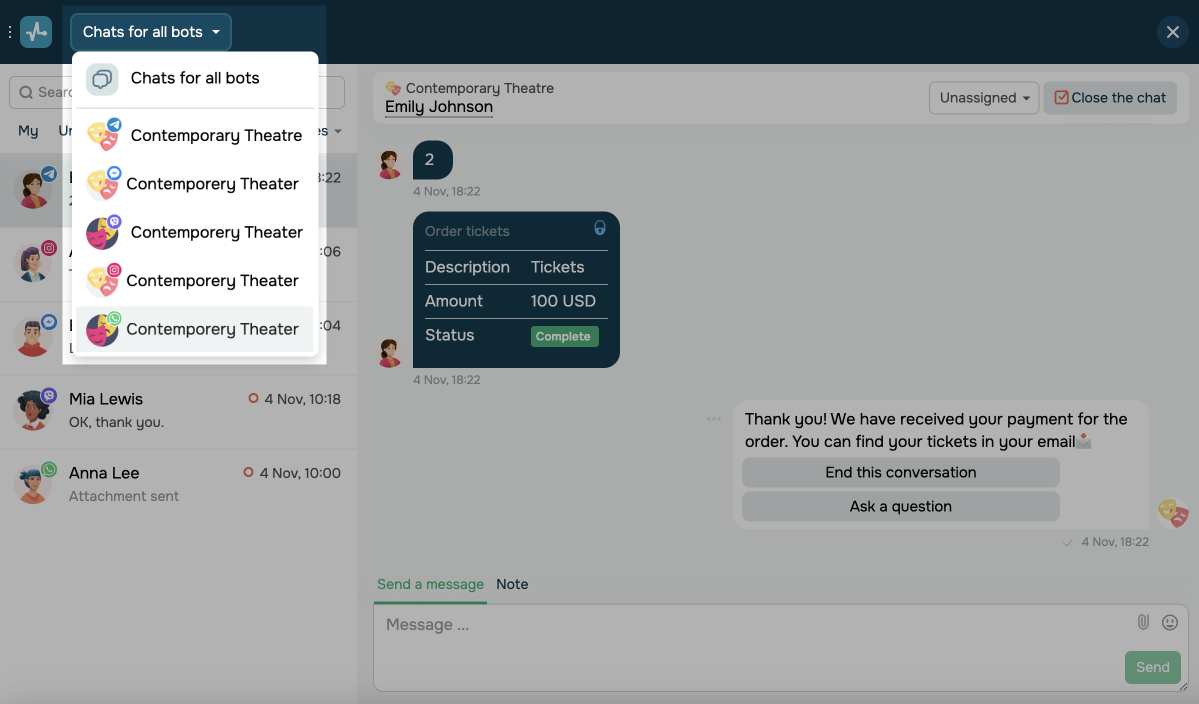
To view bot chats from a specific messaging app, select it from the dropdown list in the Chats for all bots section.
Assigned team member
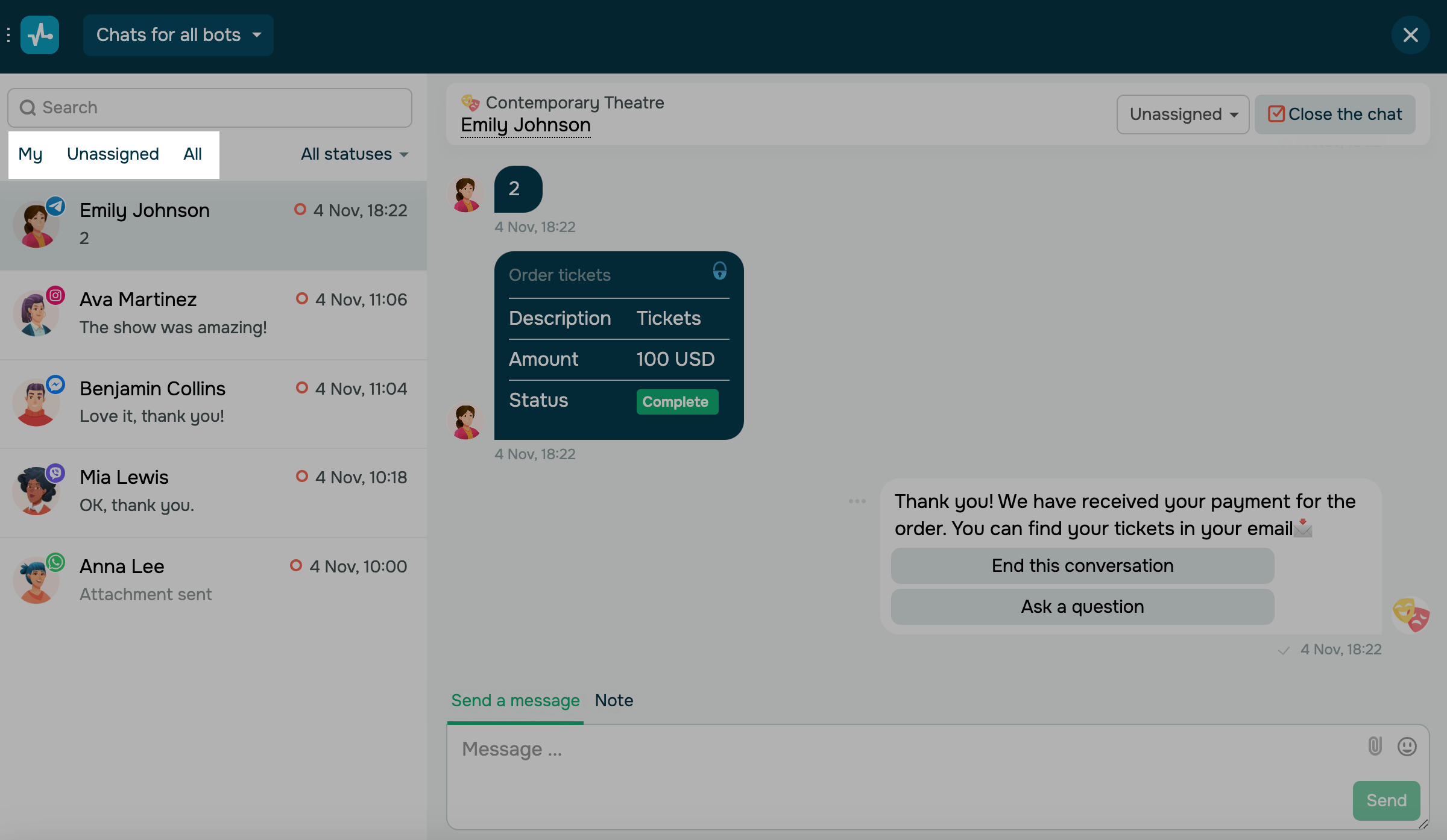
You can filter chats by assigned team member: my, unassigned, or all.
Chat status
The bot's chats are displayed in three lists: open, unread, closed, and all chats.
| Open |
Chats with unfinished subscriber conversations. An empty red circle indicates this status. Chats open when a subscriber launches the Standard reply flow, reaches the Action element, or when you open a chat manually. |
| Opened unread |
Chats that have already been opened but have unread messages. A filled red circle indicates this status. Unanswered messages received after the last reply appear in bold on the list. |
| Closed | Chats you've closed. An empty gray circle indicates this status. |
Under the statuses, you can also view the number of unread chats and mark them as read.

To mark a chat as unread, click the three dots next to it and select Mark as unread.
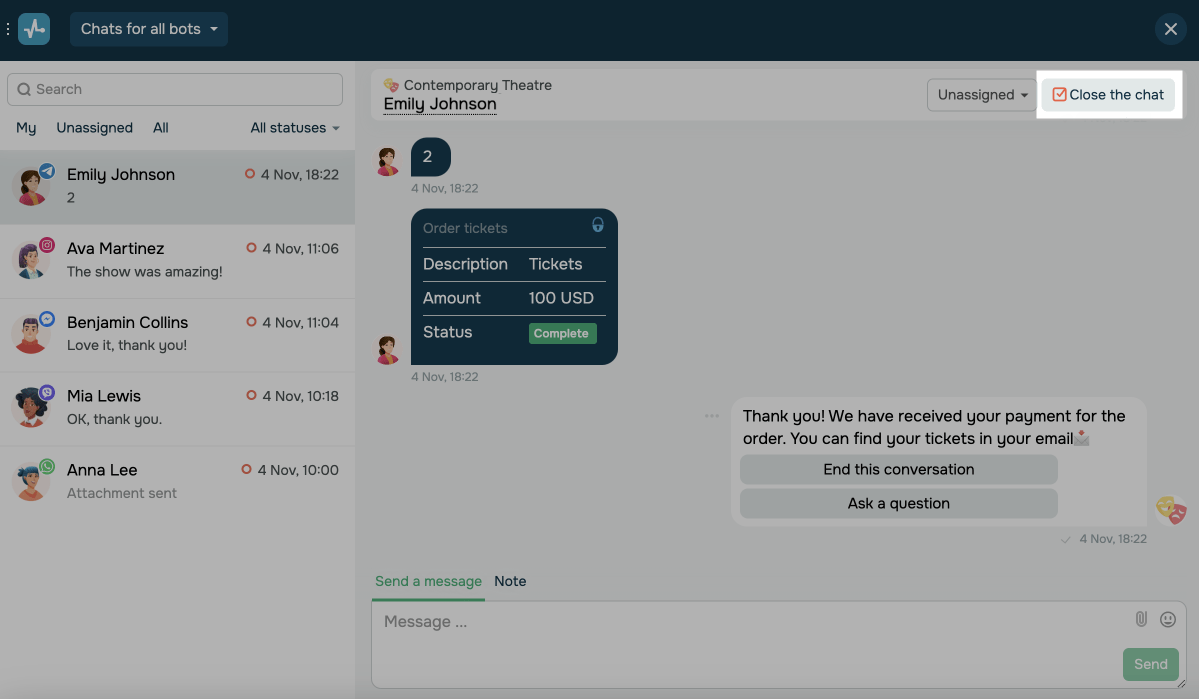
To close a chat, go to it and click Close the chat.
Subscriber filter and search
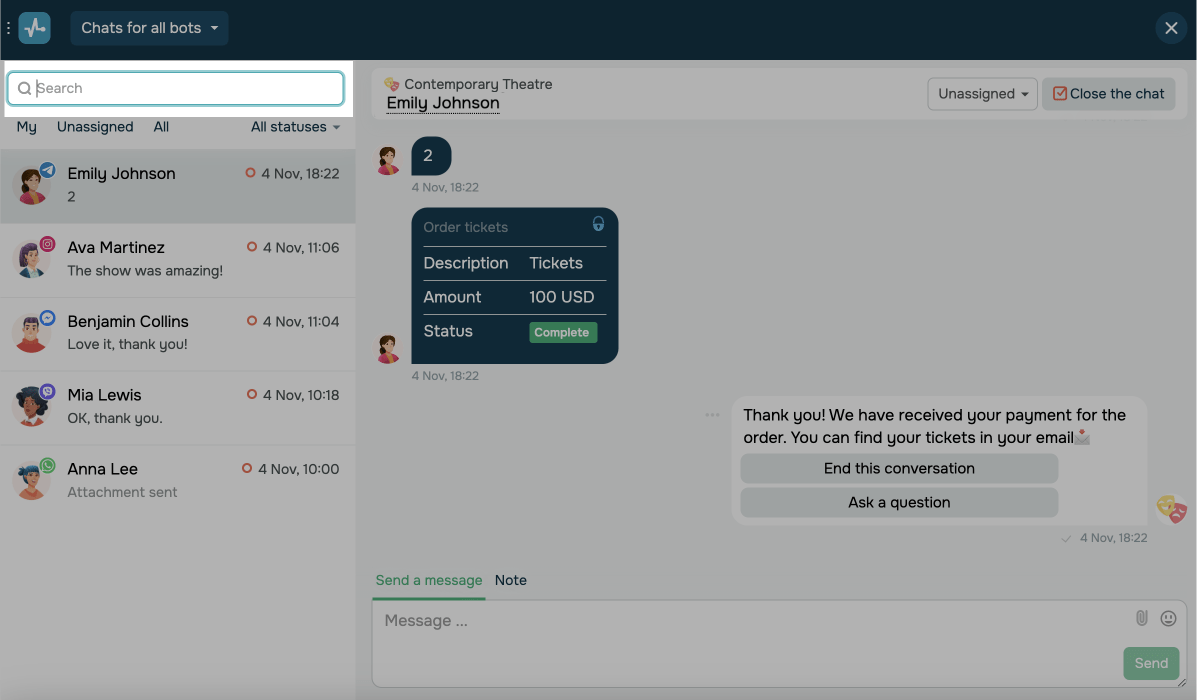
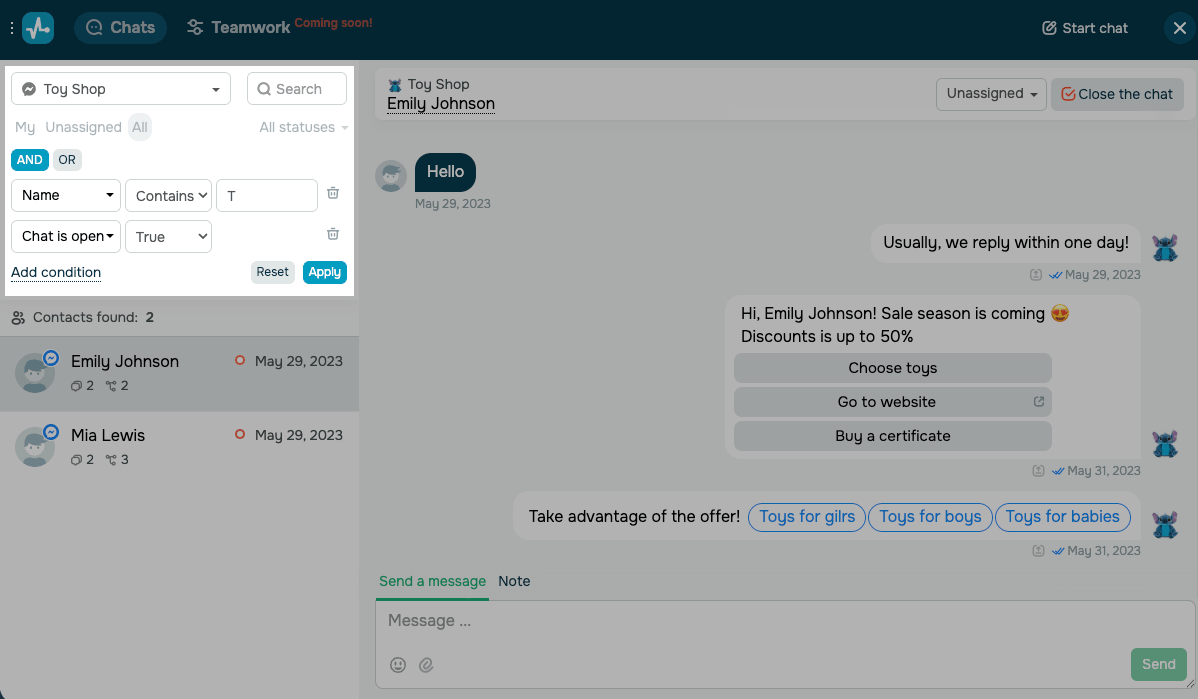
You can also find a subscriber using search. To find a subscriber by name, enter it in the Search field above the chat list. To filter contacts by attribute, use the Select condition dropdown next to it. Available conditions vary depending on the chatbot scope. To apply selected filters, click Apply.
Filter across all chatbots
If you select Chats for all bots at the top, you can filter the chat list by conditions that are common to any chatbot channel.
You can choose from the following conditions:
| Assignee |
Filters chats by the team member assigned to the conversation. Choose a teammate from the Select value dropdown, or select Unassigned to show chats with no assignees. |
| Last activity |
Filters chats by the date of the most recent message. Choose a comparison operator and select a date from the calendar. Options include: After — matches dates later than the selected date. Before — matches dates earlier than the one selected. Between — matches dates within the selected range. |
| Subscription date |
Filters chats by the chatbot subscription date. Choose a comparison operator and select a date from the calendar. Options include: Equals — matches the selected date exactly. Not equals — matches all dates except the one selected. Between — matches dates within the selected range. After — matches dates later than the one selected. Before — matches dates earlier than the one selected. |
Filter within a specific chatbot
When you choose a specific chatbot from the top dropdown, the Select condition picker expands with extra fields based on that chatbot's platform and audience.
You can choose from the following conditions:
| Conversation conditions | Filter the chat list by Name, Tags, Source, Was in flow, Was in campaign, Chat is open, Incoming messages, or Unread messages. |
| Platform-specific attributes |
Filter the chat list by platform-specific attributes. Supported attributes include @username for Telegram, Instagram, and TikTok, Telegram ID for Telegram, Phone and Country for WhatsApp, and Current page URL for live chat. Click the dropdown to see what's available for your chatbot. |
| Custom contact variables | Filter by any variable from your selected chatbot's audience, such as order_id or name. |
Telegram chatbots support search by @username and by Telegram ID. Since usernames can be changed or removed, the Telegram ID is a more reliable way to identify users.
You can also apply multiple filter conditions. To add a condition, click Add condition under the filter row.
When two or more conditions apply, use the AND toggle to match all conditions and the OR toggle to match at least one condition.
Last Updated: 01.07.2025
or