View and edit subscriber data in chats
Subscriber cards show and store key user details to help you personalize conversations.
If a user shows interest in a product during your conversation, you can save this information to a variable or apply a tag. You can also update their data in the CRM system to trigger automated flows.
To learn more about a subscriber, go to their card on the right.
Contact data
Depending on the messaging app, you can view the following data:
| Contact information |
At the top, there is their profile picture, name, and social media username. Their email address and phone number are stored in variables. In your Telegram group chat, you can view the number of subscribers and copy the share link or invite link. |
| Bot subscription status | Under a user’s avatar and name, you can see their bot subscription status, the date when they subscribed, and the last activity time. |
| Instagram subscription status | In chats with Instagram chatbot users, you can see the status of their subscription to your Instagram profile and your subscription to users' profiles. |
| Facebook ads |
In Facebook Messenger, Telegram, and Instagram chats, you can see which advertising campaign your subscriber came from. In the Advertising campaign field, you will see the advertising campaign name listed in your Facebook account. When you click the link, you will be redirected to a page where you can view your ad. If a user sends you a message after viewing your Facebook or Instagram ad, their message will be displayed as a response to your corresponding ad campaign. Read also: How to create a Facebook Messenger ad and launch the chatbot it links to, How to create an Instagram Ad via Facebook to run a chatbot, How to create a WhatsApp ad via Facebook to start a chatbot conversation. |

Manage user data
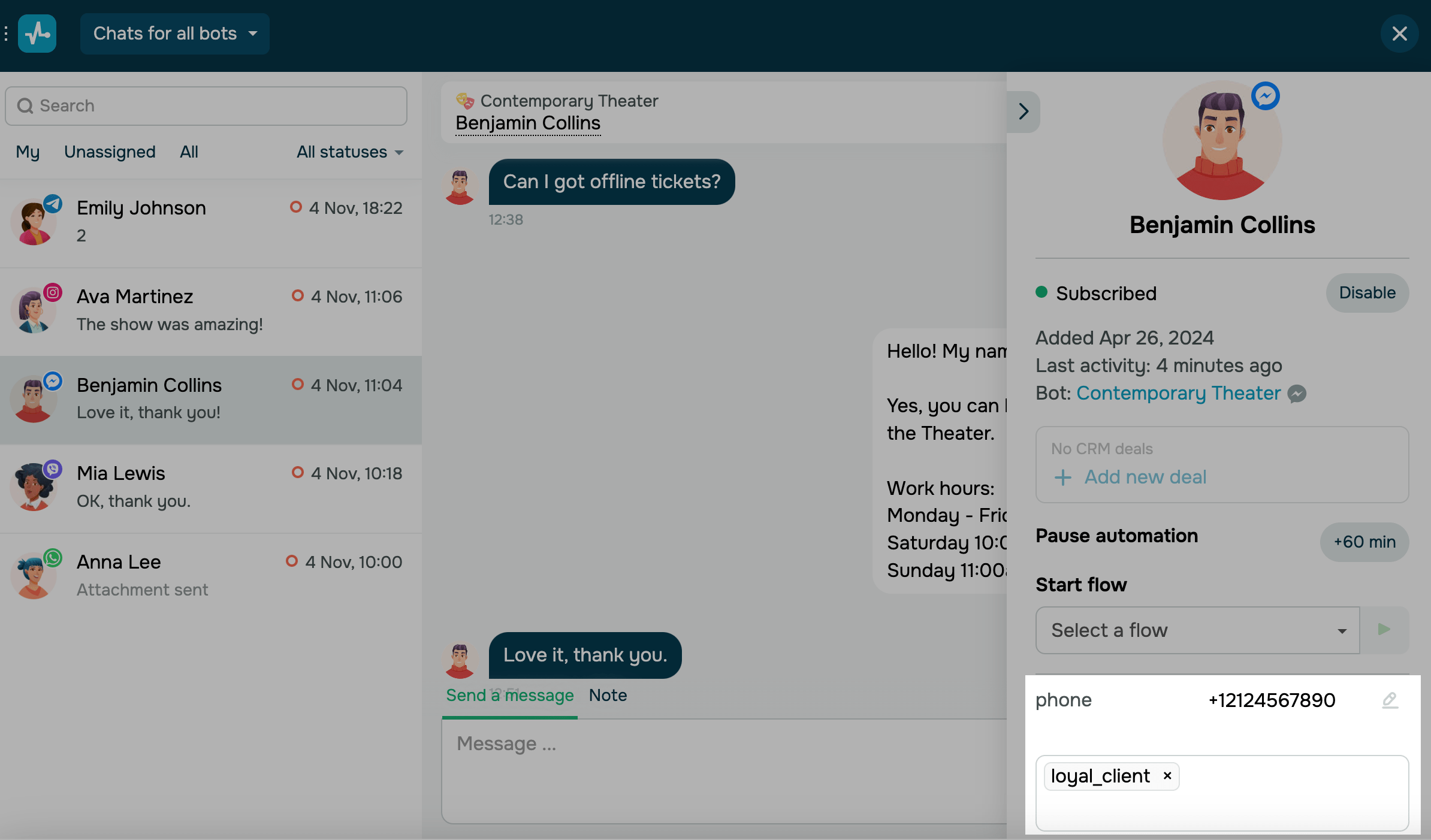
If you have identified a client's specific preferences during a conversation, you can assign variables and tags to personalize future interactions with them.
| Editing a variable | To edit the variable, click the pencil icon next to the variable, and add a new value. |
| Tag assignment | To assign a tag, click a field and select a tag. |
Data in CRM
If you learn new information during a conversation with a user, you can add or edit their deal and contact info in your CRM system.
Deals
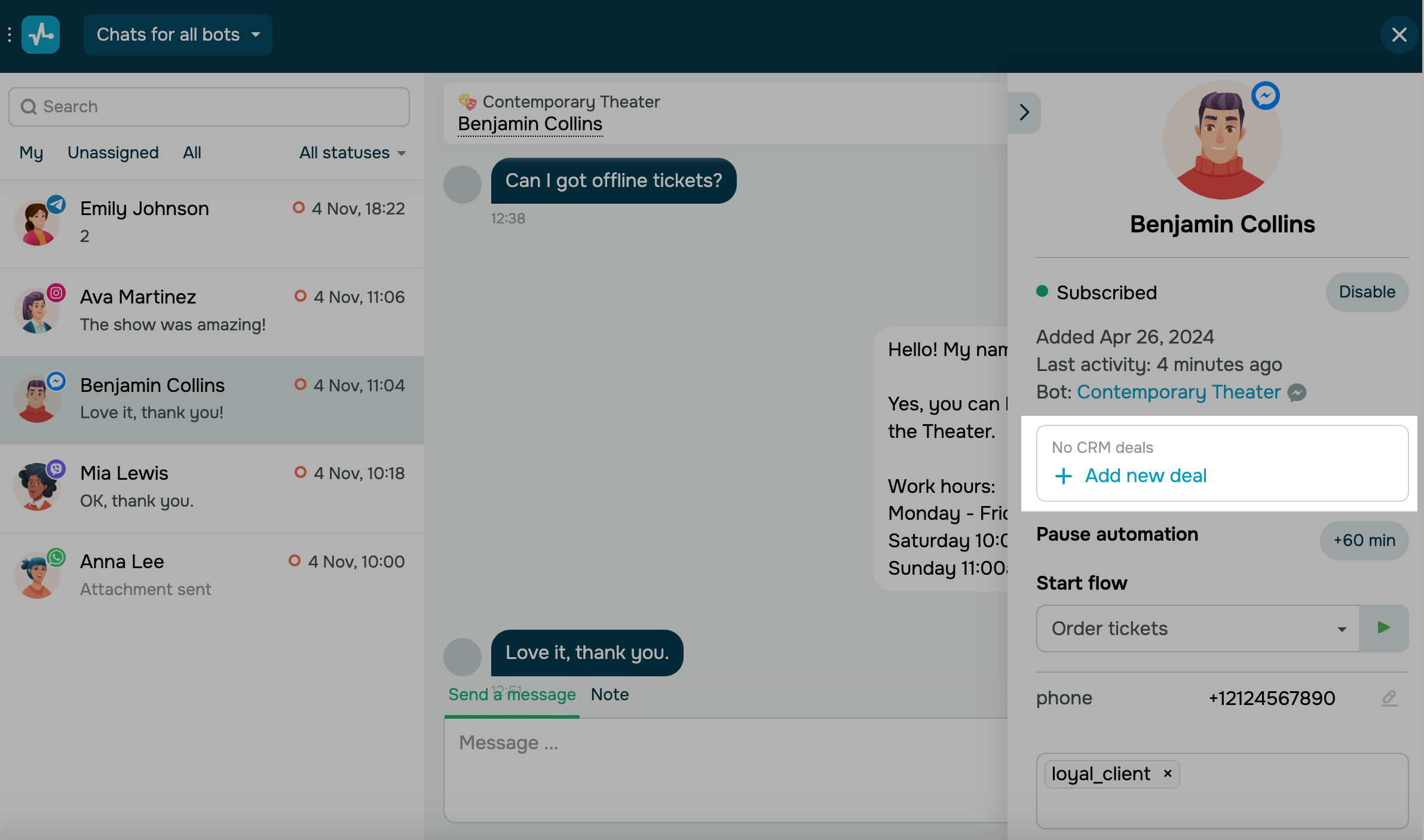
To add a new deal, click Add a deal, select a pipeline and deal stage, enter a deal name and amount, and assign a team member. To edit your existing deal data, hover over a deal on the right and click the pencil icon. You can edit deal stages, names, and amounts. To go to a deal card, click its icon.
Contacts
To create or update a contact, go to the Add contact tab, enter a name and contact details, and click Save contact. If an existing CRM contact has other fields filled in, you can view them by clicking Show all.
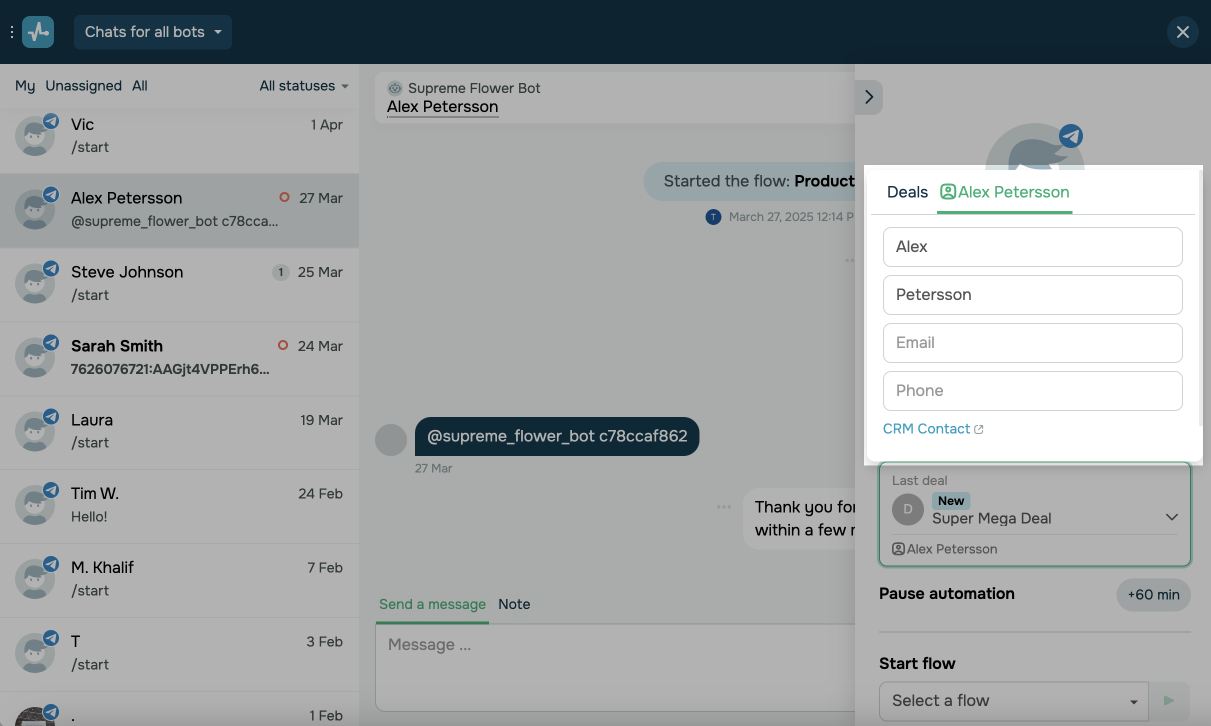
If a user makes a purchase using your chatbot, a deal with their contact card will appear.
You can also trigger an automated flow when a deal is created or updated.
Learn more: Create deal, Change deal stage, and Change deal field.
Last Updated: 01.07.2025
or