SP Popups to Slack
Get real-time Slack notifications every time someone fills out a SendPulse popup form.
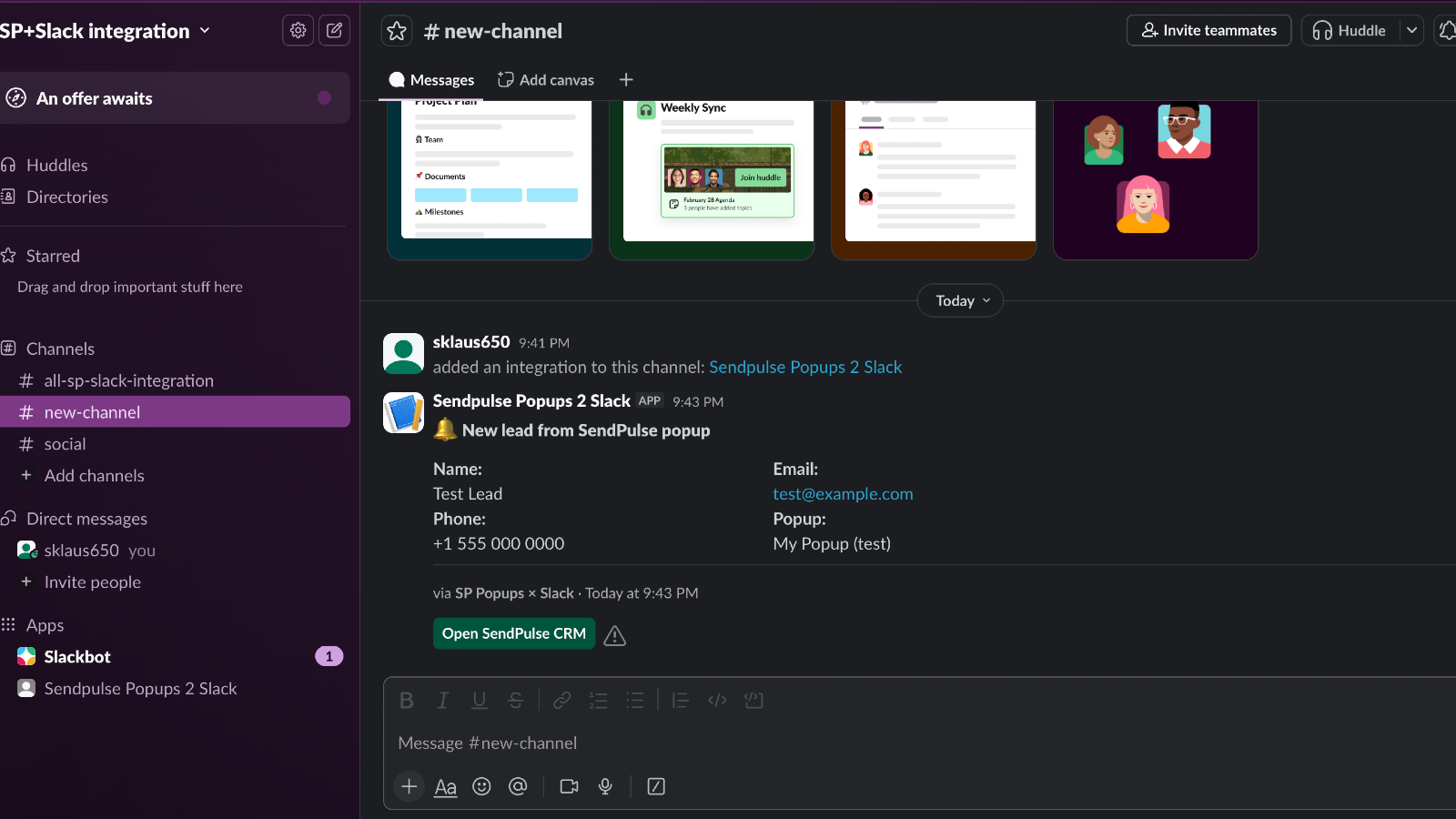
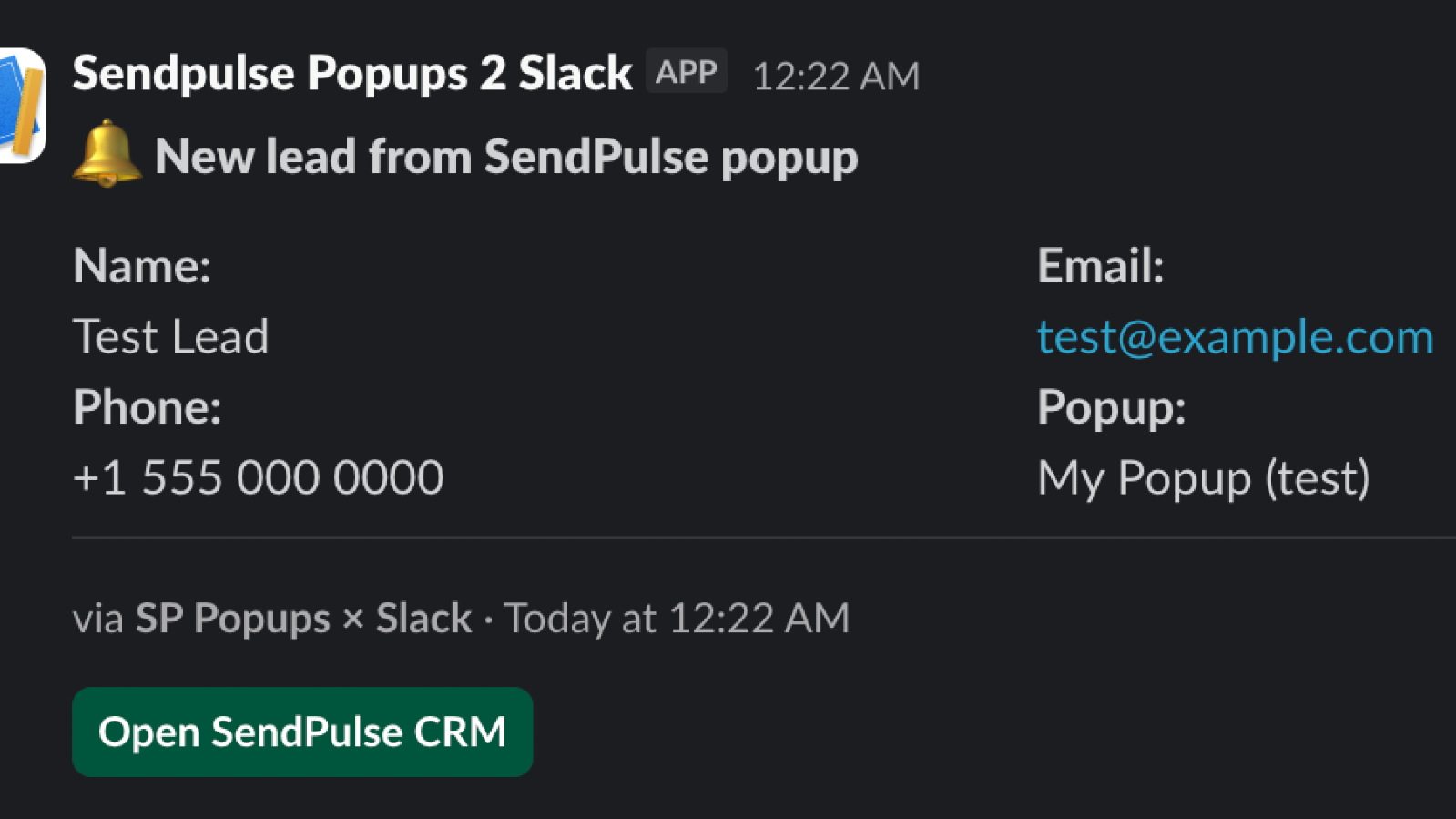
- Instant lead alerts — Slack message fires the moment a popup form is submitted, with zero delay
- Rich lead cards — name, email, phone, company, and all custom popup fields in one readable Block Kit card
- Any popup type — works with subscription forms, exit-intent, NPS, gamification, and all other SendPulse popup formats
- Choose your channel — route notifications to any public or private Slack channel; change it anytime
- No code required — full setup in under 2 minutes from the SendPulse App Directory
- All popups, one URL — a single webhook endpoint covers your entire SendPulse popup account
Step 1 — Install the app
Open the app from the SendPulse Marketplace. It will load inside your SendPulse account.
Step 2 — Connect your Slack workspace
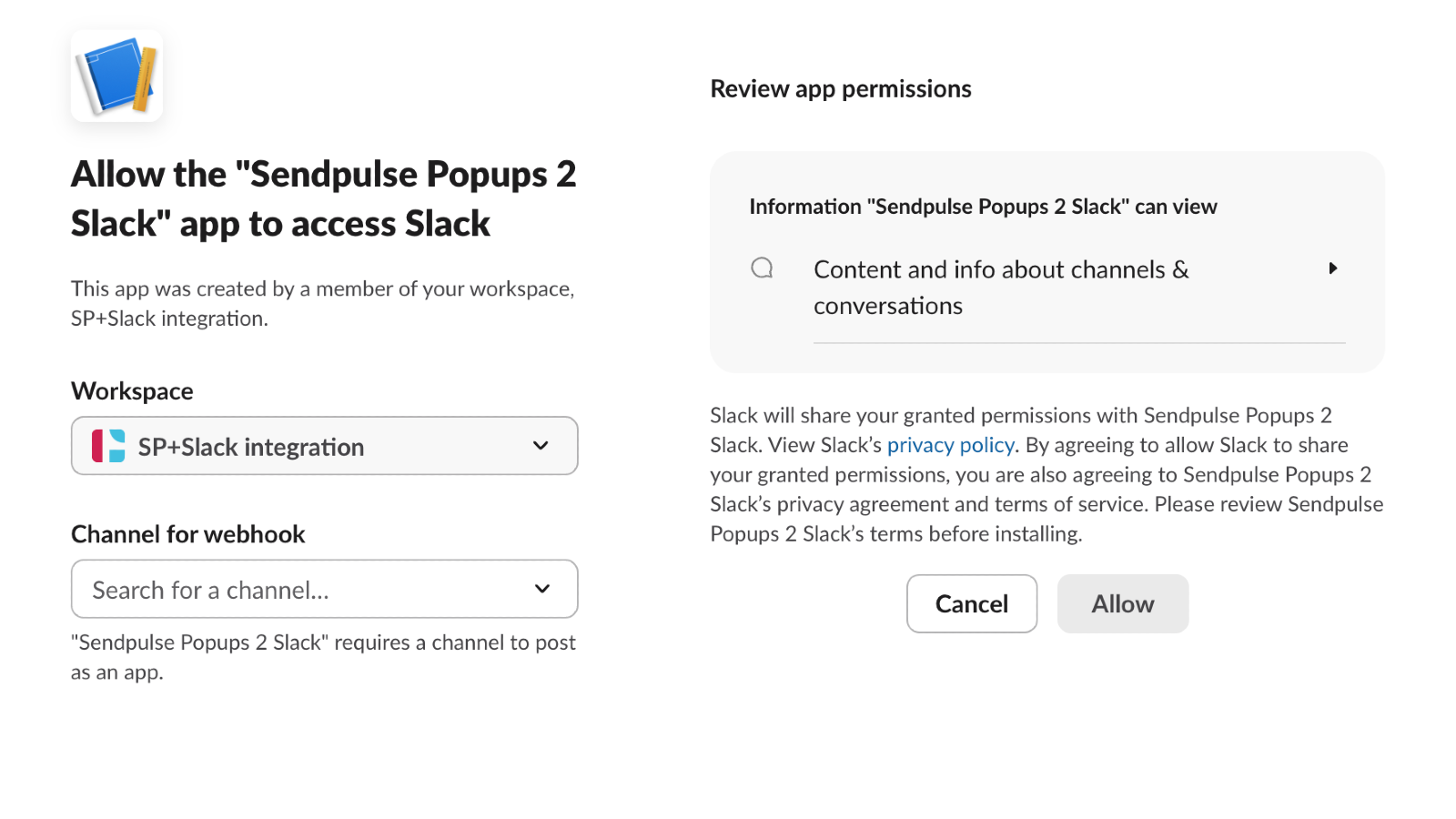
Click "Add to Slack", select the workspace and channel you want to receive leads in, and authorize the app. You'll be redirected back automatically.
Step 3 — Copy your webhook URL
Once connected, open the Settings section and copy your unique webhook URL.
Step 4 — Add it to each popup you want to track
In SendPulse, open a popup → Settings → Integrations → Webhooks → Add webhook URL. Paste the URL and enable "Send lead creation data". Repeat for every popup you want notifications for.
Step 5 — Popups appear automatically
Each popup shows up in the Popup routing section the first time a lead arrives from it. You don't need to configure them in advance.
Step 6 — Route popups to different channels (optional)
By default all leads go to one channel. Connect additional Slack channels using "+ Connect another channel" in the routing section, then assign any popup to any channel from the dropdown next to it.
Step 7 — Enable or disable individual popups
Use the toggle next to each popup to control whether its leads are forwarded. When any popup is enabled, only enabled popups send notifications — the rest are silently ignored.





или