The Image element in the course builder
Use the Gallery element of the Image type in the course builder to add images to lessons and show them on your course page.
For example, you can add pictures, charts, screenshots, infographics, and other visuals to enrich your content and make information easier to understand.
Let’s talk about how to add and customize an image in a lesson.
Add the element
In the lesson builder, drag the Gallery element from the left sidebar to your workspace, or click the Plus icon under any element. On the right, select the Image type.
Upload an image
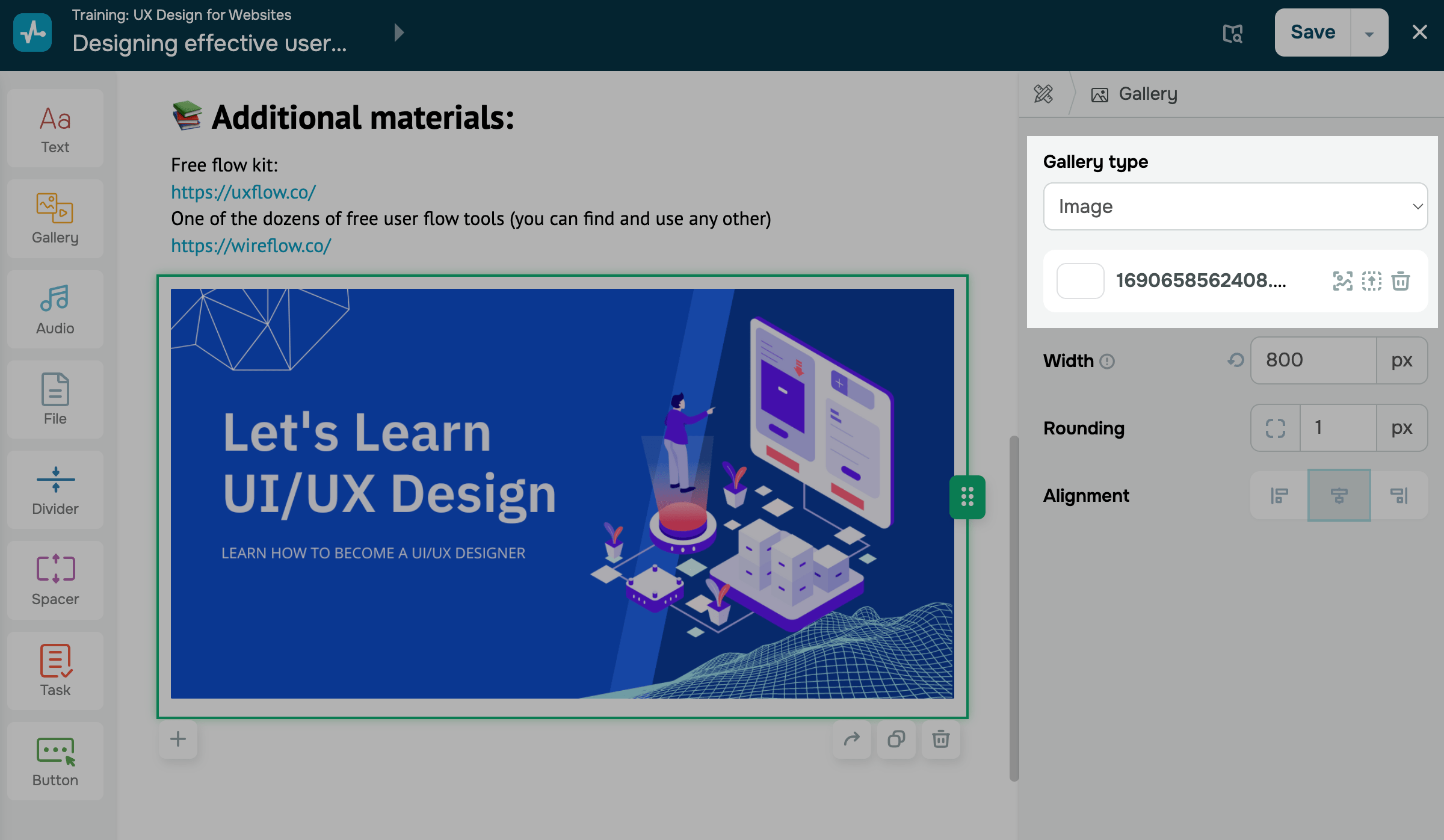
On the right, click Choose file. Select an image from SendPulse’s file manager or upload a new one, and then click Choose.
Manage the image file
After you add an image, a row with your file name and available actions will appear next to the element. You can take the following actions:
| Image Editing | Edit the uploaded image in the image editor.
To save your changes, click Save. |
| Choose an image | Open the file selection window to add another image. |
| Delete | Remove the image from the Gallery element to upload a different image.
Note that deleting an image does not delete the element. To delete the element itself, click the trash can icon in your workspace. |
Customize the image
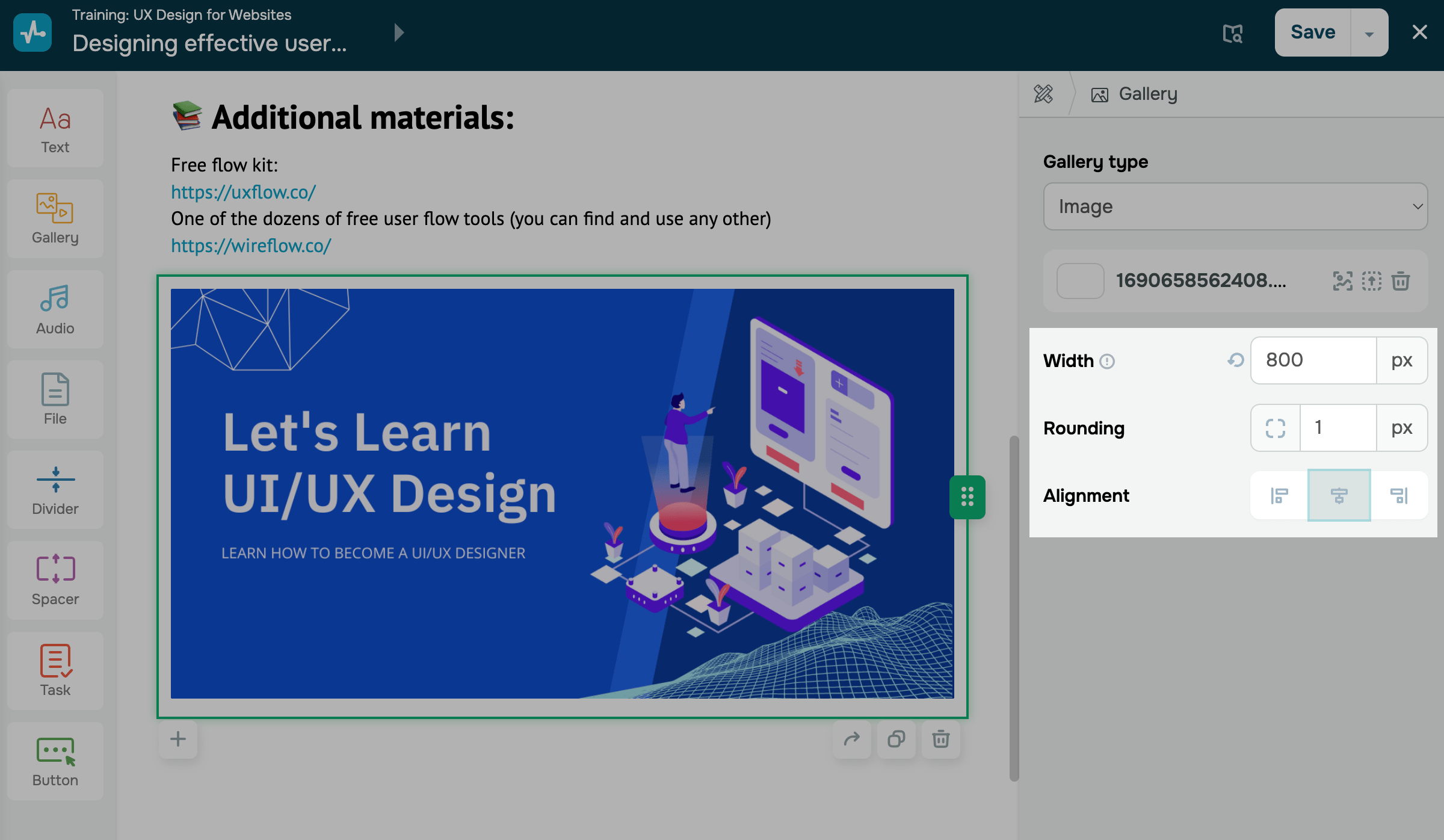
Set image display options:
| Width | Sets an image width. Large images fill the entire width.
Enter an image width in pixels. |
| Rounding | Rounds image corners.
Enter a rounding value. |
| Alignment | Aligns the image within its element.
Left aligns the image to the left side of its element; Center aligns the image to the center of its element; Right aligns the image to the right side of its element. |
After you finish setting up the element, click Save in the upper-right corner of the builder.
Last Updated: 22.12.2025
or