Take a lessons
In your account you can take lessons, pass tests, and submit answers to unlock the next steps and complete a course.
In this article, find out how to view lesson materials, and mark your progress.
Viewing a lesson
In each lesson, you can find materials of video or text formats. Your progress is saved automatically every 10 seconds while you watch a video. To resume watching from where you paused last time, play the video again.
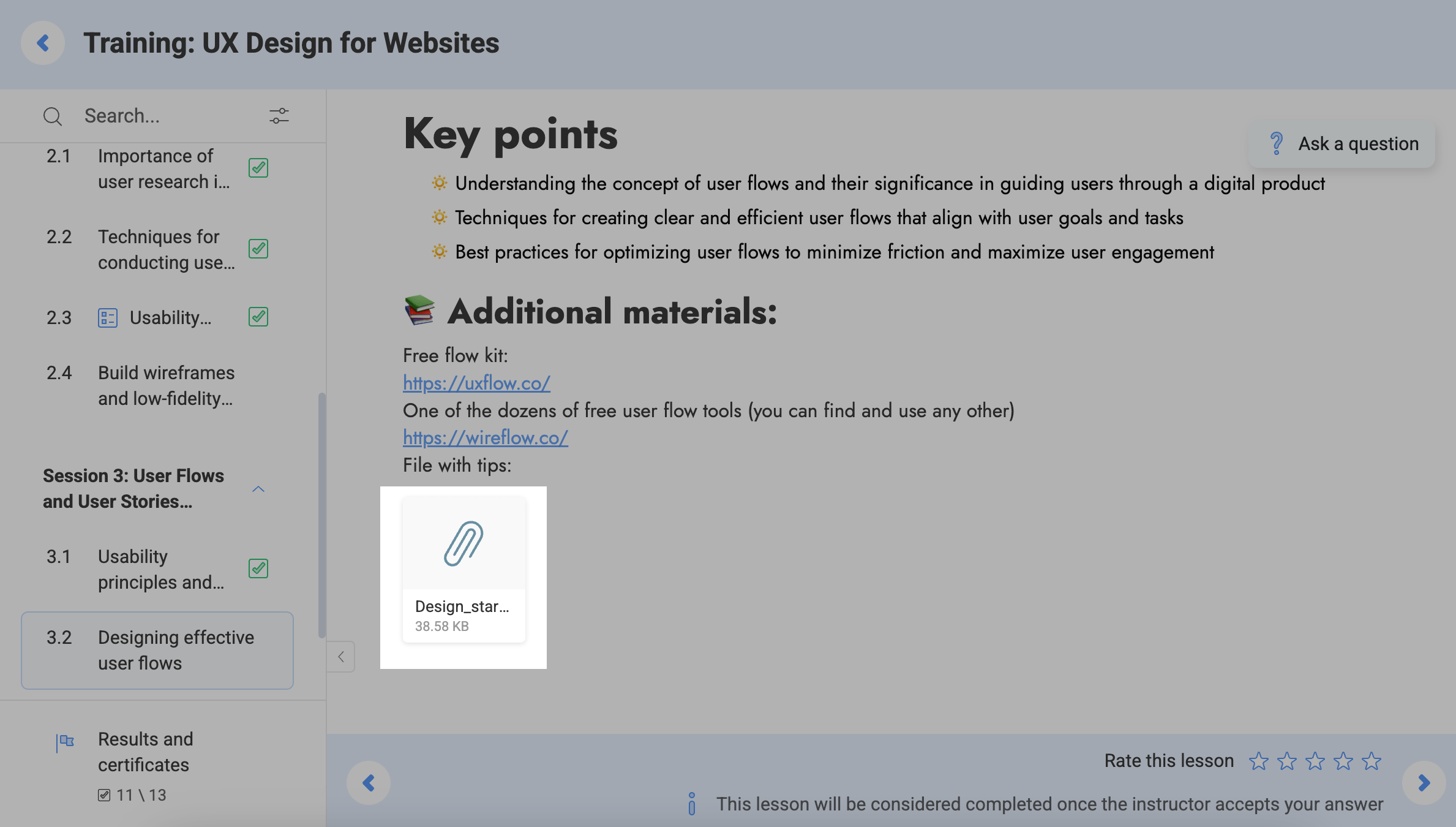
There can be other useful downloadable materials, for example, guides, books, and presentations. To download them to your device, click a file.
If you have a carousel in your lesson, you can use the bottom switch to scroll through it. To expand an image in a modal window, click it.
Copying content
If an instructor allows content copying, you can add lesson text to your notes or a document. This makes it easier to revisit course content and save important information.
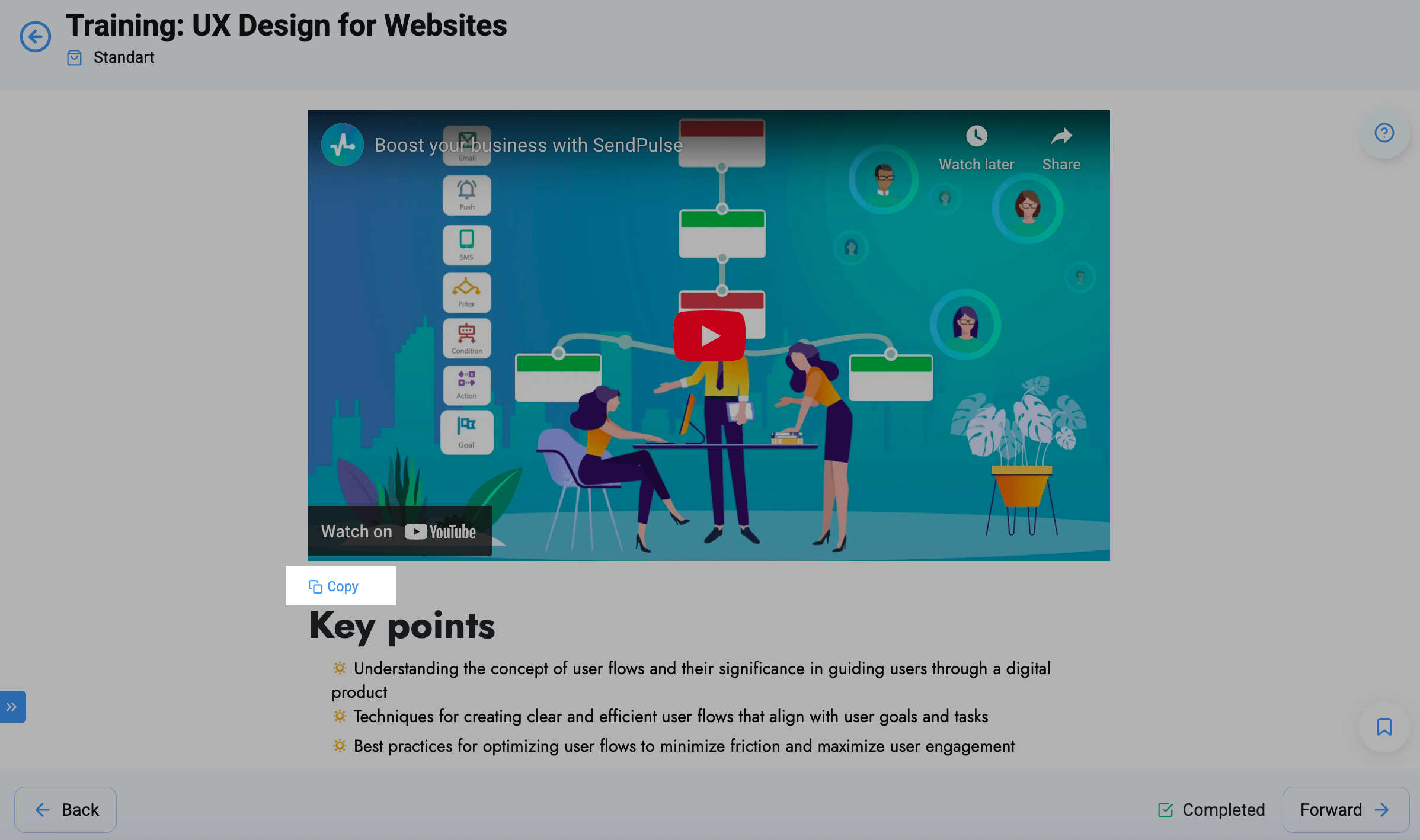
Click Copy above a lesson text. The entire text will be automatically copied to your clipboard. Paste it by pressing Ctrl + V або Cmd + V.
Taking a lesson
If a lesson doesn’t include an assignment, you can mark it as complete and click the right arrow to move on to the next lesson. To do this, select the Mark as completed checkbox.
Once you marked the lesson, click the arrow — you will go to the next step.
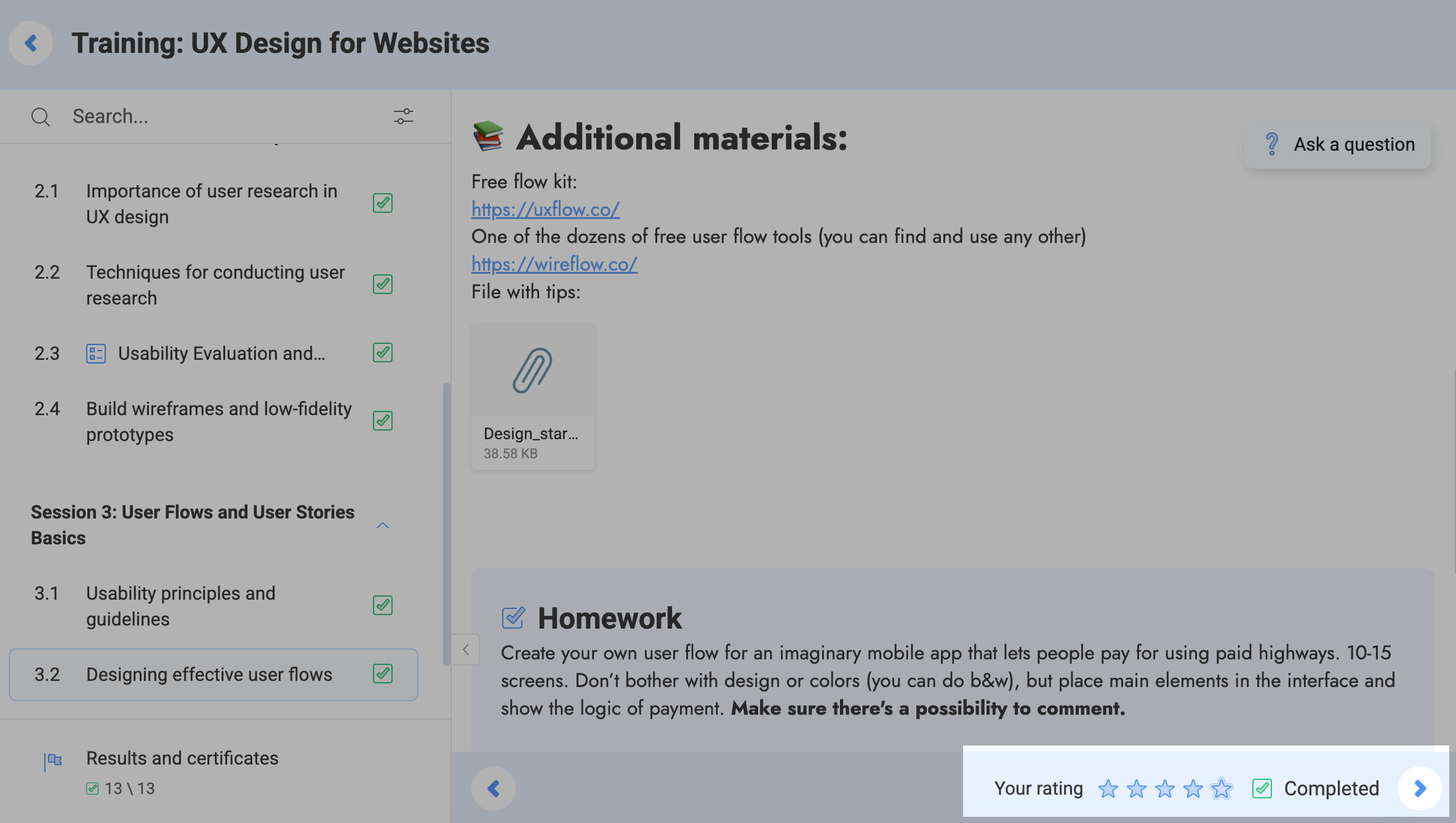
If your instructor has set a minimum completion time, you will see a countdown.
If you leave your lesson too soon, the countdown will reset. When you return to the lesson, the timer will restart.
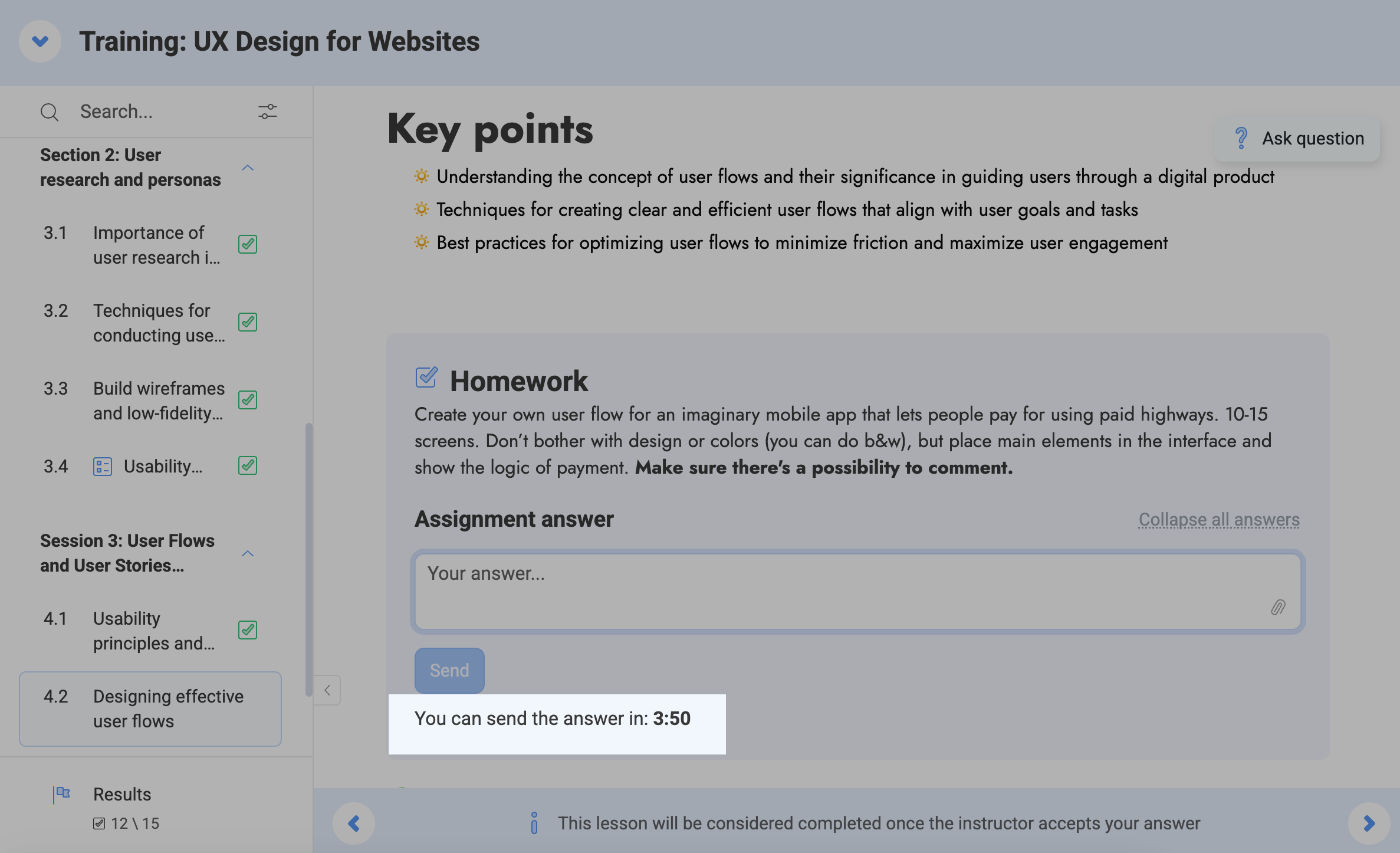
This way, you can view your progress on the course page and receive a certificate of completion. Your instructor can also limit access to the next lesson if the previous one is not marked as completed.
Doing homework
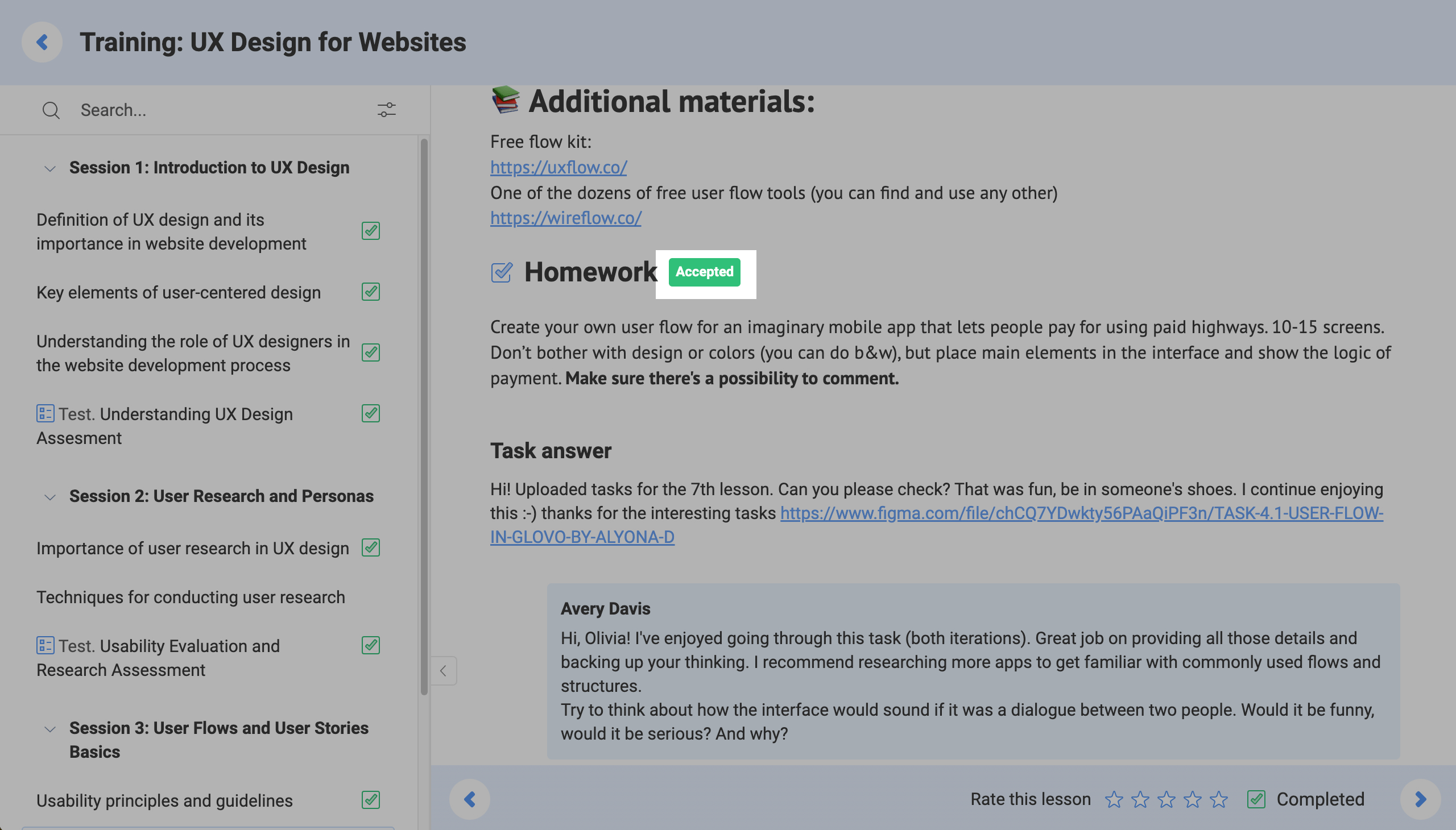
An assignment is considered successfully completed if an instructor accepts it.
Below an assignment, there is a field where you can type in your answer and attach a file. Enter your answer, attach a file if necessary, and click Send.
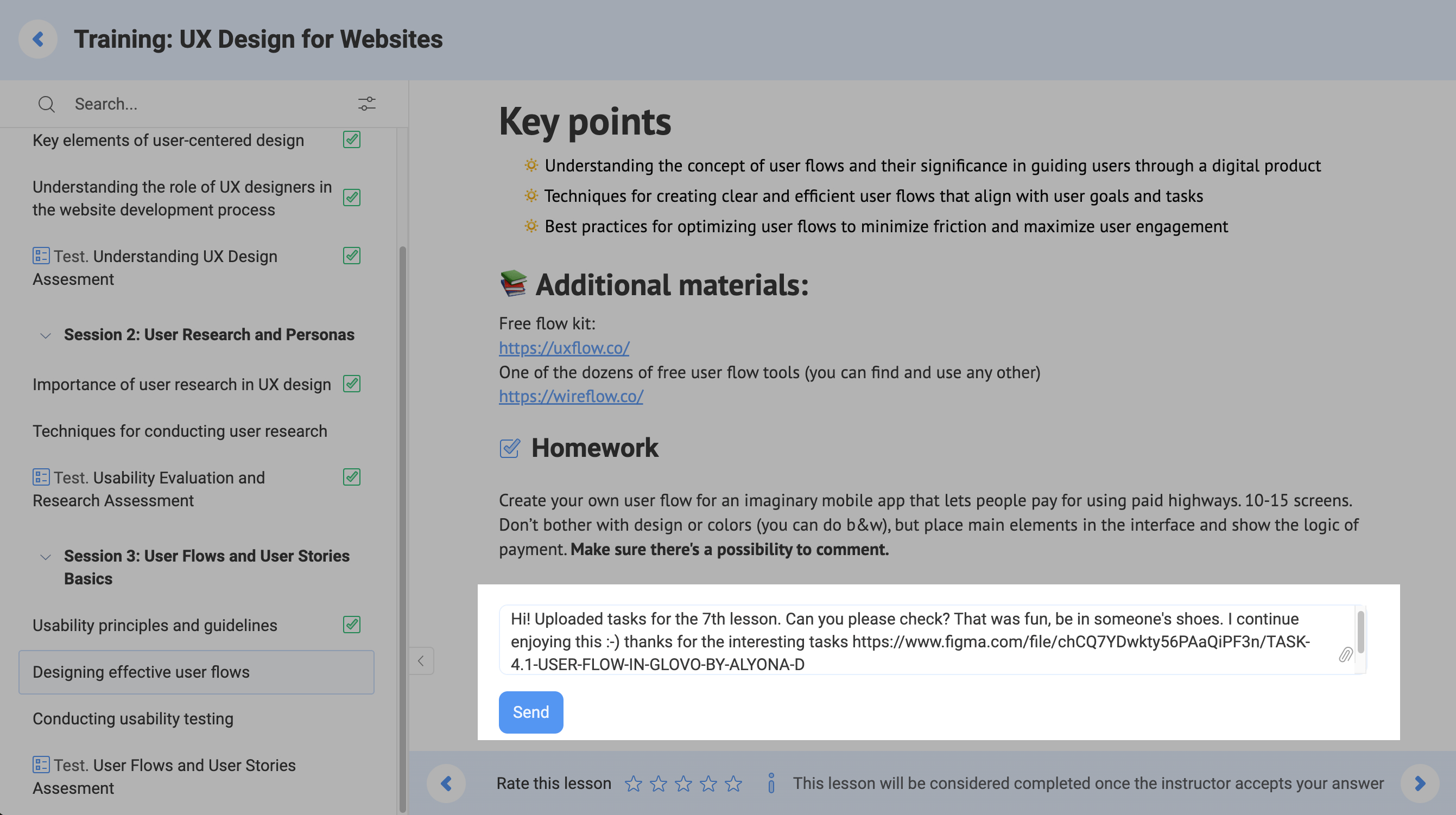
Once you submit an assignment, it can have the following statuses:
| To be reviewed |
The assignment will be reviewed by an instructor soon. You can edit assignments with this status. To do this, click Edit below your answer. Enter a new answer, and click Send. |
| Accepted | The instructor has accepted and graded the assignment. The lesson will be marked as Completed. If an instructor leaves a comment on your assignment, it will appear below. |
| Declined |
The instructor has returned the assignment for revision. You can click assignments with this status and send a new answer. If the course is sequential, you will not be able to continue studying until the instructor grades their assignments. |
Once an instructor accepted your assignment, you can not edit it.
Selected lessons
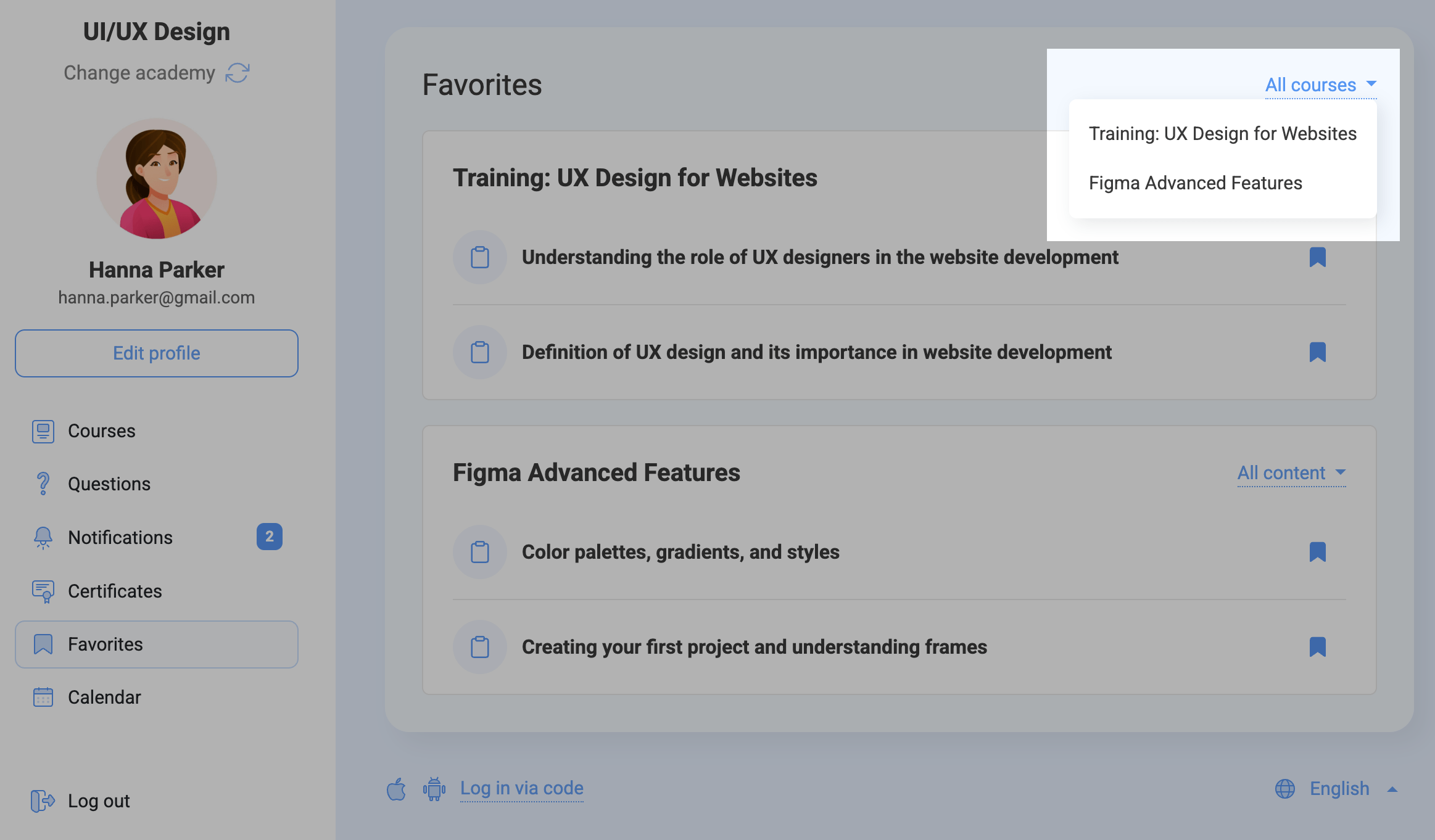
You can mark lessons, tests, and certificates as favorite to quickly find to important content. To do this, open an item and click the bookmark icon in the lower right corner.

To view content you’ve marked as favorite, go to the Favorites tab. You can filter saved items by course and content type within each course.
Instructors may require you to take a test after certain lessons.
Read more: How to take tests.
Last Updated: 16.12.2025
or