Cherry Studio AI Assistant
Cherry Studio is a desktop AI assistant that brings over 300 AI models together in a single interface. Connect the MCP server to Cherry Studio and let your AI assistant handle routine tasks across SendPulse tools.
What Cherry Studio can do
Compare answers from different AI models. Cherry Studio lets you send one request to several AI models at once and get their answers in parallel. For example, ask Claude and GPT to create an email campaign, then pick the best version.
A dedicated assistant for each task. Create several AI assistants with their own instructions and settings for different areas of your work. For example, one for email marketing and another for sales and customers in your CRM.
Your own knowledge base right in Cherry Studio. Upload documents, text notes, instructions, and brand guidelines, and your AI assistant will factor your work context into every answer. That saves you from having to explain the same thing over and over.
How to connect the MCP server to Cherry Studio
Step-by-step instructions with screenshots are available in our knowledge base.
Option 1. Quick MCP server setup
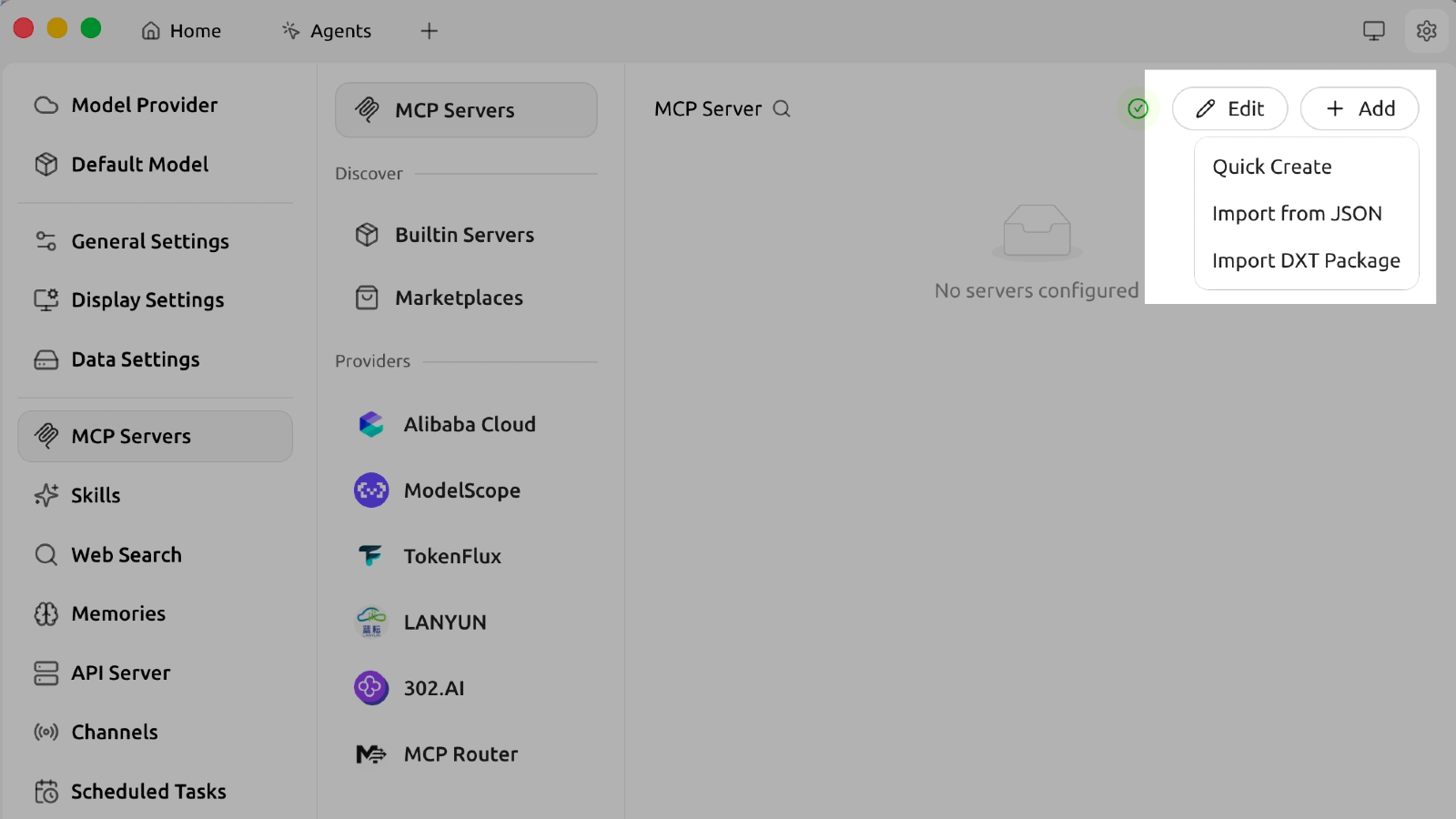
In your Cherry Studio settings, open the MCP tab.
On the MCP tab, click Add → Quick Create.
Enter these MCP server settings:
Name — SendPulse MCP
Type — Streamable HTTP (streamableHttp)
Turn on the toggle next to the server name and click Save.
Cherry Studio opens the SendPulse login page. Sign in to your account and confirm access.
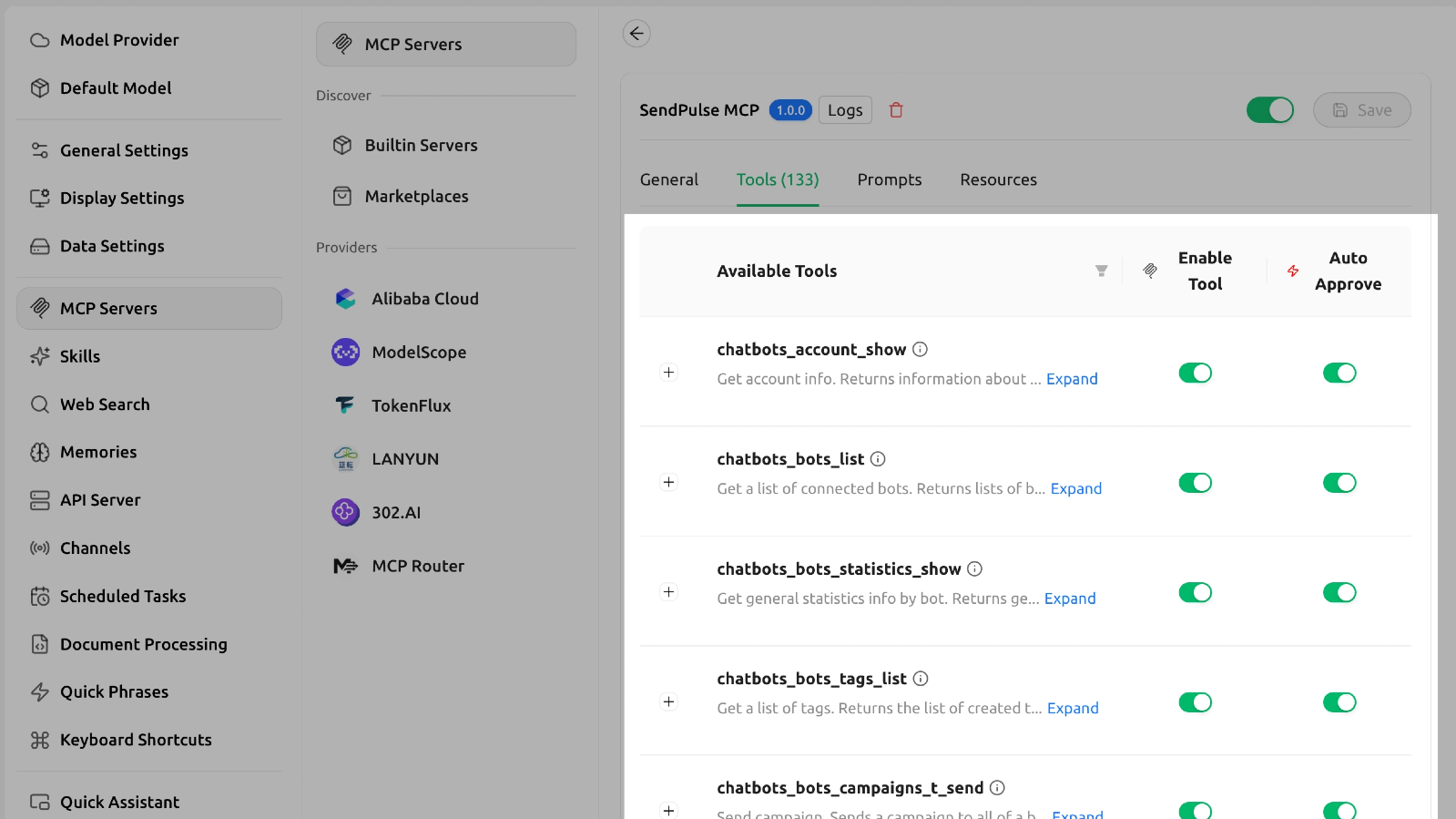
Return to Cherry Studio and check the Tools, Prompts, and Resources tabs on the MCP server card. The Tools tab lists everything your AI assistant can use.
Option 2. MCP server setup through a JSON configuration
In your Cherry Studio settings, open the MCP tab and select Edit.
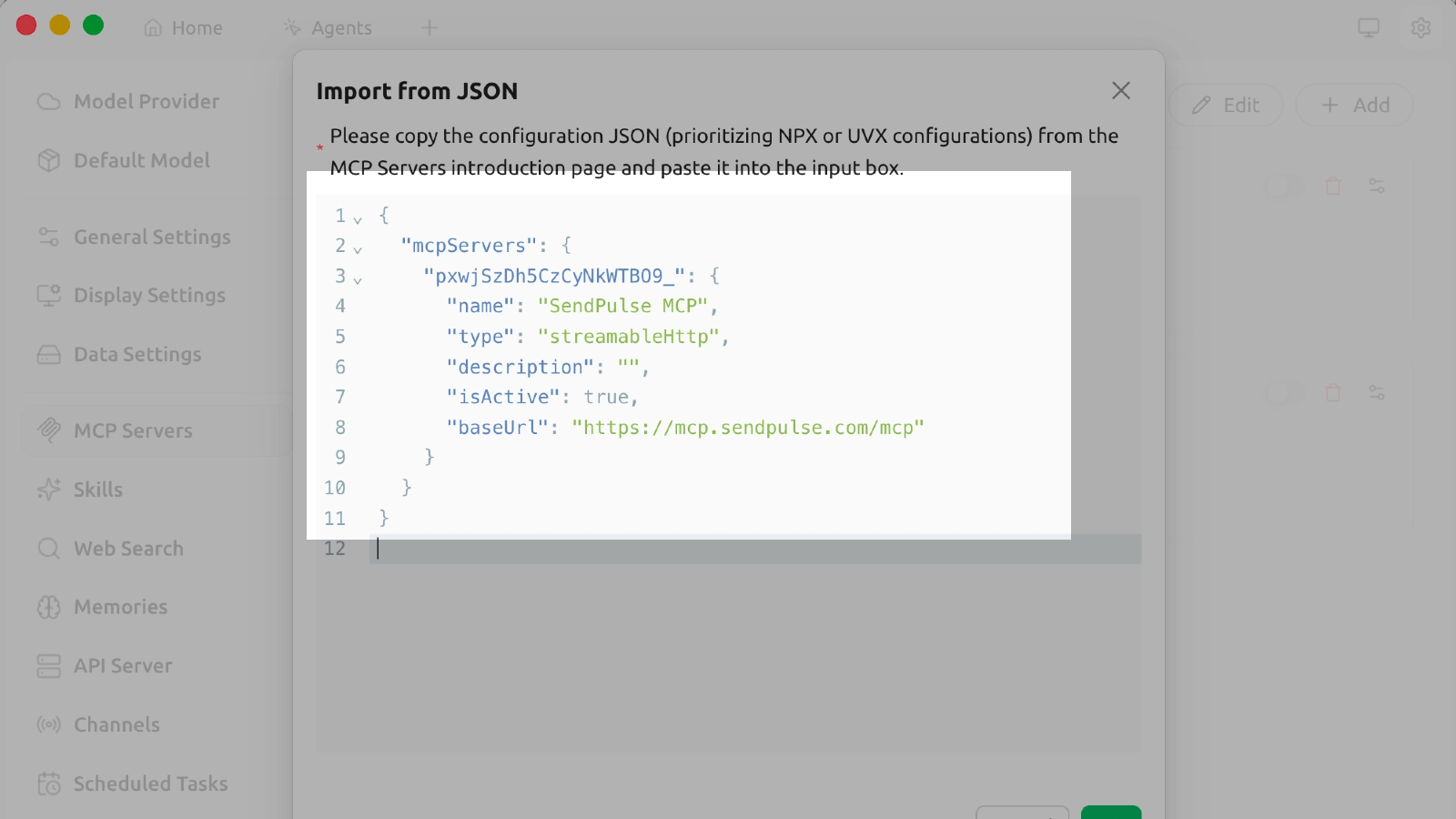
In the JSON editing window, replace the existing code with this:
{
"mcpServers": {
"pxwjSzDh5CzCyNkWTBO9_": {
"name": "SendPulse MCP",
"type": "streamableHttp",
"description": "",
"isActive": true,
"baseUrl": "https://mcp.sendpulse.com/mcp"
}
}
}
Click OK and go to your list of MCP servers.
Turn on the toggle next to the server name.
Sign in to SendPulse and return to Cherry Studio, as described in Option 1.
How to use the MCP server in a chat
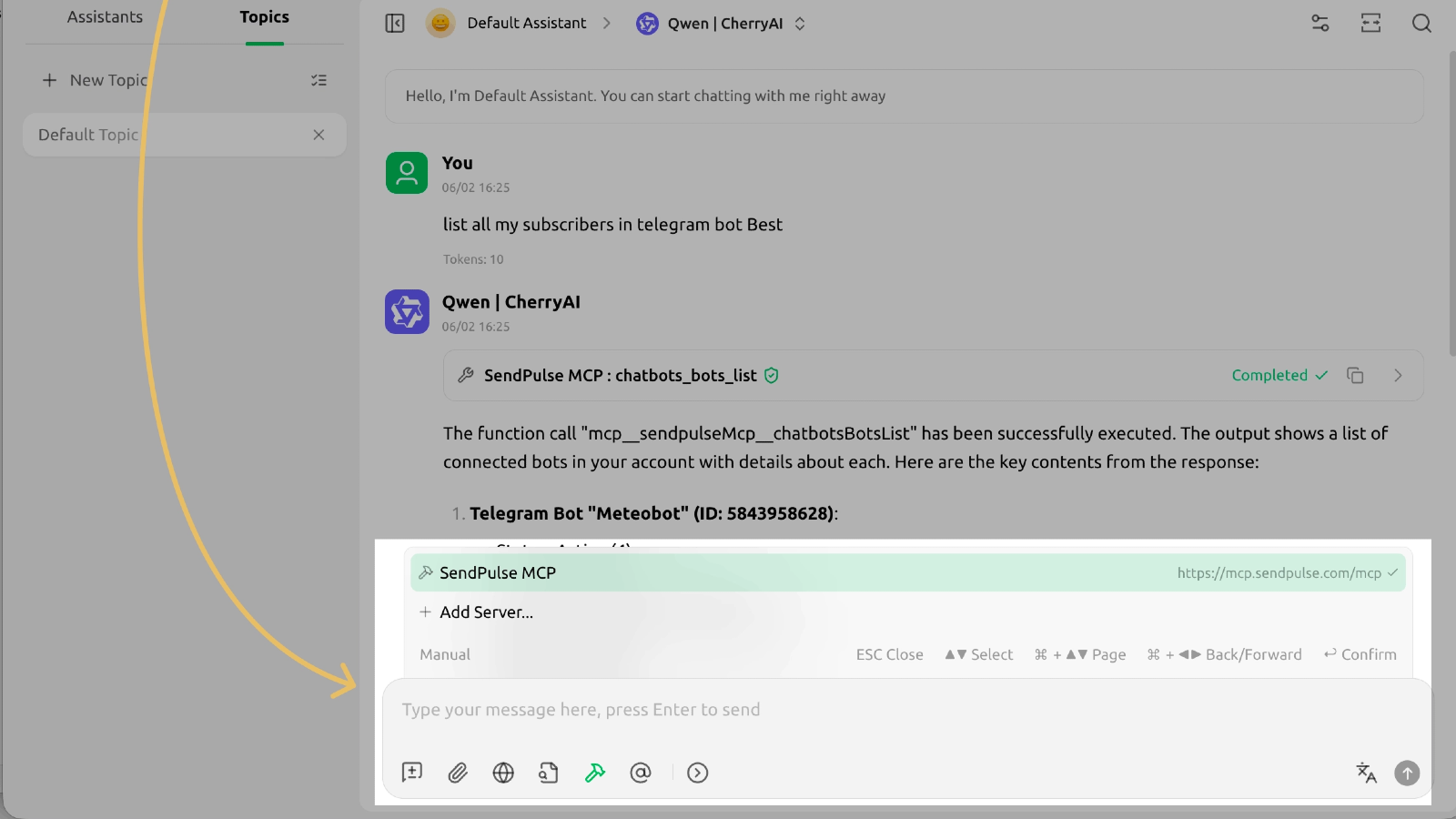
Click Home to go to your chat. In the message field, click the MCP button and select SendPulse MCP from your list of available servers.
Enter a test request — for example, "Show a list of my chatbots." If the connection succeeded, Cherry Studio calls the MCP server and returns data from your SendPulse account.





or