Cursor AI IDE
Cursor is a code editor with built-in AI agents that understand your entire project and can run tasks in parallel. Connect the MCP server to Cursor and let AI take over part of your work across SendPulse tools.
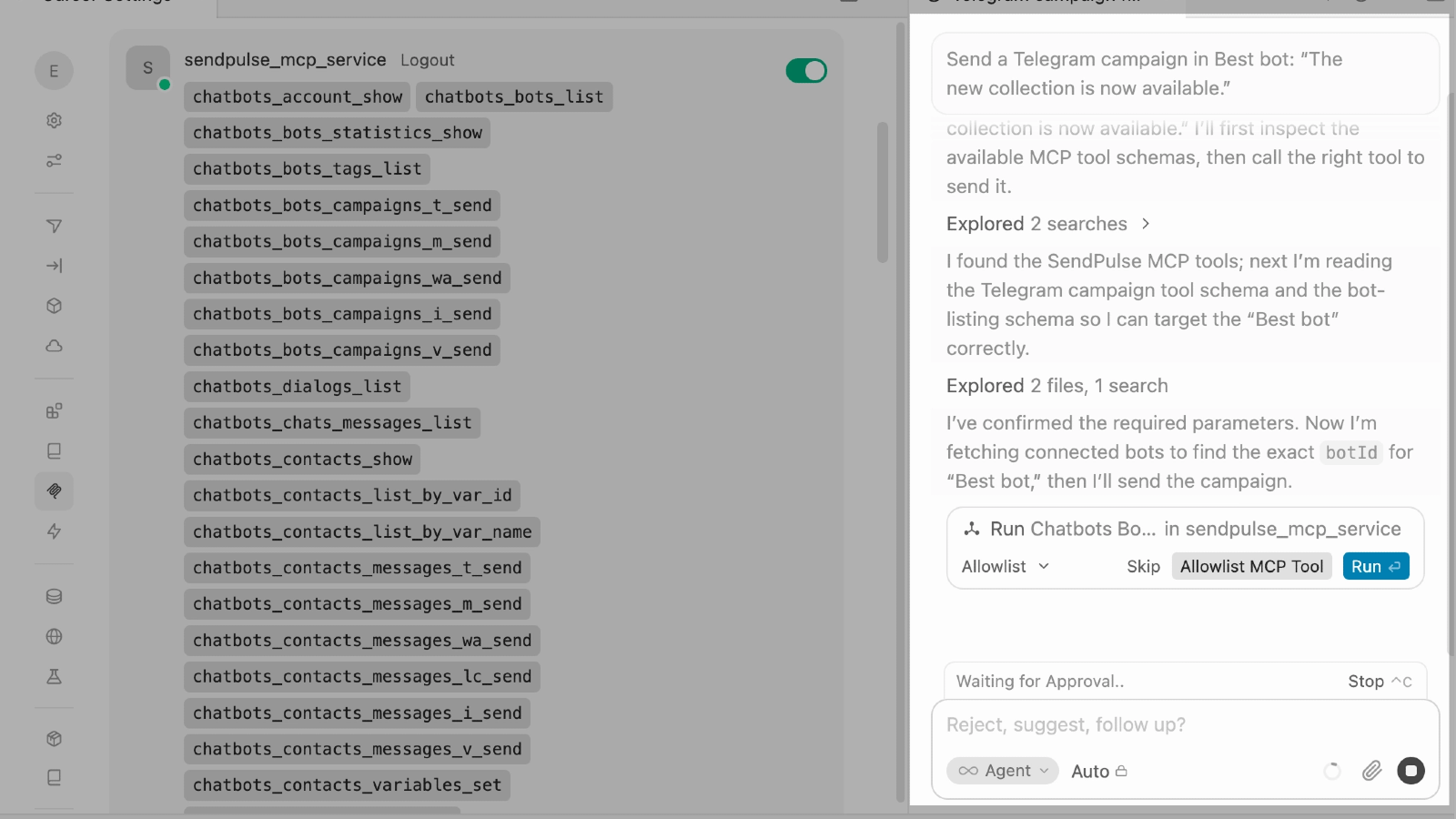
What Cursor can do
AI agents work without getting in your way. Cursor lets you run several agents in parallel in the background. For example, one works with your SendPulse data, another reviews code, and you keep developing.
AI models for different tasks. Cursor supports GPT-4, Claude, and other models. You can pick a model based on how specific and complex your SendPulse task is.
How to connect the MCP server to Cursor
Step-by-step instructions with screenshots are available in our knowledge base.
Launch the Cursor desktop app and click Open Settings.
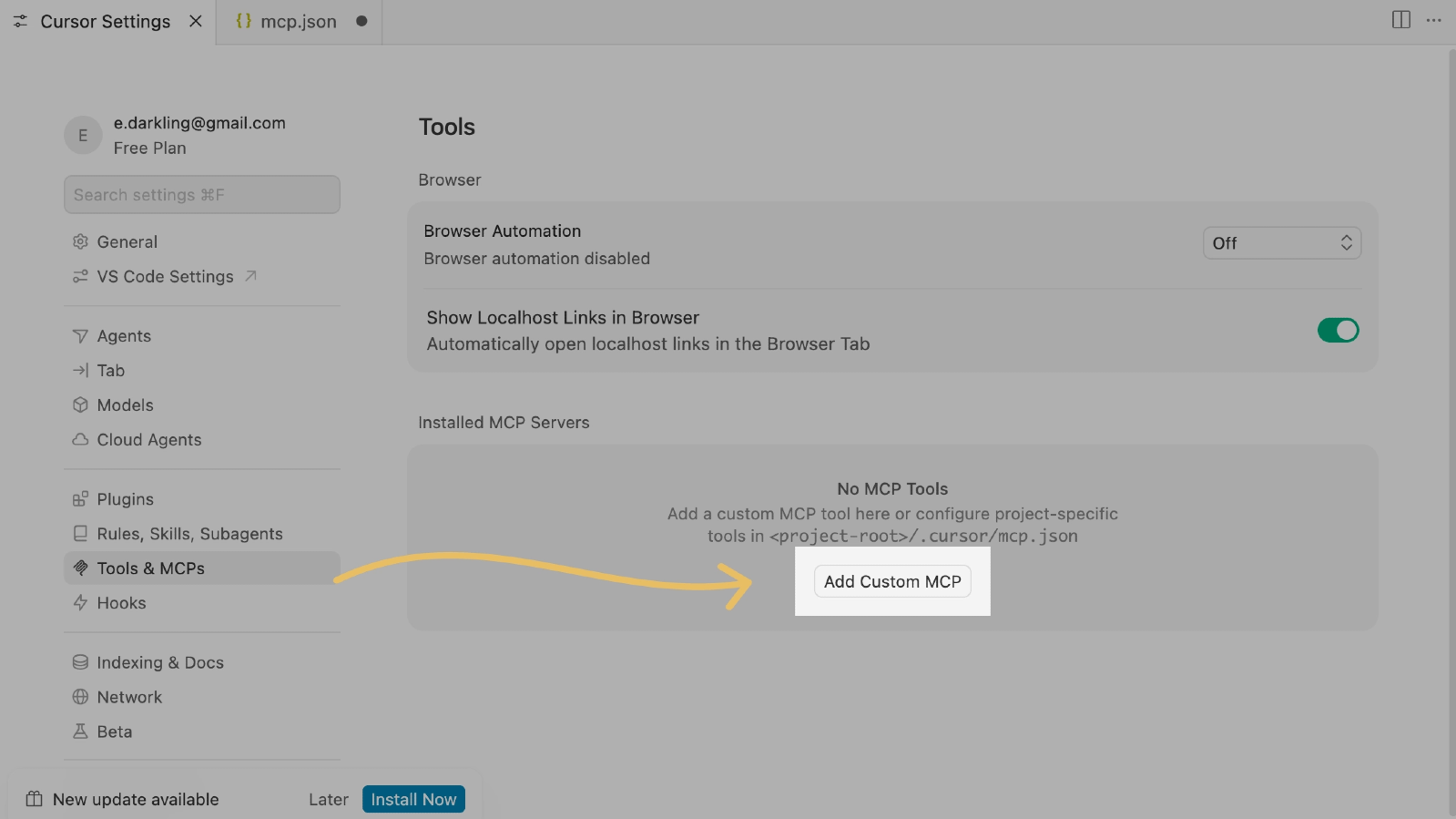
In your settings, go to MCP & Integrations and click Add Custom MCP.
In a new browser tab, open the SendPulse MCP server page: https://mcp.sendpulse.com/
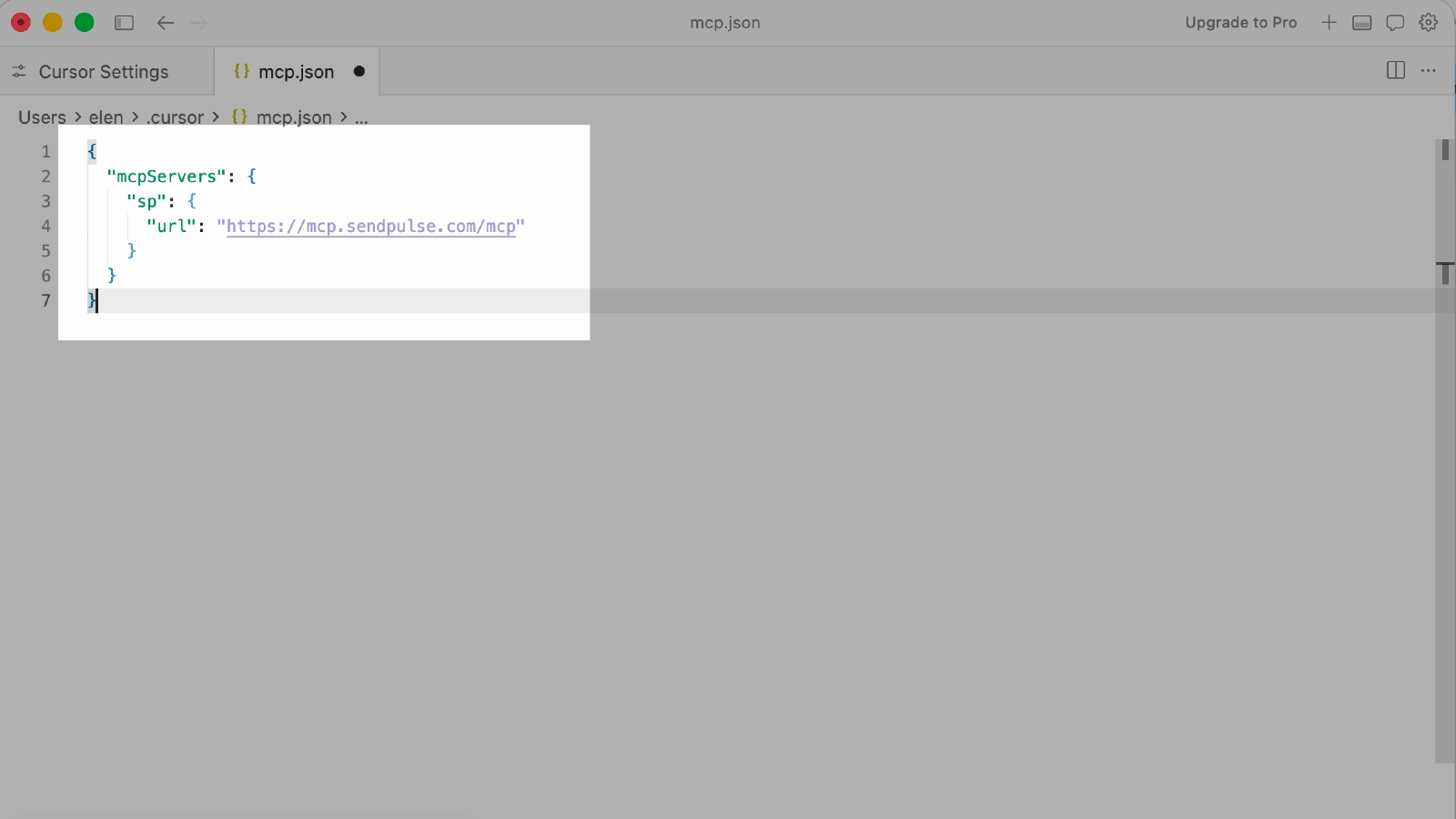
On the page that opens, copy the JSON, paste it into Cursor, and save your changes:
{
"mcpServers": {
"sendpulse_mcp_service": {
"url": "https://mcp.sendpulse.com/mcp"
}
}
}
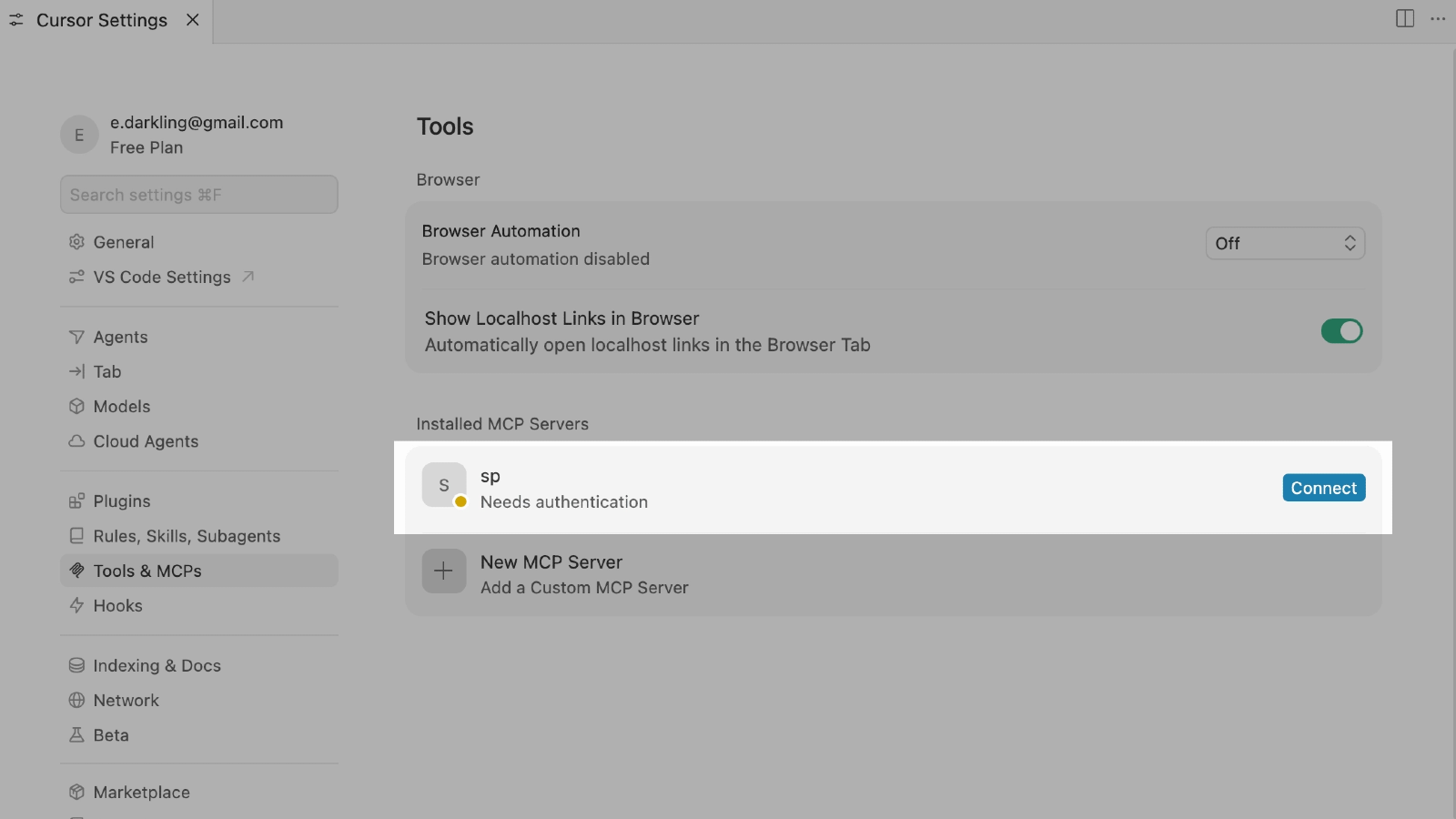
Return to MCP & Integrations and make sure the sendpulse_mcp_service server appears in your list of MCP servers.
Click Connect or turn on the toggle next to the server name, depending on your Cursor version.
Cursor prompts you to open the SendPulse login page — click Open and sign in to your SendPulse account.
Return to Cursor and click Open in the dialog box to finish connecting.
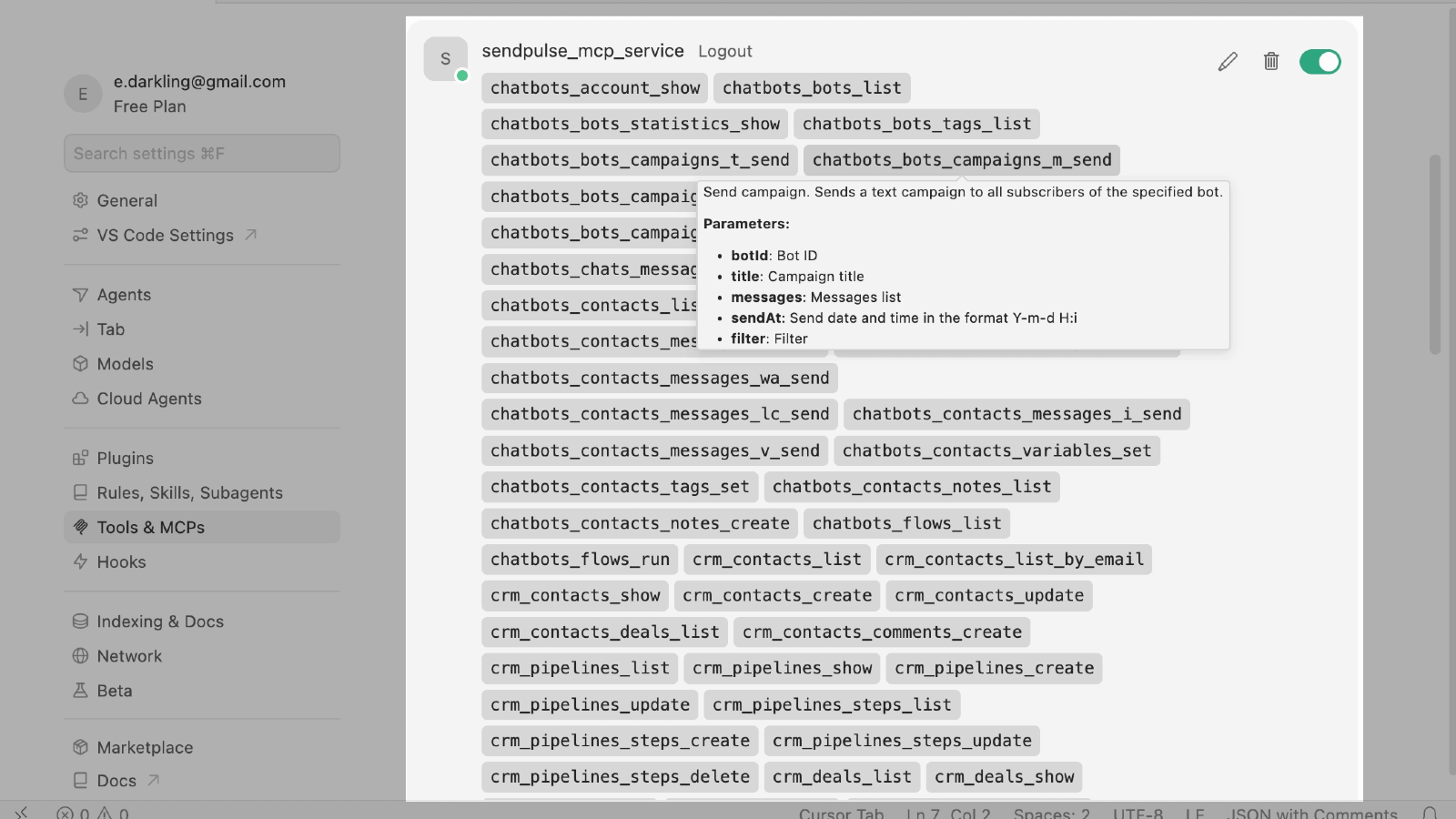
The number of available MCP tools appears next to the server name. Expand the list to see the tools you can use in SendPulse.
Click Toggle AI Pane to open the AI chat, and send a request that needs access to SendPulse data — for example, "Show a list of my chatbots." If the connection succeeded, Cursor calls the MCP server and returns data from your SendPulse account.





or