GitHub Copilot AI Assistant for VS Code
GitHub Copilot is an AI assistant for development, available in Visual Studio Code. In Agent mode, it can analyze your project, suggest changes, break complex tasks into steps, and work with external systems through MCP servers. Connect the MCP server to GitHub Copilot and let AI take over part of your work across SendPulse tools.
What GitHub Copilot can do
AI models for different tasks. GitHub Copilot supports Claude, GPT-4o, Gemini, and other models. You can pick a model manually for a specific SendPulse task — one to create email campaigns, for example, and another to analyze and optimize your sales funnel in your CRM.
A familiar tool with a wider reach. If you already work with GitHub Copilot, put your AI assistant to work beyond code: let it analyze campaign stats, find the contacts you need, and manage campaigns in SendPulse. That way, you can handle marketing tasks right inside Visual Studio Code.
How to connect the MCP server to GitHub Copilot in Visual Studio Code
Step-by-step instructions with screenshots are available in our knowledge base.
Before you start, make sure the GitHub Copilot Chat extension is installed in VS Code and you are signed in to your GitHub account.
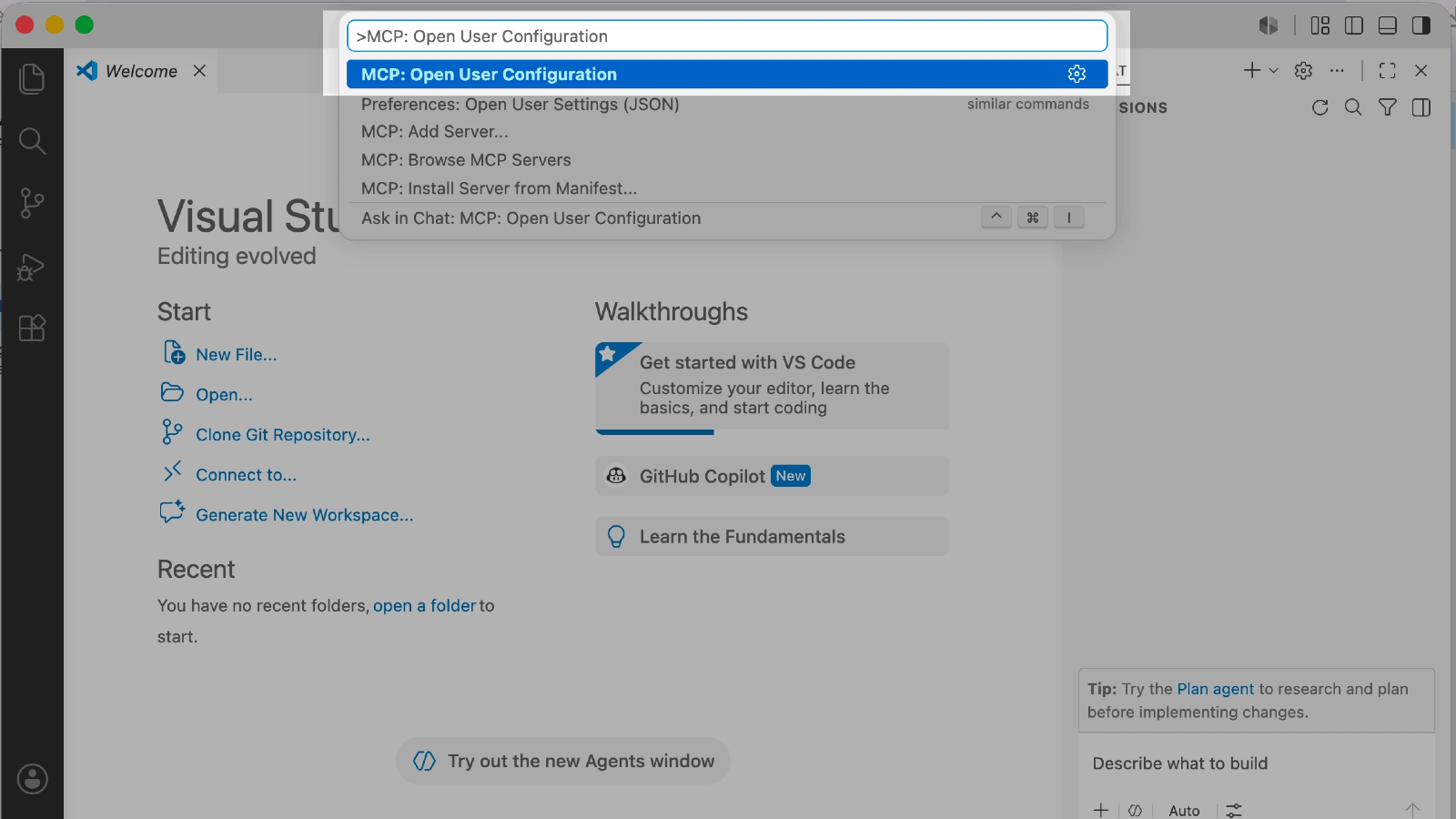
To add configuration files for all your projects in VS Code, open the Command Palette with Cmd+Shift+P on macOS or Ctrl+Shift+P on Windows. Find and select MCP: Open User Configuration.
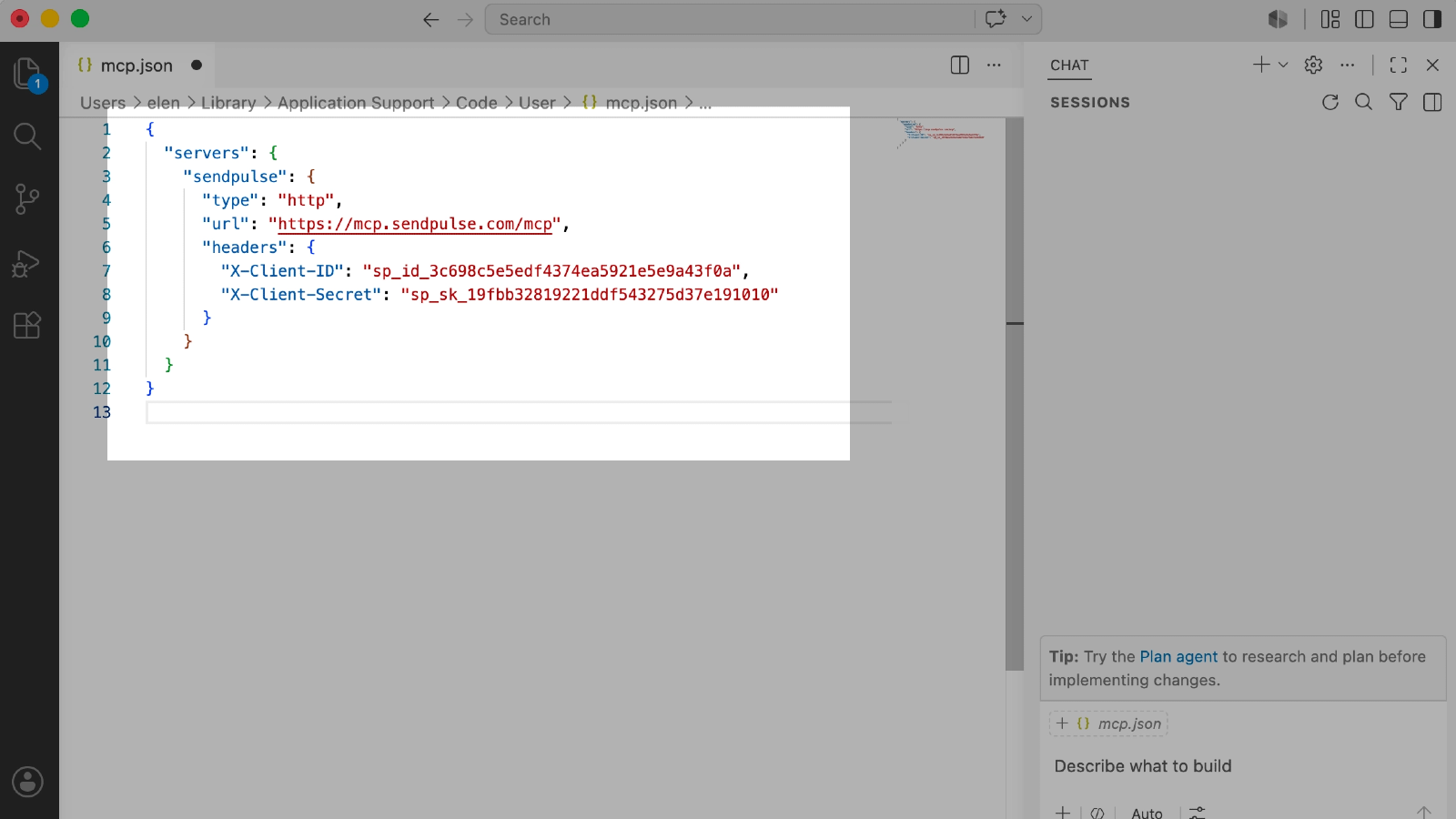
To add a configuration file for a single project, create a .vscode/mcp.json file in your project root directory and open it.
Go to your SendPulse account settings → API → Credentials. Click Generate new keys and copy your Client ID and Client Secret. Below, in the MCP section, copy the MCP endpoint URL.
Paste this JSON into your configuration file, replacing YOUR_CLIENT_ID and YOUR_CLIENT_SECRET with your own keys:
{
"servers": {
"sendpulse": {
"type": "http",
"url": "https://mcp.sendpulse.com/mcp",
"headers": {
"X-Client-ID": "YOUR_CLIENT_ID",
"X-Client-Secret": "YOUR_CLIENT_SECRET"
}
}
}
}
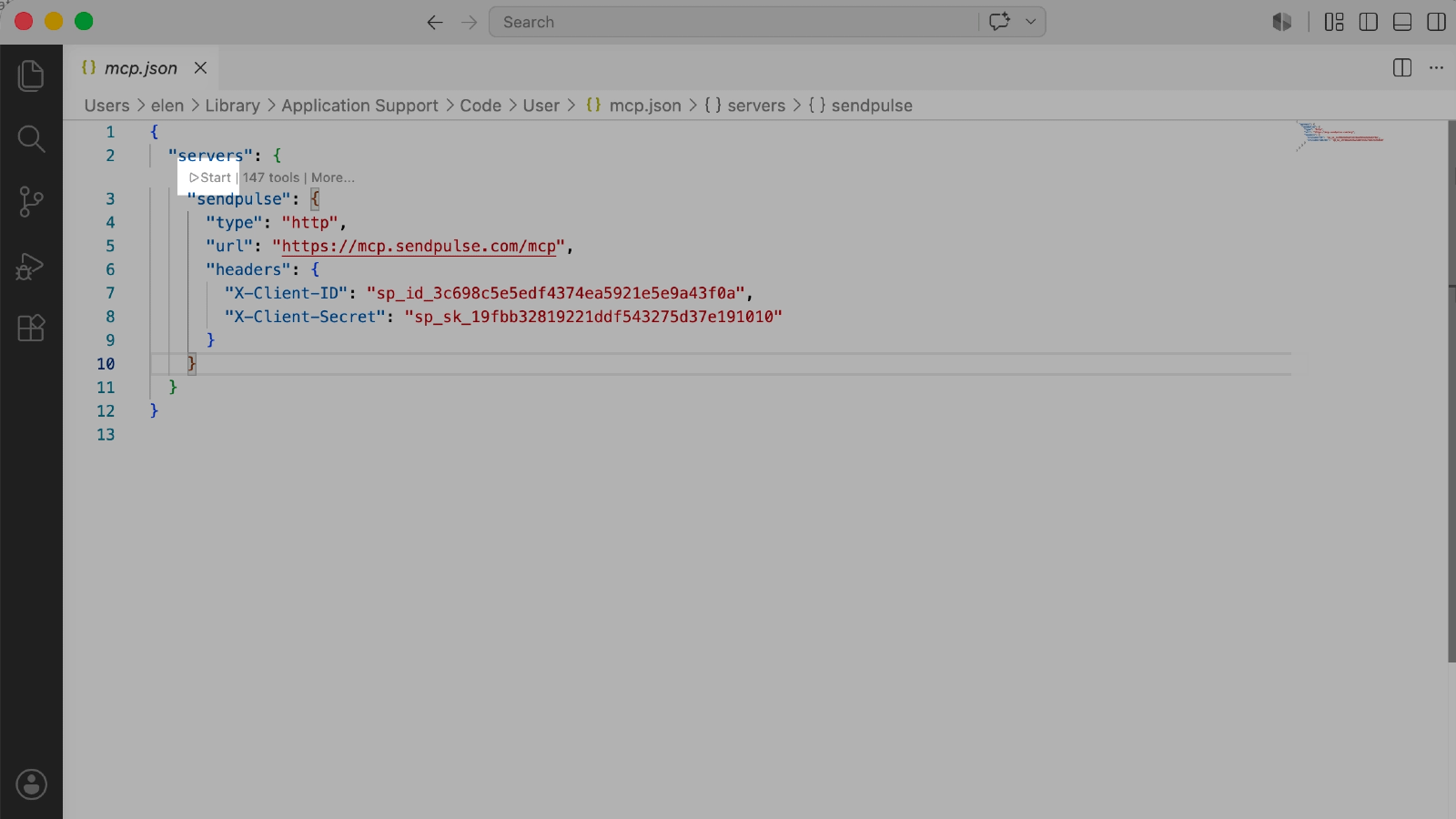
Save the file and click Start to launch the MCP server.
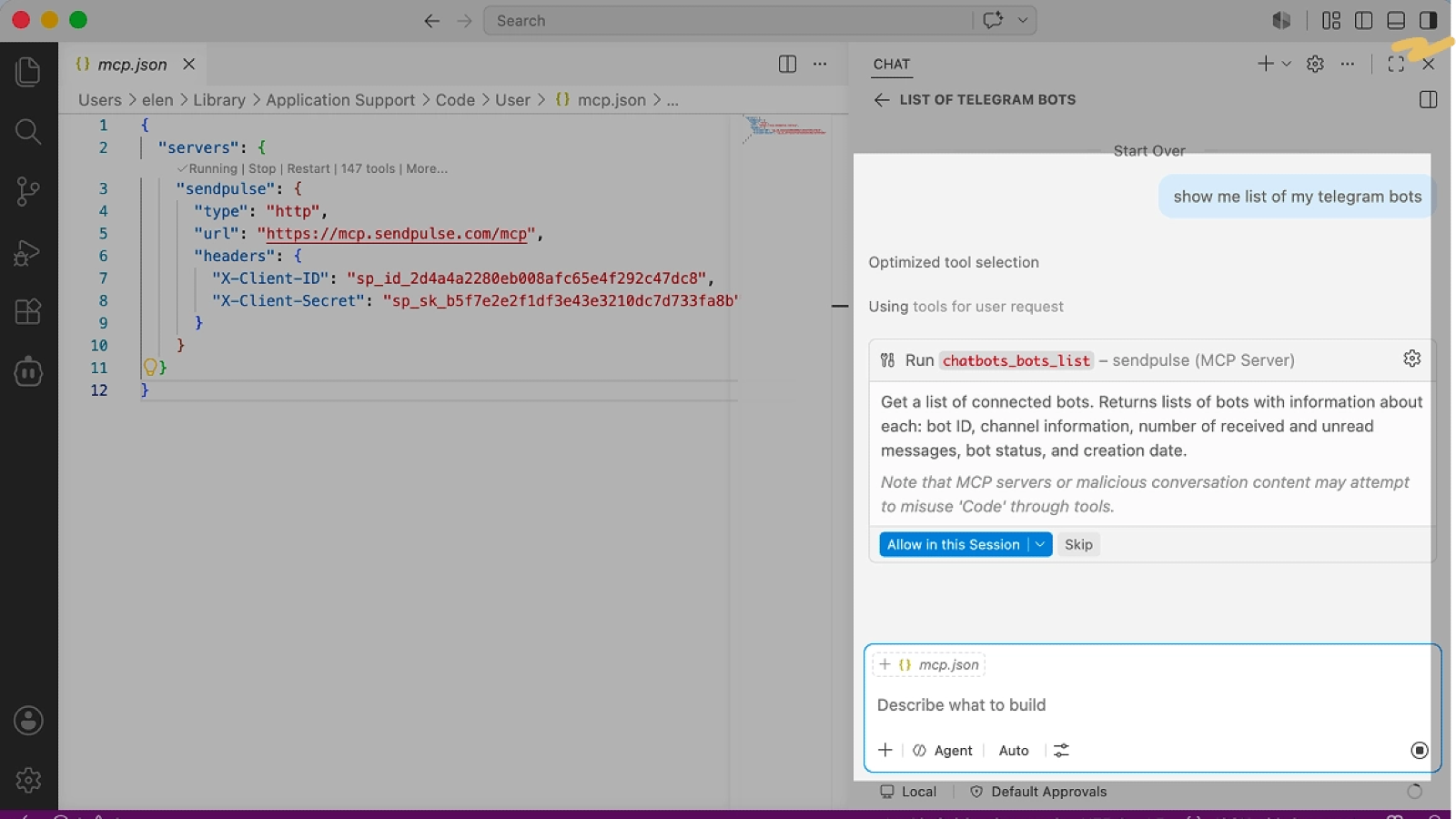
Open Copilot Chat by clicking the icon in the top right corner of VS Code, and select Agent mode.
Click the Configure Tools icon in the message field — sendpulse appears in the list with its available MCP tools.
Enter a test request — for example, "Show a list of my chatbots." Copilot shows the MCP tool name — click Allow in this Session to approve it. If the connection succeeded, Copilot calls the MCP server and returns data from your SendPulse account.





or