Chatbot flow triggers basics
A trigger is an event or subscriber action that launches a chatbot flow automatically. You link a flow to each trigger, and the trigger launches this flow when its event occurs. For example, a trigger can respond when a user subscribes to your chatbot, sends a keyword, or comments on your post. It can also respond to an event from another system.
With triggers, you can:
- greet new subscribers right after they subscribe;
- reply to messages that contain specific keywords;
- answer messages your chatbot doesn't recognize;
- react to comments, story mentions, and other actions in messaging apps;
- launch a flow when an event arrives from Automation, your website, or your payment provider.
Here's how businesses can use triggers:
- An online store can link the price keyword to a flow that sends its price list.
- A furniture store can message subscribers who add a product to their cart on its website.
- An Instagram account can send a direct message to every user who comments on a giveaway post.
- A Telegram community can greet each user who joins its group or channel.
- An online school with a subscription can unlock lessons after each successful payment and ask the user to update their payment method when a payment fails.
Let's talk about how triggers work, which triggers are available, and how to set them up.
How triggers work
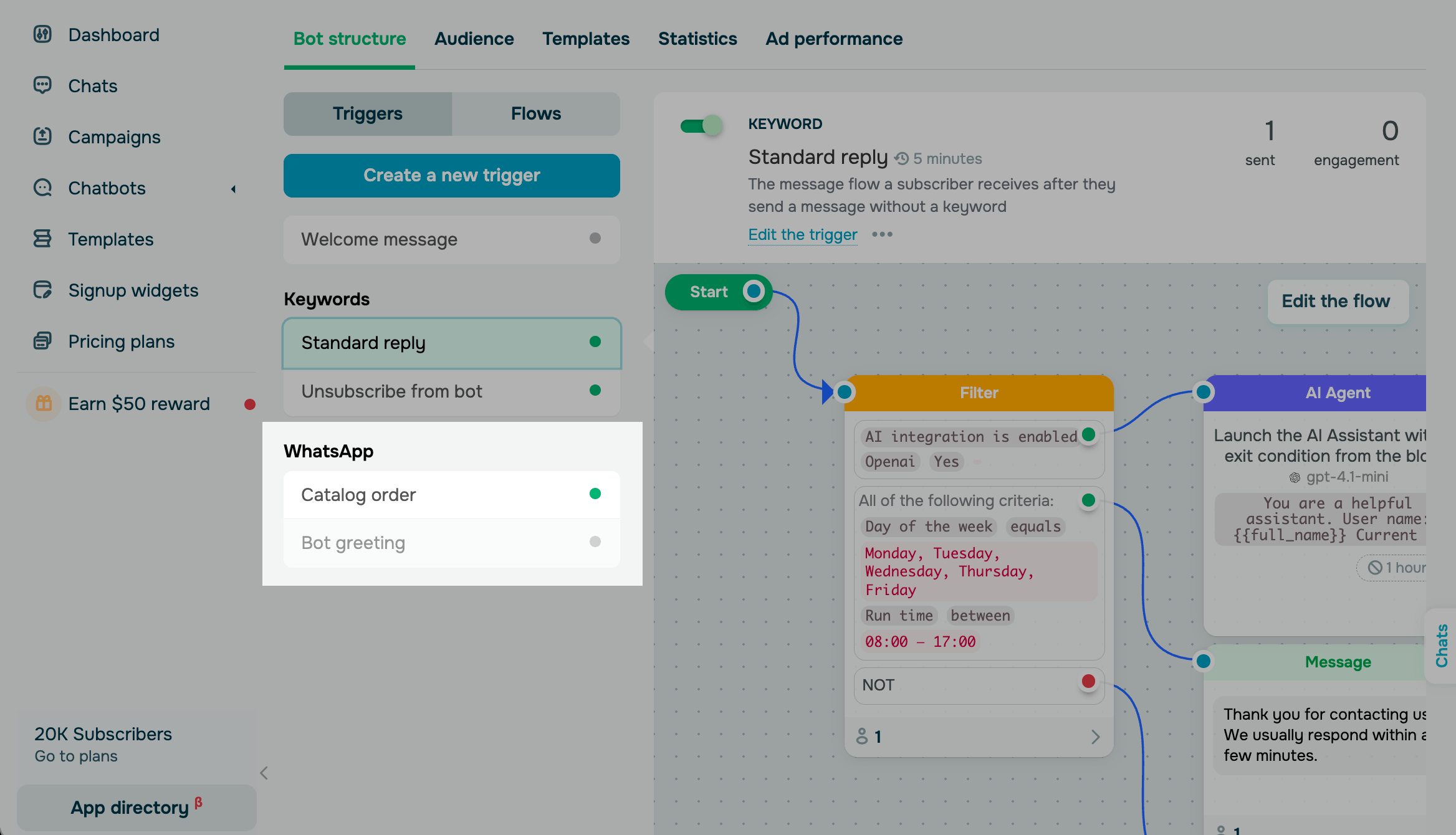
Your chatbot stores triggers and flows in the Bot structure section. The Triggers tab lists all triggers, and the Flows tab stores all flows, including the ones that aren't linked to any trigger.
A trigger launches the flow linked to it. For example, when a subscriber messages price, the Keyword trigger recognizes this word, and your chatbot sends the price list. If a subscriber's message doesn't match any of your keywords, the Standard reply trigger launches its flow instead. When a subscriber types in a part of a keyword, your chatbot can also suggest a button with the matching trigger.
If you delete a trigger, its flow stays in the Flows tab. You can link this flow to another trigger or launch it in other ways, such as by a link or manually.
Trigger types
There are three groups of triggers: standard triggers, custom triggers, and app-specific triggers.
Standard triggers
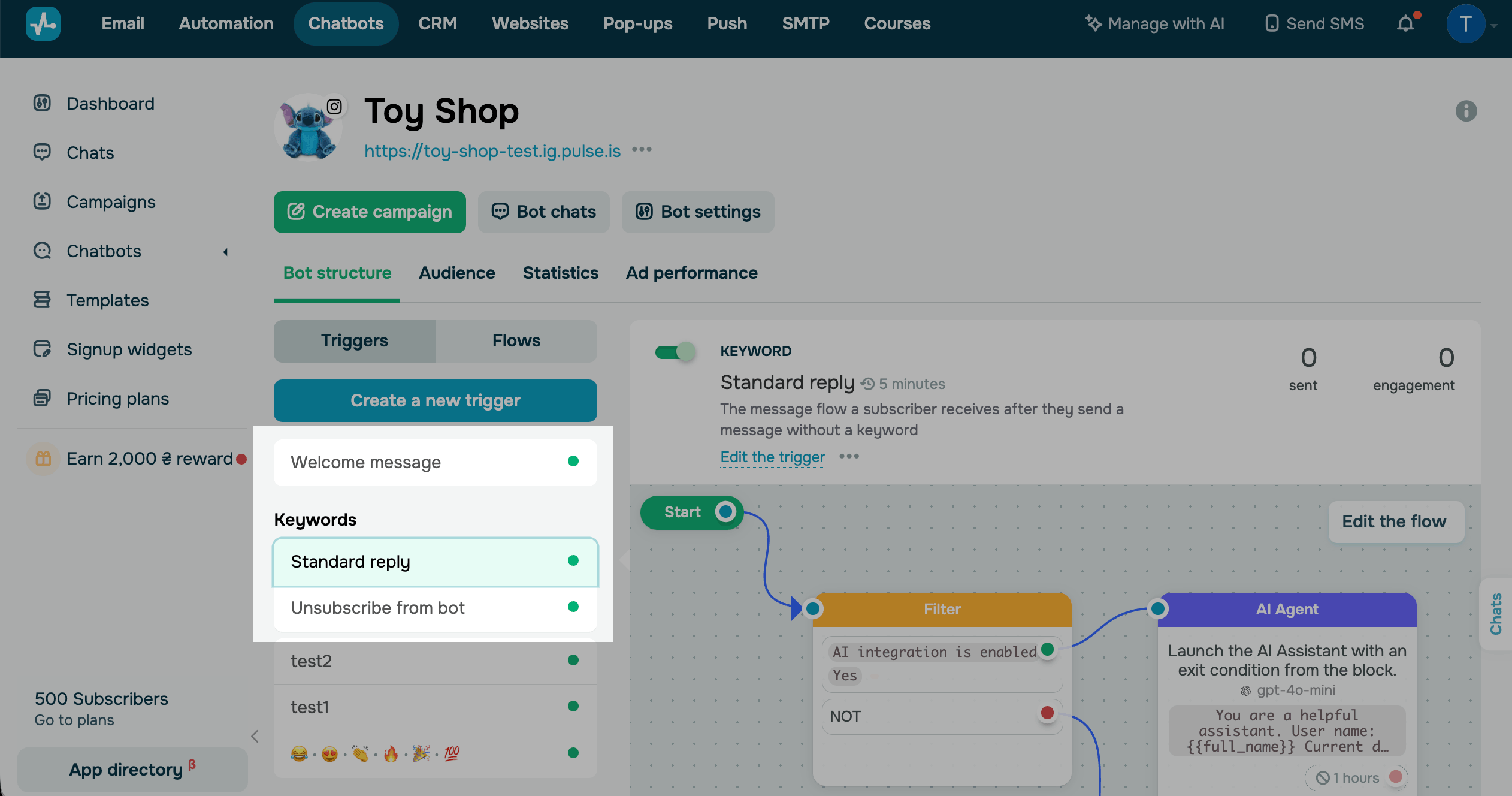
Standard triggers cover the key events in every conversation, such as when a user subscribes, sends a message your chatbot doesn't recognize, or unsubscribes. SendPulse creates these triggers in every chatbot, in all messaging apps. Their flows are in the System flows folder. You can edit these flows, but you can't delete them or replace them with other flows.
Each chatbot has the following standard triggers:
| Welcome message | Launches the flow right after a user subscribes to the chatbot. |
| Standard reply | Launches the flow in response to a subscriber message that doesn't contain any configured keywords. |
| Unsubscription from the bot | Launches the flow when a subscriber sends the /unsubscribe or /stop command. |
Custom triggers
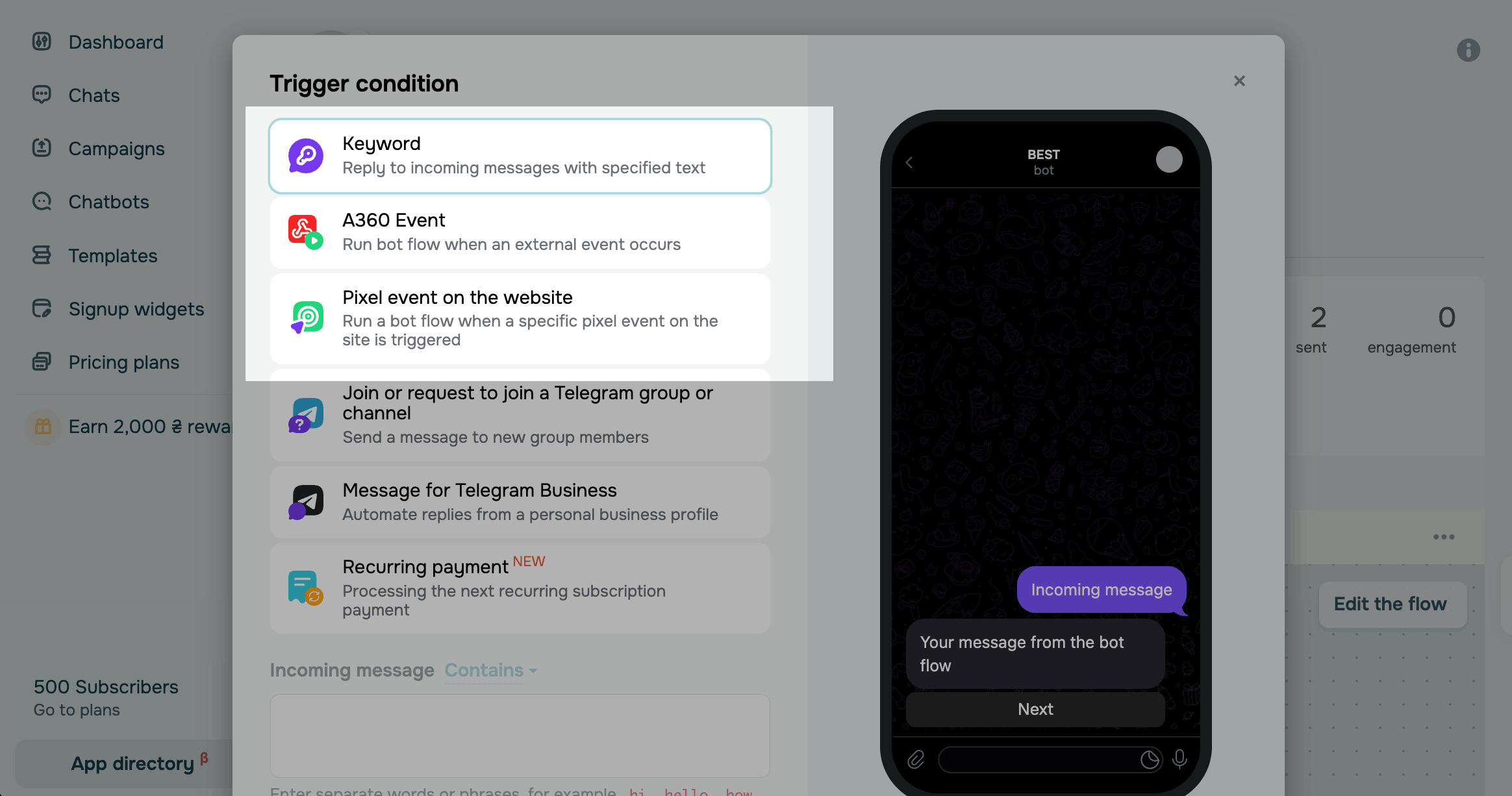
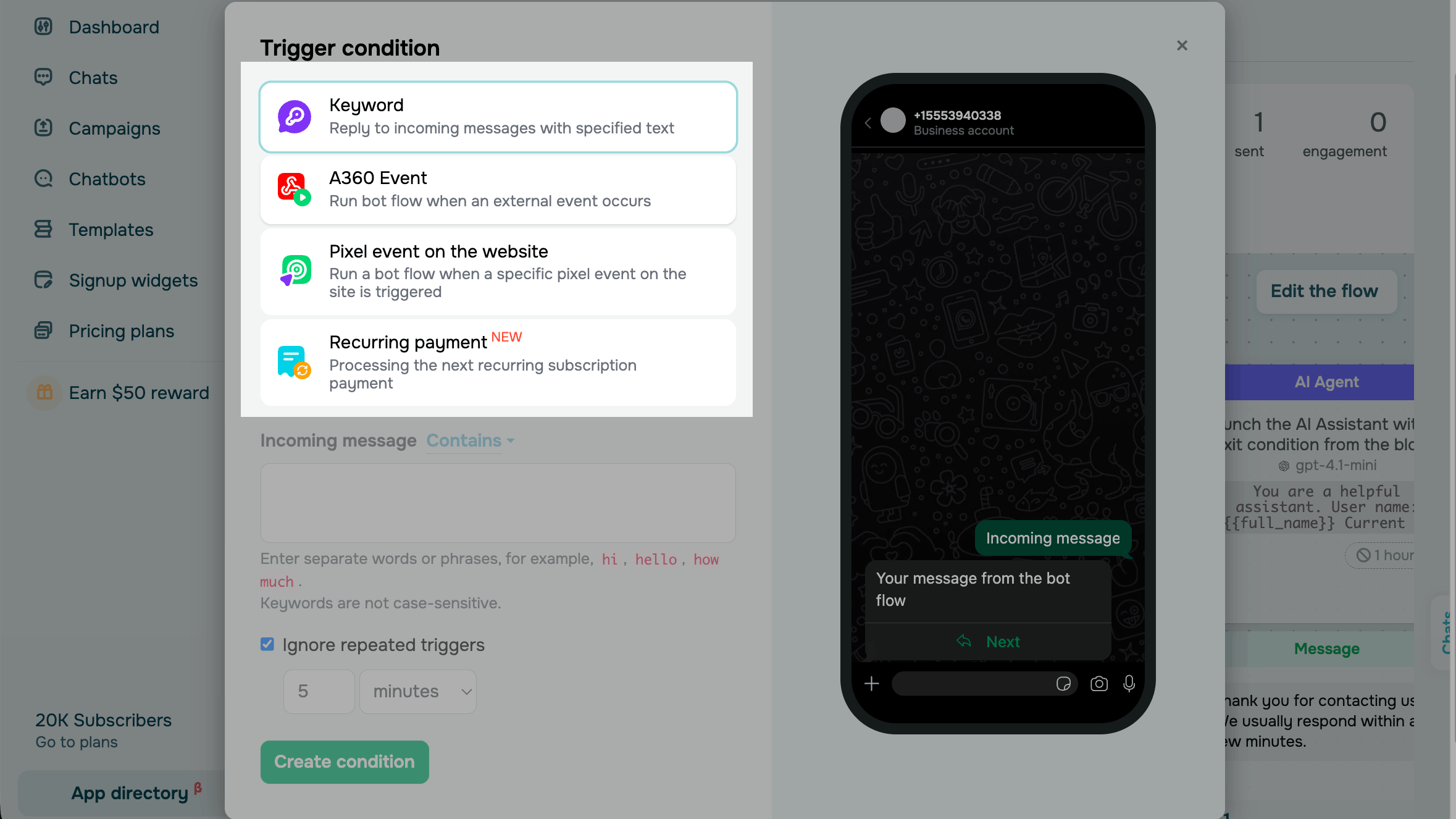
Custom triggers let you launch flows on your own conditions in each messaging app, such as a keyword in a subscriber’s message, an event from Automation, a website pixel event, or a payment status. You add these triggers yourself as needed.
You can add the following custom triggers:
| Keyword | Launches the flow when a subscriber sends a message that matches or contains a keyword. |
| A360 Event | Launches the flow when a selected Automation event occurs for the subscriber. |
| Website pixel event | Launches the flow when a visitor performs a tracked action on your website, such as viewing a product or submitting a form. |
| Recurring payment trigger | Launches the flow when a subscription payment succeeds, fails, or is canceled. Subscriptions are supported only by WayForPay. |
App-specific triggers
Some triggers rely on the features of a specific messaging app, such as comments, Stories, groups, or catalogs. These triggers are available only in chatbots built for that app.
In Facebook chatbots, you can use the Comment on a post trigger. It launches the flow when a user comments on a post you've selected.
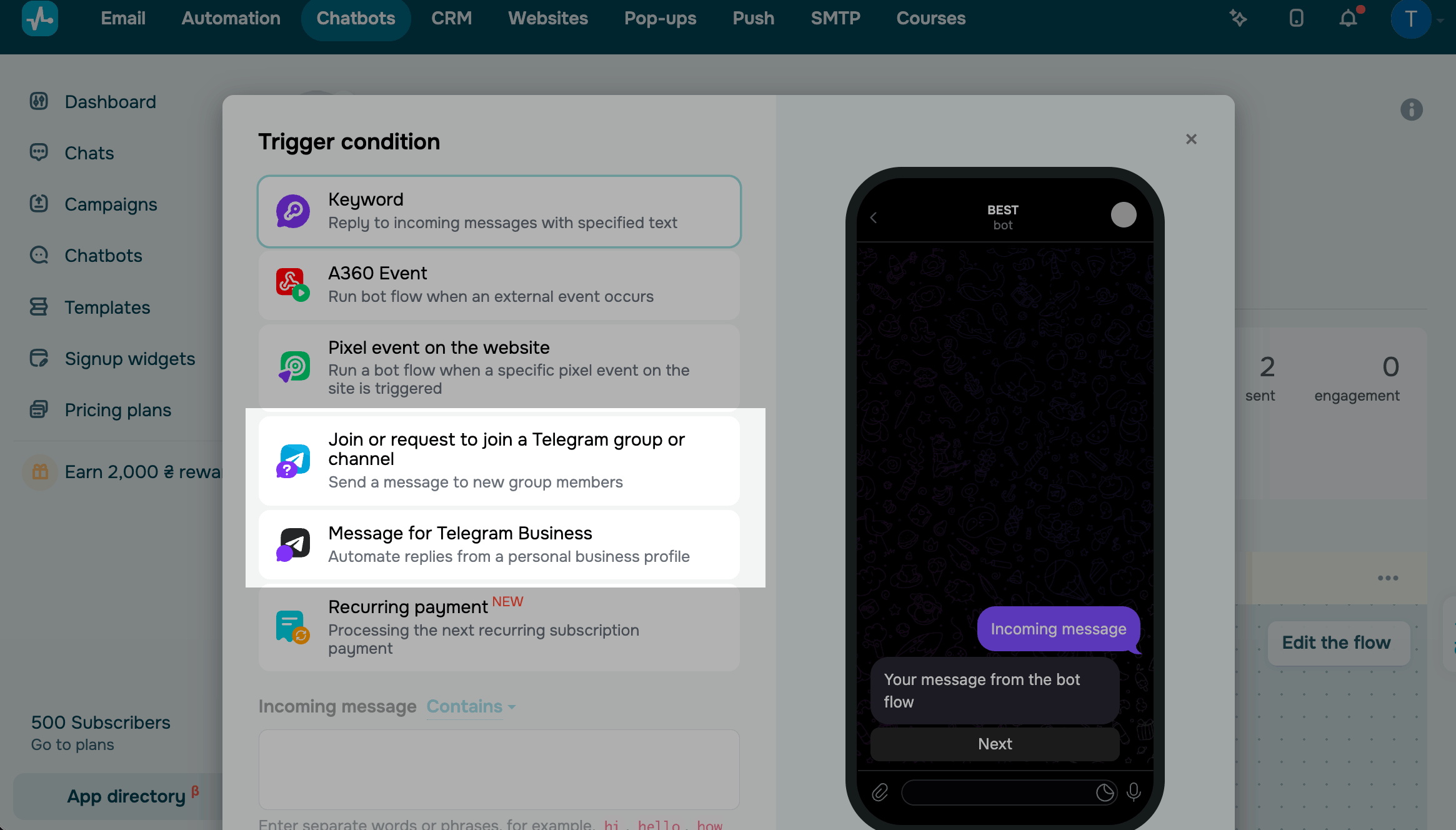
In Telegram chatbots, you can use the following triggers:
| Join or request to join a group or channel | Launches the flow when a user joins or requests to join a selected group or channel. |
| Message for Telegram Business | Launches the flow when your Telegram Business account receives a message. |
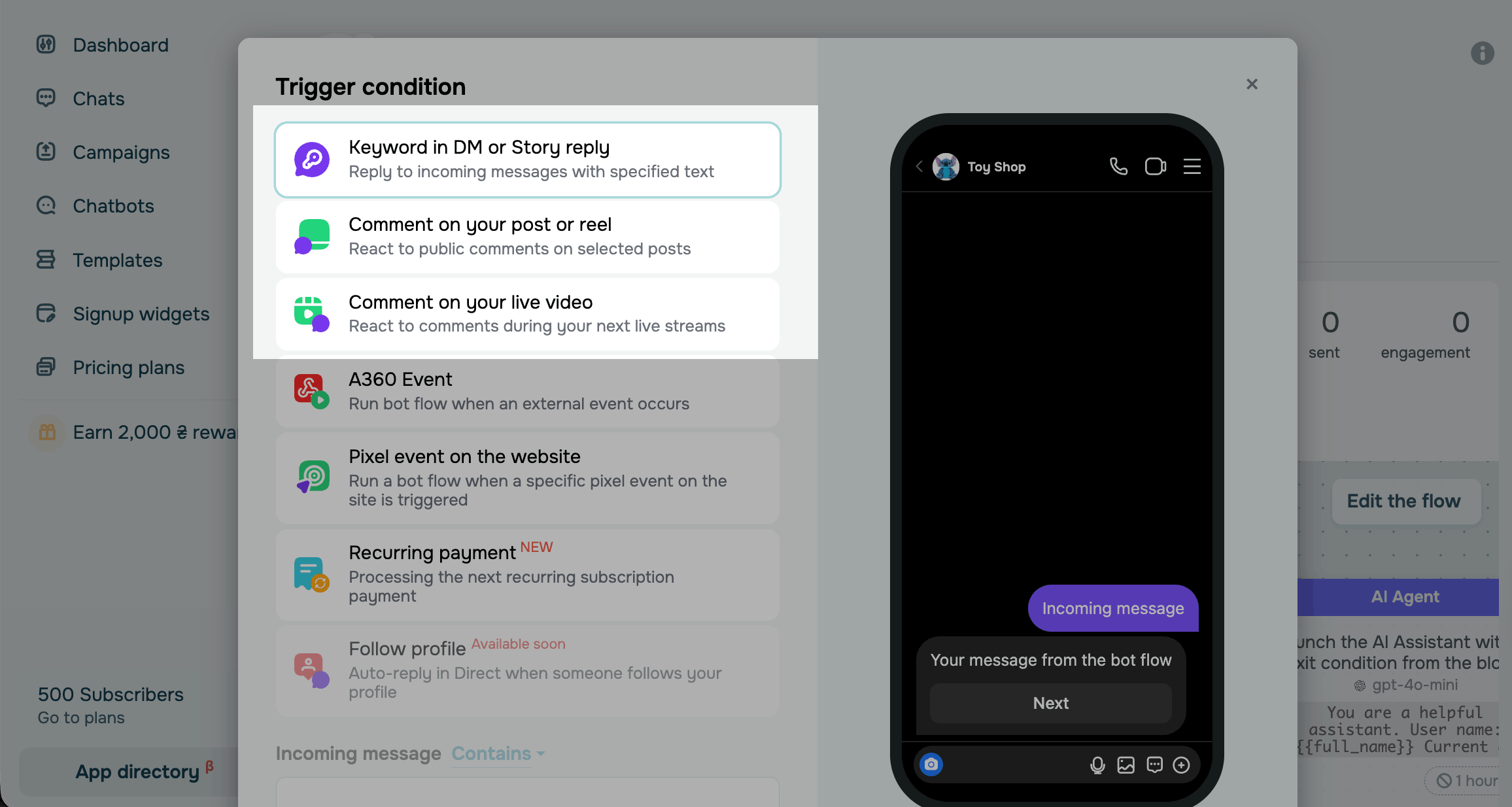
In Instagram chatbots, you can use the following triggers:
| Story mention | Launches the flow when a user mentions your account in their Story. |
| Comment on your live video | Launches the flow when a user comments on your live video. |
| Comment on your post | Launches the flow when a user comments on a selected post. |
In WhatsApp chatbots, you can use the following triggers:
| Bot greeting | Launches the flow when a user starts a chat with your chatbot for the first time. |
| Catalog order | Launches the flow when a user orders from your WhatsApp catalog. |
Trigger setup
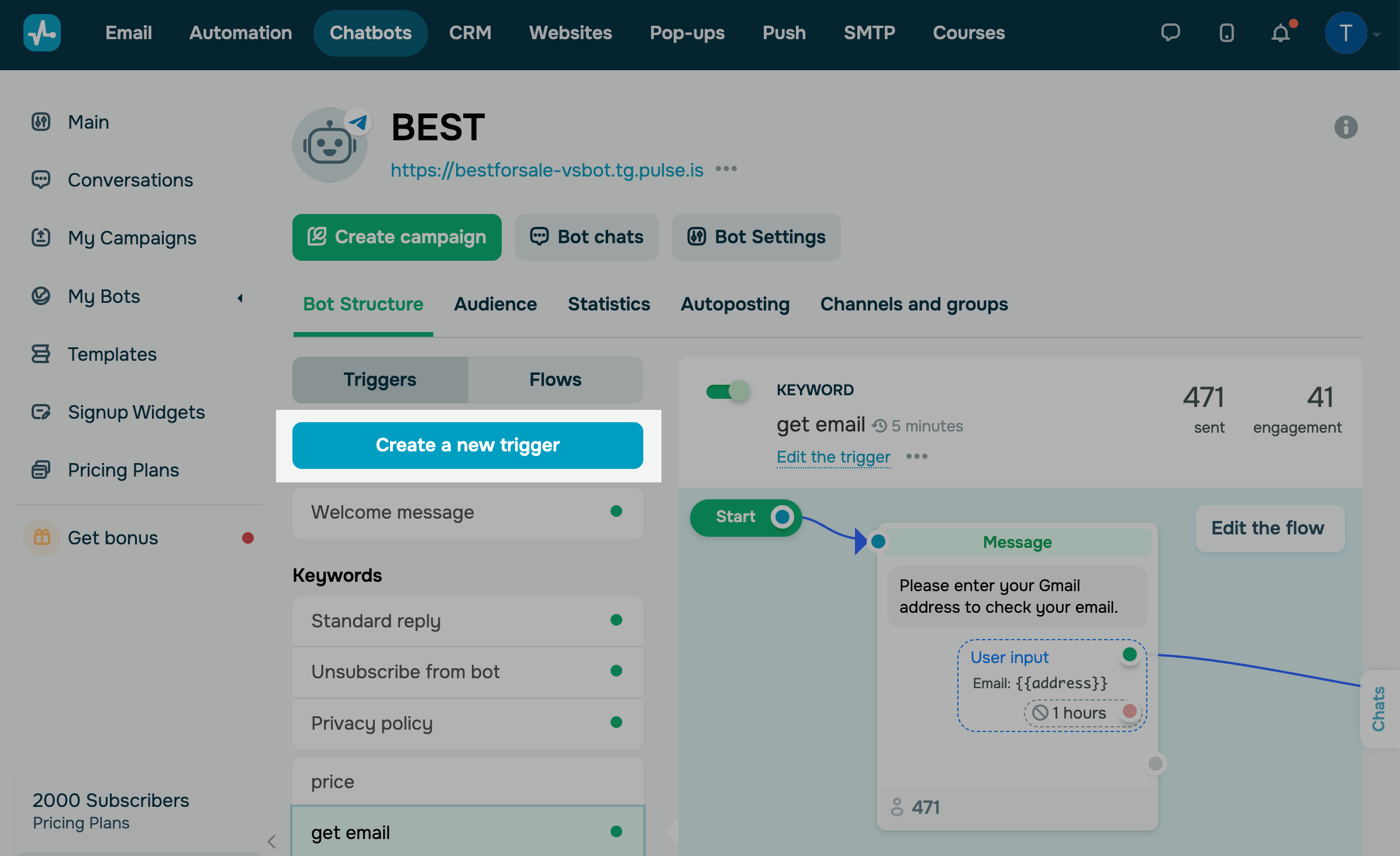
To launch a flow when a subscriber takes an action, add a trigger and link a flow to it. Go to your chatbot, open the Bot structure tab, and click Create a new trigger.
Select a trigger type, configure its settings, and click Add. The available settings vary depending on the trigger type.
To link a flow to the trigger, click Bind existing and select a flow, or click Create flow to build a new one in the flow builder.
Other ways to launch a flow
Triggers launch flows automatically when subscribers act in a chat or when an event occurs. A flow can also start when a user subscribes to your chatbot from a link, page, or widget, or when you or another SendPulse tool launches it.
Read more: Start a chatbot conversation.
 Last Updated: 13.10.2026





or