Purchase a pricing plan
In SendPulse, a pricing plan determines the set of features and resources available in a given tool. You can purchase a plan for a specific tool or bundle multiple tools to build a custom plan. You can also buy a paid chatbot plan directly in the chatbot builder.
Pre-built plans for a single SendPulse tool
Go to the relevant SendPulse tool in your account and open the Pricing plans tab. Choose a pricing plan.
Choose a plan size, such as the number of subscribers, messages, or users.
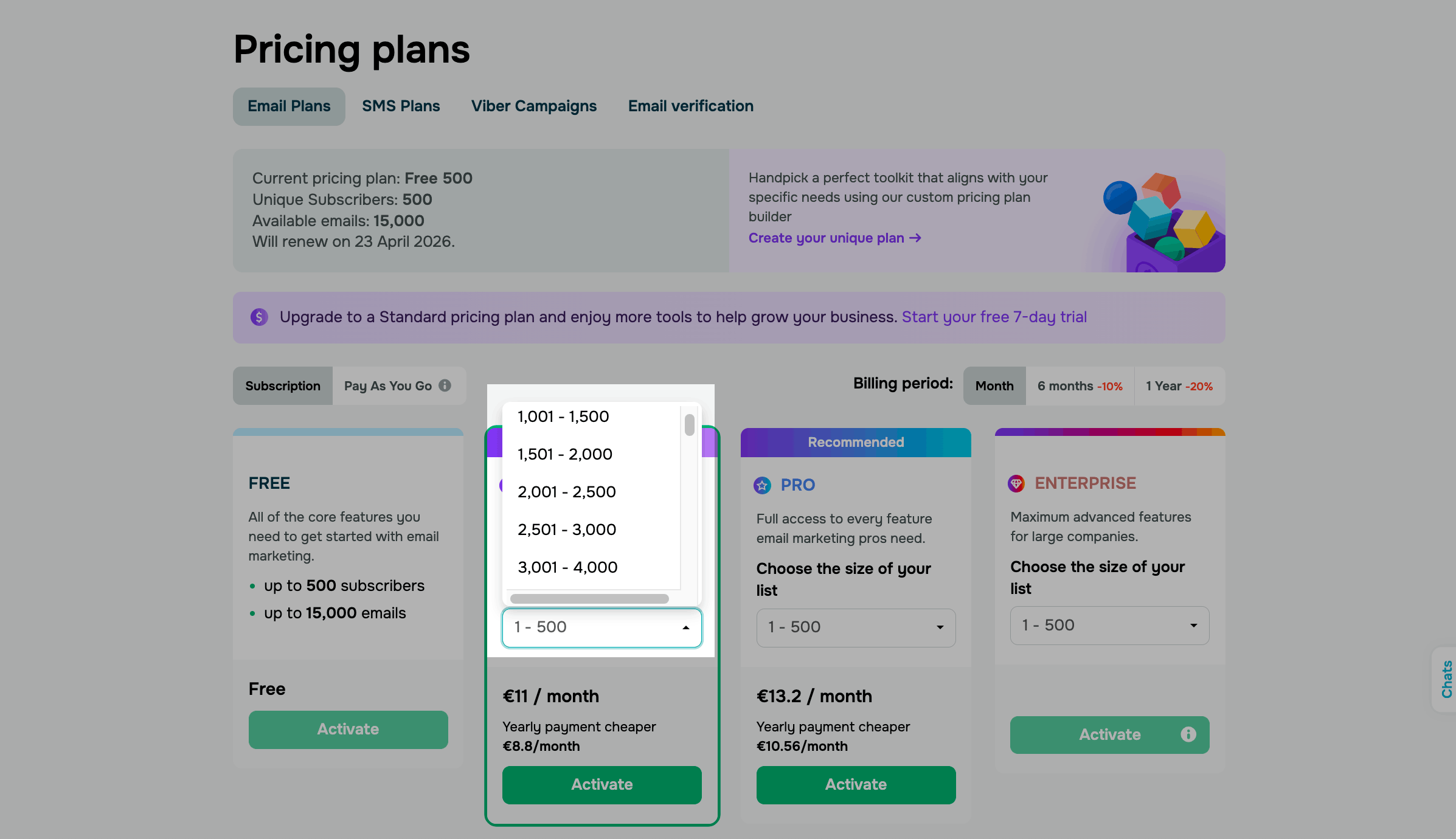
Add extra resources, such as more file storage, if needed.
Select a billing period: monthly, every 6 months, or yearly.
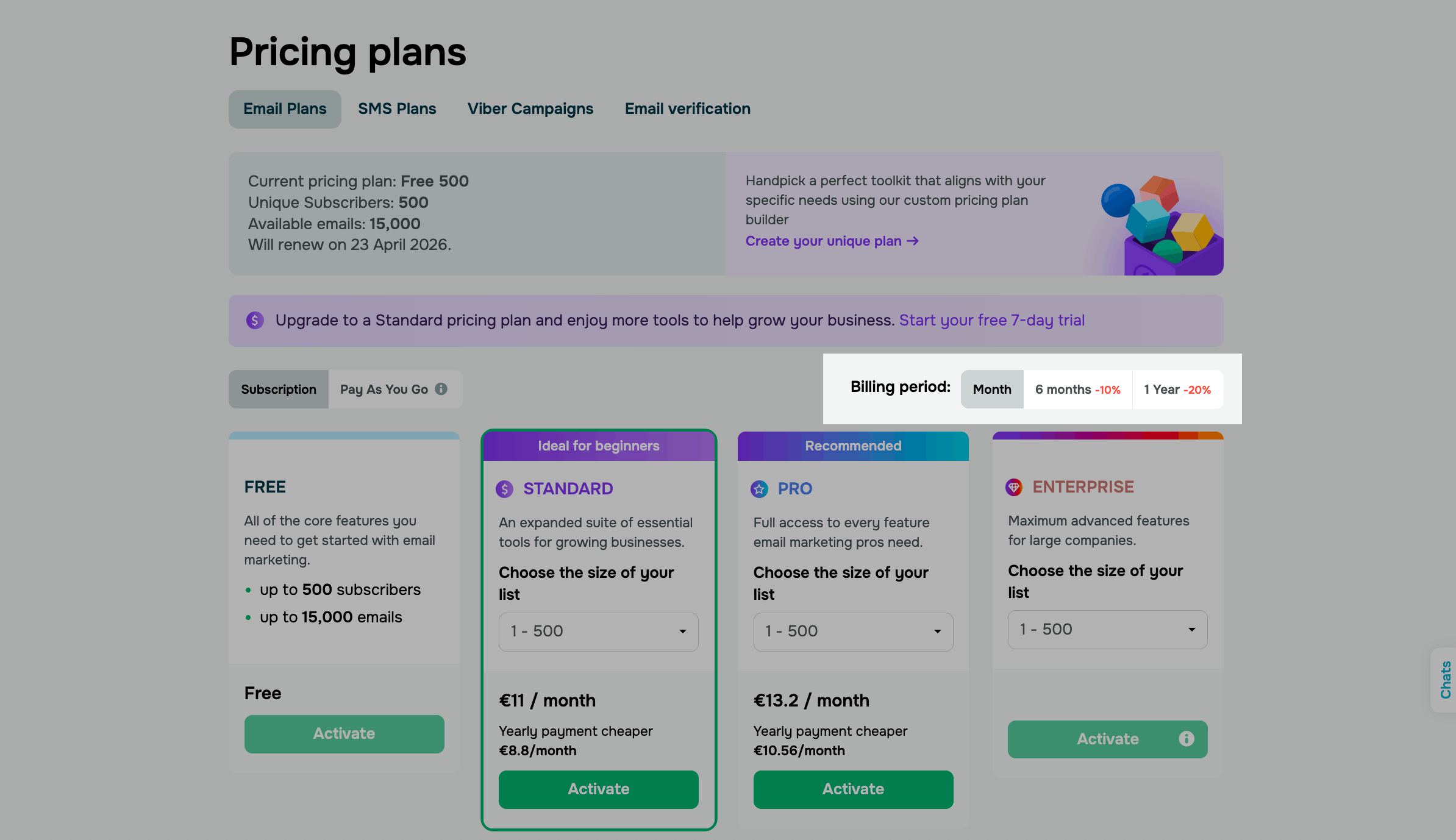
Once you've selected your options, the system will calculate the plan cost and create a subscription.
Click Activate.
You'll be redirected to the payment page, where you can pay by card or cryptocurrency.
Custom plans for multiple SendPulse tools
If you need multiple plans across different tools, use the pricing plan builder to create a bundle. Choose plans, sizes, and extra resources.
Some tools offer paid add-ons, such as extra team members, storage space, or a dedicated SMTP IP address. These may be included in your plan or billed separately.
Quick plan purchase in the chatbot builder
If you're on the free chatbot plan, the Upgrade your pricing plan link opens a payment sidebar. This helps you upgrade to a paid plan without leaving the page you're on. You can find this link, for example, in the tooltip for a paid feature in the flow builder.
Suppose you add a flow element that's available only with paid plans. You can pay for a plan in the sidebar and keep working in the builder.
The sidebar doesn't open during a free trial. In Chats, the link opens the pricing page. You can always open this page from the Pricing plans tab.
To proceed to payment, click Upgrade your pricing plan. In the sidebar, under Choose the size of your list, use the slider to set the number of subscribers.
To pay for a full year at once, select the Yearly subscription checkbox.
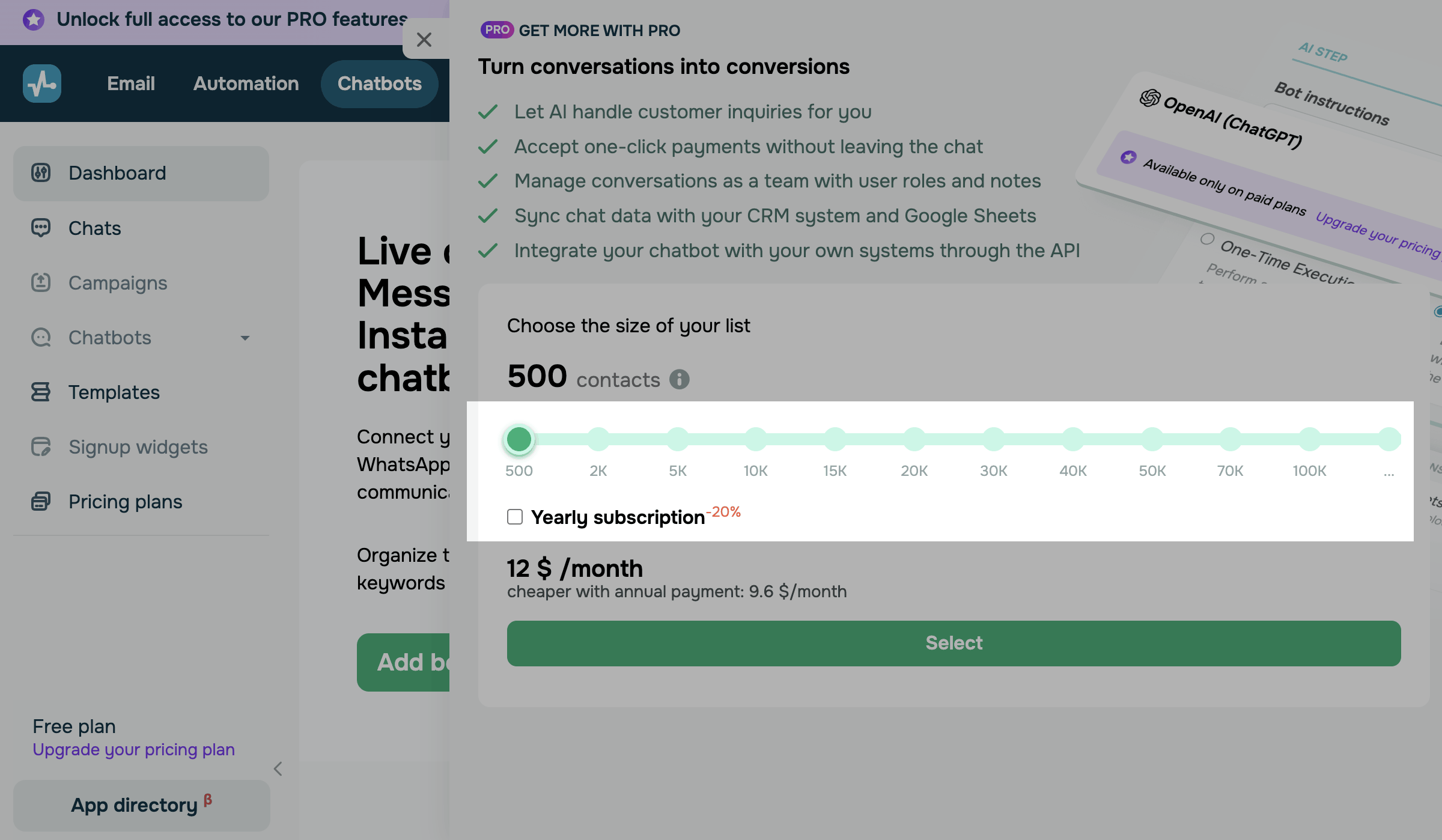
The next steps depend on your account's country and currency.
Pay for your plan
You can pay by card right after you choose your list size. Click Pay, enter your card details in the sidebar payment form, and click Confirm payment.
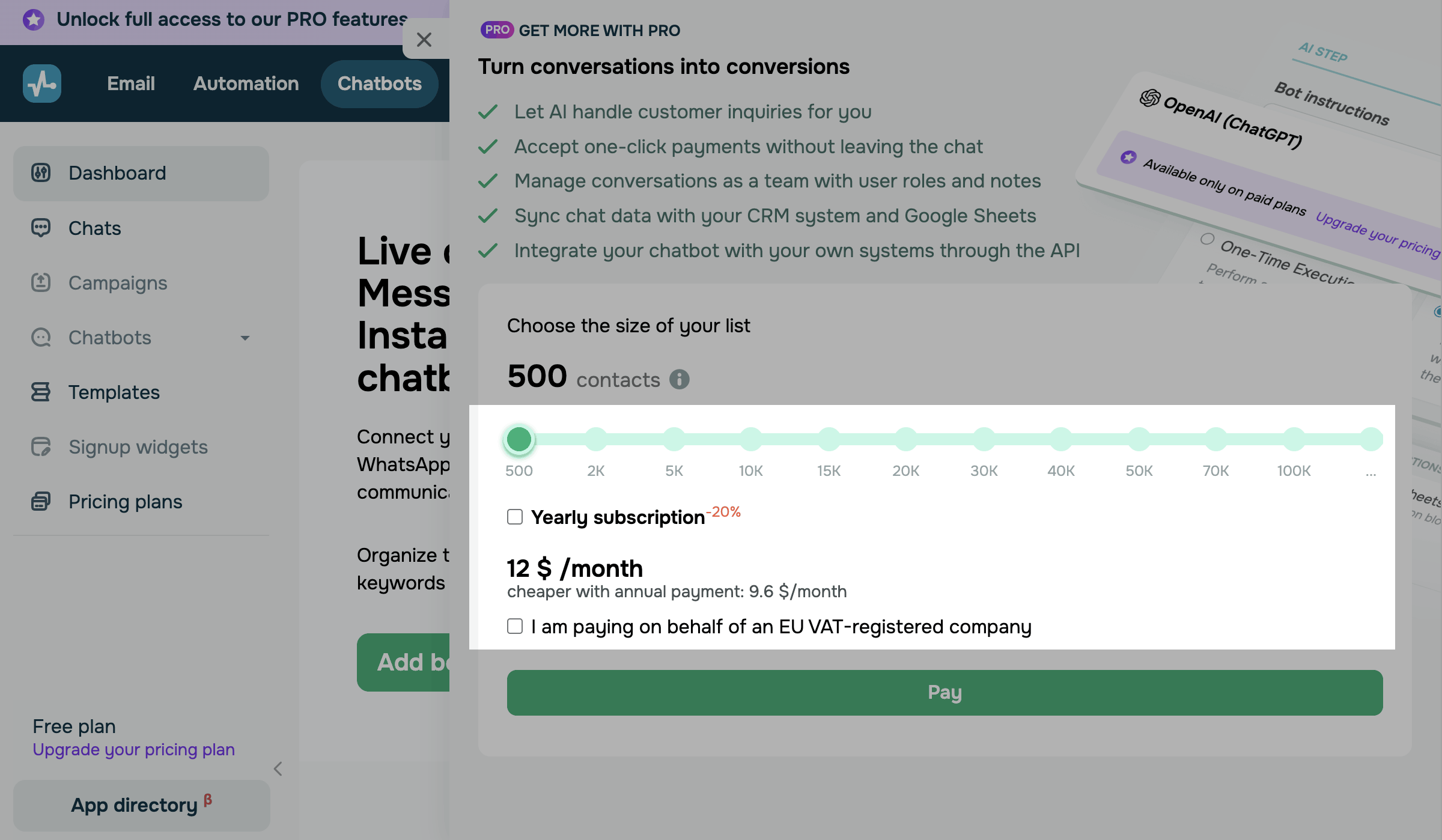
Pay on behalf of an EU VAT-registered company
To pay as a company, select the I am paying on behalf of an EU VAT-registered company checkbox. Then, click Pay, fill in the payment form in the 2Checkout window, and confirm your payment.
Pay from Ukraine
From Ukraine, you can pay using a Debit/Credit Card, PayPal, Bank card (UAH), Privat24, or Online card payment (UAH).
Click Select, choose a method under Payment method, and click Pay. To use another payment method, go to the payment page using the link in this section.
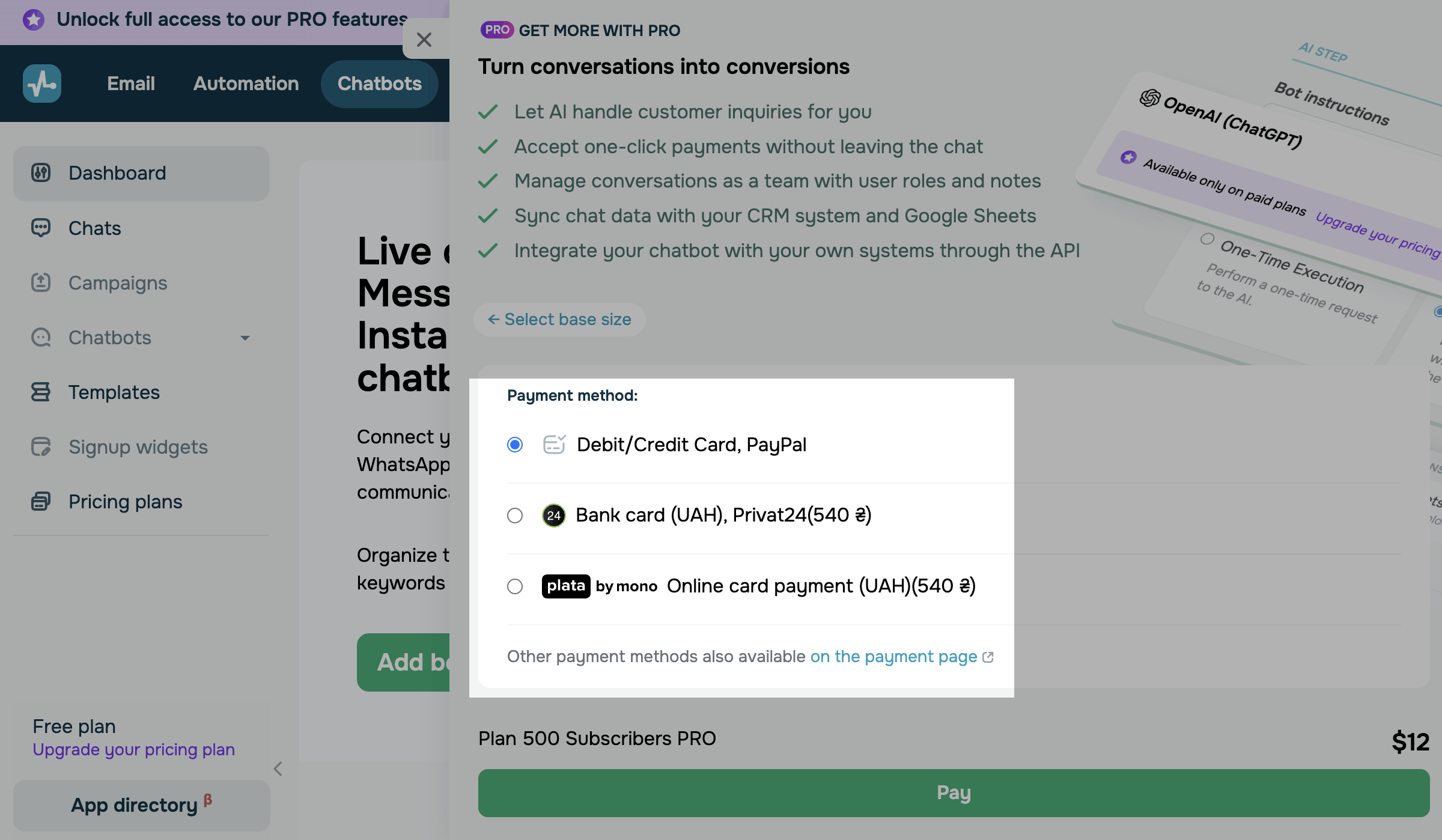
If you select Debit/Credit Card, PayPal, enter your card details in the sidebar payment form and click Confirm payment.
If you select Bank card (UAH), Privat24 or Online card payment (UAH), your payment continues in a new tab. The sidebar closes, and SendPulse shows a notification that the processing may take up to 15 minutes. Once you pay, you'll return to the page you were on.
Start using your paid plan
When the payment goes through, the sidebar shows Payment successful, your plan name, and the date your plan is valid until. SendPulse creates a subscription for the selected period, just as it does when you buy a plan on the pricing page.
If the payment is still processing, the sidebar shows Almost ready. Your plan is activated automatically once the transaction is complete.
To start using your new plan's features, refresh the page. It doesn't refresh automatically, so save your changes first, and then click Refresh page or refresh the page manually.
 Last Updated: 31.03.2026




or