Create an SMS chatbot
SMS chatbots help you automate customer interactions through text messages. They run on preconfigured flows and reply to incoming messages using specific triggers.
With an SMS chatbot, you can:
- answer customers’ frequently asked questions;
- request and save customer data;
- run flows based on keywords or events;
- personalize messages using variables and filters;
- use AI to process free-form messages;
- retrieve data from external systems through API.
Let’s talk about how SMS chatbots work, as well as how to register a phone number and set up flows for it.
Basics
An SMS chatbot is an automated multi-purpose assistant that sends and receives text messages.
SMS chatbot setup involves two steps:
- Get a dedicated phone number that will send your messages.
- Create flows in the chatbot builder.
The cost of using an SMS chatbot includes the phone number registration fee, monthly phone number maintenance fees, and fees for each message sent. In Canada and the United States, incoming messages are charged as well.
One SMS message can include up to 160 Latin characters or 70 Unicode characters. Spaces count as characters. If your text is longer, the system splits it into multiple messages and charges you for each one.
Current pricing for your selected country appears when you submit your phone number registration form.
Register a phone number
An SMS chatbot uses a phone number registered in your recipients’ country. A registered phone number can send SMS messages only within the country where it was registered. For example, a phone number with the +1 country code can send SMS messages only in the United States.
To get a phone number, submit a request through the SMS Bridge app.
Go to Chatbots > Manage bots and click Add bot. In SMS bots, click Open in marketplace.
You can also find the app in SendPulse’s app directory by searching for SMS Chat in SendPulse.
On the app page, click Install. In the next window, review the data the app wants to access, and click Accept.
Next, click + Add number and fill in the following fields:
| Bot name | Enter a chatbot name that will appear in the Chatbots section. |
| Country | Select the country where you plan to send SMS messages. Make sure to register a dedicated phone number for each country. |
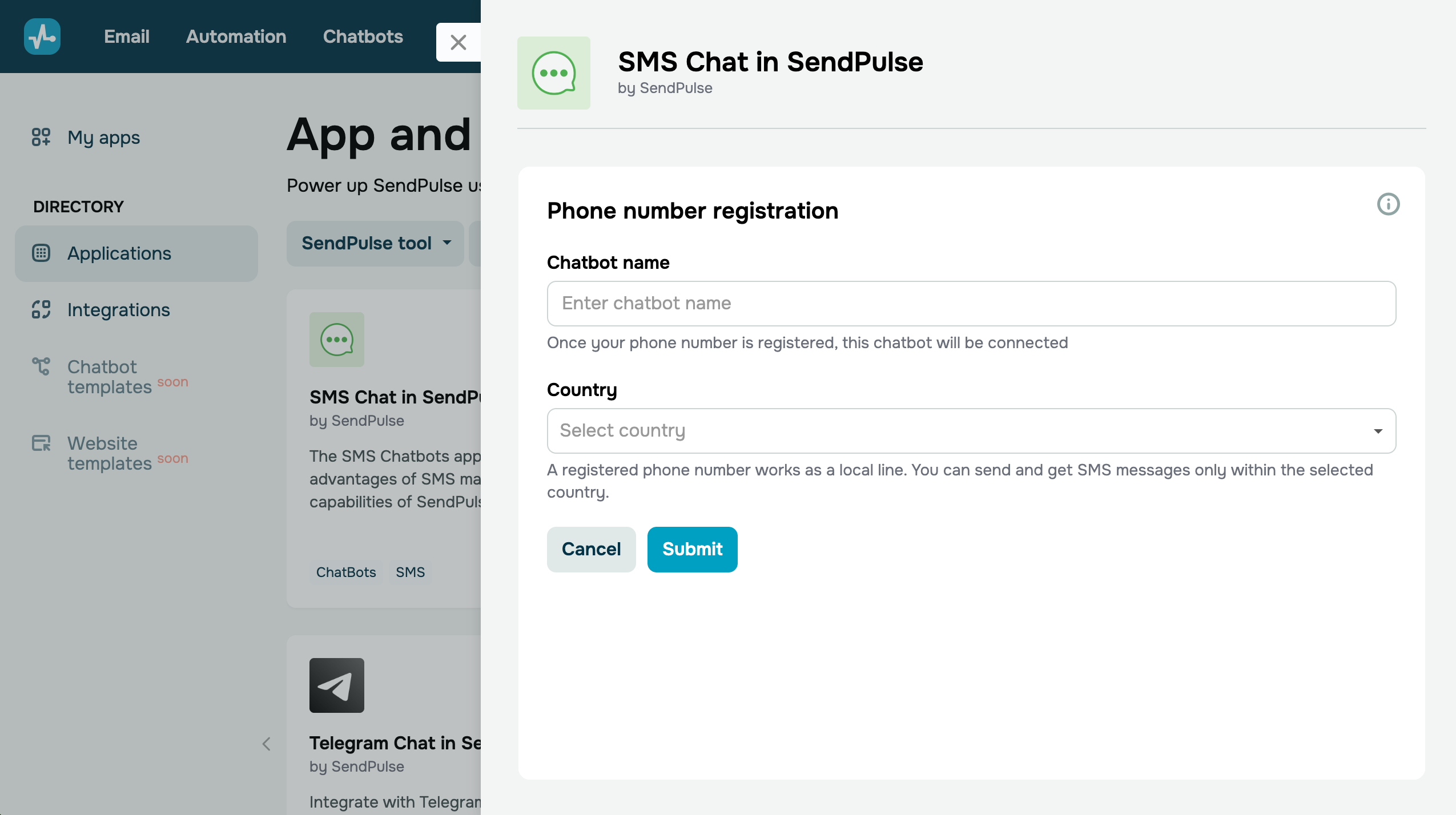
Depending on your selected country, more fields may appear in the form, requiring you to provide other details.
Once you've selected a country, check the pricing terms and the estimated review time for your request.
Before submitting the form, make sure your account balance has enough funds to cover the registration fee and monthly charges. If needed, enable automatic payments.
Canada
Fill in the following fields:
| Company name | Enter your company’s legal name. |
| Website URL | List a website related to your business that includes information about your activities, contact details, services, and other relevant information.
If you do not have a website, enter “No website.” Social media links are not allowed. |
Next, upload a subscription form screenshot from the website you’ve listed, the UPL license, and the completed TFN registration form.
Once you’ve filled out the form, click Submit. The review process takes up to 5 days.
United States
Fill in the following fields:
| Company name | Enter your company’s legal name. |
| Website URL | List a website related to your business that includes information about your activities, contact details, services, and other relevant information.
If you do not have a website, enter “No website.” Social media links are not allowed. |
Next, upload a subscription form screenshot from the website you’ve listed, the UPL license, and the completed TFN registration form.
Once you’ve filled out the form, click Submit. The review process takes up to 5 days.
United Kingdom
Fill in the following fields:
| Company name | Enter your company’s legal name. |
| Legal address | Enter the address where your company is registered. |
| Company business description | Describe the services or products your company provides. |
| Website URL | List a website related to your business that includes information about your activities, contact details, services, and other relevant information.
If you do not have a website, enter “No website.” Social media links are not allowed. |
| Estimated traffic, SMS per month | Enter the estimated number of SMS messages you plan to send monthly. |
Once you’ve filled out the form, click Submit. The review process takes up to 45 days.
Ukraine
Fill in the following fields:
| Company name | Enter your company’s legal name. |
| Legal address | Enter the address where your company is registered. |
| Company business description | Describe the services or products your company provides. |
| Website URL | List a website related to your business that includes information about your activities, contact details, services, and other relevant information.
If you do not have a website, enter “No website.” Social media links are not allowed. |
| Estimated traffic, SMS per month | Enter the estimated number of SMS messages you plan to send monthly. |
Once you’ve filled out the form, click Submit. The review process takes up to 45 days.
Germany
Fill in the following fields:
| Company name | Enter your company’s legal name. |
| Legal address | Enter the address where your company is registered. |
| Company business description | Describe the services or products your company provides. |
| Website URL | List a website related to your business that includes information about your activities, contact details, services, and other relevant information.
If you do not have a website, enter “No website.” Social media links are not allowed. |
| Estimated traffic, SMS per month | Enter the estimated number of SMS messages you plan to send monthly. |
Once you’ve filled out the form, click Submit. The review process takes up to 45 days.
Poland
Fill in the following fields:
| Company name | Enter your company’s legal name. |
| Legal address | Enter the address where your company is registered. |
| Company business description | Describe the services or products your company provides. |
| Website URL | List a website related to your business that includes information about your activities, contact details, services, and other relevant information.
If you do not have a website, enter “No website.” Social media links are not allowed. |
| Estimated traffic, SMS per month | Enter the estimated number of SMS messages you plan to send monthly. |
Once you’ve filled out the form, click Submit. The review process takes up to 45 days.
Portugal
Fill in the following fields:
| Company name | Enter your company’s legal name. |
| Legal address | Enter the address where your company is registered. |
| Company business description | Describe the services or products your company provides. |
| Website URL | List a website related to your business that includes information about your activities, contact details, services, and other relevant information.
If you do not have a website, enter “No website.” Social media links are not allowed. |
| Estimated traffic, SMS per month | Enter the estimated number of SMS messages you plan to send monthly. |
Once you’ve filled out the form, click Submit. The review process takes up to 14 days.
Spain
Fill in the following fields:
| Company name | Enter your company’s legal name. |
| Legal address | Enter the address where your company is registered. |
| Company business description | Describe the services or products your company provides. |
| Website URL | List a website related to your business that includes information about your activities, contact details, services, and other relevant information.
If you do not have a website, enter “No website.” Social media links are not allowed. |
| Estimated traffic, SMS per month | Enter the estimated number of SMS messages you plan to send monthly. |
Once you’ve filled out the form, click Submit. The review process takes up to 14 days.
Set up your chatbot
Once your request is approved, you will receive an email with your registered phone number. Your chatbot will automatically appear in the Chatbots section, where you’ll be able to start creating triggers and flows.
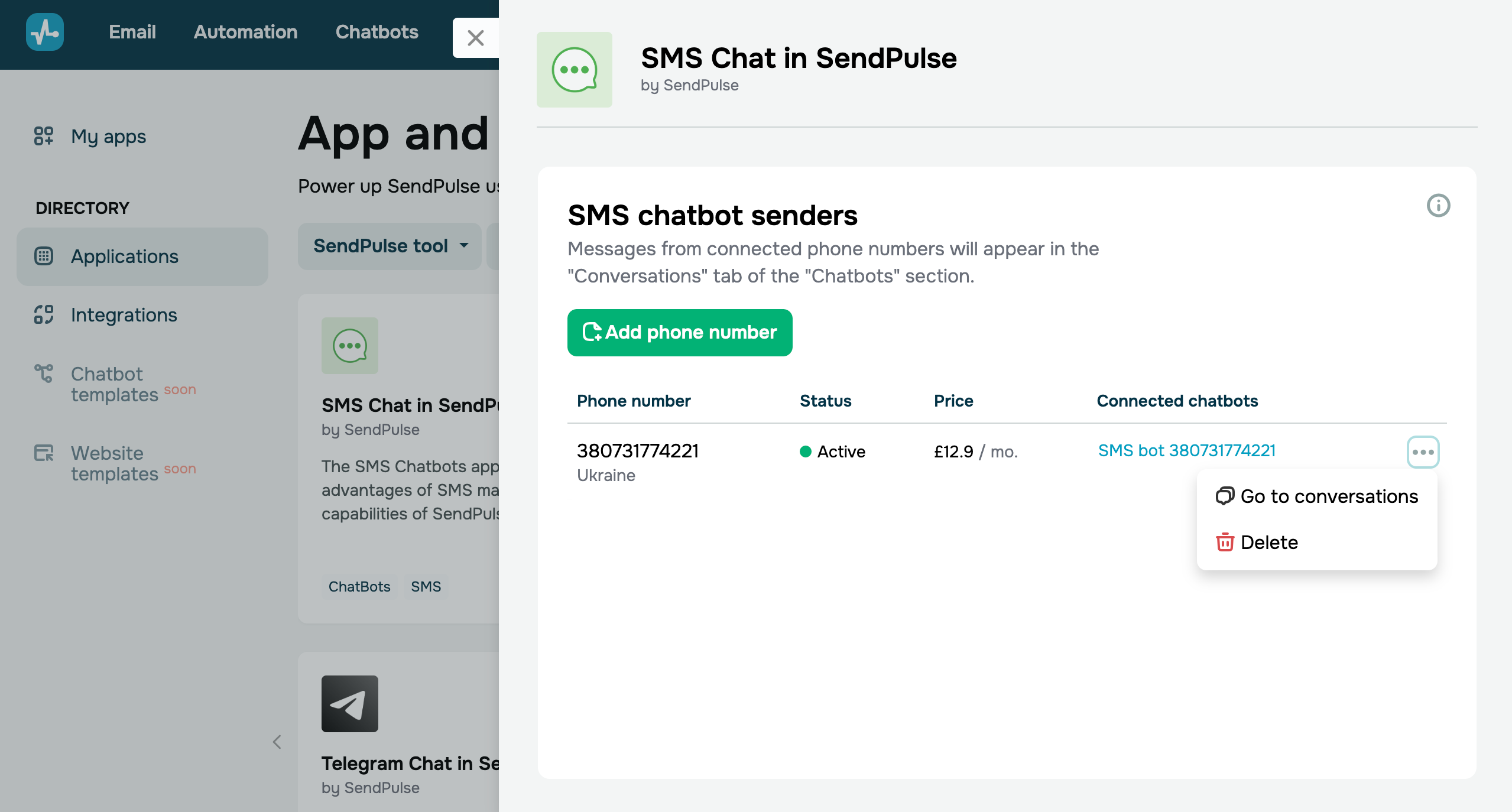
To find your chatbot, open the SMS Bridge app and click the link in Connected bots. You can also go to Chatbots and select it from the sidebar on the left.
To go to chatbot conversations, click the three dots and select Open chats. You can also go to Chatbots and open the Conversations section.
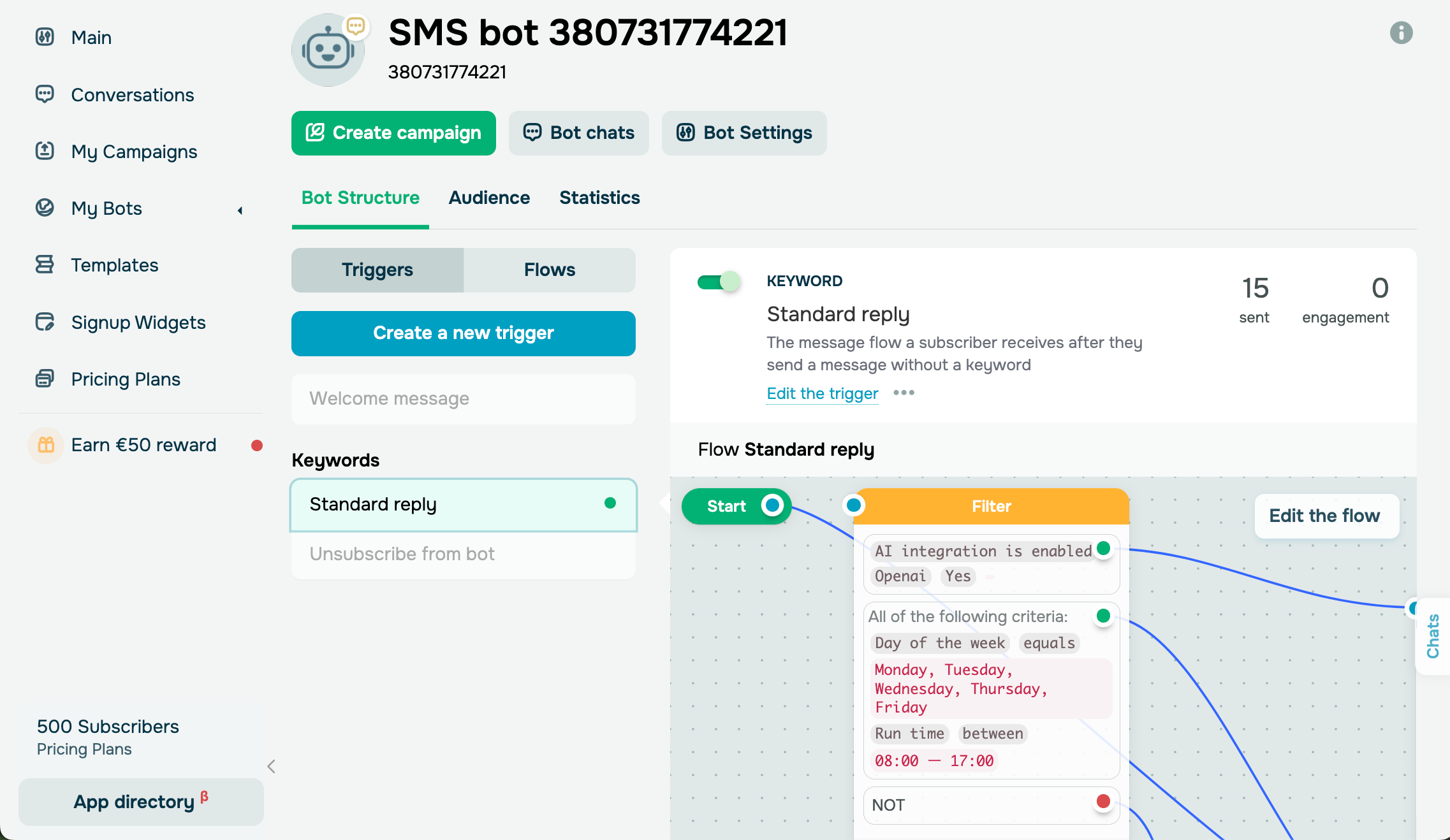
The Standard reply flow is set up by default. You can also create custom triggers using keywords.
Plan the key conversations your chatbot will handle and build flows using ready-made elements. You can also manage your flow branches using the Filter and AI agent elements.
Read more: Create an automated SMS chatbot flow, Create your bot structure, and Tips on chatbot flow design.
Your registered phone number can also send bulk SMS campaigns. In conversations, these campaigns appear as outgoing messages that start with an emoji, so you can tell them apart from messages your team members send.
A campaign appears in the conversation only if it was the last message the recipient received.
To process replies in your flows, include one of your keywords in the campaign text.
 Last Updated: 06.03.2026





or