Add a custom delivery method to a deal and track its status
A custom delivery method is a delivery method in CRM that you define yourself: your own courier, pickup, or a delivery service that isn't integrated with SendPulse. You can add it to a deal, so your team members see the entire order in one deal. Your support team sees the delivery history in the customer's contact card.
For example, a tool store can deliver orders across the city with its own courier and manage them in CRM.
Let's talk about how to add a custom delivery method, change delivery and payment statuses, manage the method, and view a contact's deliveries.
Add a custom delivery method
To record how an order will be delivered and how much delivery costs, add a custom delivery method to the deal. You can create a new method or select a saved one.
If your pricing plan doesn't support delivery methods, you can choose a different pricing plan after you click Add delivery method.
Before you start, link a contact with a name and phone number to the deal. Without this information, you can't create the delivery method.
Create a new delivery method
To add a delivery method that isn't on the list yet, create a new one.
Go to CRM > Deals, open the deal you need, and go to the Products tab.
The Delivery method section appears only in a saved deal, not in the new deal form.
In the Delivery method section, click Add delivery method. If you don't see this link, check whether the deal already has a custom delivery method: a deal can have only one.
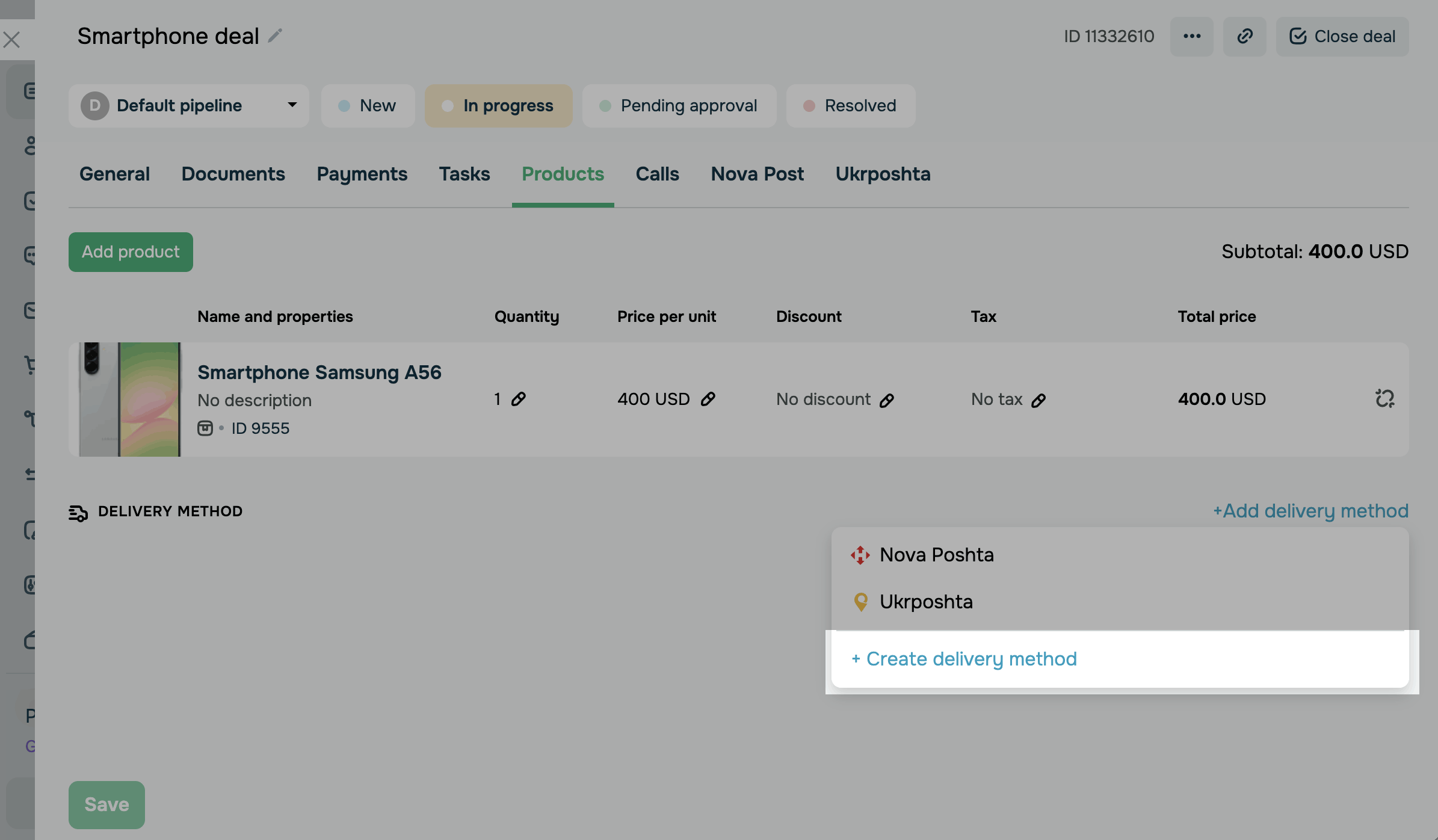
In the list, click Create delivery method. A window appears.
If the Delivery method cannot be created yet pop-up appears instead, the deal has no linked contact, or the contact has no name or phone number. Click Got it, add a contact or fill in the contact's details, and try again.
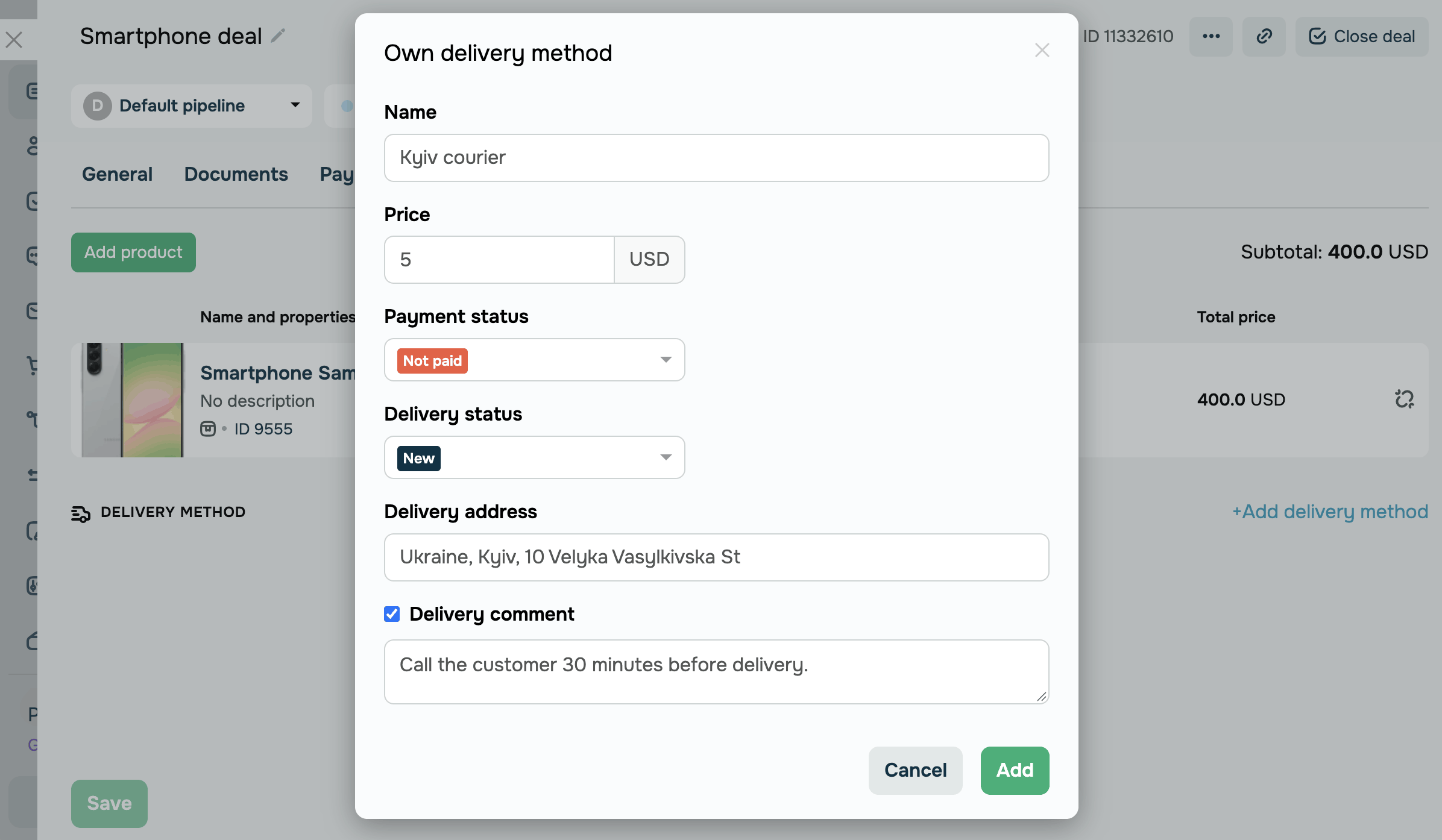
Fill in the following delivery method fields:
| Name | Enter a method name, for example, “Kyiv courier.” |
| Price |
Enter the delivery cost in the deal currency. For free delivery or pickup, enter 0. |
| Payment status | Select whether the customer has paid for delivery: Not paid or Paid. |
| Delivery status |
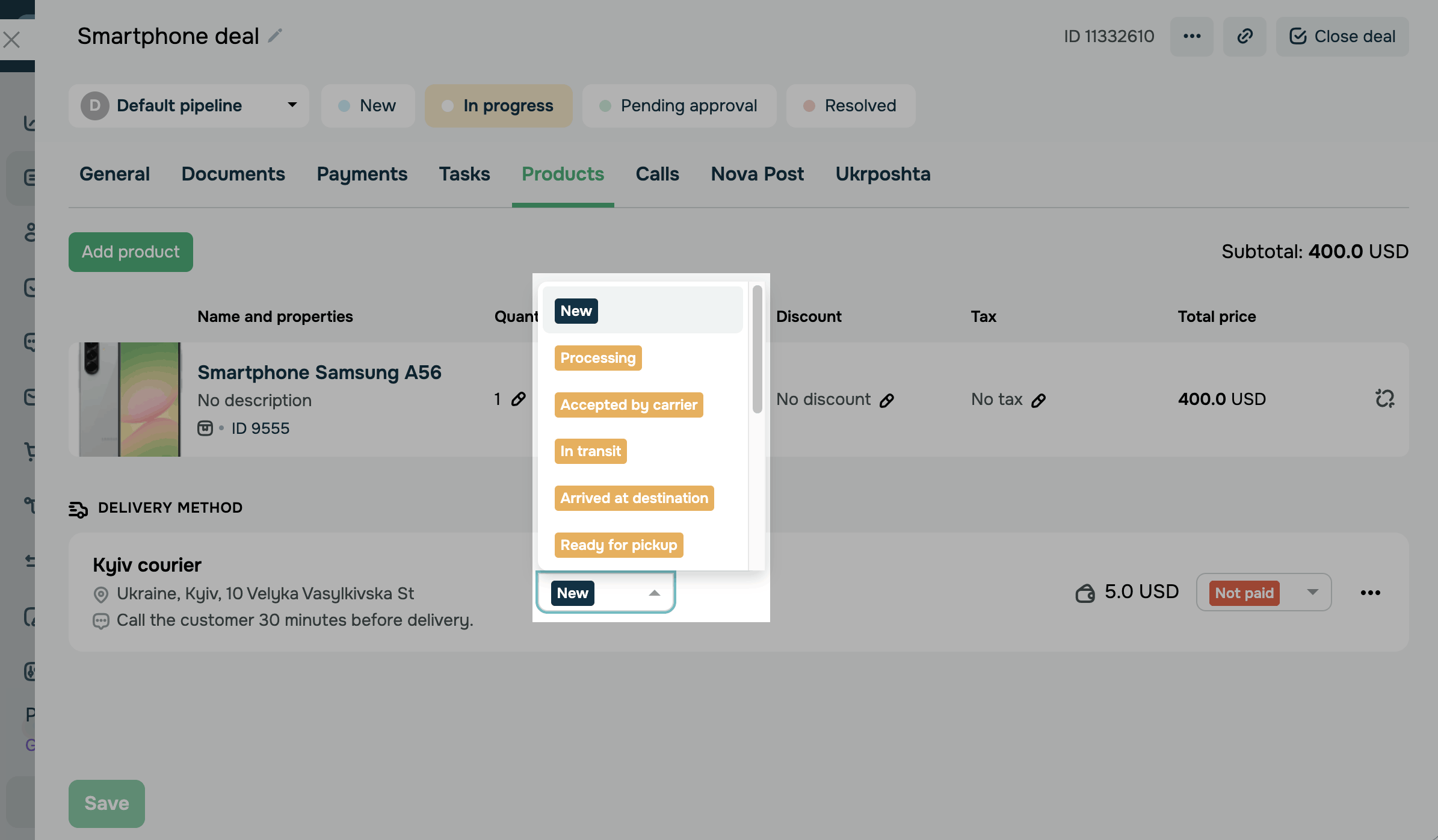
Select the current delivery status. The following options are available: New means the delivery is added to the deal, but you haven't started preparing the order yet. Processing means the order is being packed and prepared for shipping. Accepted by carrier means the order is handed over to a courier or delivery service. In transit means the order is on its way to the customer. Arrived at destination means the order has arrived in the customer's city or at their branch. Ready for pickup means the order is waiting for the customer at a branch, pickup point, or warehouse. Delivered means the order is delivered to the address or pickup point. Received means the customer has received the order. Returning to sender means the order is on its way back to you, for example, if the customer didn't pick it up. Returned means the order has been returned to you. Refused means the customer refused to accept the order. Cancelled means the delivery is canceled, and the order won't be shipped. Lost means the order was lost during delivery. |
| Delivery address | Enter the delivery address: country, city, street, and building. |
| Delivery comment |
Add extra instructions, for example, “Call the customer 30 minutes before delivery.” To add a comment, select the Delivery comment checkbox and enter your text in the field that appears. |
Click Add.
If you see the Required field hint under a field, fill it in and click Add again.
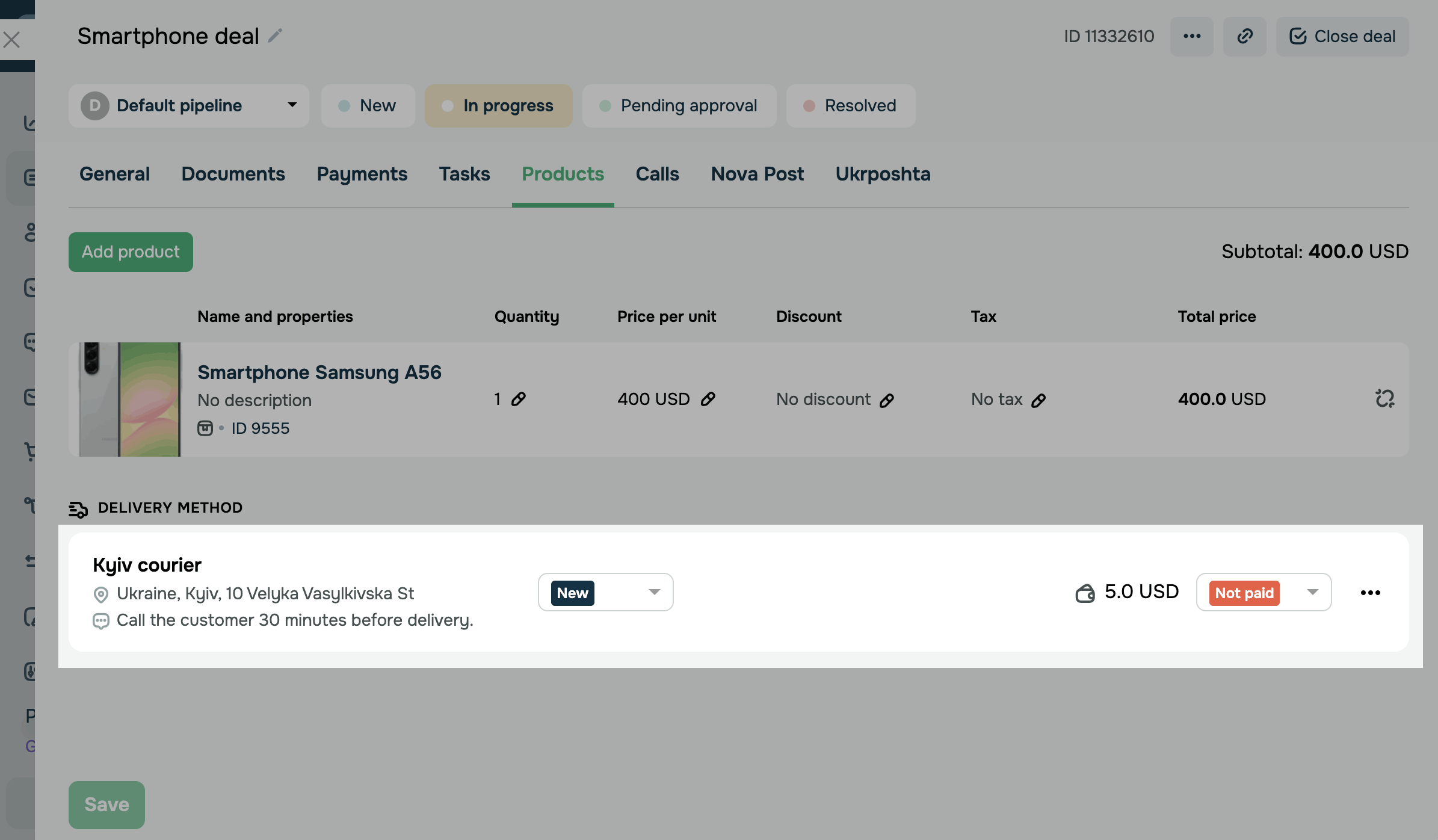
The delivery appears in the Delivery method section with its name, address, comment, delivery status, price, and payment status.
The method you created appears in the delivery method list, so you can select it again in other deals.
Select a saved delivery method
To avoid creating the same method again, select one you created earlier.
On the deal's Products tab, click Add delivery method and select a method from the list. Saved methods are labeled (Own delivery method).
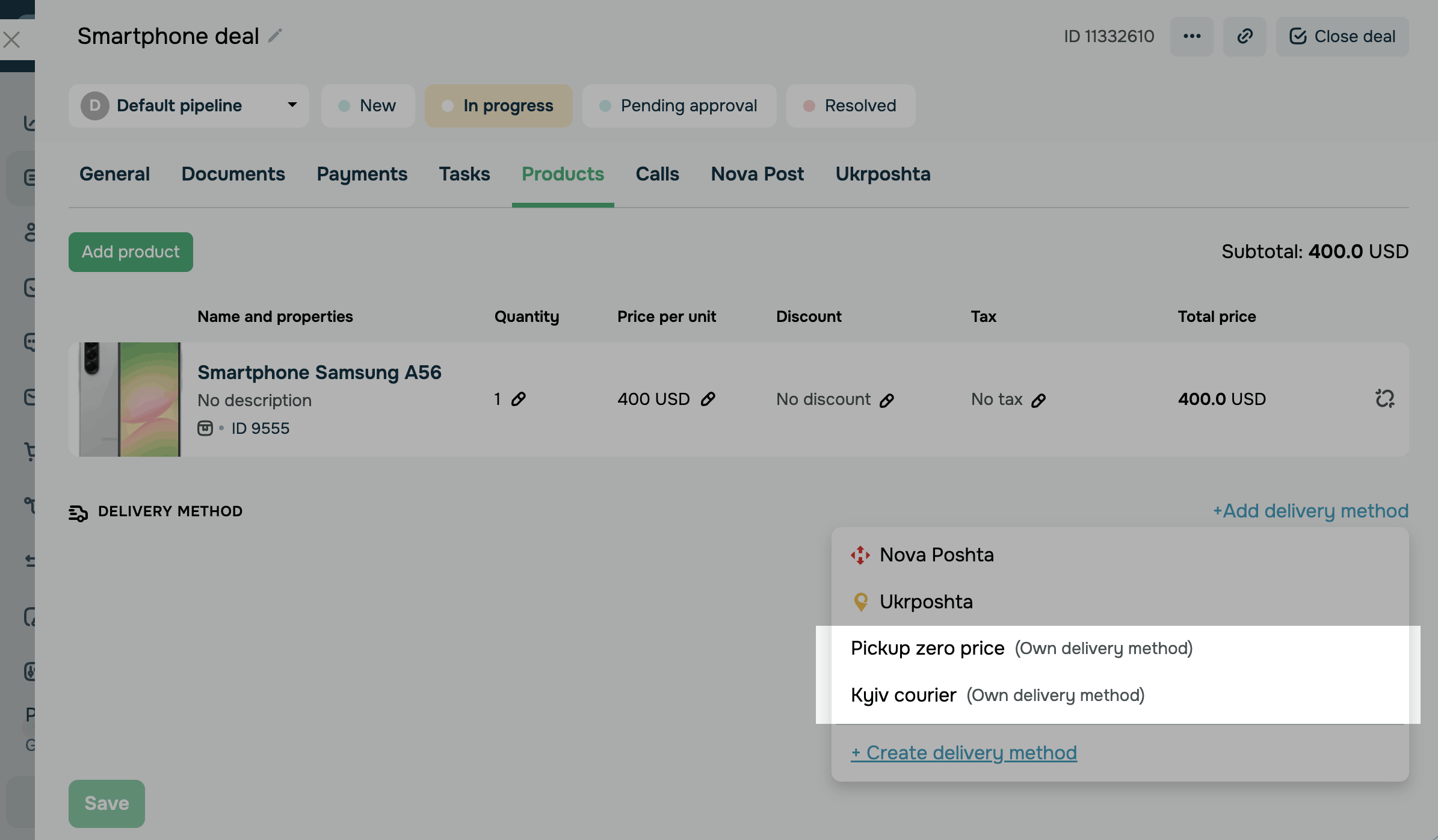
In the Own delivery method pop-up, the method name is already filled in. Enter the price and delivery address, change the statuses and add a comment if needed, and then click Add.
Saved methods are available in deals across all pipelines.
Change the delivery and payment statuses
To see where an order is and whether delivery is paid, change the statuses right in the delivery row.
In the Delivery method section, click the delivery status and select a new one from the list. The new status is saved automatically.
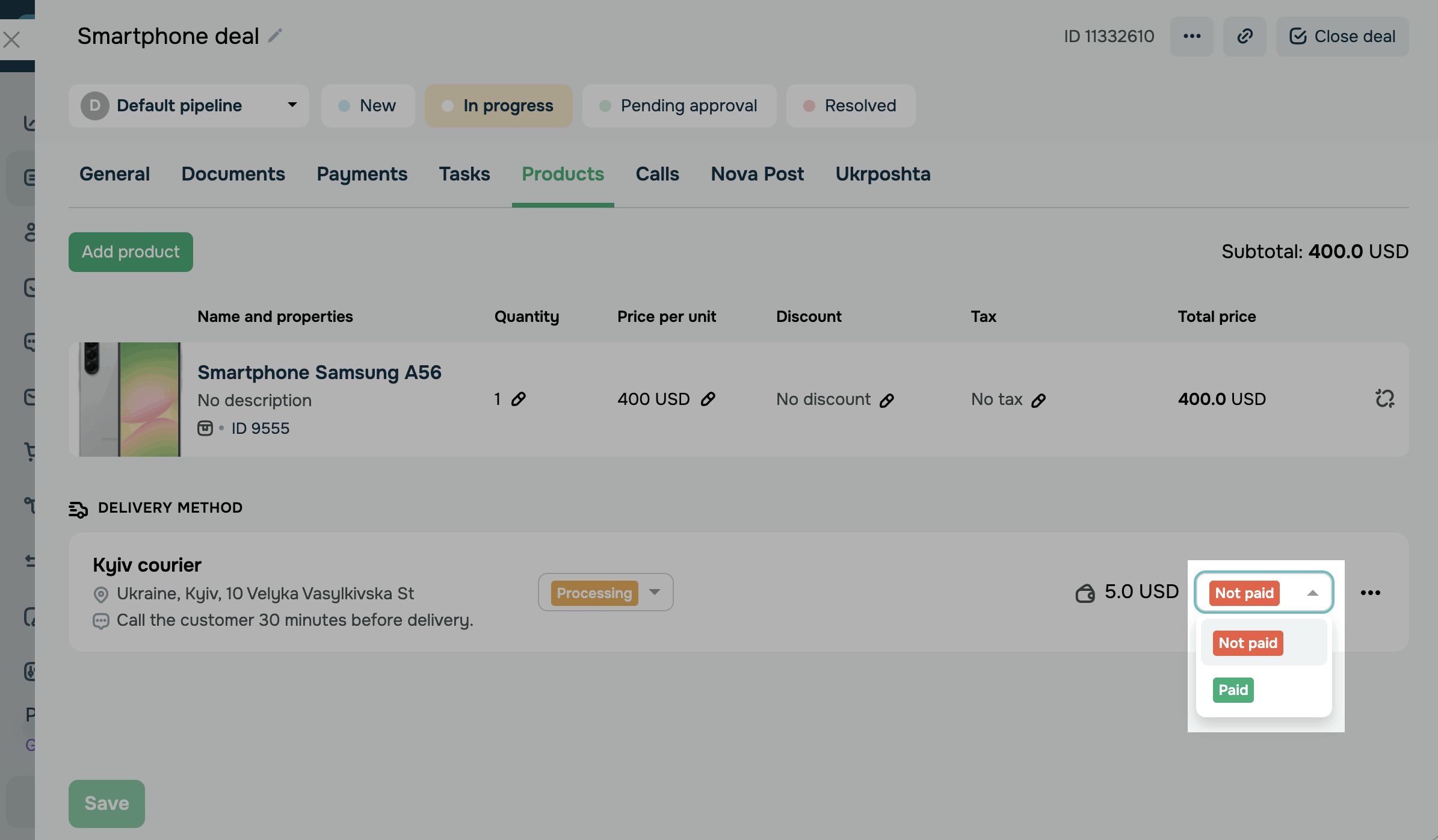
In the delivery row, you can also change the delivery payment status to Paid or Not paid.
The delivery payment status is a dedicated field of the delivery method, not the status of a payment on the Payments tab.
You change the delivery status of a custom method manually. SendPulse doesn't update it automatically.
The delivery status doesn't change the deal stage.
Add the delivery cost to a payment link
To let your customer pay for products and delivery together, add the delivery cost to a payment link.
The deal must have a delivery method. To let your customer pay online, integrate a payment provider with your account.
In the deal, go to the Payments tab and click Create payment.
Fill in the payment details and select a Payment method. To learn more about payment fields, read Generate payment links in CRM.
Select the Add delivery payment checkbox. The payment amount increases by the delivery cost.
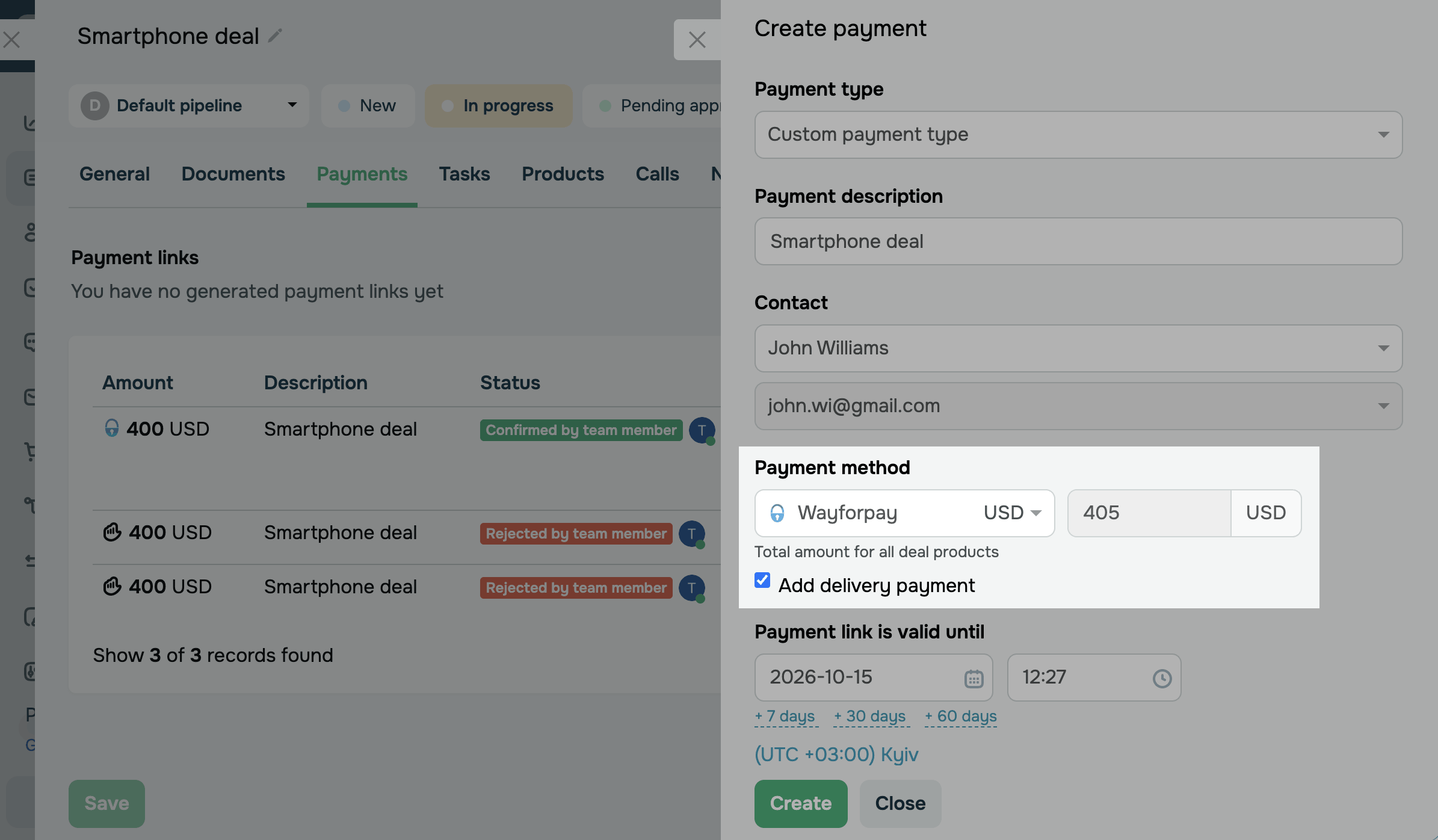
Click Create and send the link to your customer.
On the payment page, your customer sees products and delivery as separate lines, and the delivery line shows the method name.
On the deal's Payments tab, the payment entry lists the delivery among the products. Once the payment succeeds, the delivery payment status changes to Paid.
The delivery price isn't added to the deal amount. It's included only in a payment with the Add delivery payment checkbox selected.
Edit or delete a delivery method
To correct delivery details or remove a delivery from a deal, use the menu in the delivery row.
In the Delivery method section, click the three dots in the delivery row and select Edit.
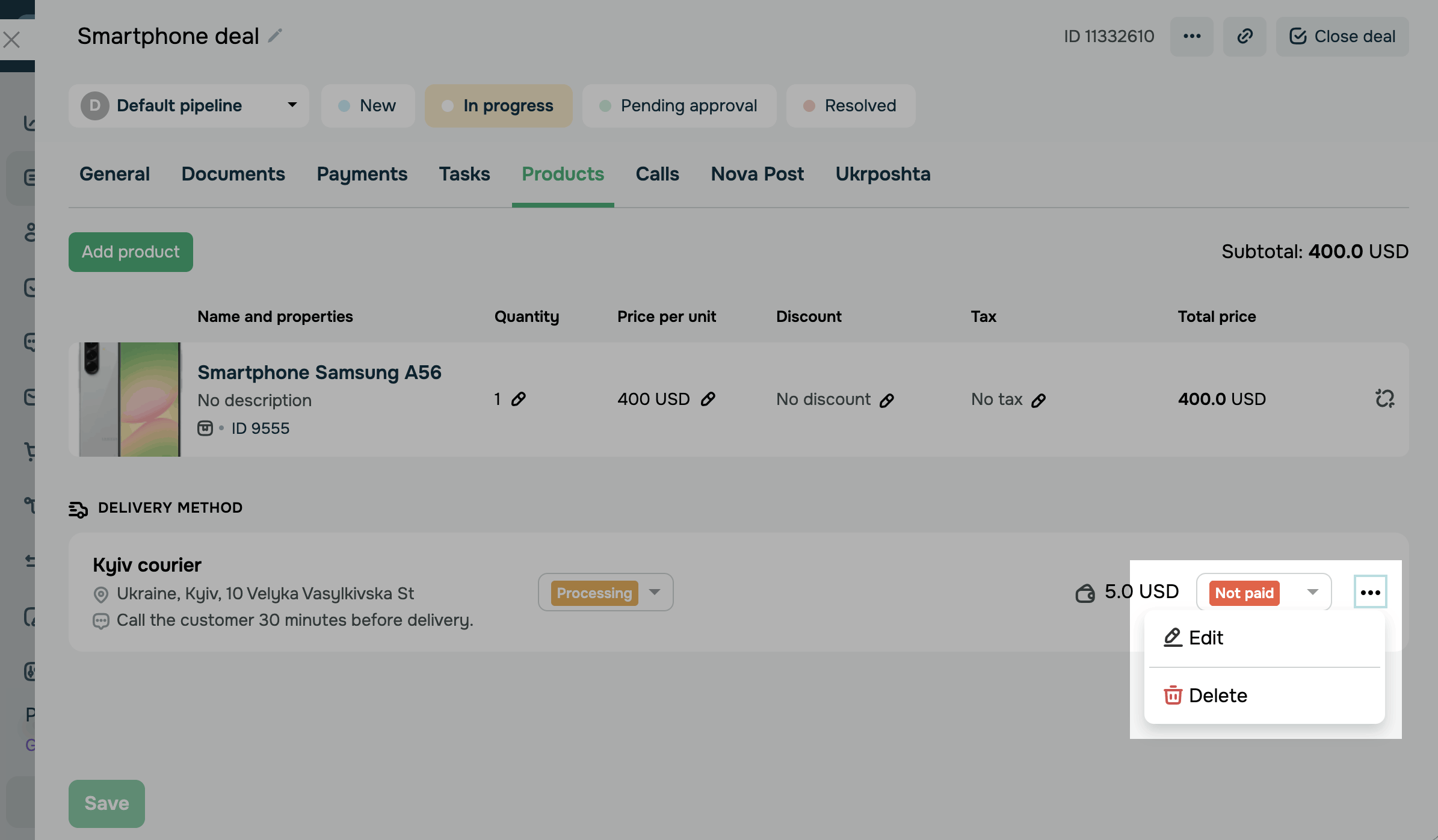
Change the price, statuses, address, or comment, and click Save. You can't rename the method.
To delete a delivery from a deal, click the three dots in the delivery row and select Delete. Confirm the deletion in the pop-up.
The deal history doesn't record when you add, change, or delete a delivery.
View a contact's deliveries
To quickly answer a customer's questions about their order, view all their deliveries in their contact card.
Go to CRM > Contacts, open the contact card, and go to the Products tab.
On this tab, the Delivery method section lists the contact's deliveries. Each delivery shows the method name, address, deal link, delivery status, price, and payment status.
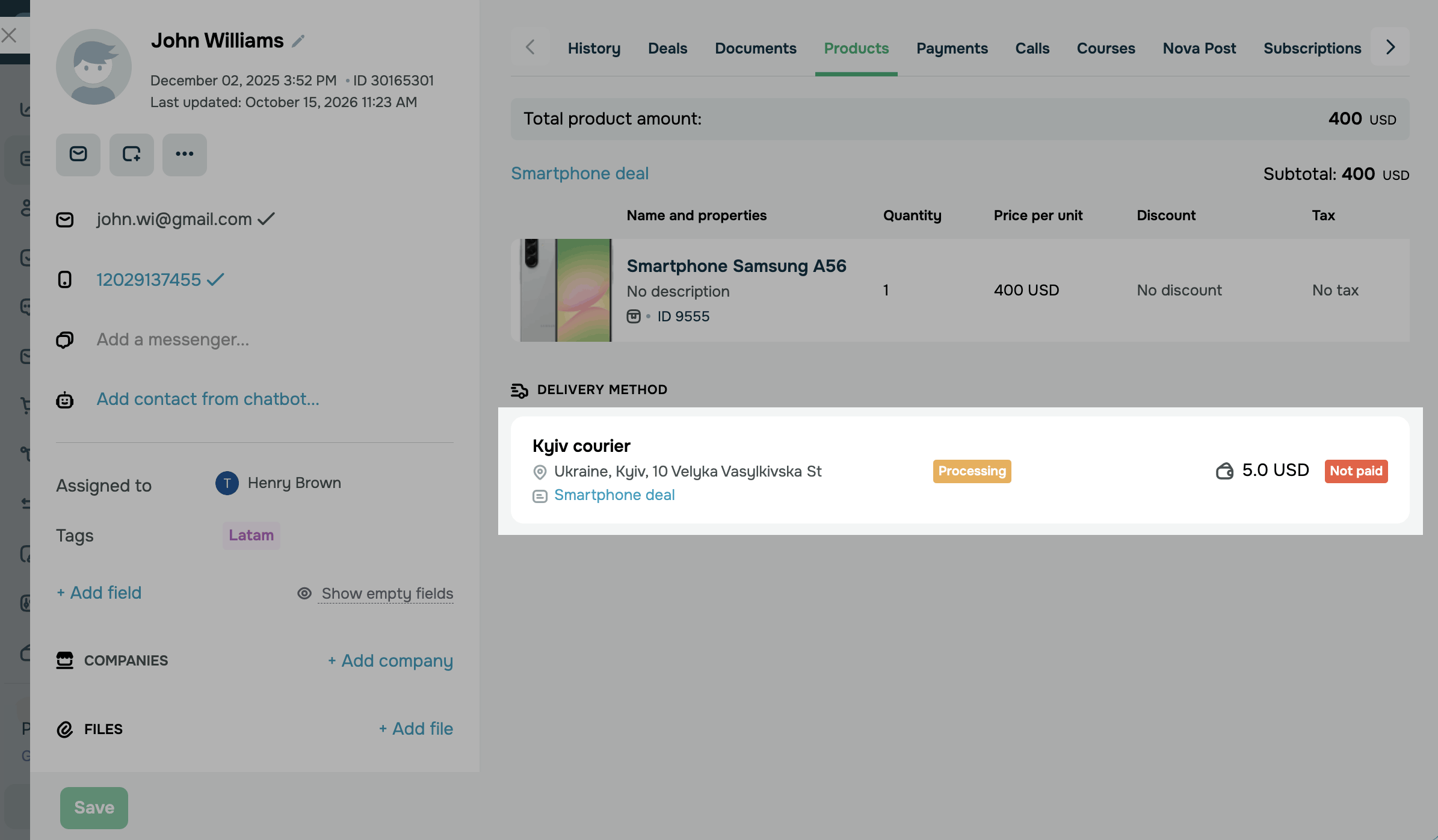
To change a delivery status, click the deal link in the delivery row.
Now you can manage an order's delivery in the deal, from creating the method to the customer receiving the order.
Next, you can create a Nova Post shipment, create a Ukrposhta shipment, view products in a deal, or read about product delivery basics.
 Last Updated: 21.10.2026



or