Create and view Ukrposhta shipments in the CRM system
With the Ukrposhta integration, you can create shipments from deal cards, attach existing waybills to deals by waybill number, and view shipments linked to a contact.
For example, once your team member agrees on delivery with a customer, they create a new shipment in the deal card. Ukrposhta automatically generates a matching waybill in your business account.
Let's talk about how to create shipments from deal cards, track them, and view them in contact cards.
Before creating shipments, connect and configure the Ukrposhta integration in SendPulse's CRM system.
Create shipments in deal cards
Once you set up the Ukrposhta integration in SendPulse's CRM system, you can manage deals and contacts linked to shipments from your Ukrposhta business account. You can also create and add shipments right from deal cards.
Go to CRM > Deals, open the deal you need, and select the Ukrposhta tab.
Add a new shipment
To create a new shipment from a deal card, click Create shipment in the Ukrposhta tab and fill in the New shipment form.
In the Details tab, fill in the shipment fields.
In the Sender section, the Contact field automatically shows the sender contact selected in your integration settings.
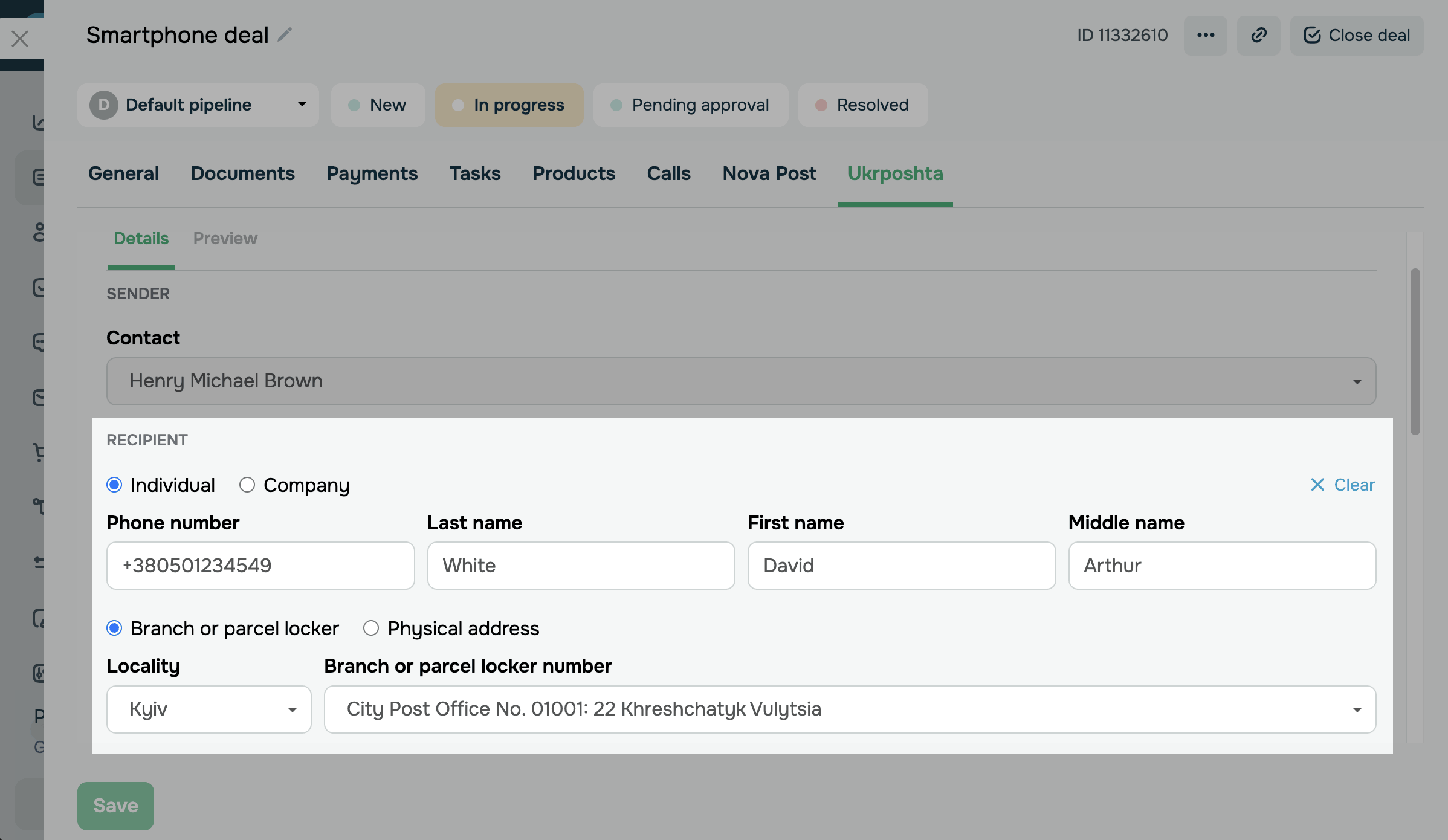
In the Recipient section, select a recipient from the contact list in the Contact field.
To create a new recipient, click Add contact and fill in the form.
You can configure the following fields:
| Recipient contact type |
Select the recipient contact type. The following options are available: Individual; Company. |
| USREOU |
Enter the recipient company's USREOU code. Available for the Company type. |
| Company name |
Enter the recipient's company name. Available for the Company type. |
| Phone number | Enter the recipient's phone number. |
| Last name | Enter the recipient's last name. |
| First name | Enter the recipient's first name. |
| Middle name | Enter the recipient's middle name. |
| Delivery address type |
Select the delivery address type. The following options are available: Branch or parcel locker; Physical address. |
| Locality |
Select the delivery locality. Locality search uses the Ukrposhta database. |
| Branch or parcel locker number |
Select the branch or parcel locker number. Available if you select Branch or parcel locker. |
| Street |
Select the street name. Available if you select Physical address. |
| Building |
Enter the building number. Available if you select Physical address. |
| Apartment |
Enter the apartment number. Available if you select Physical address. |
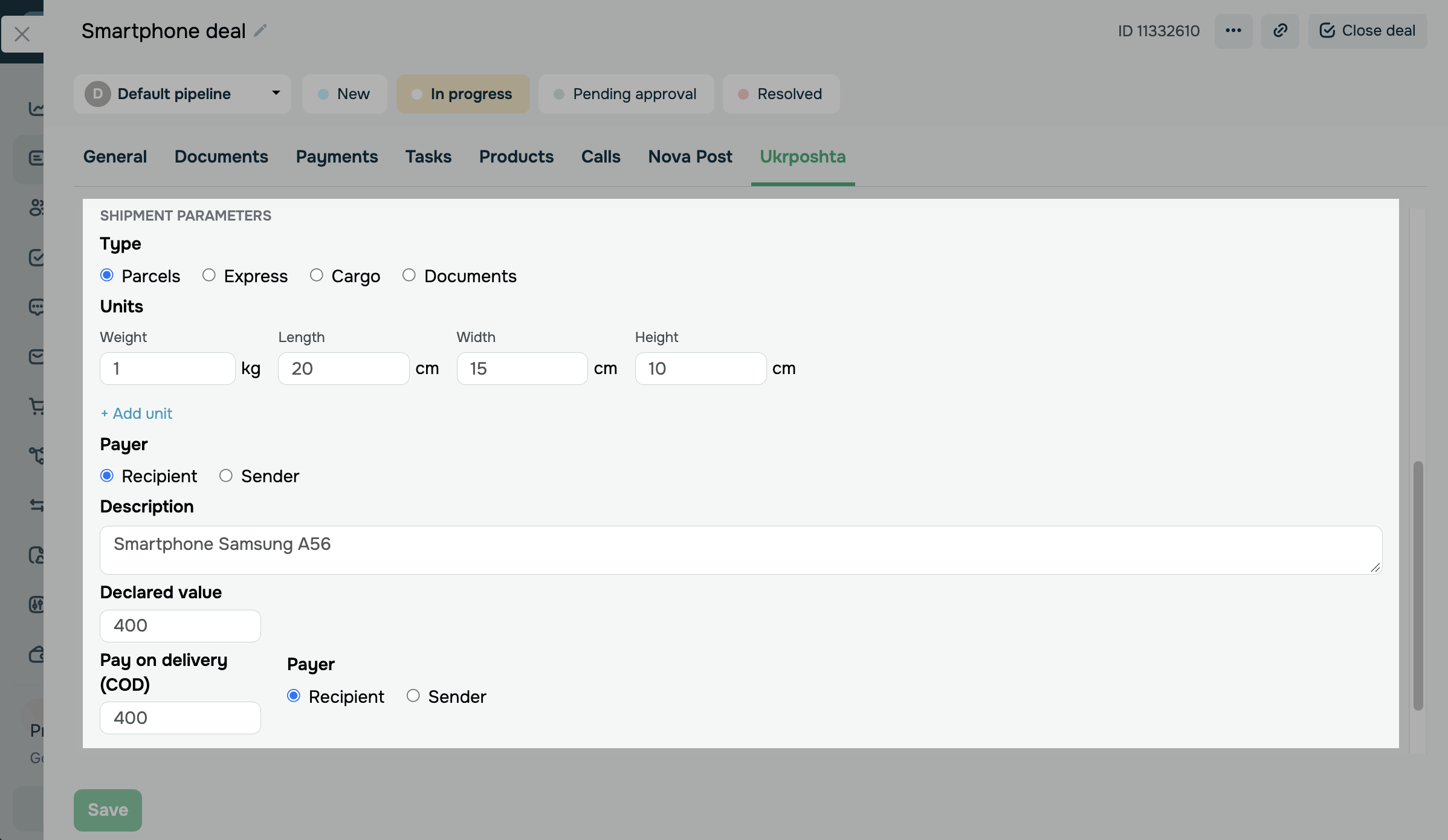
In the Shipment parameters section, configure the shipment contents and delivery conditions.
You can configure the following fields:
| Type |
Select the shipment type based on the parcel's contents and properties. The following options are available: Parcels — standard shipments of small size and weight. Express — shipments with priority delivery. Cargo — oversized and heavy shipments. Documents — documents, certificates, letters, and postcards. |
| Units |
Specify the properties of each package in the shipment: Weight in kilograms, and Length, Width, and Height in centimeters. To add another package, click Add unit. |
| Payer |
Select who pays for the delivery. The following options are available: Recipient means the recipient pays the parcel delivery cost. Sender means the sender pays the parcel delivery cost. |
| Description | Enter a short description of the shipment contents. |
| Declared value | Enter the parcel's declared value in UAH. |
| Pay on delivery (COD) |
Enter the COD amount in UAH if the recipient pays for the product upon receipt. If COD does not apply, set the value to 0. |
| Payer | Select who pays the COD service fee: Recipient or Sender. |
Once you fill in the fields, click Next.
In the Preview tab, check the shipment description, route, and details, and click Create.
Once you create the shipment, it appears in the list in the Ukrposhta tab, and Ukrposhta generates a matching waybill in your business account.
Attach a shipment to a deal
If a waybill already exists in your Ukrposhta business account, you can attach it to a deal using its waybill number.
The integration shows only waybills created in the Ukrposhta mobile app or web app. It doesn't sync waybills created at a branch.
To add an existing shipment, go to the Ukrposhta tab, enter the waybill number in the Waybill number field, and click Browse.
Check the shipment that appears: its waybill number, description, route, status, and declared value. To attach the waybill to the deal, click Add.
The attached waybill appears in the deal's shipment list and updates its status automatically as it moves through Ukrposhta.
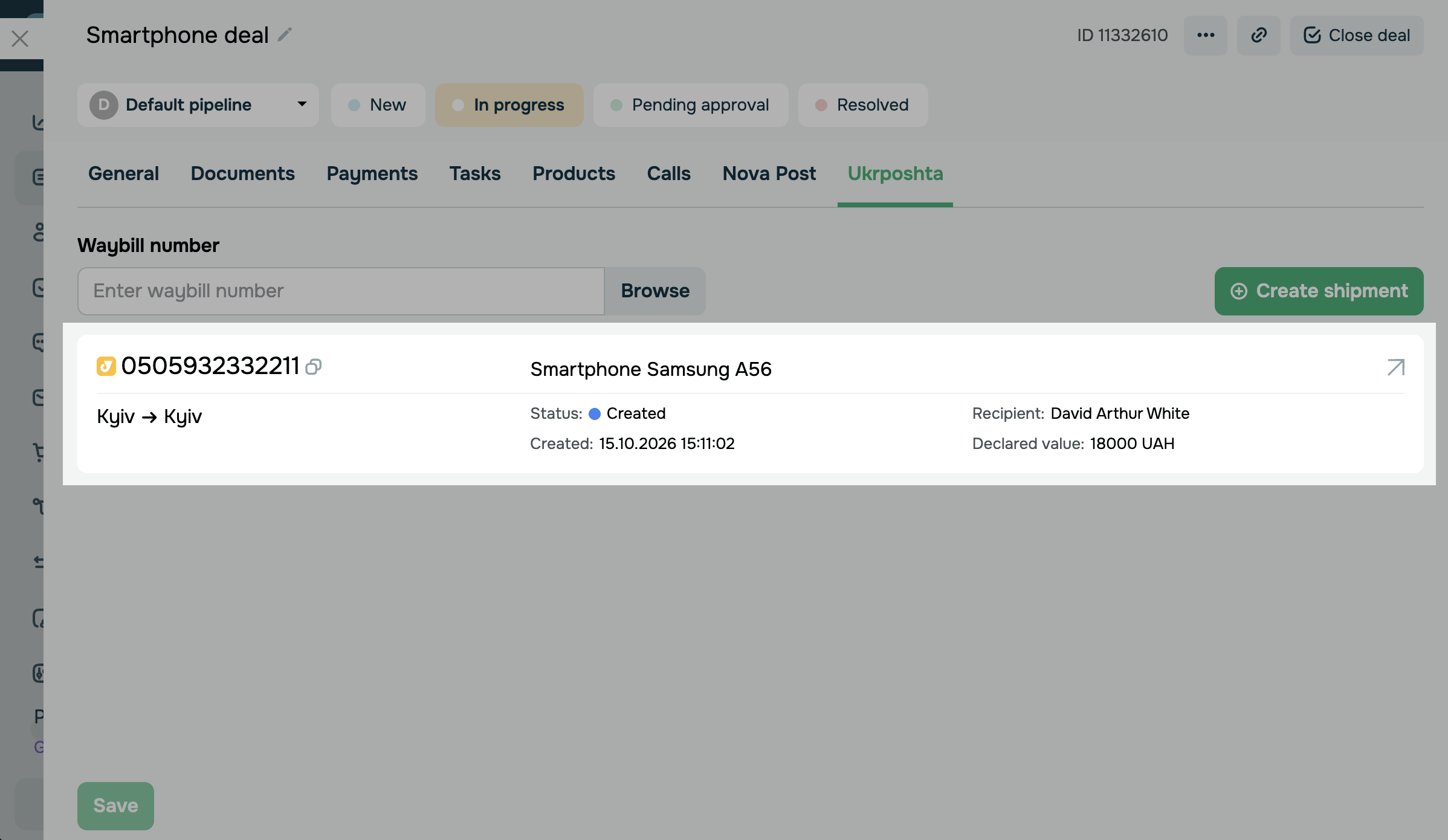
To view shipment details, click the waybill in the deal card's shipment list.
View shipments in contact cards
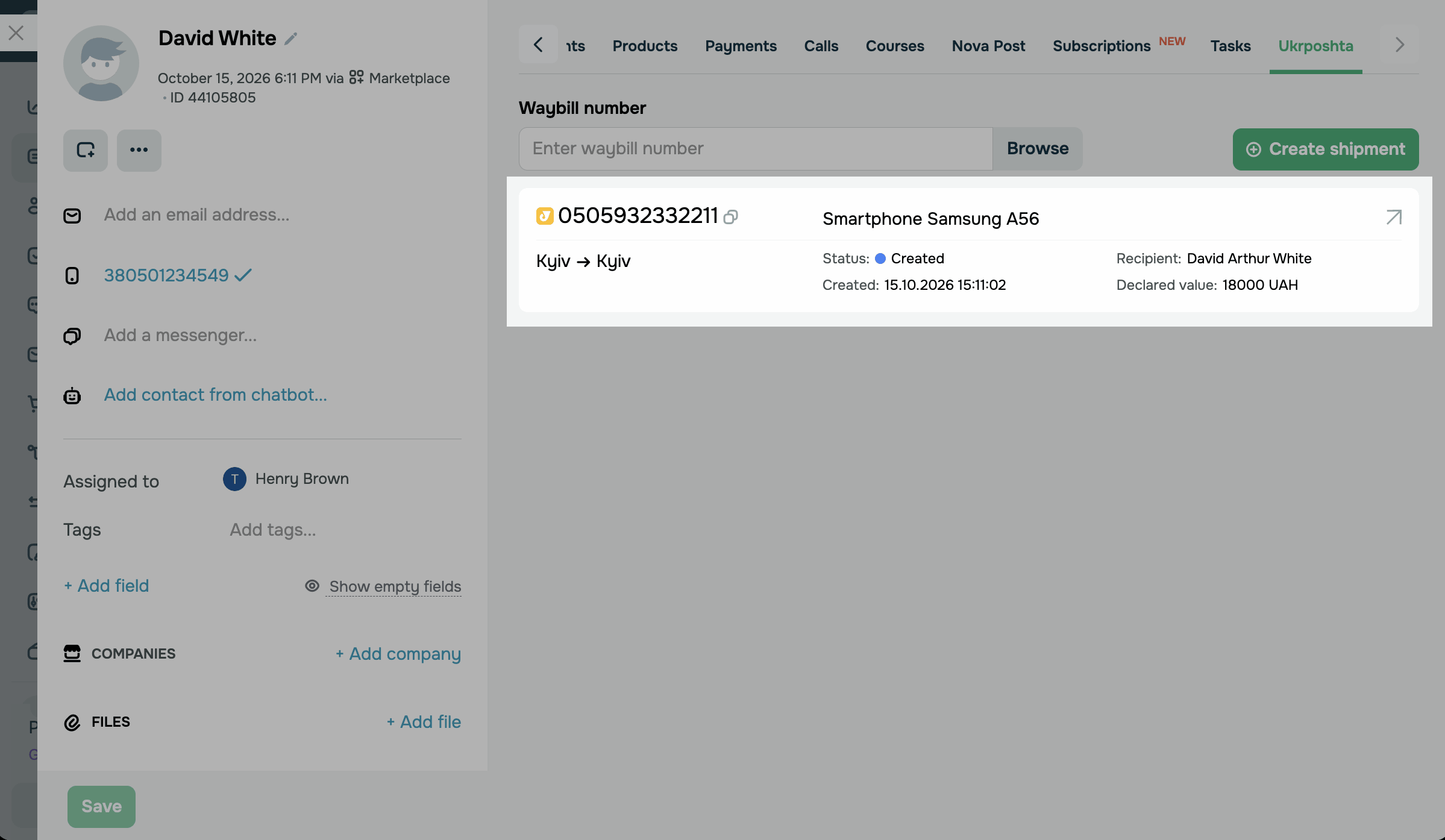
In a contact card, you can view all shipments where the contact is the recipient or sender. This helps you quickly review your customer's history and return to a specific order.
To view a contact's shipments, go to CRM > Contacts. Open the contact you need and select the Ukrposhta tab.
The list shows the following details for each shipment:
| Waybill number | Shows the waybill number, which you can copy to your clipboard. |
| Description | Shows the short shipment description you added when creating it. |
| Status | Shows the current waybill status in Ukrposhta. |
| Created | Shows the date and time the waybill was created. |
| Recipient | Shows the recipient's last name, first name, and middle name. |
| Declared value | Shows the declared shipment value in UAH. |
 Last Updated: 21.10.2026




or