Install and sign in to Education by SendPulse app
You can use the “Education by SendPulse” mobile app to complete their assignments, download materials, ask questions, and edit their profiles. The app allows you to study with ease even if you do not have access to a computer.
Install the app on your device
The Education by SendPulse app is available for Android and iOS. Install it to take the courses you are enrolled in.
You cannot choose or register for new courses with the app — use it to take the courses you are already enrolled in.
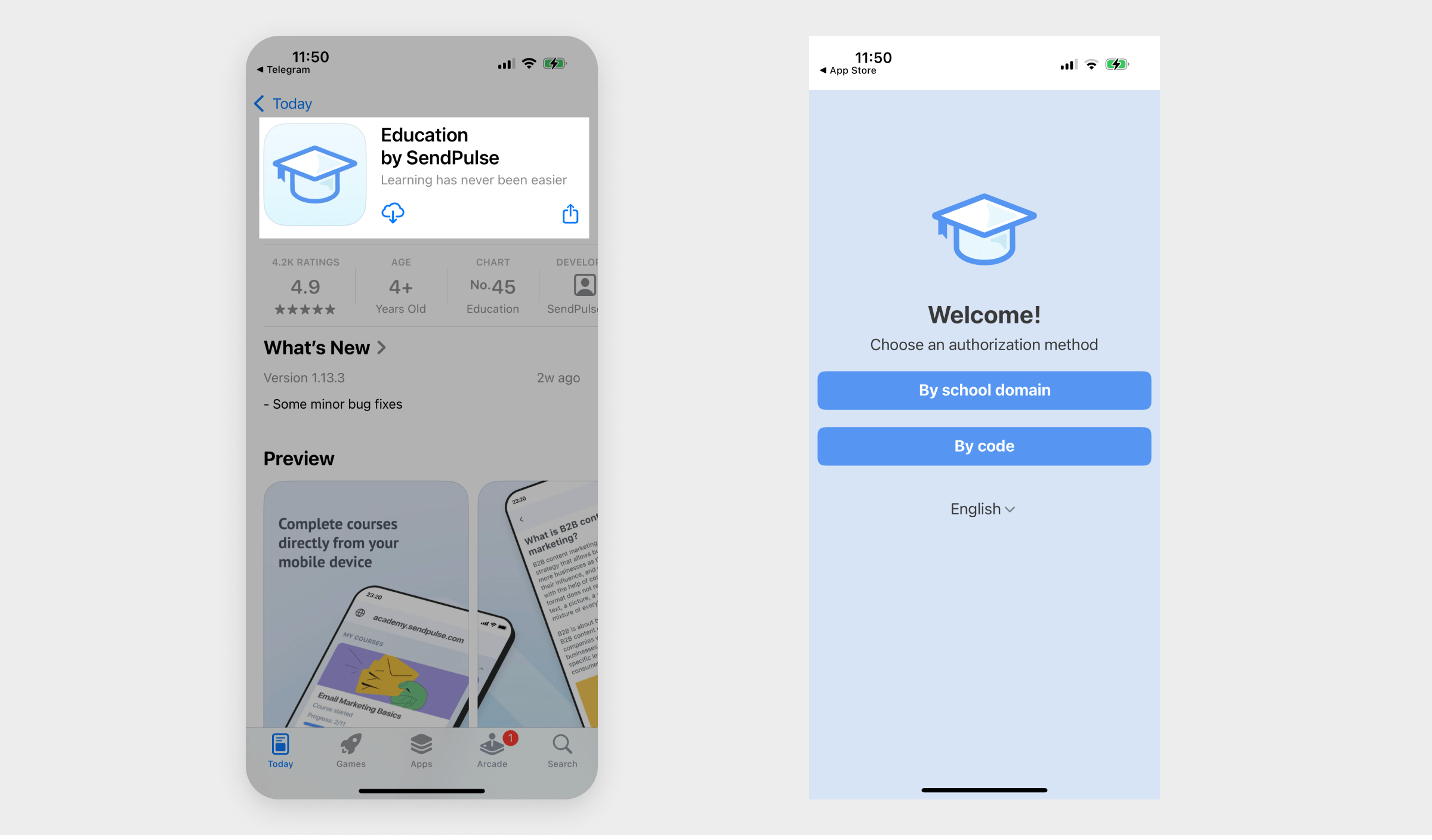
Sign in to the app
To access your courses using the app, go to your student account. You can do this using your course domain or quick login code.
With course domain
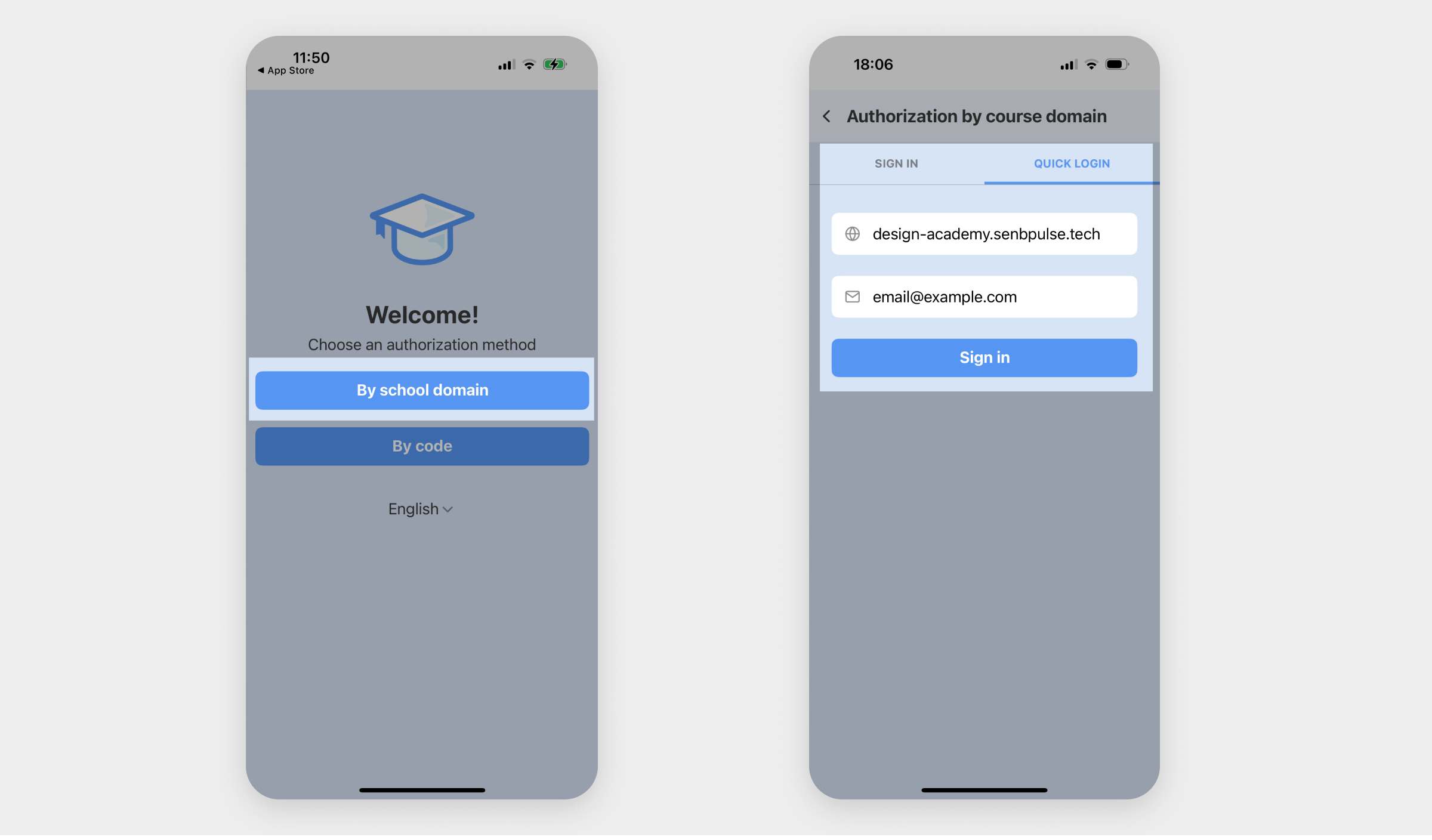
Click By course domain, and select the login method.
| Sign in | Log in to your account the usual way.
Enter your academy domain,* email address, and password, and click Sign in. |
| Quick login | Log in to your account without a password.
Enter your academy domain,* the email address you specified during registration, and click Sign in. Afterward, you will receive an email with a sign in button — click it to start or continue studying. |
*The domain must be specified in the following format: yourdomain.sendpulse.academy, or https://yourdomain.sendpulse.academy where yourdomain is a unique name for your course. You could see it on the registration page or desktop version of the course.
With a quick login code
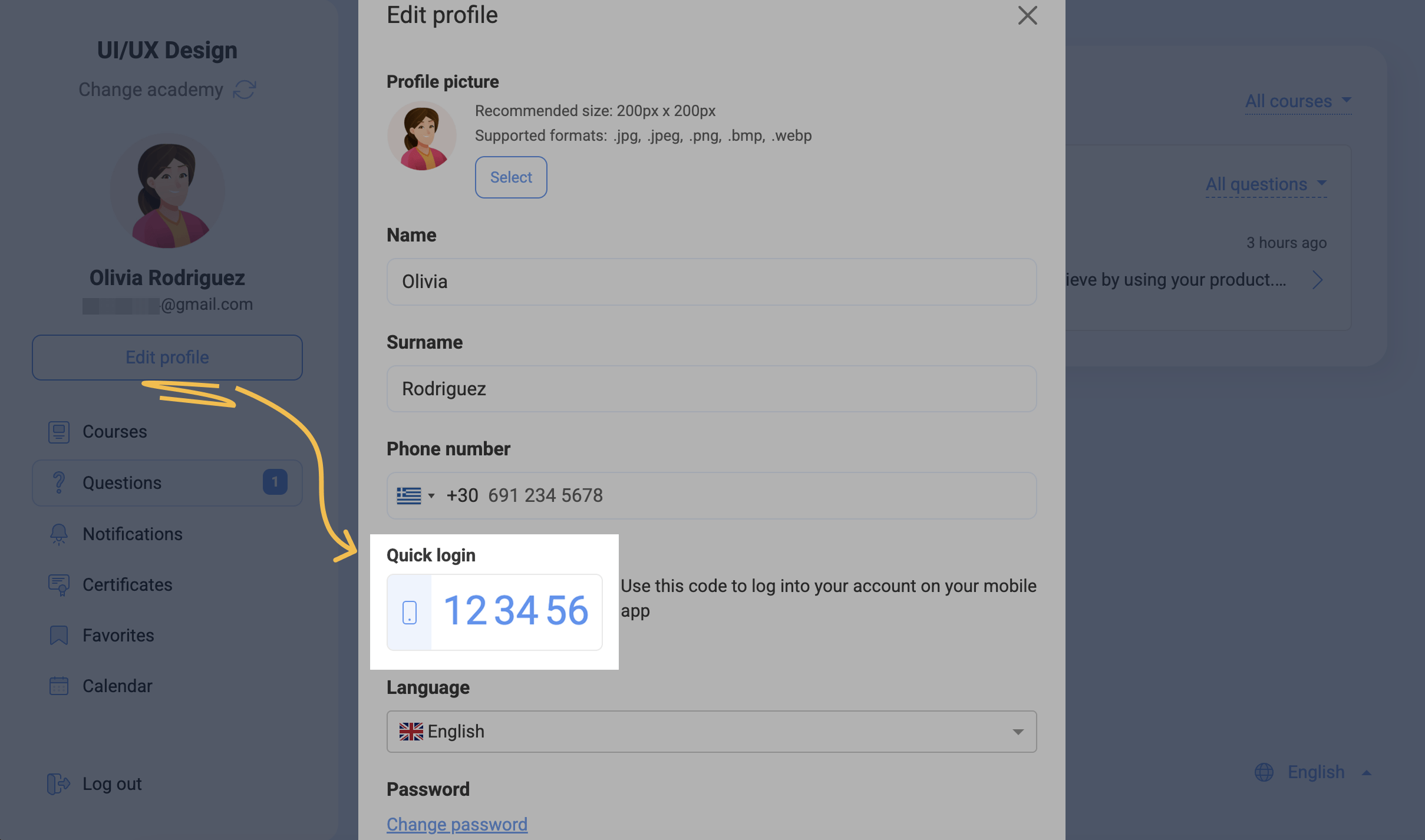
Go to the desktop version of your student account, click Edit Profile, and copy the generated code in the Quick login field.
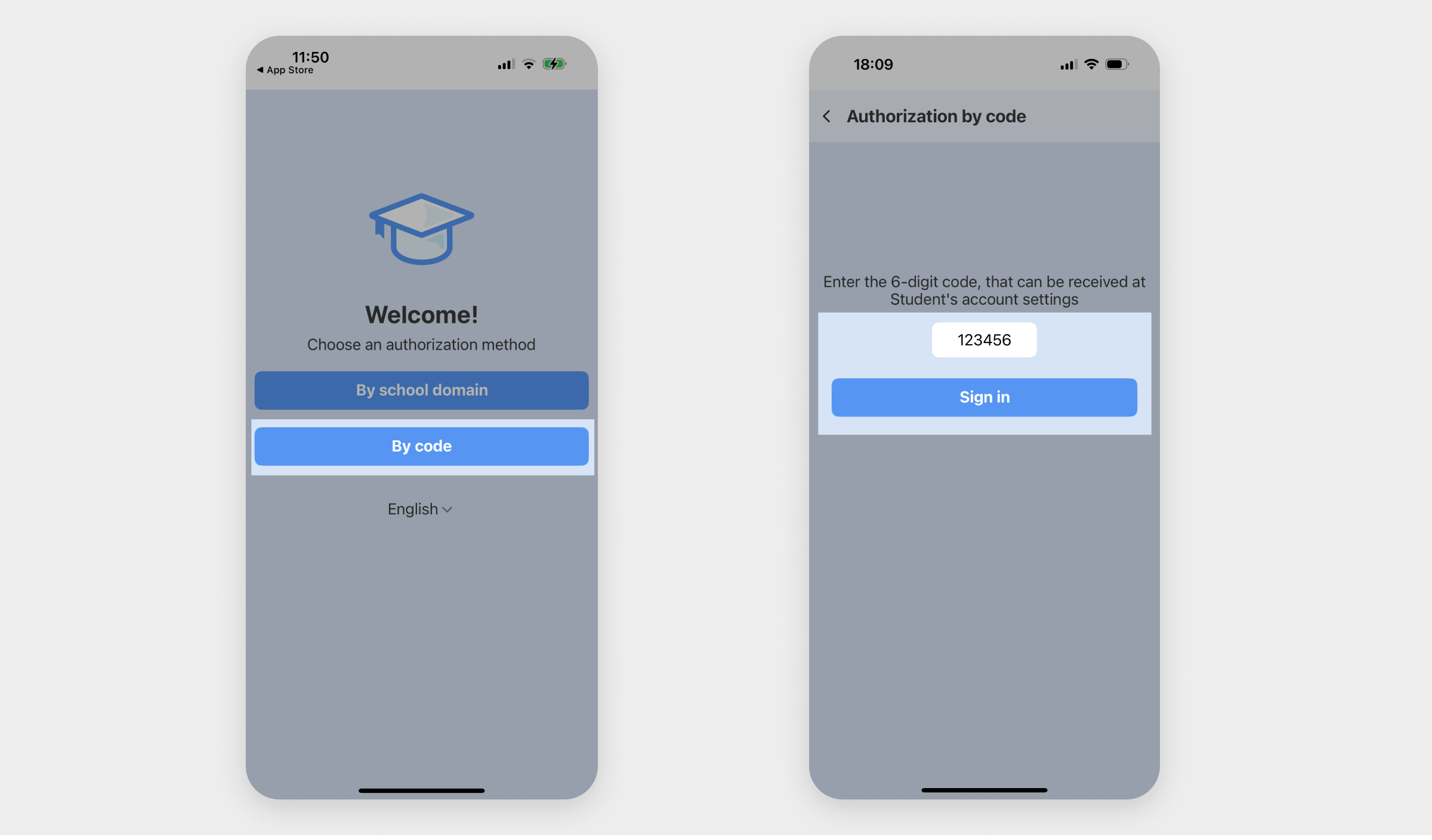
Go to the app, click By code, and enter the code.
The code is valid for 60 seconds, after it is updated. Then you need to enter the current data.
 Last Updated: 20.05.2025





or