View Filter element statistics
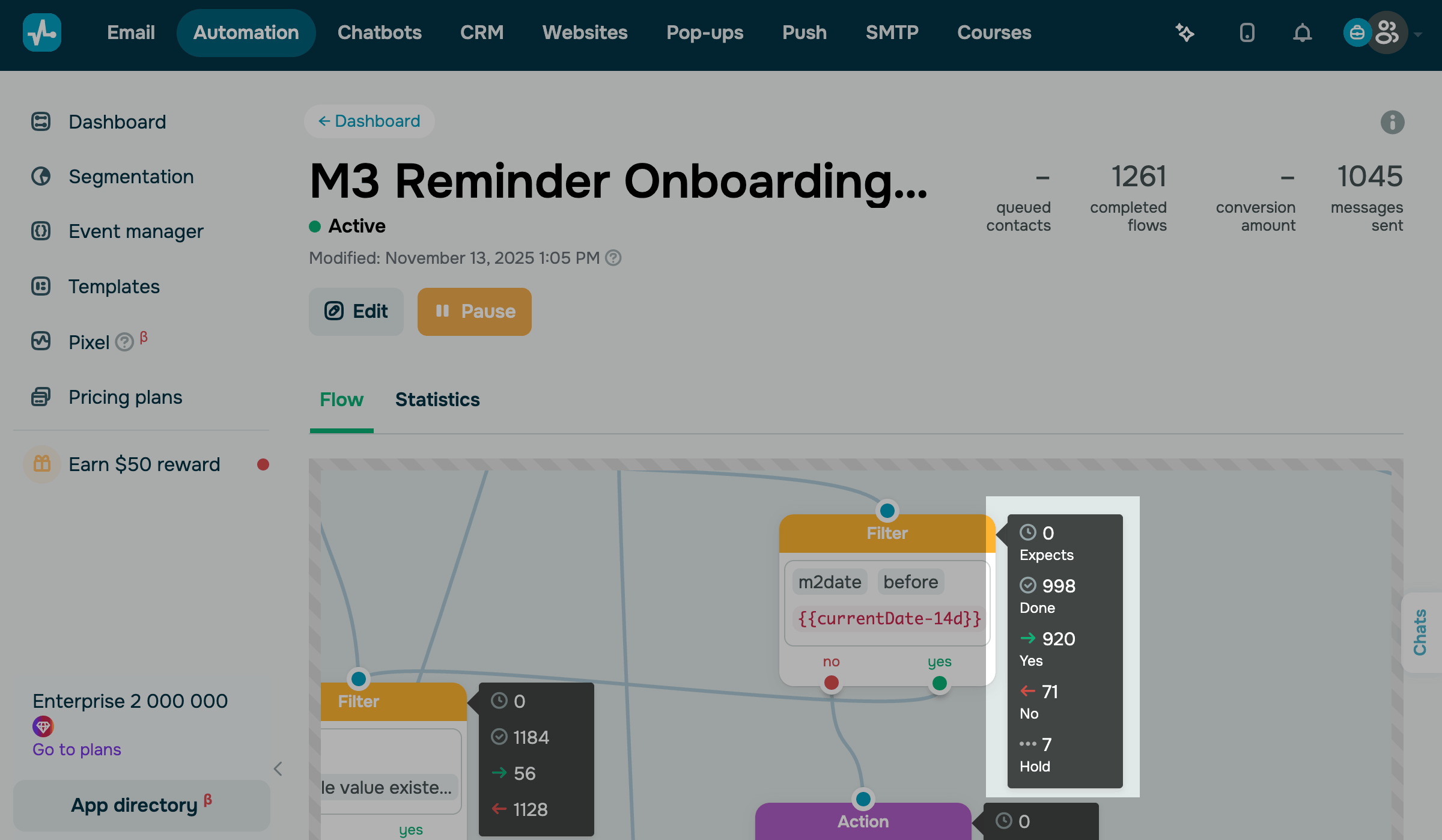
To view information about a Filter element, exit the editor and hover over the required element in the Flow tab.
Your element can have the following statuses:
| Expects | Contacts are waiting for the element execution time you set in the Complete Action settings, or contacts are waiting to be processed. |
| Done | Contacts that went through the filter condition match check |
| Yes | Contacts that match the filter conditions and went through the Yes branch |
| No | Contacts that do not match the filter conditions and went through the No branch |
| Hold | Contacts the filter couldn't check because the variable was empty or didn't receive a value. These contacts didn't go through the Yes or No branch but are still included in Done. |
To check if a variable has a value, click the Filter element, go to the Select variable section, and select the Variable value existence condition. Read more: Filter element in Automation.
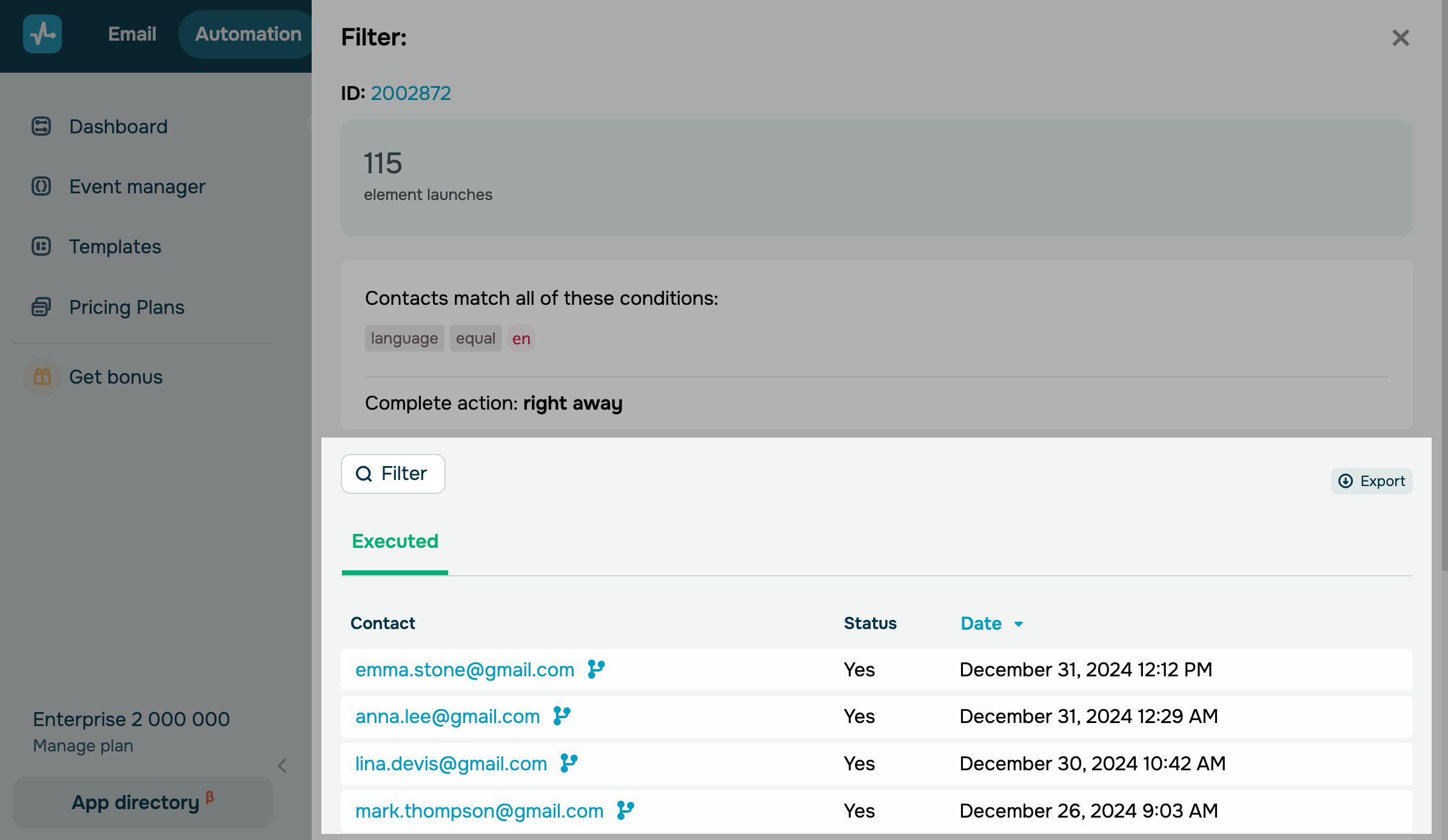
To view detailed information about contacts, click an element. A panel with your element settings and statistics will open. Below, you can filter, download, and view contacts who passed the filter and its date.
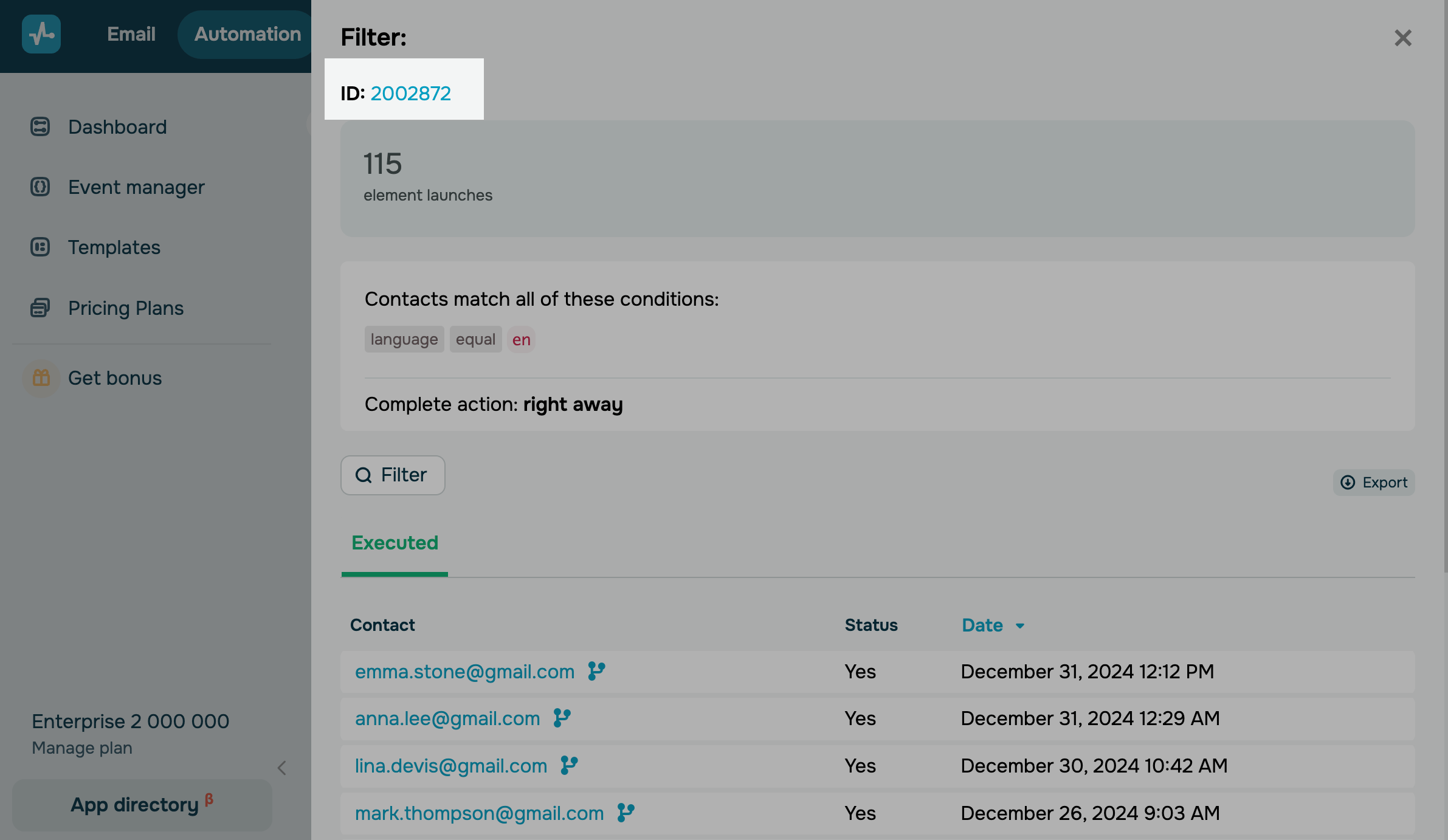
You can also click an element ID and start editing the element.
 Last Updated: 06.01.2026




or