Manage templates
You can create adaptive templates to notify your subscribers about an event or send other useful information.
For example, you can create a template for a weekly newsletter or a welcome email for new subscribers.
Let's talk about how to create and manage your email templates.
Create a template
You can create a template in the Email templates tab or in the Message Content section when creating a campaign and in the Email element when creating automation.
Go to the Email templates tab, and click Add template. Choose whether to create a template in the drag and drop builder or HTML editor or import a template.
Read more: How to create your custom template, How to create responsive emails in the SendPulse template builder, and How to work with HTML editor.
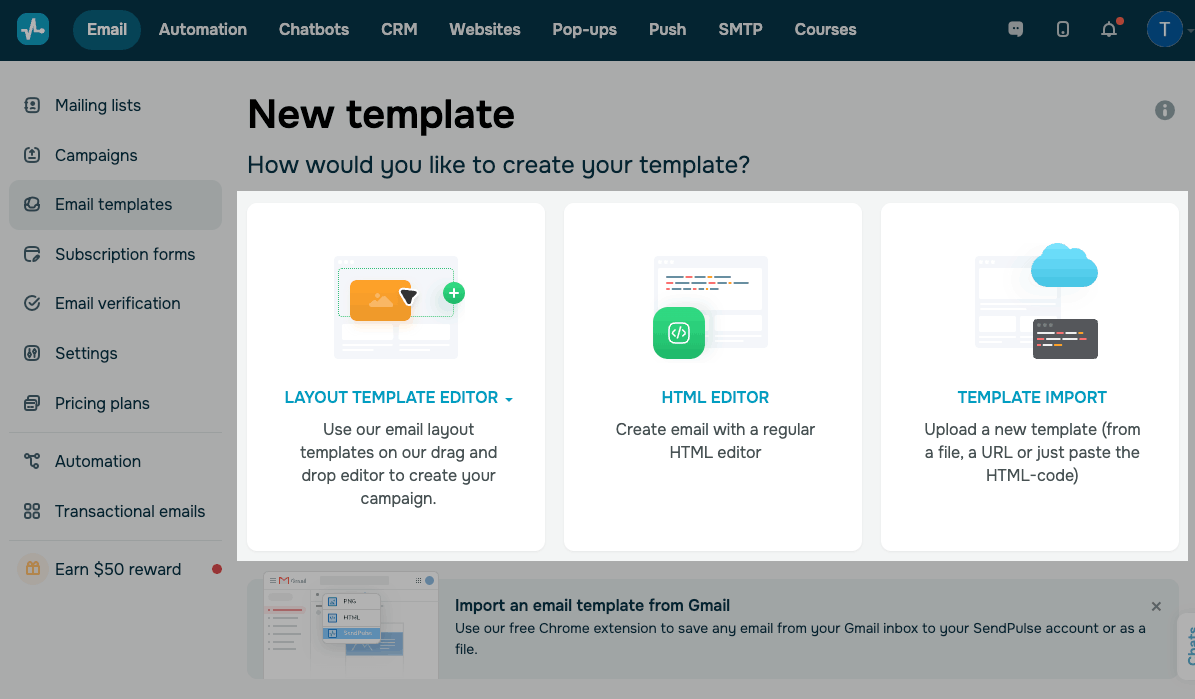
To import a template from Gmail, click on the banner, and install the extension. Then go to the email you want to save, click on the application icon, and select Save to SendPulse.
Read more: How to use the Save Email Template extension, How to use free email templates and How to create dynamic emails triggered by events using pre-made SendPulse templates.
Find a template
You can find a template by its full or partial name using the search box. Start typing, and it will automatically search for templates with the name you entered.
View templates
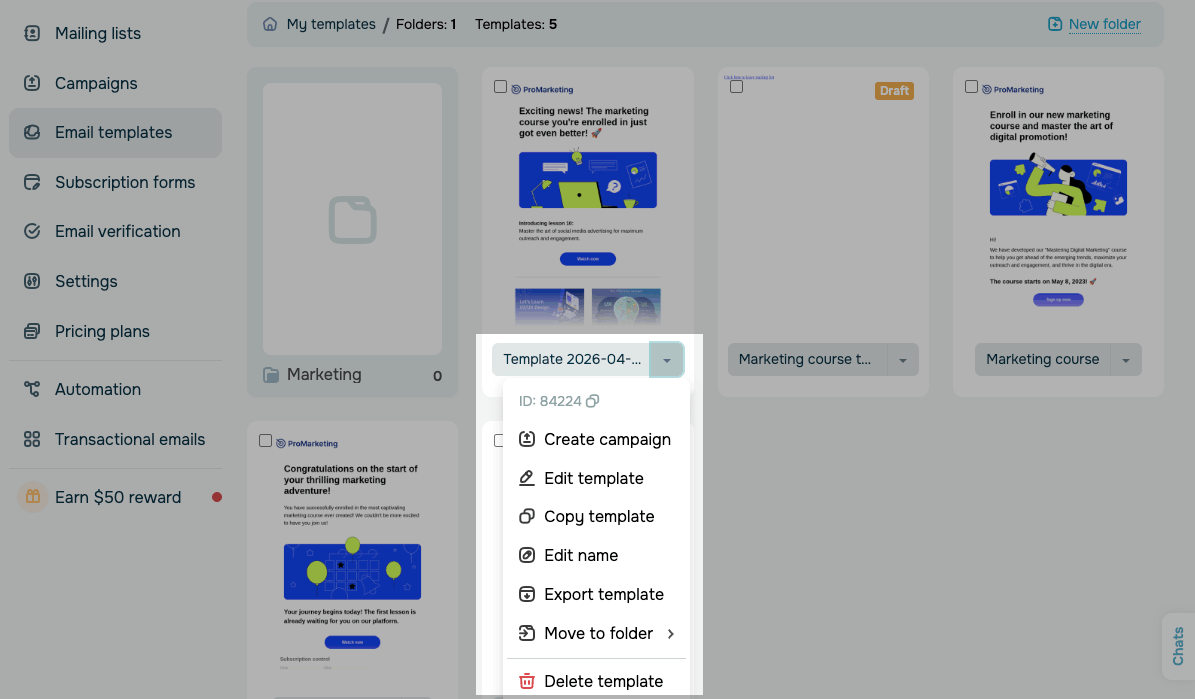
You can display your files as a list or gallery. The gallery view is useful when you want to see file previews.
The list view shows the full name of your template and allows you to see more templates on the screen.
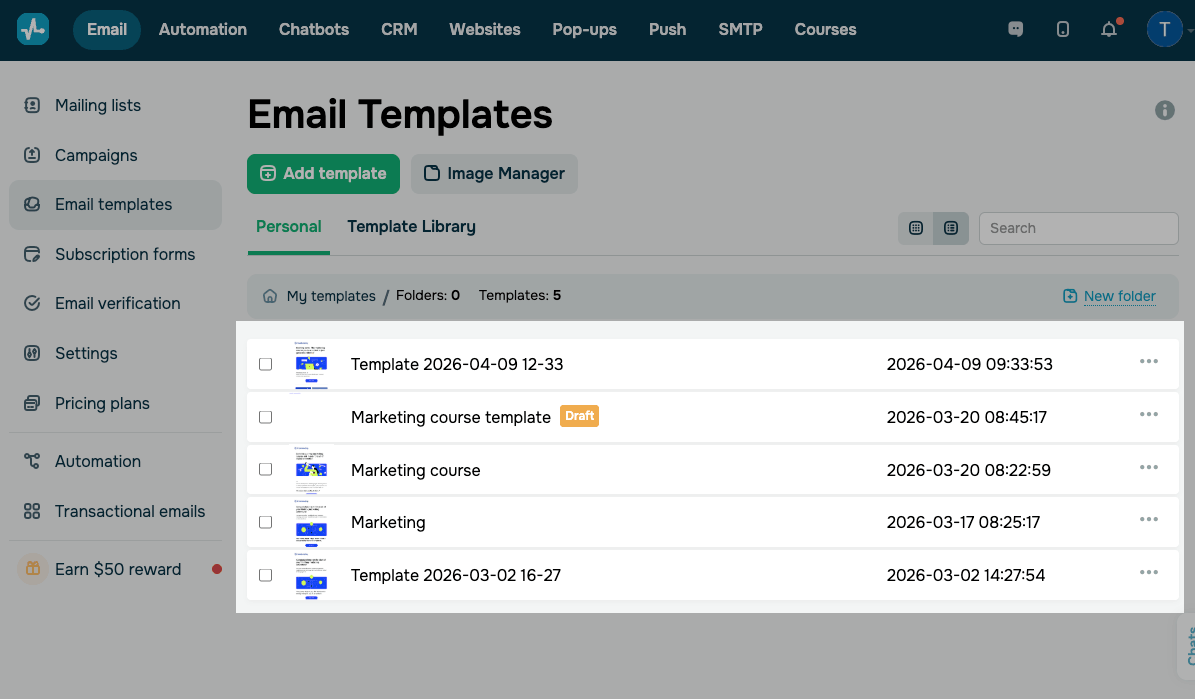
Each template has a unique ID you can use to send emails through the API or build an automated flow using the AI assistant.
To view a template's ID, click the three dots next to it. To copy the ID, click it.
Manage templates
To manage a template, click the arrow next to the template name to open the context menu.
The following options are available:
| Create campaign | Creates a new email campaign using this template. |
| Edit template | Opens the template in the editor for modification. |
| Copy template | Creates a duplicate of the template. |
| Edit name | Renames the template. |
| Export template | Exports the template as an HTML file. |
| Move to folder | Moves the template to a selected folder. You can also move templates by dragging and dropping them to the desired folder. |
| Delete template | Permanently deletes the template.
Deleting a template in the template builder does not remove an email based on it from a scheduled campaign or the Email element in Automations. |
When you create an email campaign or an Email element in A360, a copy of the template is created in the email campaign builder. If you edit a template in the template builder, it does not change in the email campaign builder or Automations. You will need to cancel the scheduled campaign and create a new one. You will also need to delete the template in the Email element in Automations and add the updated copy.
 Last Updated: 05.12.2023





or