Integrate Ukrposhta with the CRM system
Integrate Ukrposhta with SendPulse's CRM system to connect your Ukrposhta business account and sync shipment data with your deals and contacts.
With the integration, you can do the following:
- create Ukrposhta shipments from deal cards and get waybill numbers right away;
- attach existing shipments to deals using their waybill numbers;
- track shipment statuses in deal cards;
- set default sender details and shipment settings that the integration applies to new shipments;
- view a contact's shipments in their contact card.
Let's talk about how to install the Ukrposhta app and set up the integration.
Check the connection requirements
Before you set up the integration, make sure you have the following:
| Contract with Ukrposhta | A signed Single Contract with Ukrposhta. You can set up the integration only with the API keys that Ukrposhta issues under this contract. |
| CRM pricing plan | Any active CRM pricing plan to create shipments from deal cards. |
Connect Ukrposhta
To start using the integration, get two Ukrposhta API keys, install the app from the SendPulse app directory, and connect your account.
Get your Ukrposhta API keys
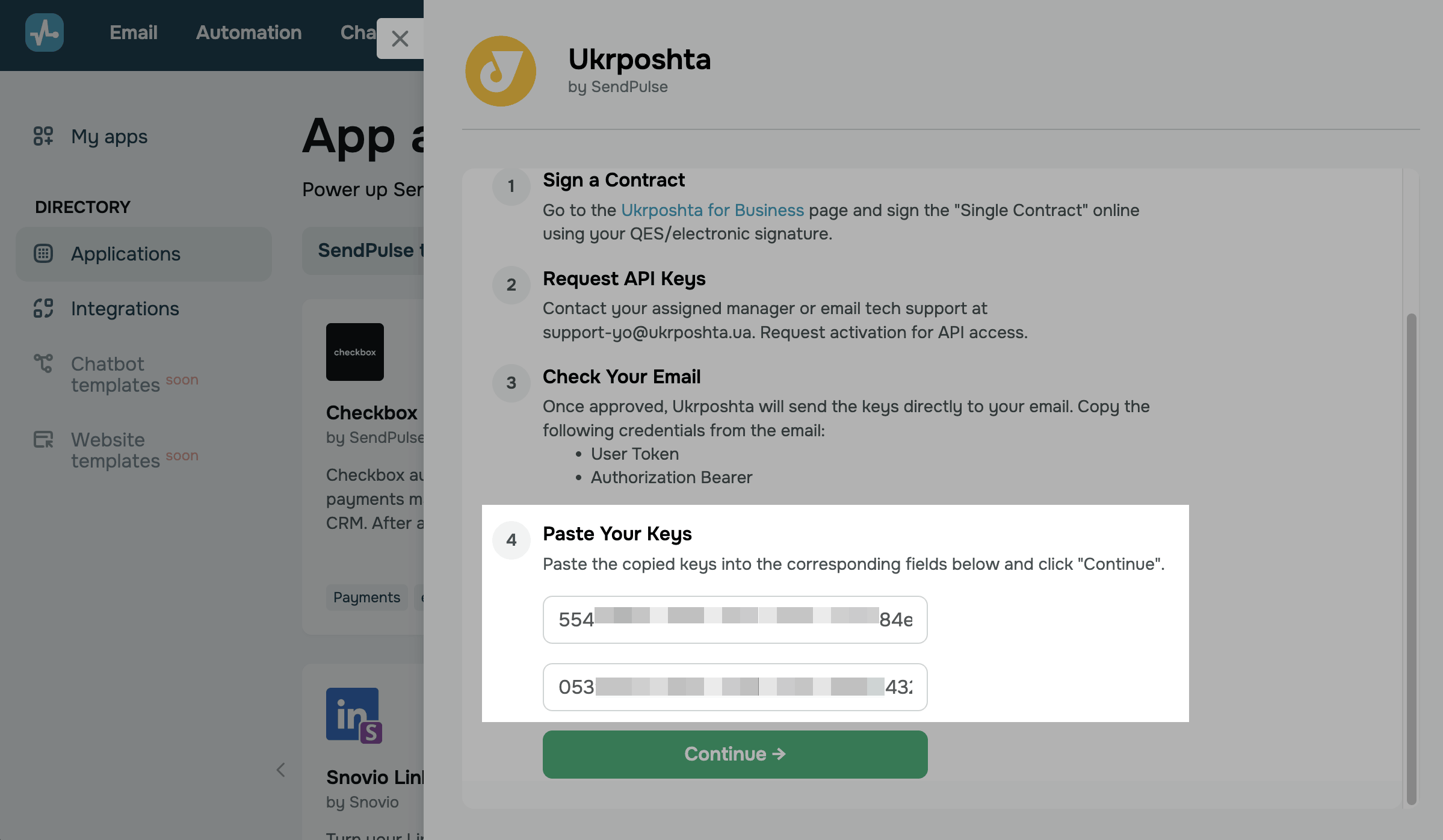
To connect Ukrposhta to SendPulse, you need two API keys for your business account: User Token and Authorization Bearer.
Go to the Ukrposhta for Business page, and sign the Single Contract online using a qualified electronic signature or another e-signature.
Contact your Ukrposhta representative or email support-yo@ukrposhta.ua to request API access.
Once Ukrposhta approves your request, it will send the keys to your email address. Copy the User Token and Authorization Bearer keys from the email.
Install the Ukrposhta app
To install the app, go to the app directory > Applications, find Ukrposhta, and click Install. Grant the app access to your CRM system, and click Grant consent.
Integrate Ukrposhta with your SendPulse account
To connect your Ukrposhta account, go to My apps > Installed and select Ukrposhta. Paste the API keys from the Ukrposhta email into the User Token and Authorization Bearer fields, and click Continue.
Configure the integration
Once you connect your account, configure your sender details, shipping settings, and CRM pipeline mapping.
Sender data
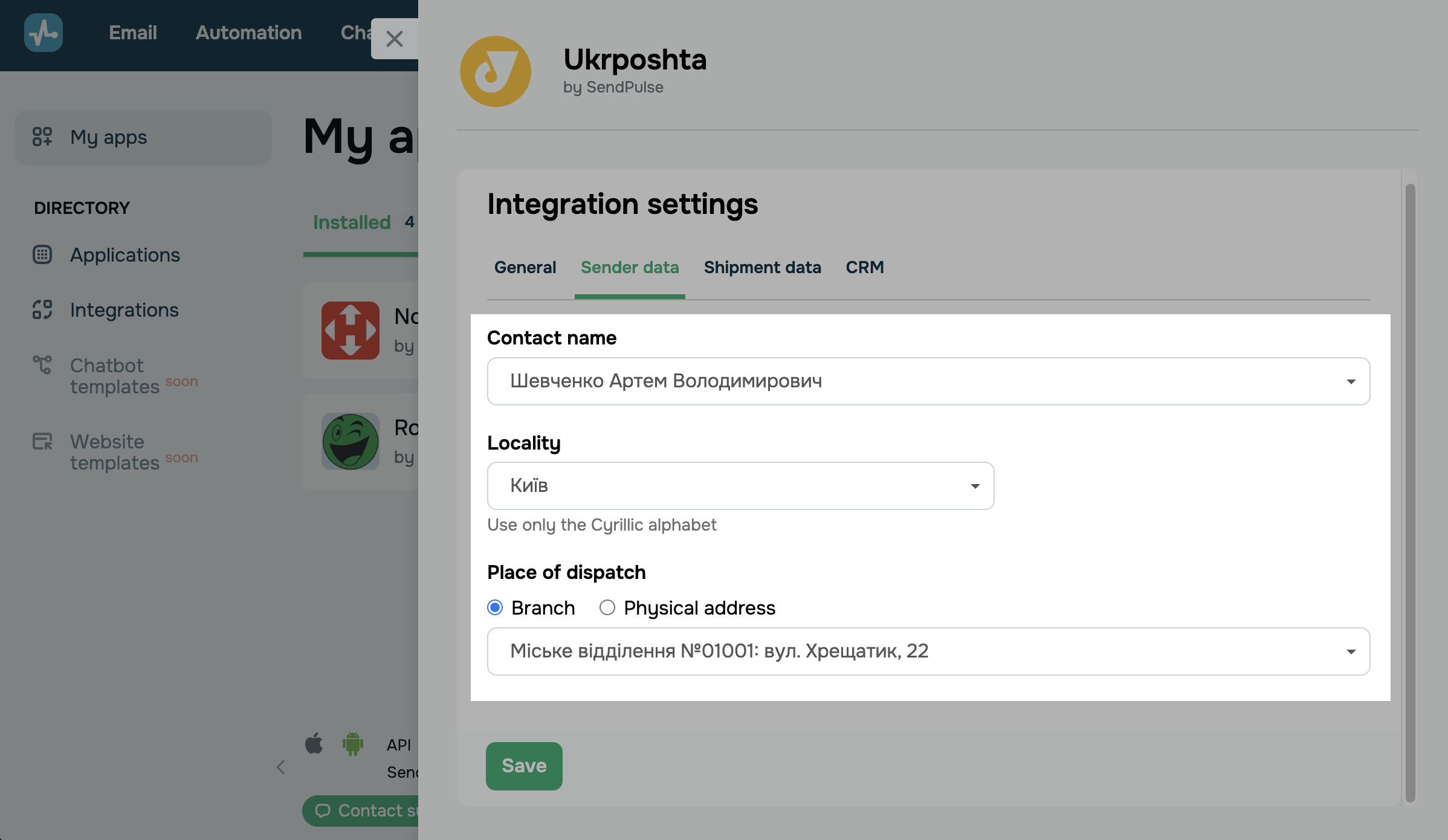
Set the sender details that the integration uses to create waybills.
You can configure the following fields:
| Contact name | Select the sender contact from the list. |
| Locality |
Enter the locality you'll ship from. Use only the Cyrillic alphabet. Locality search uses the Ukrposhta database. |
| Place of dispatch |
Select the sender address. The following options are available: Branch lets you select a Ukrposhta branch in the selected locality. Physical address lets you enter the street, building number, and apartment number to ship from an address. |
Shipment data
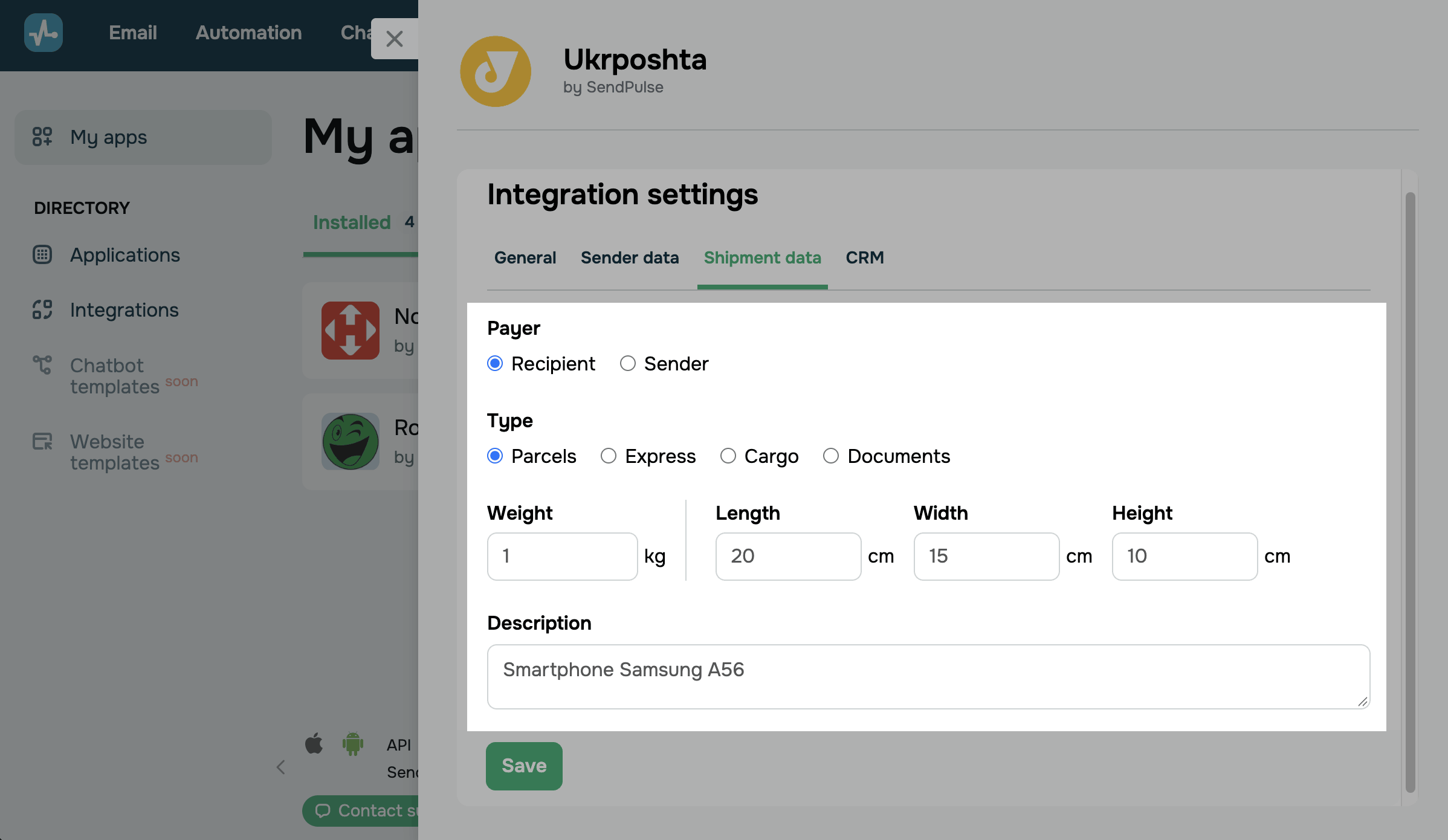
Configure the delivery settings that the integration uses as default values for new waybills.
You can configure the following fields:
| Payer |
Select who pays for the delivery. The following options are available: Recipient means the recipient pays the parcel delivery cost. Sender means the sender pays the parcel delivery cost. |
| Type |
Select the shipment type based on the parcel's contents and parameters. The following options are available: Parcels — standard shipments of small size and weight. Express — shipments with priority delivery. Cargo — oversized and heavy shipments. Documents — documents, certificates, letters, and postcards. |
| Weight | Enter the actual shipment weight in kilograms. |
| Dimensions | Enter the shipment dimensions to calculate volumetric weight: Length, Width, and Height in centimeters. |
| Description | Enter a short description of the shipment contents, for example, the product name. |
You can't delete shipments through the integration.
CRM
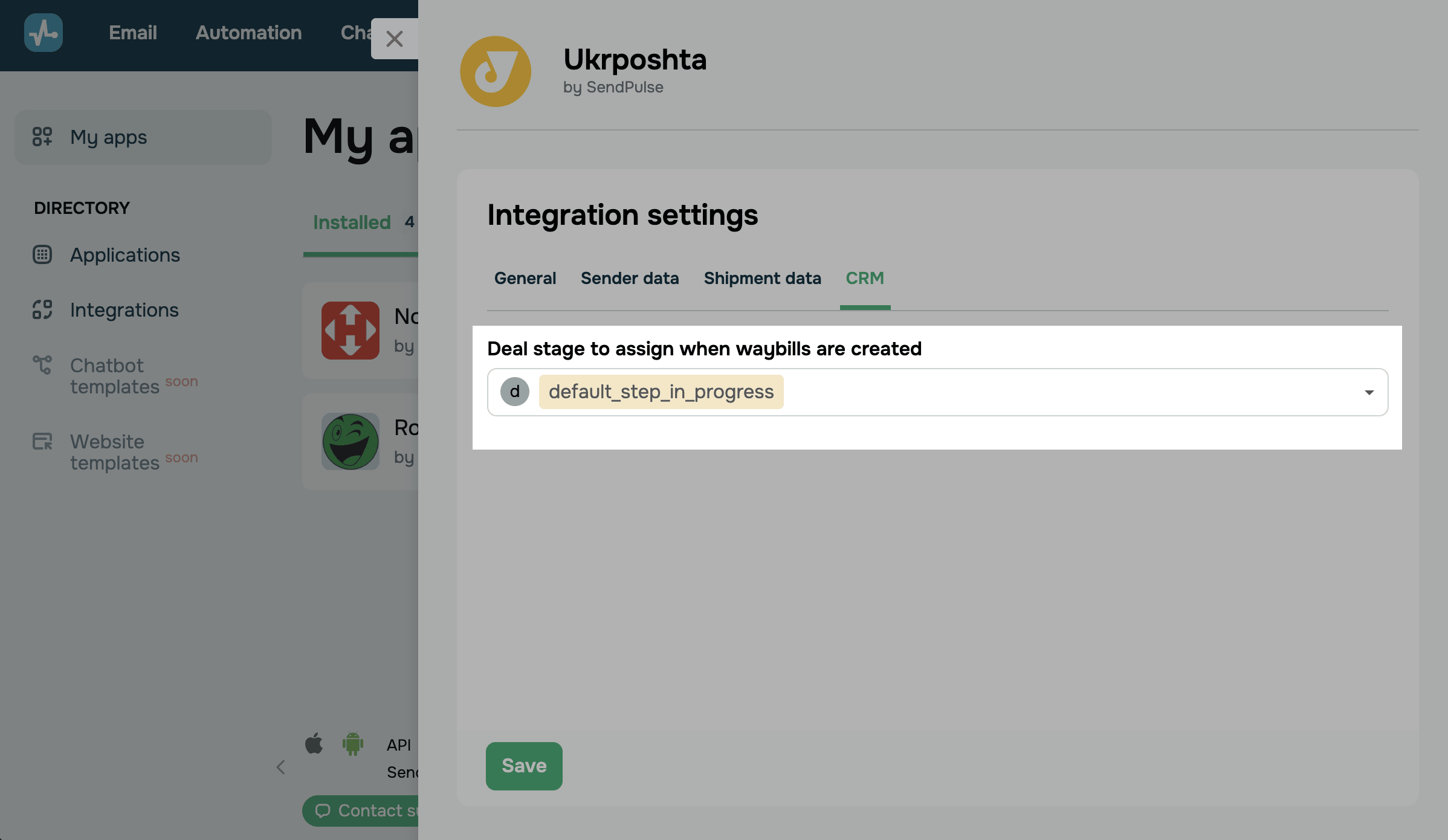
In the Deal stage to assign when waybills are created field, select the CRM pipeline and deal stage where Ukrposhta waybills will be created.
Make sure users who manage deals have access to the selected pipeline.
When you're done, click Save.
Now you can create or add a Ukrposhta shipment from the deal card in CRM.
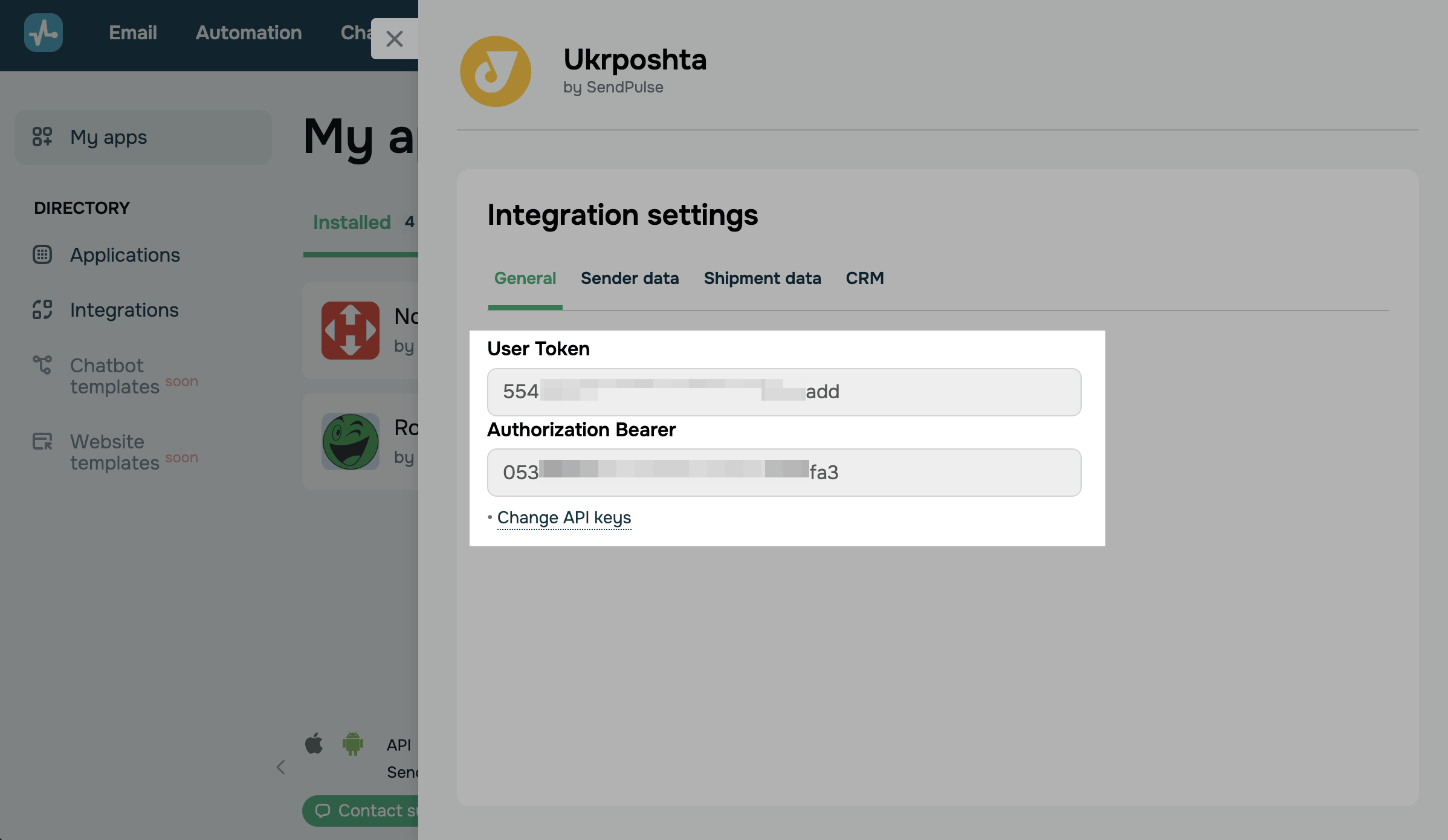
General
You can enter different API keys if needed, for example, when you connect your CRM system to another Ukrposhta business account.
Click Change API keys. In the pop-up window, enter your new keys in the Authorization Bearer and User Token fields, and click Save.
Entering new API keys resets your previous integration settings. Reconfigure them before saving.
Manage the app
To view or change your integration settings, go to My apps > Installed and select Ukrposhta.
To connect another Ukrposhta business account, replace your API keys in the General tab.
To delete the app, click the three dots next to Ukrposhta in the list of installed apps and select Delete.
Read also: Create and view Ukrposhta shipments in the CRM system, Integrate Nova Post with the CRM system, and Pipeline basics.
 Last Updated: 21.10.2026




or