Use course calendar
Using the calendar, you can monitor course events, including course openings and closings and scheduled sections, lessons, tests, or certificates.
Go to the Calendar tab.
In the upper right corner, select a content type (courses, sections, lessons, tests, or certificates) to find related events.
In the upper left corner, you can select the viewing mode:
| Calendar | Events are shown as calendar, with scheduled activities marked on specific dates. |
| Dates | Events are shown as a list with dates. |
In the center, select a month to show course events. To go back to the current month, click To today’s date on the left.
Your calendar shows current and upcoming course events within the same academy. To switch academies, click Change academy above your profile picture.
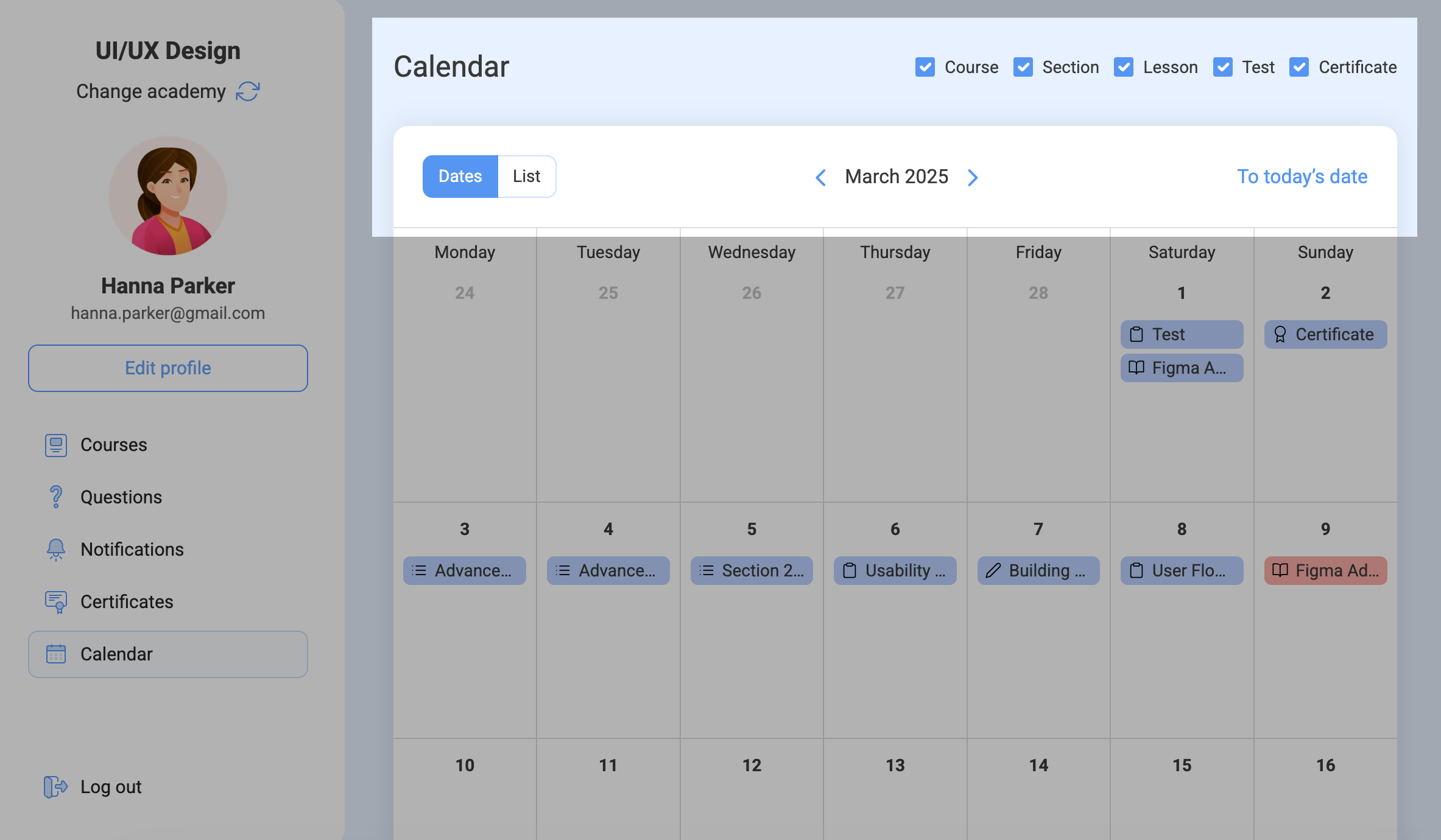
Every event is labeled by its content type (course, section, lesson, test, or certificate) and color-coded (red for closing and blue for opening).
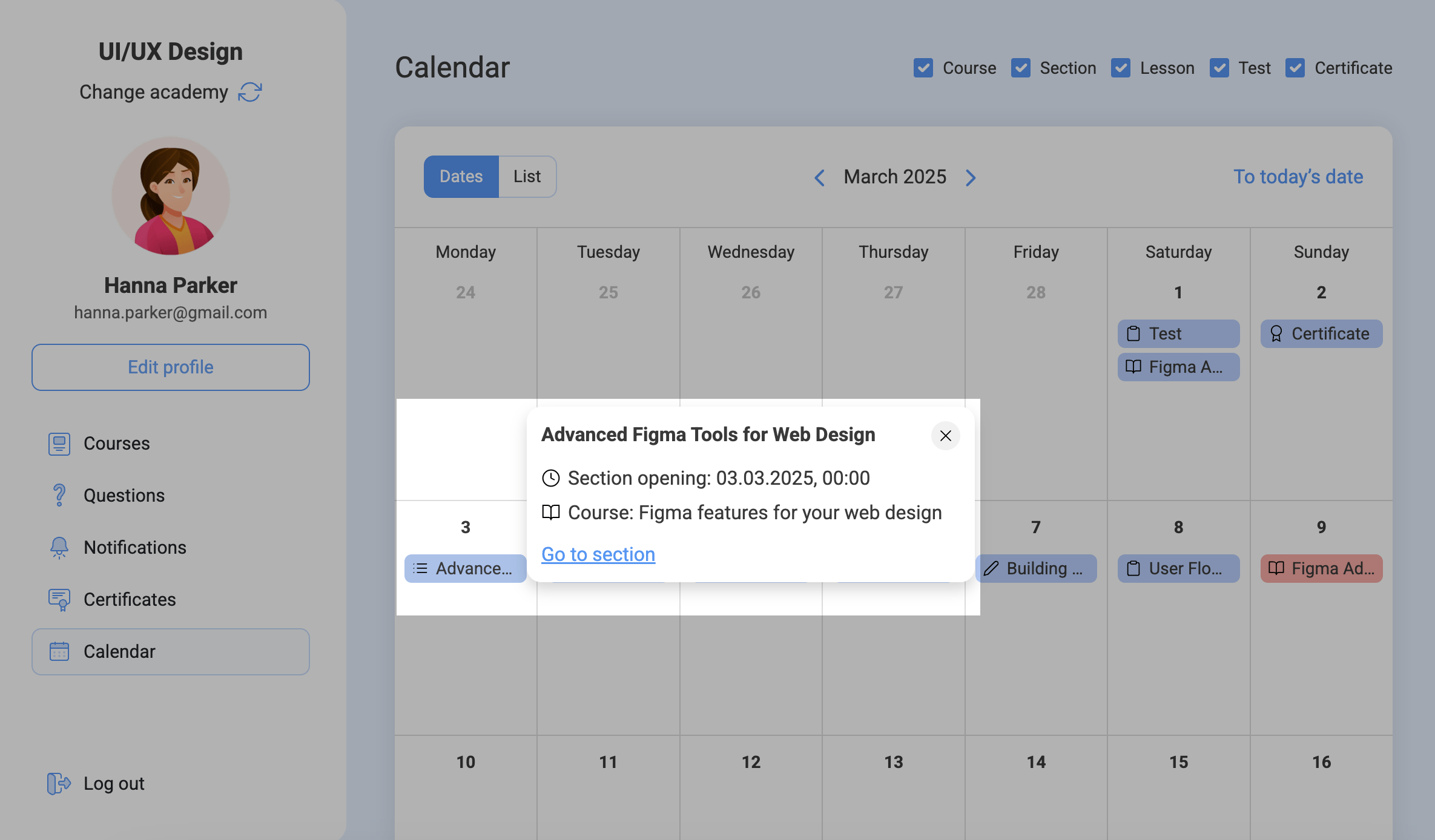
Click an event to view its name, opening date and time, and course. Click Go to course/section/certificate to go to this event’s course.
 Last Updated: 20.05.2025





or