Manage a course after its completion
You can track your course progress and see what’s left to complete. Once you meet all course requirements, you can view your results, download a certificate, and leave feedback.
In this article, learn how to complete a course, view your results, and explore recommended courses.
Meeting course completion criteria
To complete a course and get access to the results page, you need to fulfill a set of requirements (if an instructor has selected them in the course settings):
- mark each lesson as completed;
- submit homework assignments and have them accepted by an instructor;
- complete each test with a passing score.
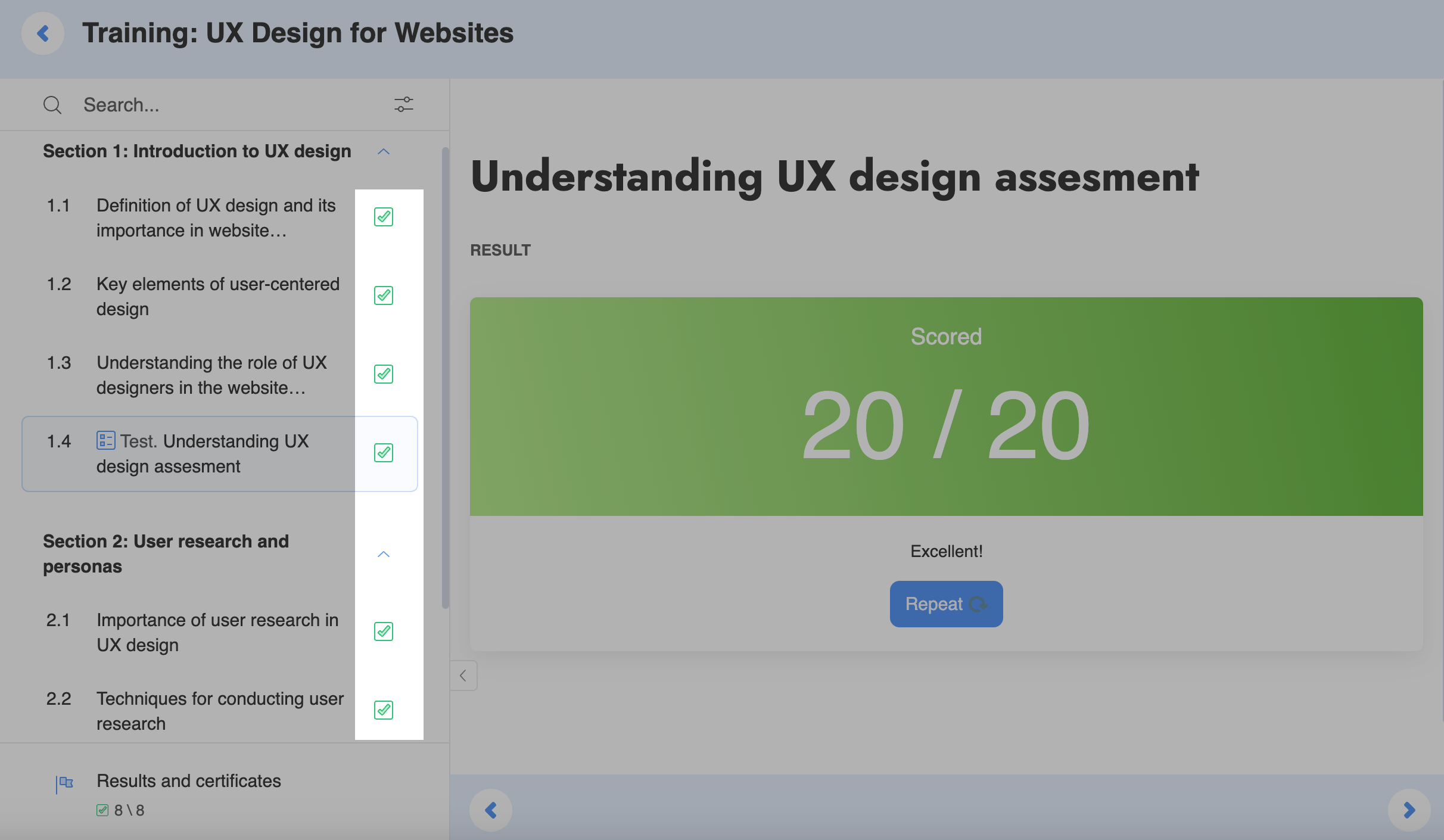
Once all the required conditions are met, a checkmark will appear next to lessons and tests. However, it will not appear next to sections that are not completed. This can help students see what they need to complete.
Viewing results
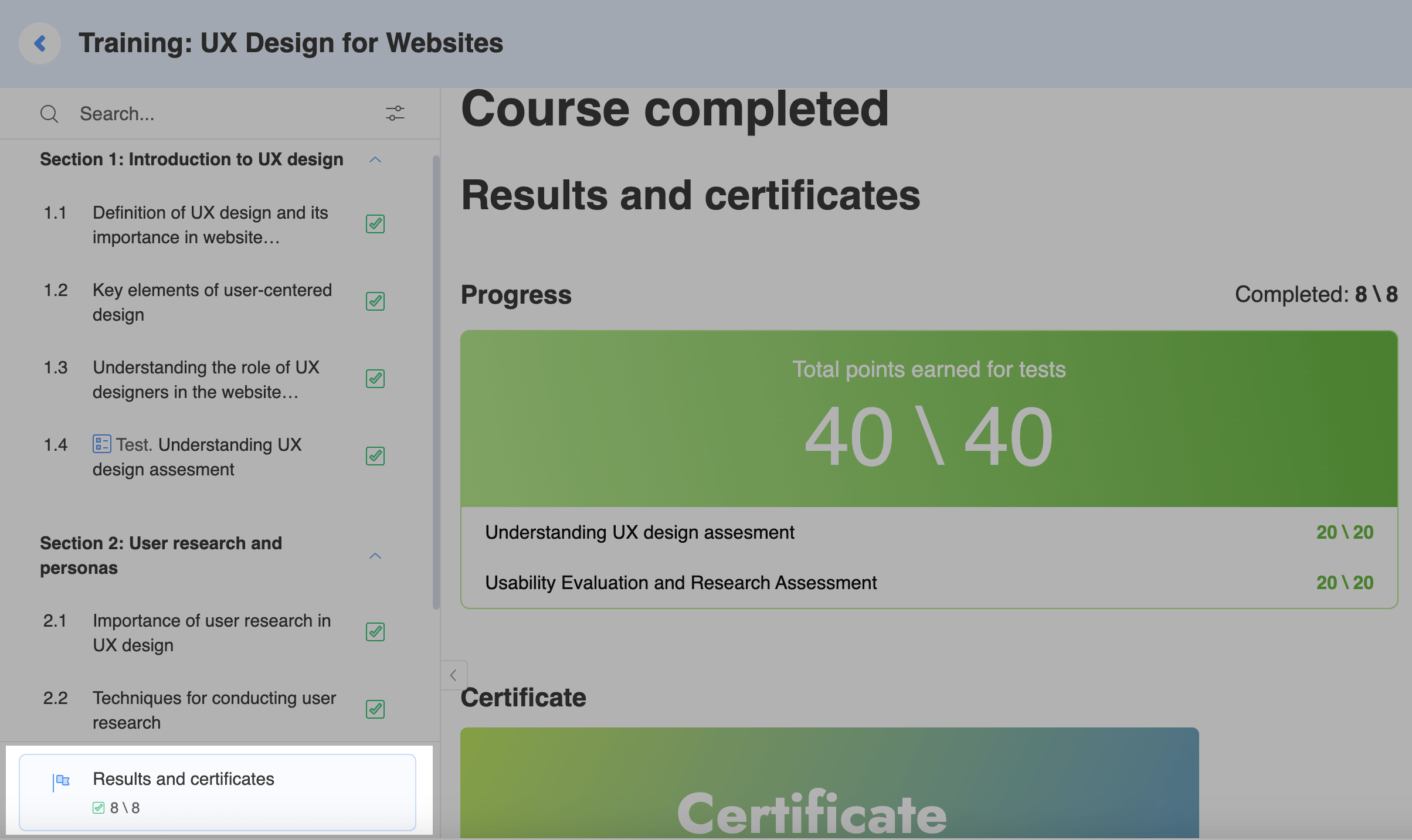
To go to the results page, click Results in the lower left corner.
On this page, you can view your overall score for all tests, download your certificate, give feedback, and see other students’ feedback and recommended courses.
In the Progress section, you can also view the following:
- number of completed lessons;
- total and individual test scores;
- certificates for this course.
Getting a certificate
If your instructor has added a certificate, and you have completed the course, you can download your it in PDF or print it.
Read more: Get a certificate.
Giving course feedback
You can rate each lesson, test, and the whole course. This way, an instructor will be able to receive feedback and improve their educational materials or course program.
To rate a lesson or test while you are taking it, go to the necessary section, and rate it on a 5-point scale.
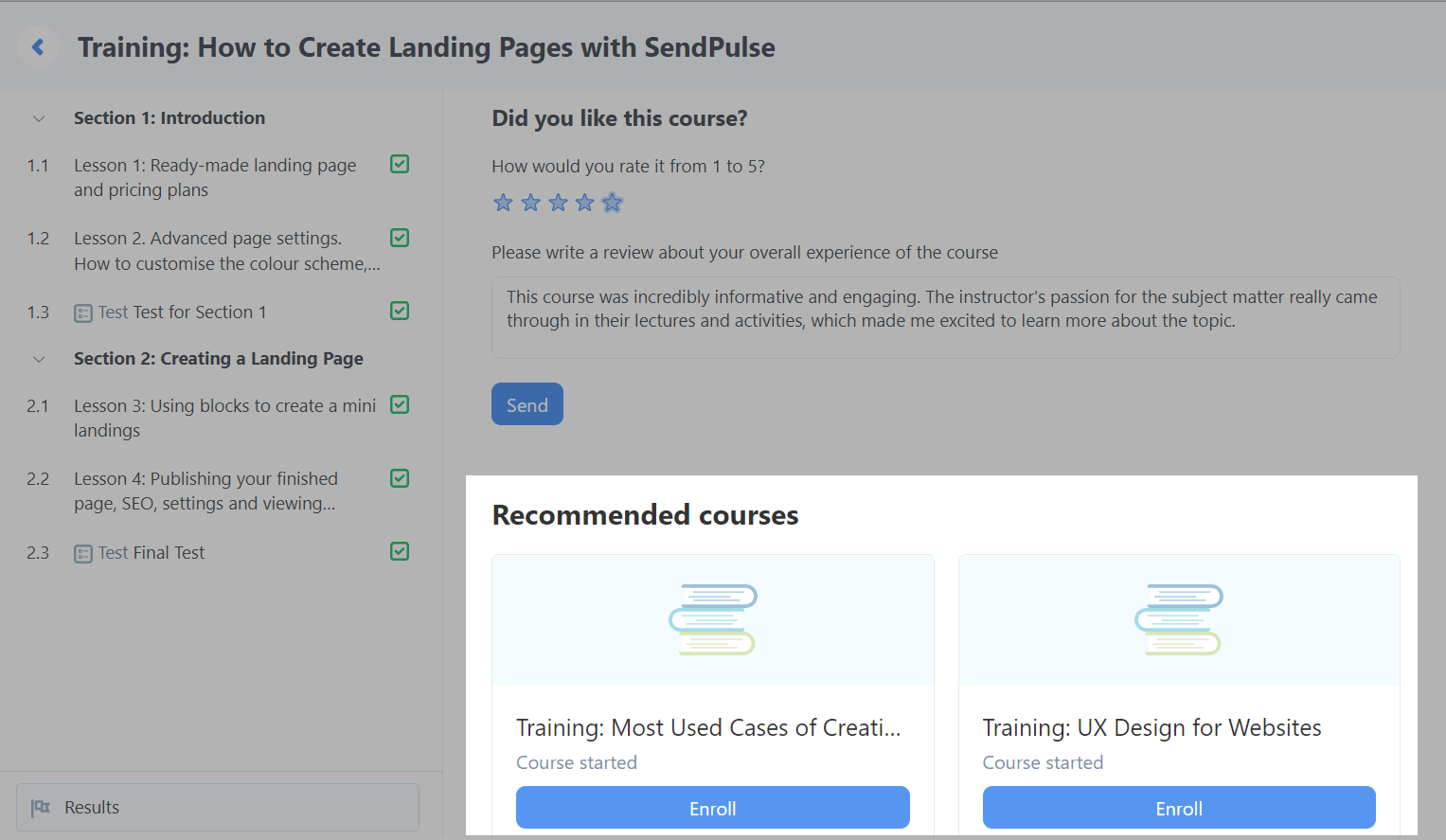
To rate the whole course, go to the results page, give a star rating, type in your review, and click Send.

You will be able to see other students’ course feedback in the Reviews section.
Viewing recommended courses
If an instructor chooses to display recommended courses, you will be able to see them on the results page or main page and enroll.
 Last Updated: 14.07.2025





or