Manage dynamic segments
You can manage dynamic segments to update their conditions based on new data from SendPulse tools, create similar dynamic segments, delete them, or recalculate them to send their contacts to automated flows and campaigns again.
In this article, we will talk about how to manage your dynamic segments.
Go to Automation > Segmentation.
Rename a segment
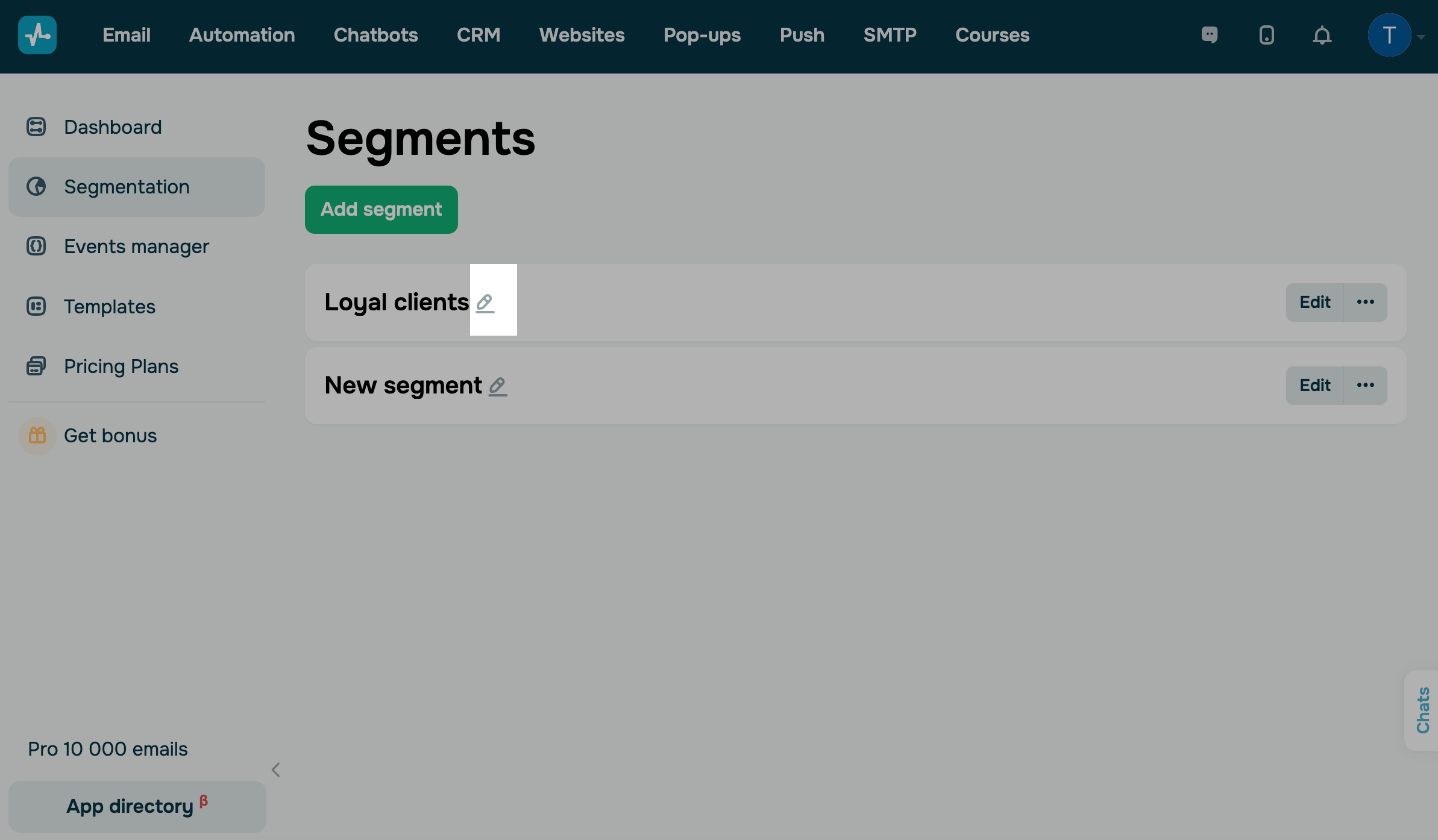
Click the pencil icon to edit your segment name. In the modal window, type in a new name and click Save.
Edit segment conditions
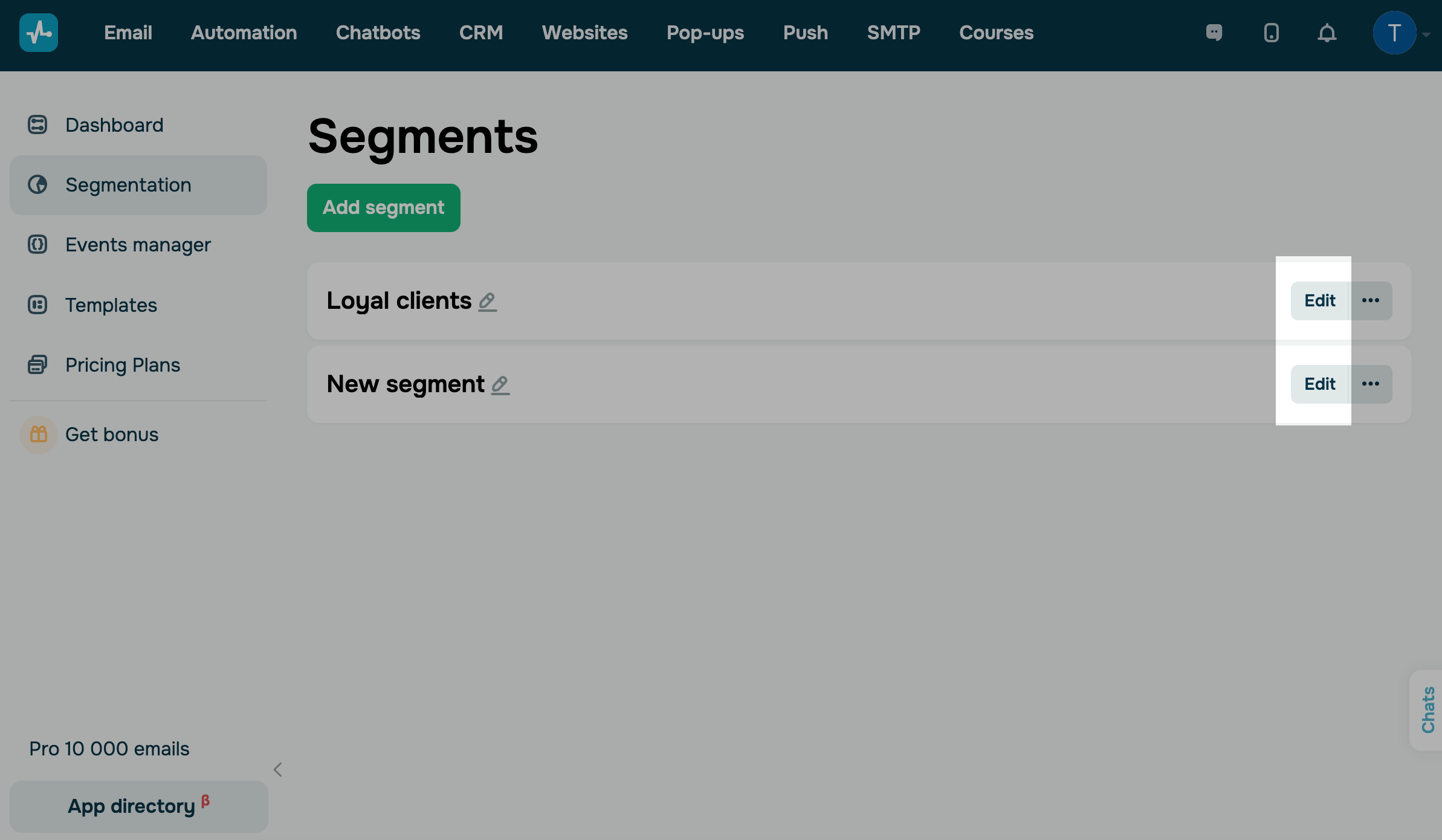
To change the current segment conditions, click Edit. In the opened section, you can configure triggers, filters, and data mapping rules. Save your changes.
Once you start recalculating a segment, you'll be able to edit its conditions again in 10 minutes.
Read more: How to create a dynamic segment.
Reuse segment conditions
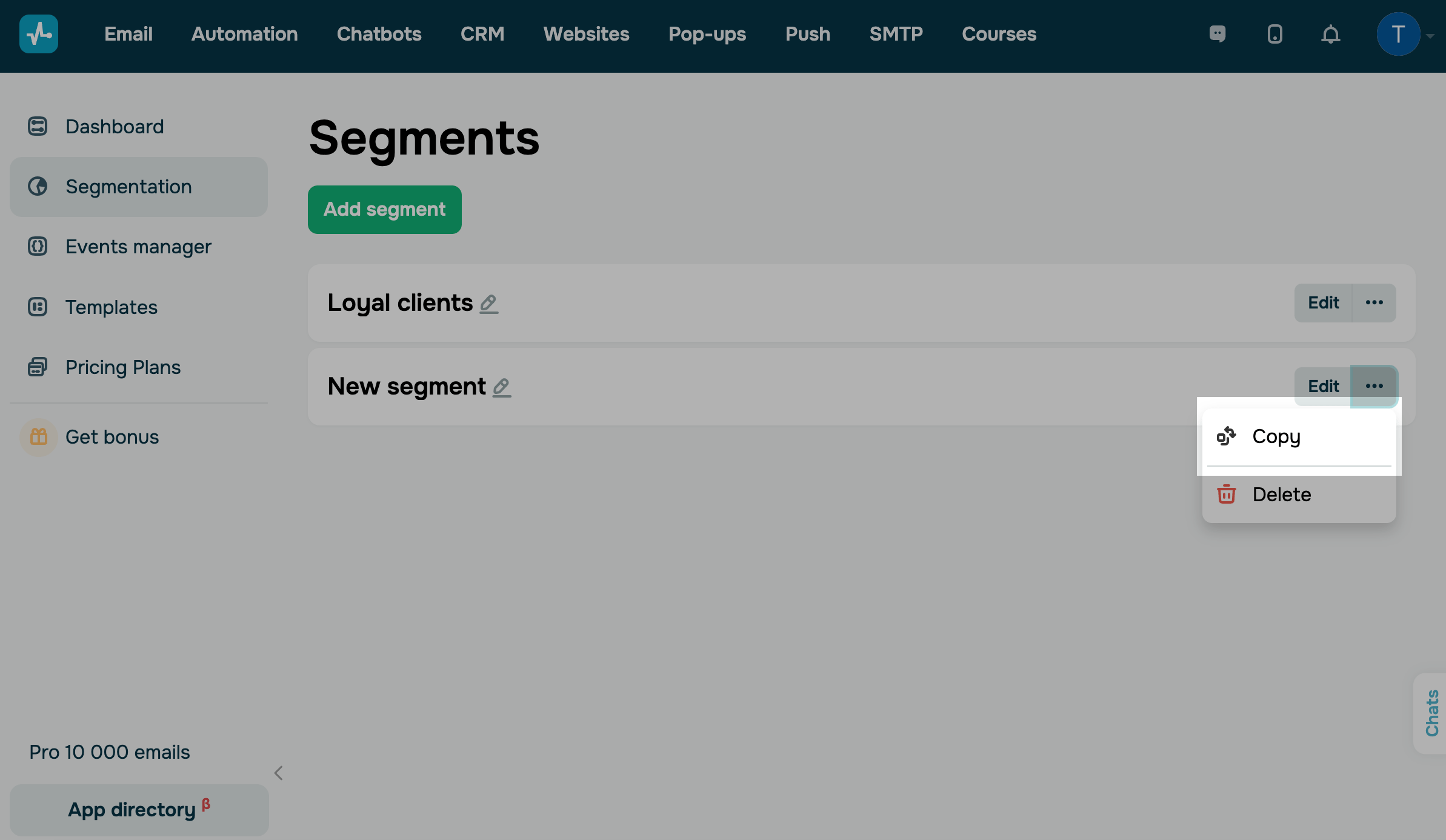
To create a segment using an existing one, click the three dots and select Copy. In the opened section, you can configure conditions, filters, and variable mapping rules. Save the settings to create your segment.
Recalculate a segment
Recalculation re-adds your segment's contacts to the flows and email campaigns that use it. This helps you add existing contacts to an automated flow or campaign without copying them to a new mailing list.
Suppose you need to send a one-time campaign to contacts from your mailing lists who didn't open your recent emails.
To do this, click Add segment. In the Trigger section, select Contact has been added to the mailing list for each of these mailing lists. In the Filter section, select No opened campaigns and set a timeframe.
Then, schedule an email campaign for this segment and recalculate it.
The Recalculate option appears if a segment has only Contact has been added to the mailing list triggers, each with a specific mailing list selected.
At least one automated flow or email campaign must also use the segment. Your segment list shows them under its name. To use the segment in an automated flow, create the flow using the Meet segment criteria trigger and select the segment in it.
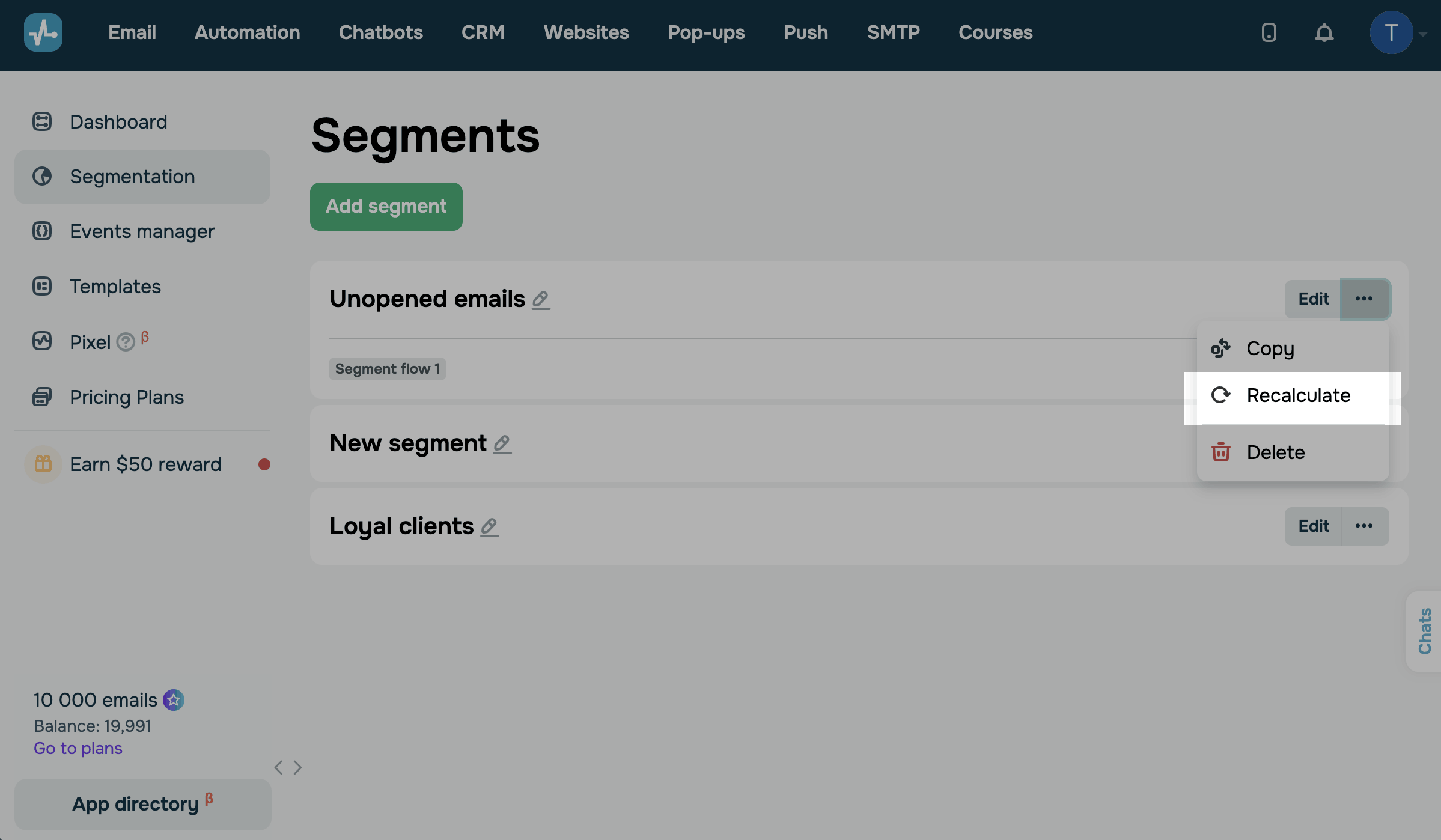
To recalculate a segment, click the three dots and select Recalculate.
The modal window shows how many contacts the recalculation will apply to. This number includes all contacts from the mailing lists in the segment triggers, regardless of their status. To confirm, click Restart.
SendPulse checks all contacts from these mailing lists against the segment conditions again. Contacts that meet the conditions enter your automated flows and are added to the recipient lists of campaigns you haven't sent yet. All of them will receive your emails, except contacts who have unsubscribed or marked your emails as spam.
If a contact's variable values vary across your segment's mailing lists, recalculation takes the values from one of these lists at random.
To control which values your automated flow uses, turn on the Use variables from the mailing list toggle in the flow start settings.
Recalculation may take some time, so we recommend coming back to the segment later. You'll be able to recalculate the segment or edit its conditions again in 10 minutes. Until then, the Recalculate option and the Next button on the segment editing page are inactive.
To find out how many contacts entered your automated flow, view your automation statistics.
Delete a segment
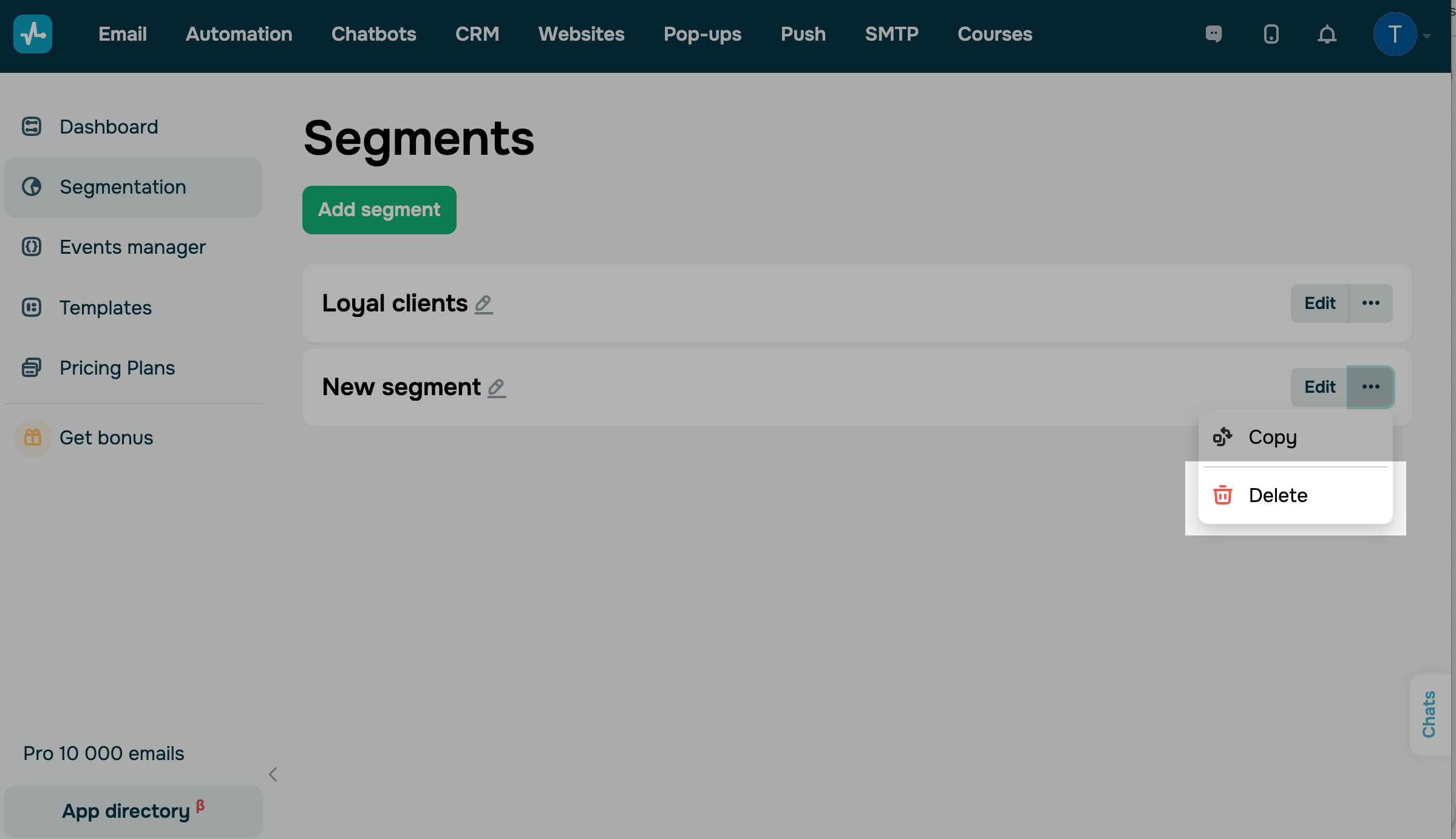
To delete a segment and all its data, click the three dots and select Delete. Confirm the action in the modal window.
 Last Updated: 18.12.2024





or