The Cover pop-up element
Use this element to add an image to your pop-up, enhance visual appeal, and draw attention.
In the pop-up builder, select the Cover element and go to its settings.
Add an image
If you are creating a pop-up from scratch, click Add cover > Upload image, and select an image from the file manager.
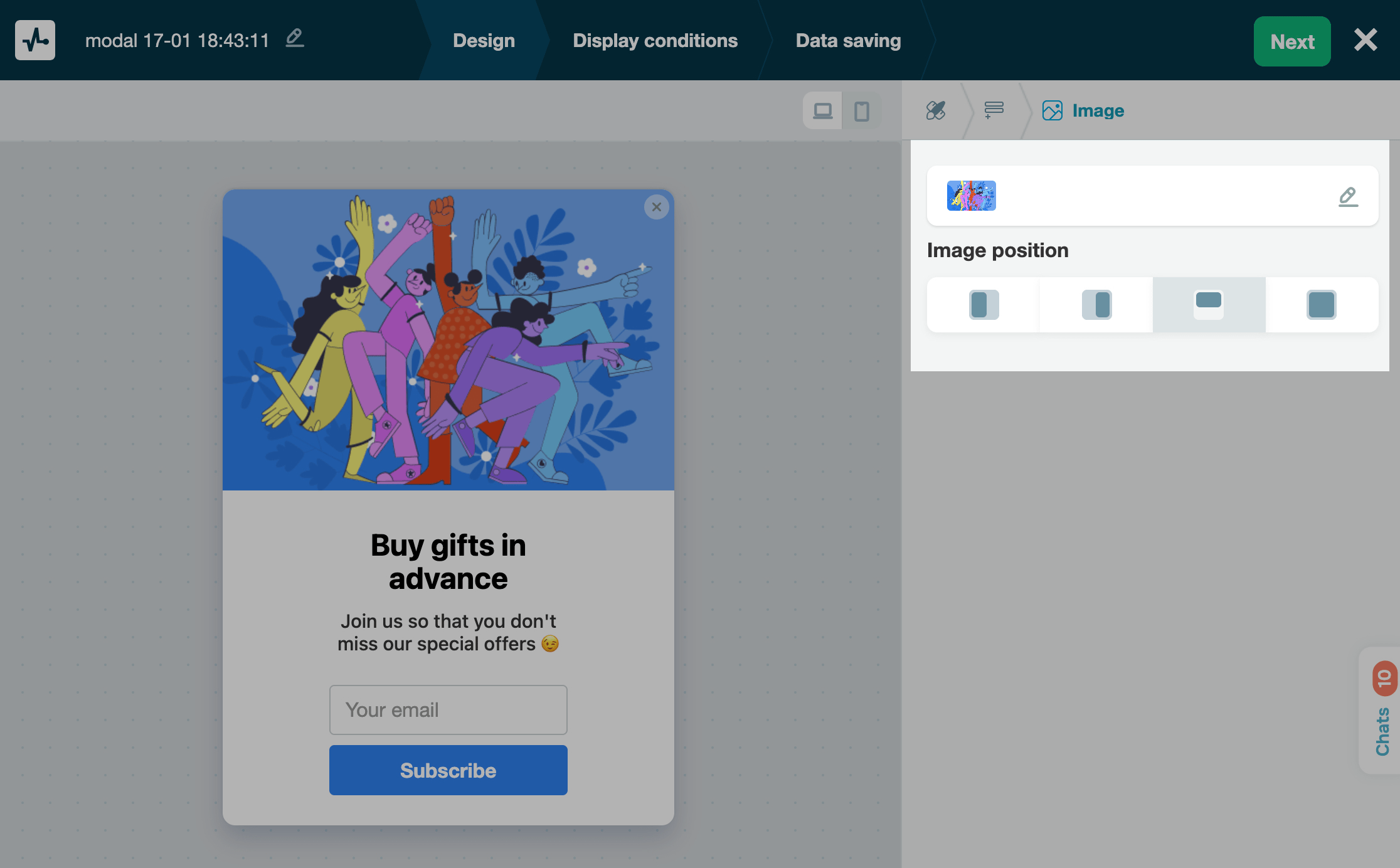
To replace your template image, click the pencil icon next to it. To upload an image to the file manager, click Upload files. Select or drag it and click Upload. Then, close the modal window and select your image.
To generate an image using AI, click the icon on the right of your button.
Customize the image
In the Image position section, choose where the image will appear relative to the edge of your pop-up: left, right, top, or cover entire pop-up.
For the Left and Right positions, set an image size using the Image width field.
Unlike the Image element, the Cover element spans the entire area along your selected edge.
 Last Updated: 13.06.2025





or