Create a messaging app widget
You can add a floating widget with messaging app buttons to invite the user to a social media page or subscribe them to a bot.
In this article, we will talk about how to create and set up a messaging app widget.
Add a pop-up
Go to your project, open the Pop-ups tab, and click Add pop-up. On the template page, go to the Chatbots tab and select a template, or click Create from scratch.
You can also change the pop-up type to Messaging app widget in the builder under Style > Pop-up type. To configure display and content, go to the Elements tab.
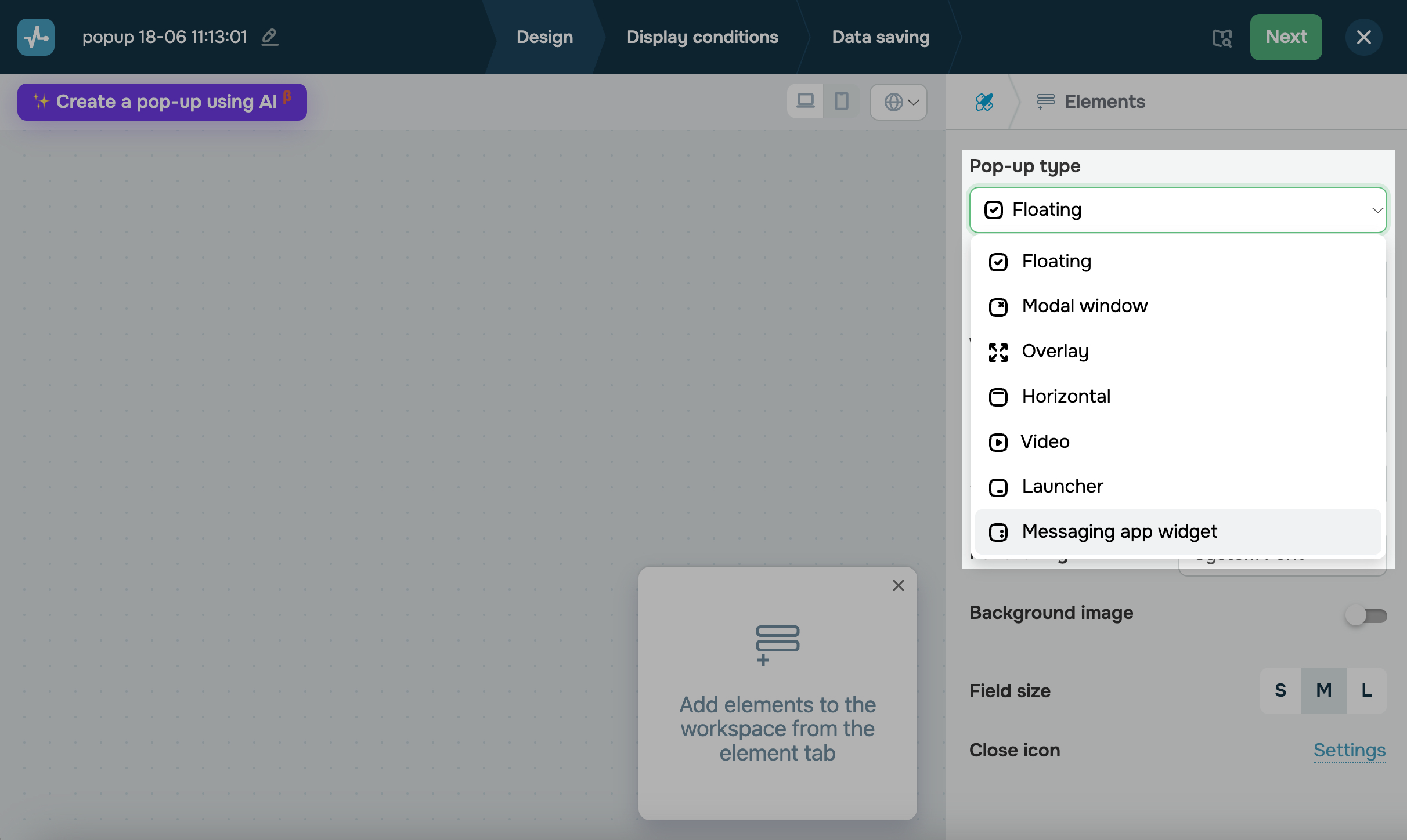
Your messaging app widget will appear on all website pages without any display restrictions. To show your widget in a specific scenario or add more elements, create a pop-up of a different type and add the Messaging app element.
Customize your button
Choose a social media platform
Select a social media platform your button will lead to (WhatsApp, Messenger, YouTube, Instagram, Twitter, Snapchat, Telegram, Viber, or a custom link).
Type in the text that will appear next to the icon.
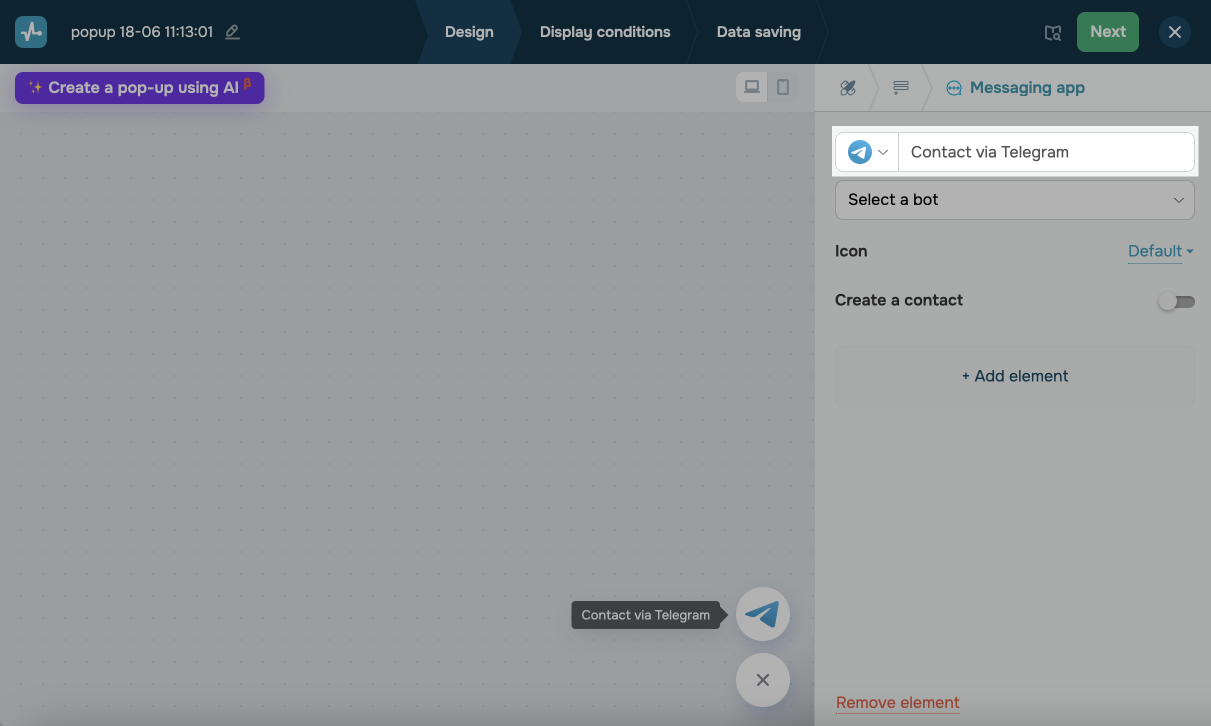
Other fields you need to fill out will appear based on the selected social media platform.
Add a link
You can select a connected chatbot or paste your social media profile link.
Chatbot subscription
With SendPulse, you can create a Telegram, WhatsApp, Instagram, and Facebook Messenger chatbot. When users click your chatbot link, they will see a chat window and receive a welcome flow. Read more: How to manage chatbot subscribers, variables, and tags and How to launch a bot via a link or QR code.
Select a SendPulse-powered chatbot or add a link to a chatbot you’ve created using third-party tools.
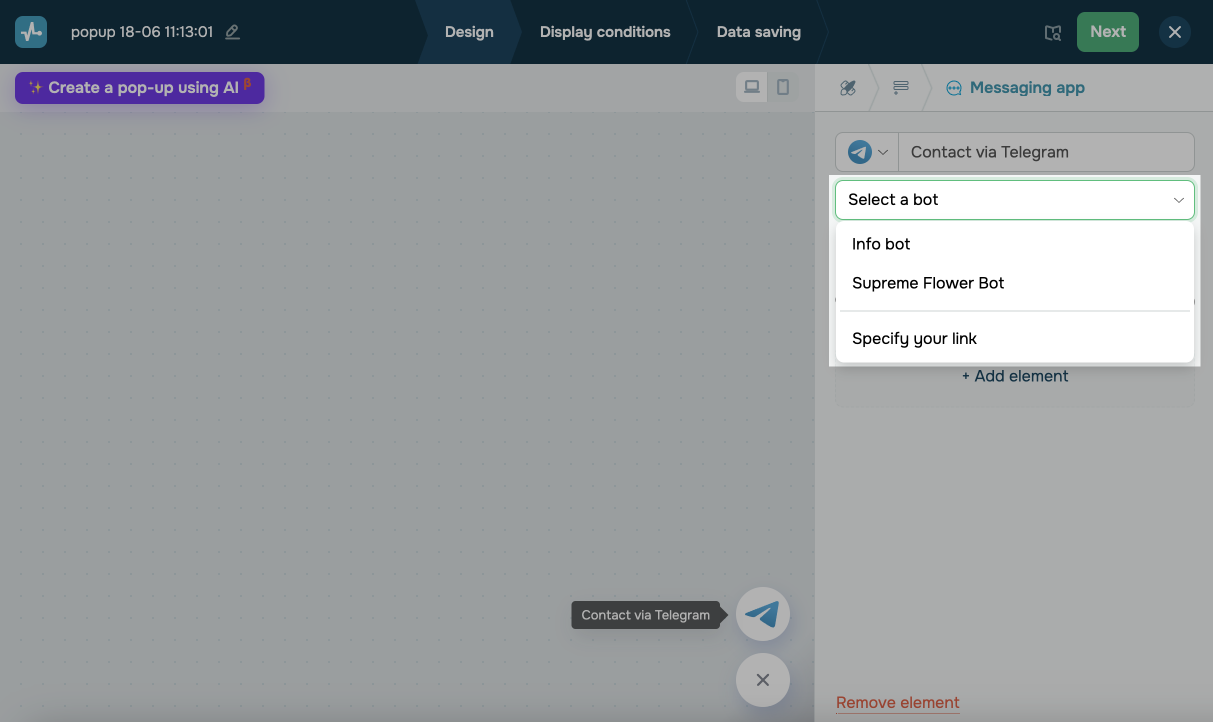
If you have chosen a SendPulse-powered chatbot, select a flow that will run once a user subscribes to your bot.
Your chatbot may trigger differently based on whether a user is subscribed to it.
Read more: How to launch a bot via a link or QR code.
Social media links
You can also add a link to your social media profile instead of a chatbot. Select a social media platform and use the Specify your link option.
If you can’t find a certain social media platform on the list, select Custom link.
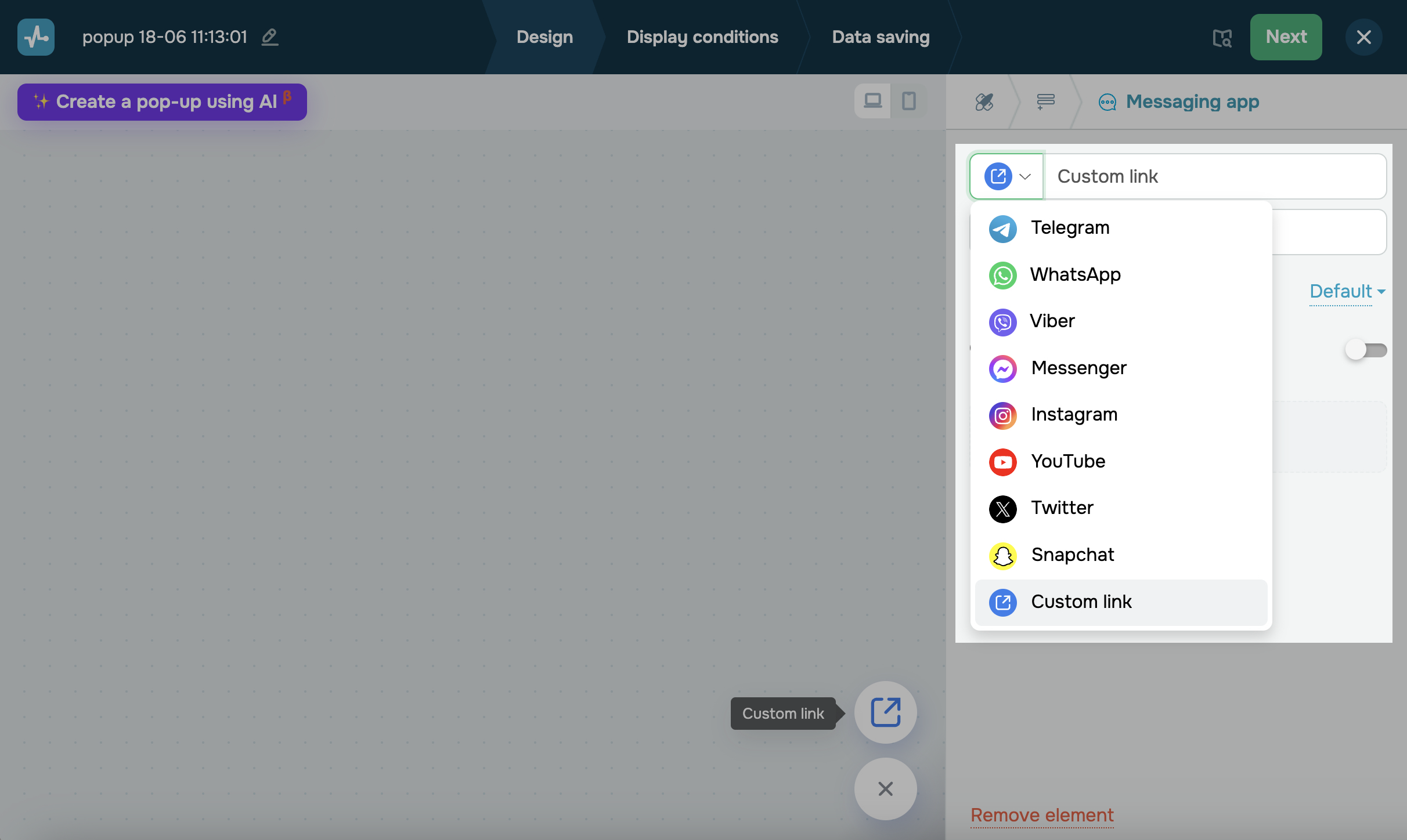
Paste your link into the field.
For example, you can add a link to your YouTube channel, Facebook community, and so on.
Add buttons
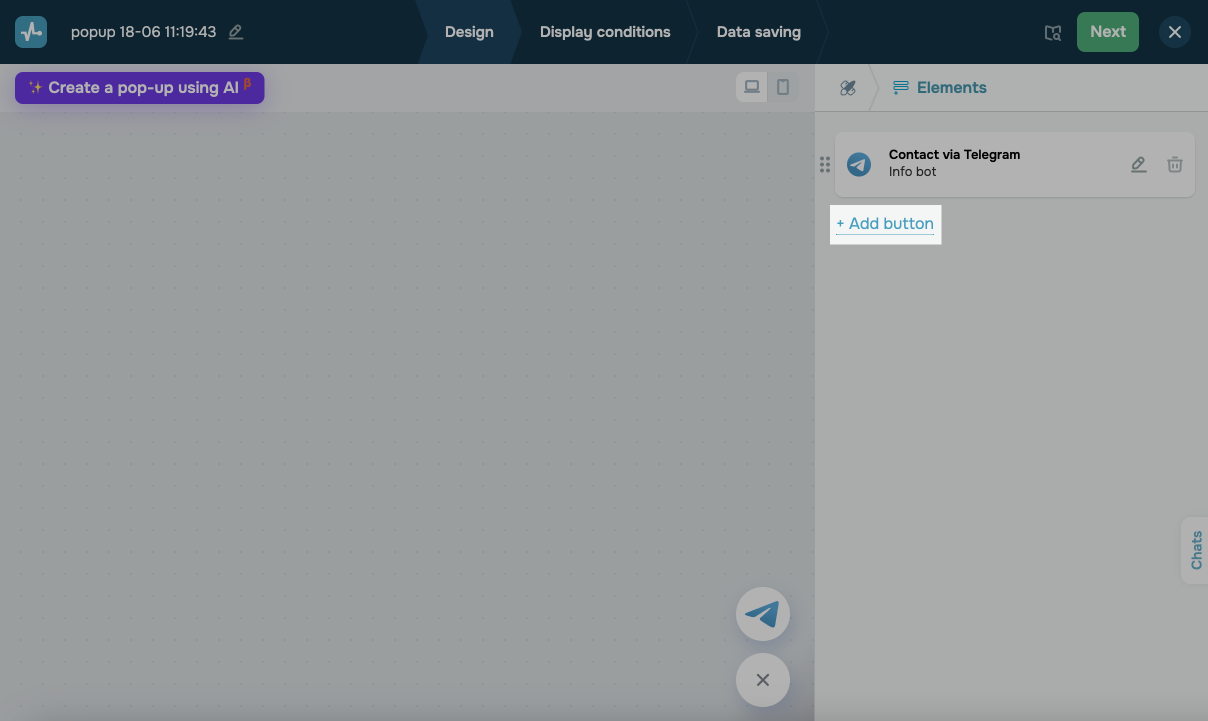
You can add up to 10 social media buttons to one widget. Click Add button and repeat the process to set them up.
 Last Updated: 20.06.2025





or