Troubleshoot WhatsApp payment issues
To send paid messages through the WhatsApp Business API in SendPulse, your WhatsApp Business account must have an active SendPulse credit line. This payment method is automatically created when you add a chatbot to your business account and allows SendPulse to pay Meta for your WhatsApp usage.
In some cases, however, payment method activation may not be successful. Let’s talk about how to troubleshoot WhatsApp payment issues.
What is a credit line?
A credit line is a payment setting in your WhatsApp Business account and other Meta features, including ads. It allows SendPulse to cover your message costs with Meta and then bill you accordingly.
To give you an idea, with an activated payment method, you can send marketing message templates. Without it, they cannot be paid and sent.
Learn more: About Credit Lines for WhatsApp Business Accounts.
Troubleshooting WhatsApp chatbot connection
If your WhatsApp Business account has previously used another API provider or had another payment method added manually, you might see this error when creating a WhatsApp chatbot:
WABA inputted (id 1111111111111111) is already using a payment method. Please try to create a new WhatsApp Business account during the connection flow.
In your SendPulse account, you might also see the following notification:
SendPulse credit line configuration error for WABA [account name]. Please check your WhatsApp Business Account settings
Your chatbot still connects, but SendPulse can't pay Meta for its messages. Your chatbot can reply to incoming messages within the 1,000 free service messages each phone number gets per month. After that, and for message templates, you need another working payment method.
The SendPulse credit line usually doesn't connect for one of the following reasons:
- Your WhatsApp Business account uses another provider's credit line.
- Your own payment method, such as a credit card, is added to the account.
- The account currency isn't USD.
To find out which reason applies, go to Meta Business Suite > Settings > Messaging accounts, select your account, and see if the Credit line payment method from SendPulse is connected. The Summary tab shows the account's Payment method and Currency.
If your business portfolio shows a WhatsApp account and a messaging account for the same phone number, check the messaging account. It holds the payment method and currency.
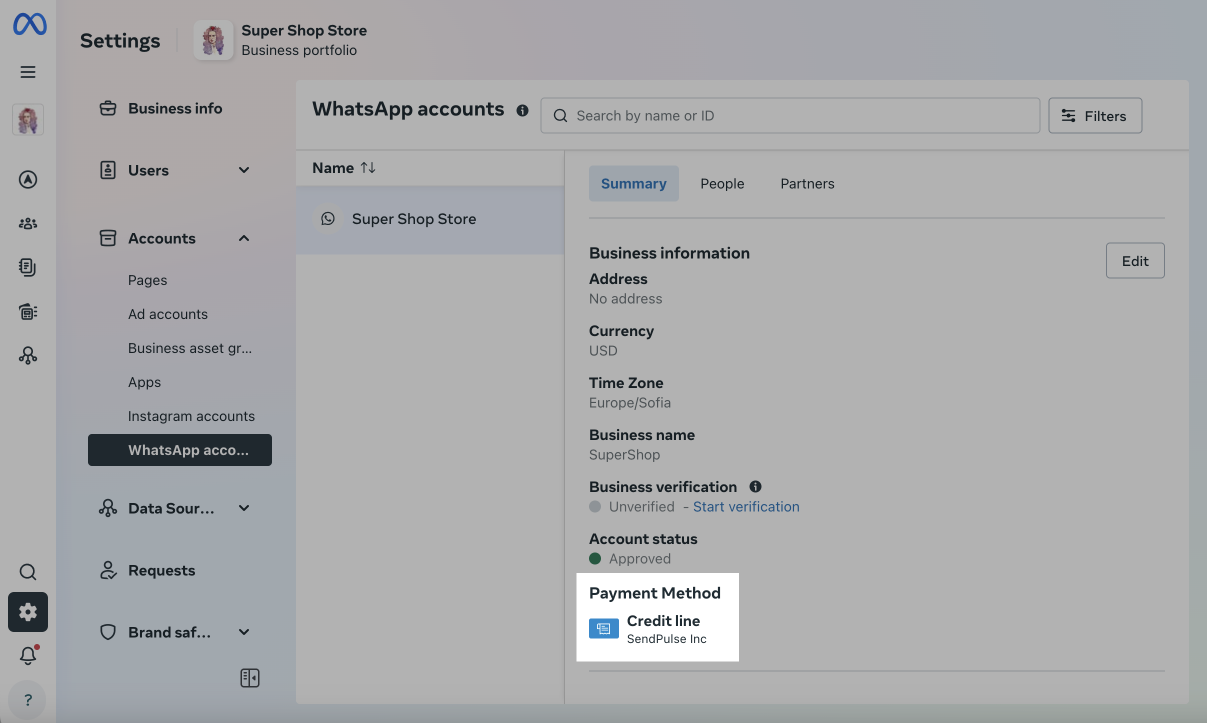
You can also check which payment method Meta charges for each of your accounts.
Go to Meta Business Suite > Billing & payments > Accounts, then open the WhatsApp Business accounts tab.
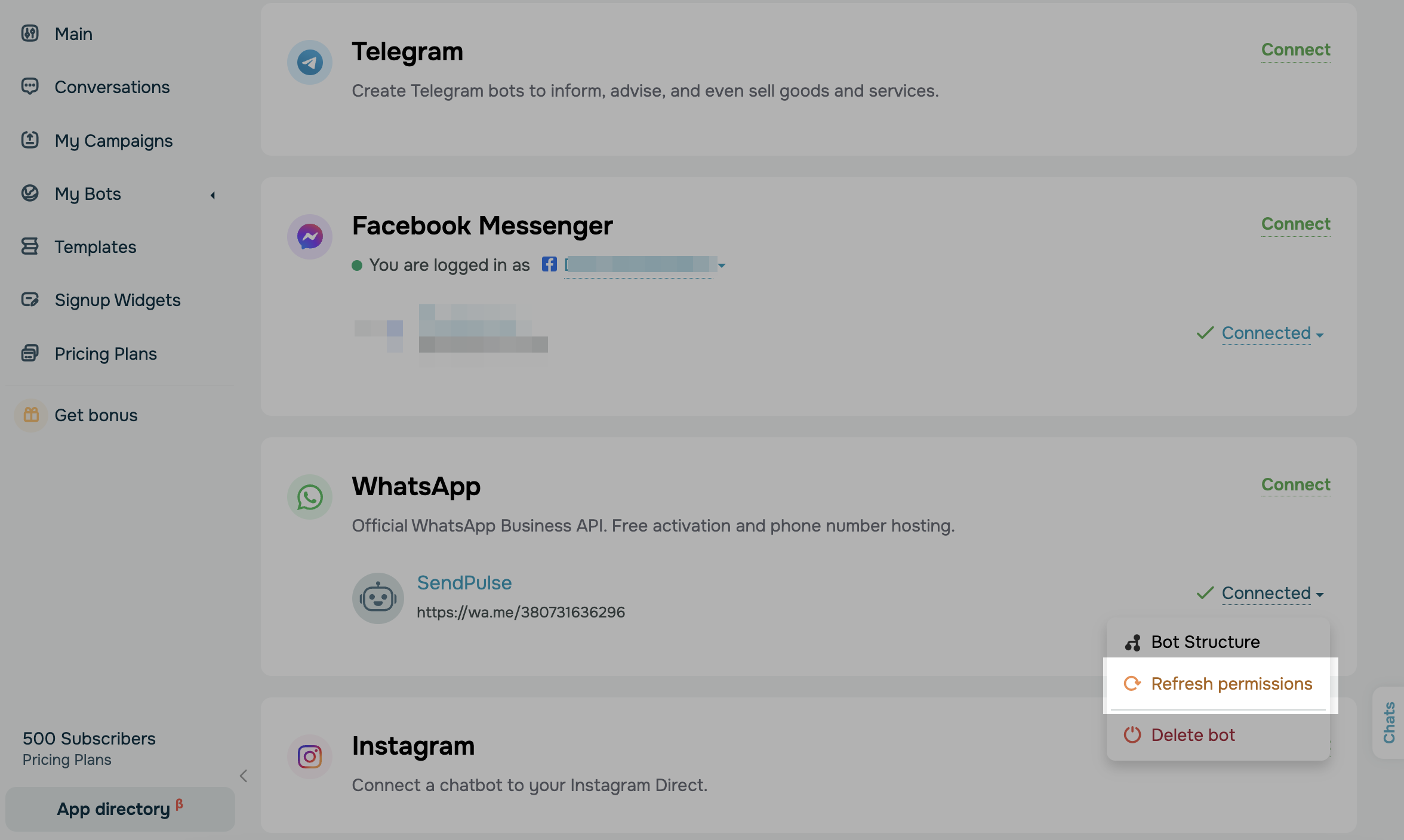
If none of these reasons apply, in your SendPulse account, go to Chatbots > Dashboard > Manage bots. In the WhatsApp section, next to your chatbot, click Refresh permissions.
If the notification appears again, make sure the account's currency and time zone are set in Meta.
If that doesn't help, contact support, and we'll pass your request to Meta.
Check for another provider's credit line
If Payment method shows another provider's credit line, only that provider can revoke it. SendPulse can't remove it.
If the credit line shows Access removed but still blocks the connection, contact support. We'll ask Meta to remove it.
To see which provider shared it, go to Meta Business Suite > Billing & payments > Credit lines. The provider's name follows Allocated from. Ask the provider to revoke its credit line.
In your SendPulse account, go to Chatbots > Dashboard > Manage bots. In the WhatsApp section, next to your chatbot, click Refresh permissions. SendPulse connects its credit line every time you connect a phone number or refresh permissions.
Check for your own payment method
If Payment method shows your credit card or another payment method you added yourself, Meta charges it for the messages your chatbot sends.
SendPulse also deducts the cost of the same messages from your balance, so you pay twice. SendPulse charges all accounts the same way and can't turn off these charges for yours.
SendPulse can't remove your payment method or replace it with its credit line. To stop paying twice, move your phone number to a new WhatsApp Business account.
If your account currency is USD, you can instead remove your payment method in Meta.
Then, in your SendPulse account, go to Chatbots > Dashboard > Manage bots. In the WhatsApp section, next to your chatbot, click Refresh permissions. SendPulse connects its credit line, which may take some time to start working.
If you've already paid twice, contact support.
Read more: Check for a personal payment method
Check the account currency
Payment method connection may also fail when your WhatsApp Business account currency is not supported by the credit line. SendPulse's credit line currency is USD.
If Currency shows another currency type, Meta will reject the SendPulse credit line with the following error:
The WhatsApp Business Account passed in already has a payment method, and the inputted currency is different from the one already set for this WABA. Please try again with different inputs.
You can't change the account currency after a payment method is added, even if you remove the payment method later. To use the SendPulse credit line, move your phone number to a new WhatsApp Business account.
Move your phone number to a new WhatsApp Business account
A new WhatsApp Business account has no payment method yet, so SendPulse can connect its credit line to it in USD.
In accounts connected through Coexistence, you can't change the currency or move the phone number to a new WhatsApp Business account.
If another provider's payment method blocks the SendPulse credit line, back up your chats. Open the WhatsApp Business app. Go to Settings > Account > Business Platform > Disconnect account. Wait 15 minutes, then connect the phone number to SendPulse again.
To keep your chatbot's flows and contacts, disconnect the chatbot instead of deleting it.
In your SendPulse account, go to Chatbots > Dashboard > Manage bots, click the status of your chatbot, then select Disconnect.
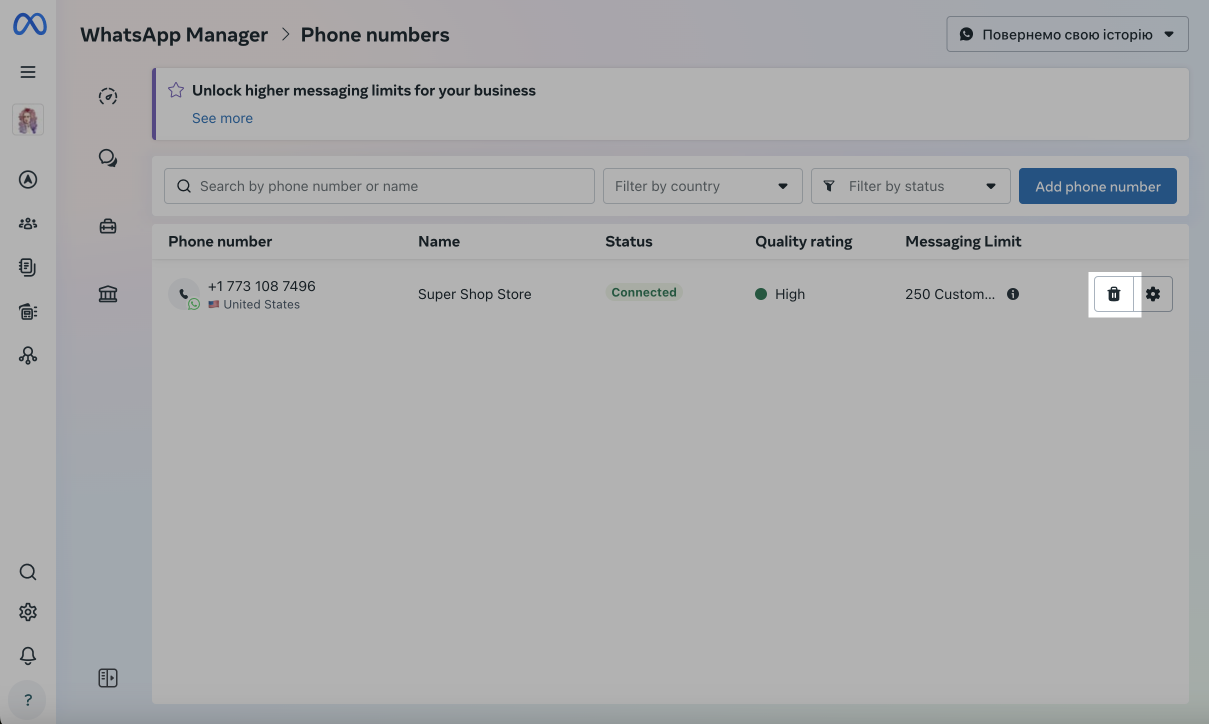
Then, go to Meta Business Suite > Business Settings > WhatsApp Accounts > WhatsApp Manager > Phone Numbers. Then click the trash can icon next to your current phone number.
This option isn't available for phone numbers connected through Coexistence.
After a few hours, connect the phone number to SendPulse again. In Meta's connection wizard, select Enter a new phone number and verify the number. Then, in the WhatsApp account field, select Create a WhatsApp account instead of an existing one.
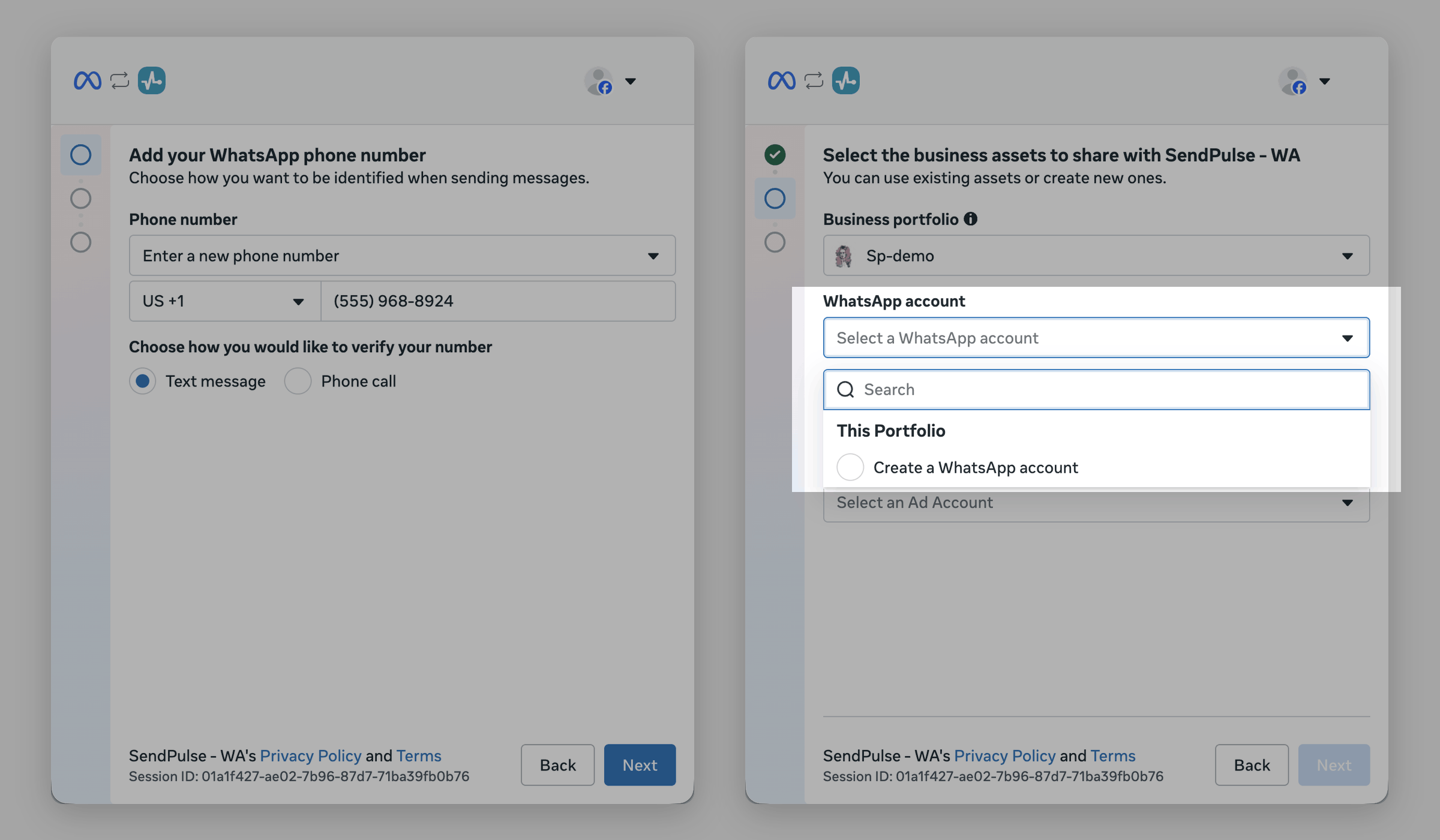
SendPulse restores your chatbot with its flows and contacts and connects its credit line to the new account.
Your message templates stay in the previous account. Add them again and wait for Meta to approve them.
Read more: Create a WhatsApp chatbot with a new phone number
Troubleshooting marketing template delivery
If you’ve successfully created a WhatsApp chatbot, you might see the Rejected message status and the following error after sending a message template:
Business eligibility payment issue (Message failed to send because there were one or more errors related to your payment method.)
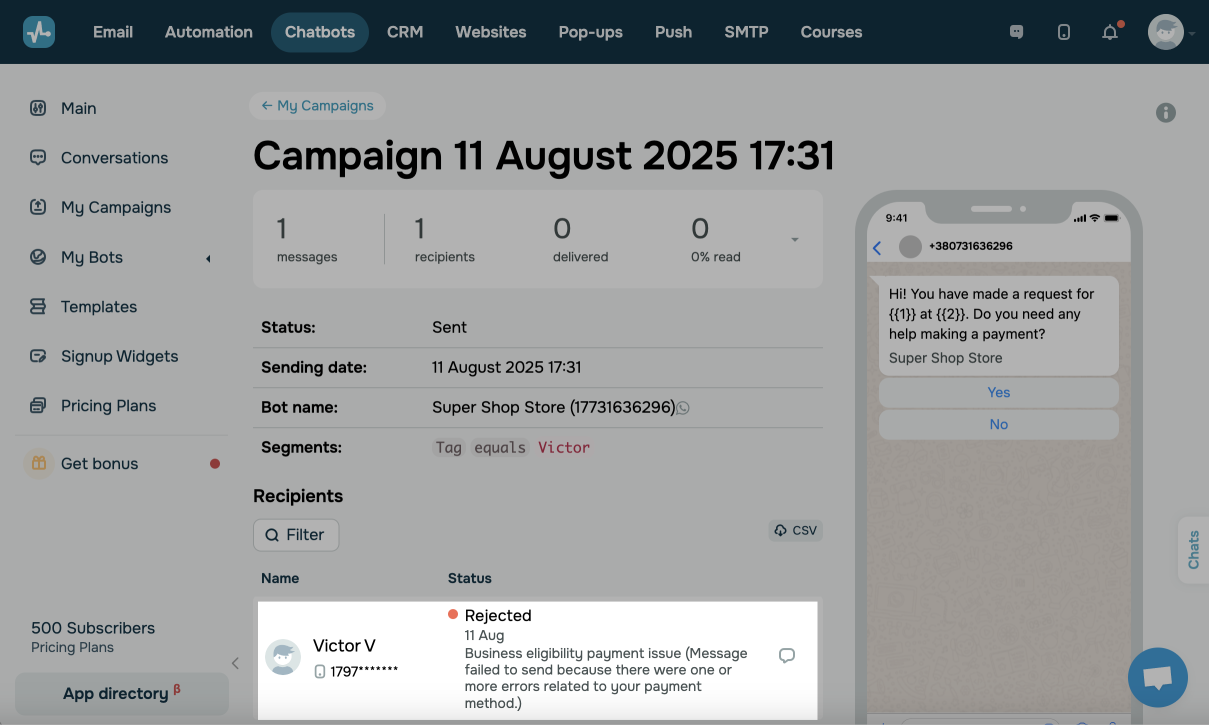
In this case, try refreshing your chatbot permissions in Manage bots.
In your SendPulse account, go to Chatbots > Manage bots, find your WhatsApp chatbot, and in the menu next to it, click Refresh permissions.
While updating data, you may need to verify your WhatsApp phone number. In this case, confirm your phone number using a code sent through SMS or a voice message.
If the issue persists, remove the phone number from your WhatsApp Business account and add it again.
 Last Updated: 20.11.2026

or