Connect your mail inbox to the SendPulse CRM system
Synchronizing your Gmail inbox and CRM system can help you manage your emails, automatically collect and update customer data, and process and delegate customer requests. This makes it easier to analyze and track your interactions with clients and partners.
In this article, we will talk about how to connect your Gmail inbox to the SendPulse CRM system.
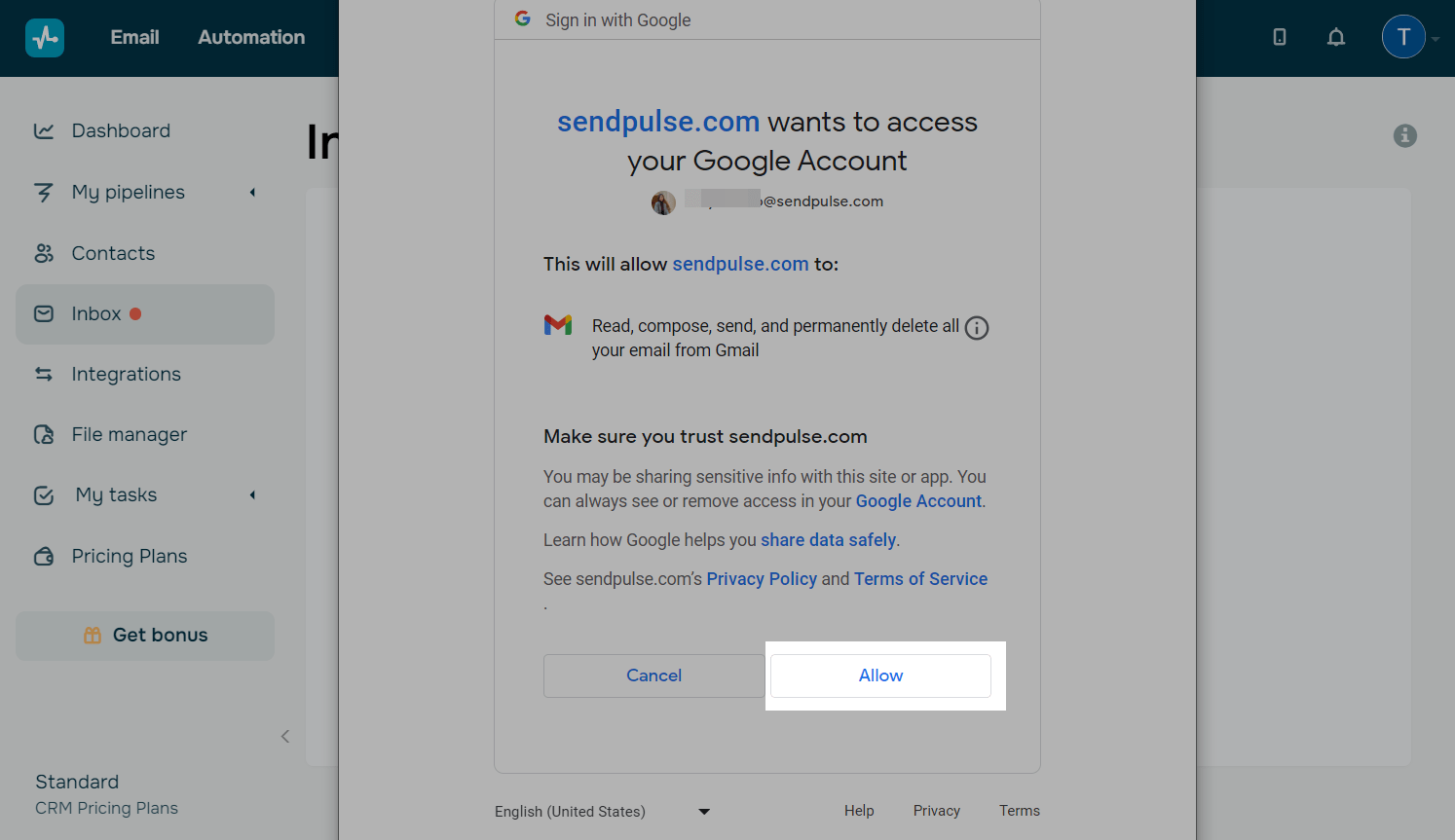
Synchronization requires access to your email address and permissions to read, compose, send, and permanently delete all your emails.
Use of SendPulse Gmail Integration and transfer of information received from the Google API to any other application will be in accordance with the Google API Services User Data Policy, including restricted use requirements.
You can read our Privacy Policy and Terms of Service before getting started.
Connect your inbox
Go to CRM > Inbox, and click Connect inbox.
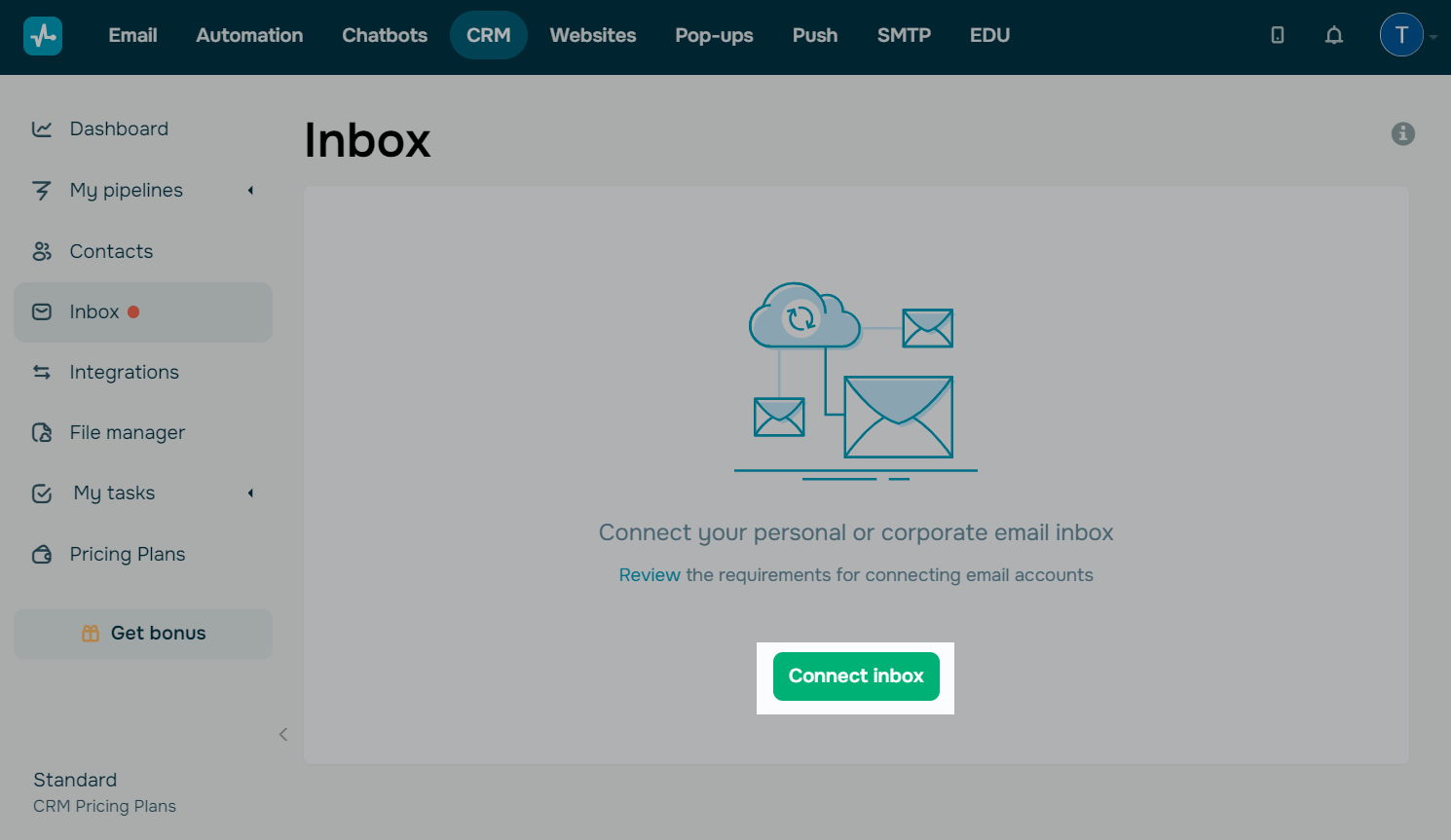
Connect your Gmail inbox
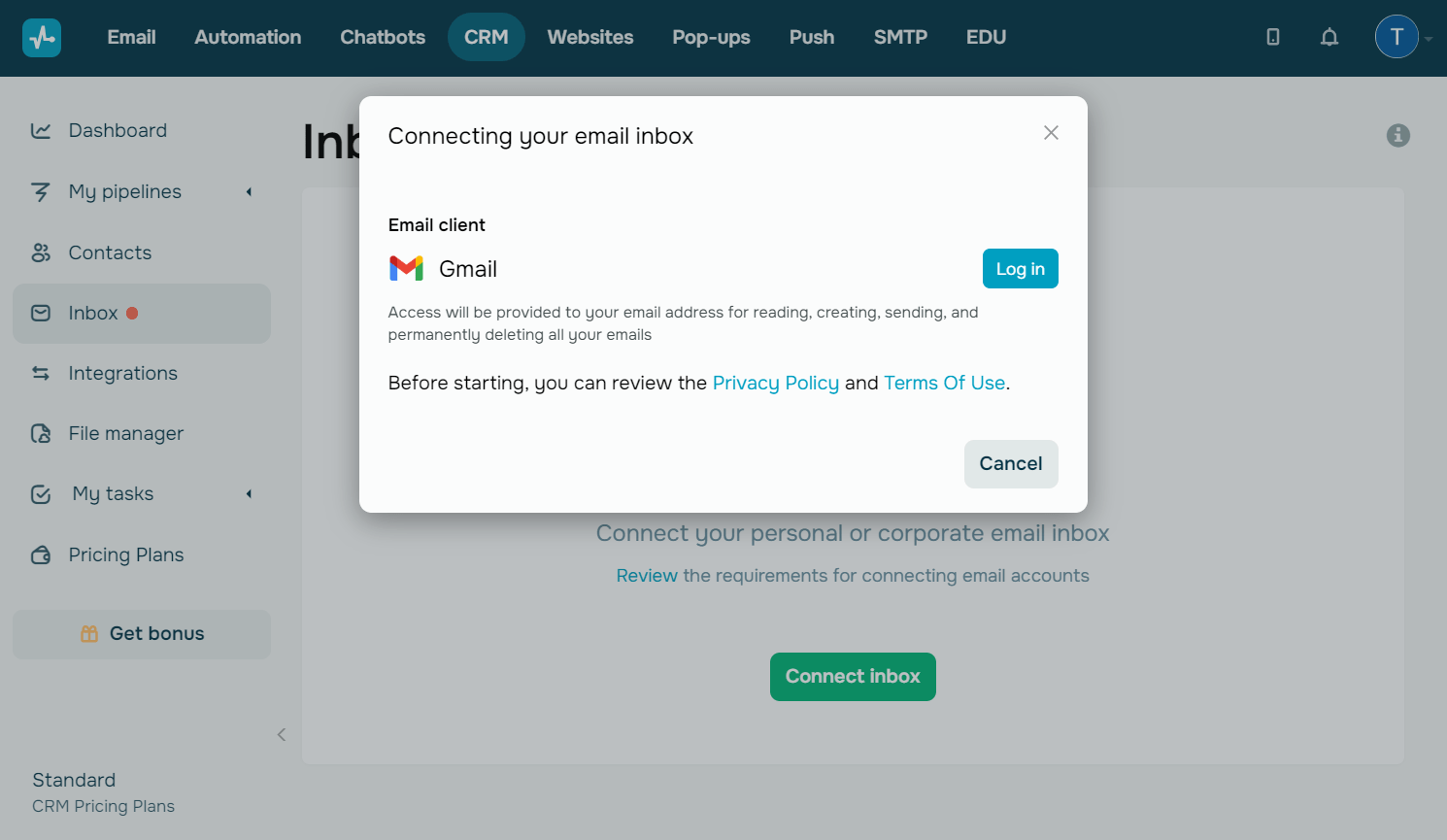
In the opened modal window, click Log in next to your Gmail inbox in the Email client tab.
Your connected Gmail inbox will be available to all account users whose roles provide access to CRM integrations.
Read also: How to manage user roles.
In the opened browser tab, select the inbox you want to connect, and allow synchronization with SendPulse.
Wait until the synchronization is completed — this may take up to 5 minutes.
During synchronization, the system uploads the latest 1,000 emails from your inbox — all new emails you receive afterward will be added to them too.
Connect an inbox through IMAP/SMTP
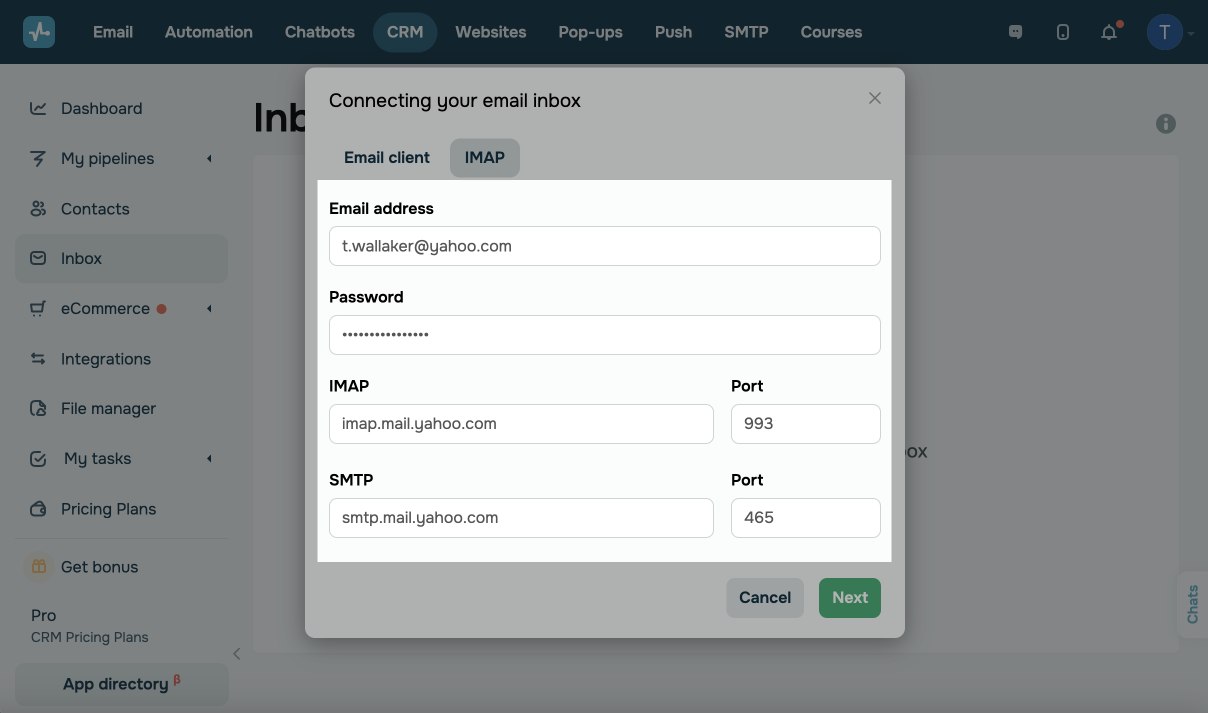
To connect an inbox from another email client, you need to grant SendPulse access. First, go to your email client's settings and enable IMAP access. Then, generate a password you will use when connecting your inbox.
Go to the IMAP tab and type in your email address, IMAP access password, IMAP and SMTP server addresses, and ports provided by your email client.
Read more on IMAP access settings in Yahoo, Proton, Zoho, iCloud, AOL, GMX, and FastMail.
Some email clients may have specific access requirements. If your email provider is not listed above, please contact their support team to learn how to enable IMAP/SMTP access.
Manage your inboxes
You can add or remove your inboxes, add a sender name and email signature, automatically create CRM contacts and deals, and assign team members to them.
If your mailbox has no sent or received emails, the CRM system will automatically delete it and all its contents to save storage space. This will not affect your primary inbox.
Adding inboxes
You can connect several inboxes, for example, for each company manager.
To do this, open the list with your email address, and click Add inbox.
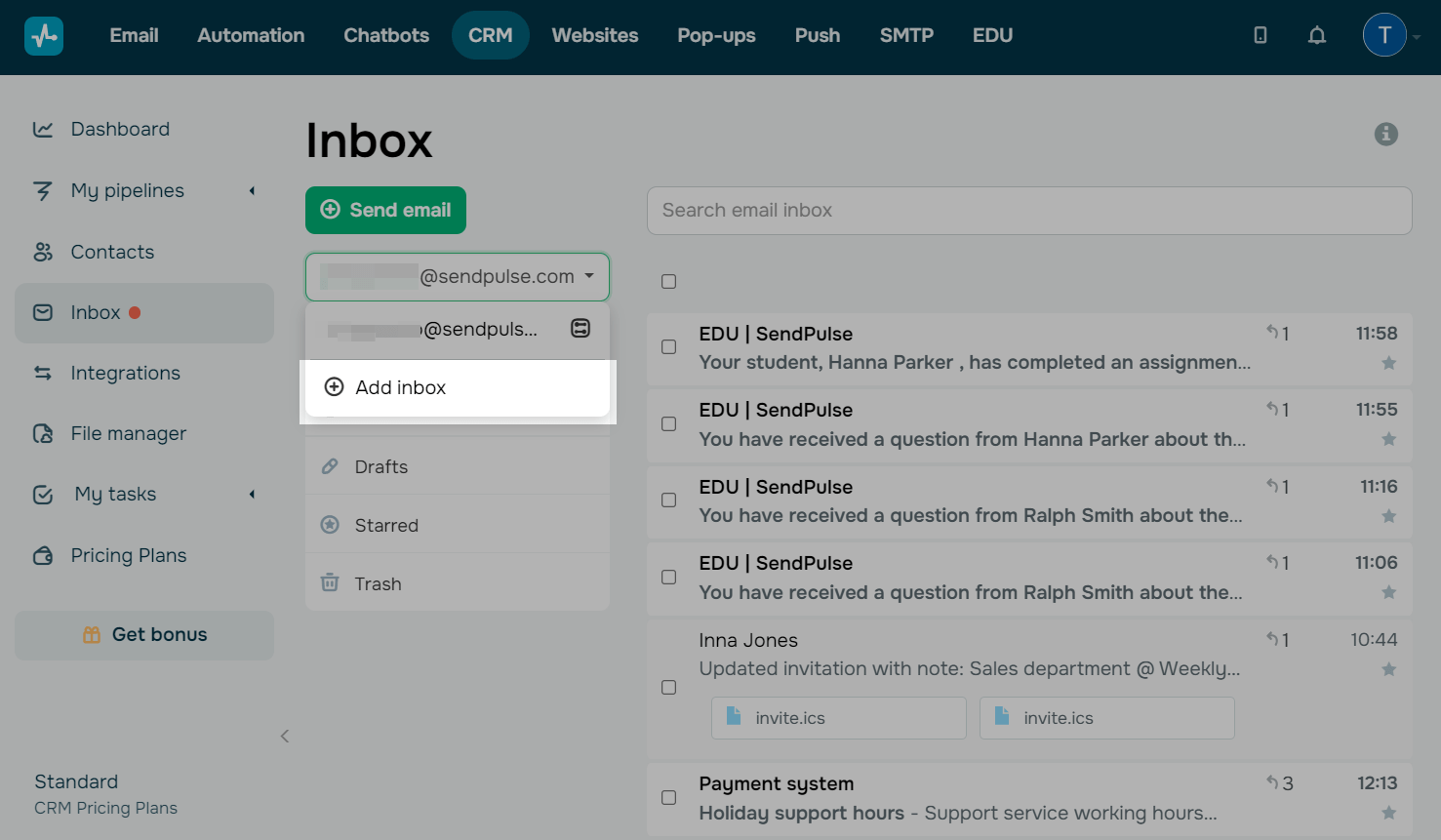
Using this drop-down list, you can also switch between your inboxes.
Setting inboxes
To configure your inbox, click Settings.
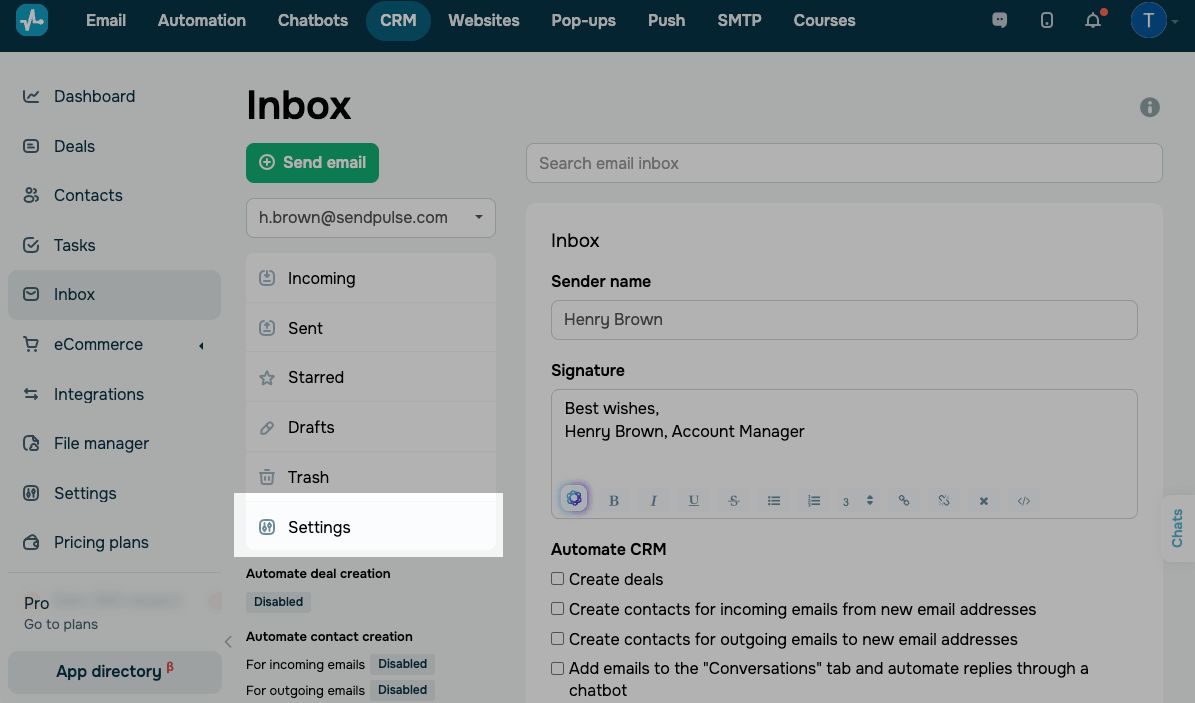
You can configure the following:
| Sender name | Enter a name that recipients will see in emails sent through the CRM system. |
| Signature | Enter a signature that will be automatically included in all emails. |
| Create deals | Automatically create deals when you receive or send an email from a new email address.
Options include: Pipeline and stage — pipeline and stage where new deals will be saved. Assigned to — team member assigned to new deals. |
| Create contacts for incoming emails from new email addresses | Automatically create contacts when you receive an email from an address that doesn't exist in the CRM system.
Optionally, select a team member in the Team member assigned to contacts field. |
| Create contacts for outgoing emails to new email addresses | Automatically create contacts when you send an email to an address that doesn't exist in the system.
Optionally, select a team member in the Team member assigned to contacts field. |
| Add emails to the "Conversations" tab and automate replies through a chatbot | Automatically create a chatbot for email replies.
You can view emails in Chats. |
| Delete email inbox | Remove your inbox and all its emails from the CRM system.
Information about sent emails remains in the deal and contact history. If you don't send or receive new emails for 3 months, the system will automatically delete your inbox. |
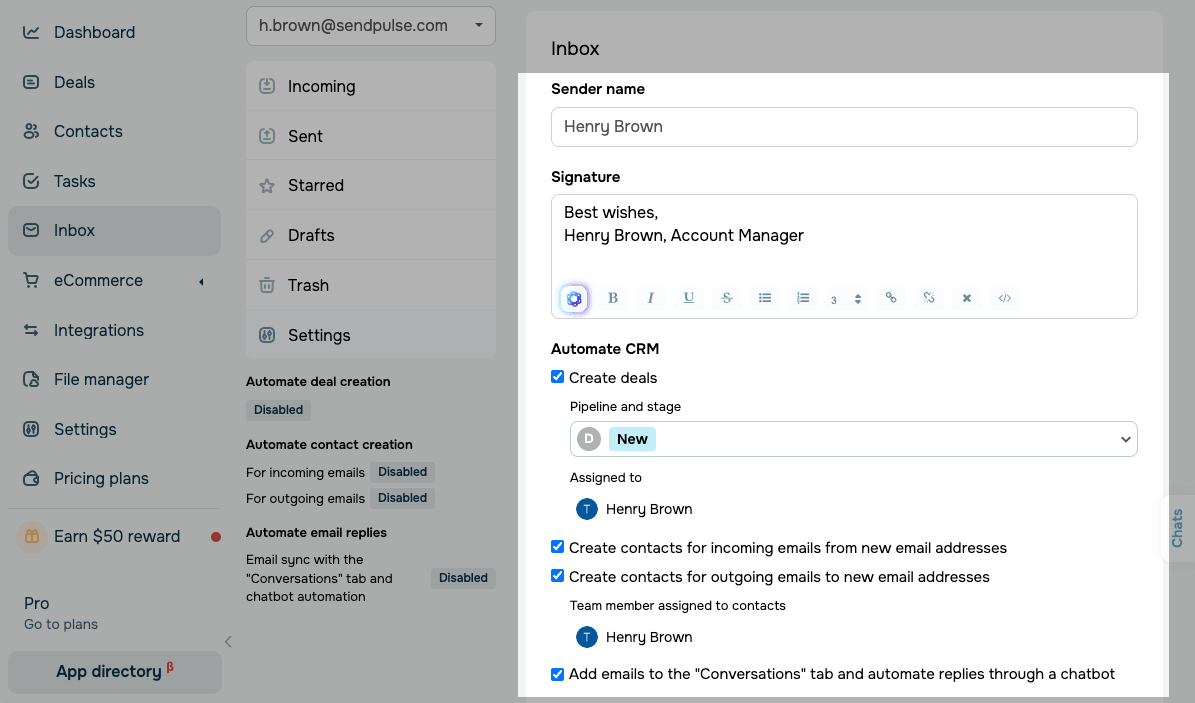
Once you finish making changes, click Save. If your inbox is connected through IMAP/SMTP, you can also sync specific folders from your email client.
The current state of each automation is visible on the left panel under the folder list.
Your sender name and signature settings in SendPulse don't apply to emails sent directly through Gmail. Emails received through the CRM system don't appear in your Gmail inbox.
Manage access to inboxes
By default, team members can see all inboxes. When you invite a new user or update their access rights, select the inboxes they will use.
When a user adds a new inbox, only they and the main user will have access to it. Other team members won’t see this inbox.
If a user does not have access to an inbox, they won’t see its emails in Contacts or Deals.
Learn more: Manage your team’s CRM system access.
Manage your emails
You can view, create, and send emails, mark them as starred or unread, search for emails by their contents, and delete them only from your CRM system.
Viewing
The SendPulse CRM system synchronizes with your Gmail inbox and updates your email list every 5 minutes.
However, status changes upon opening an email are not synced between the CRM system and your inbox. This means that if you open an email in your CRM system, its status in your inbox will remain unchanged, and vice versa.
All emails are uploaded with their current opening status. Your unread emails will appear in a darker color. Threads with new messages automatically appear at the top of the list.
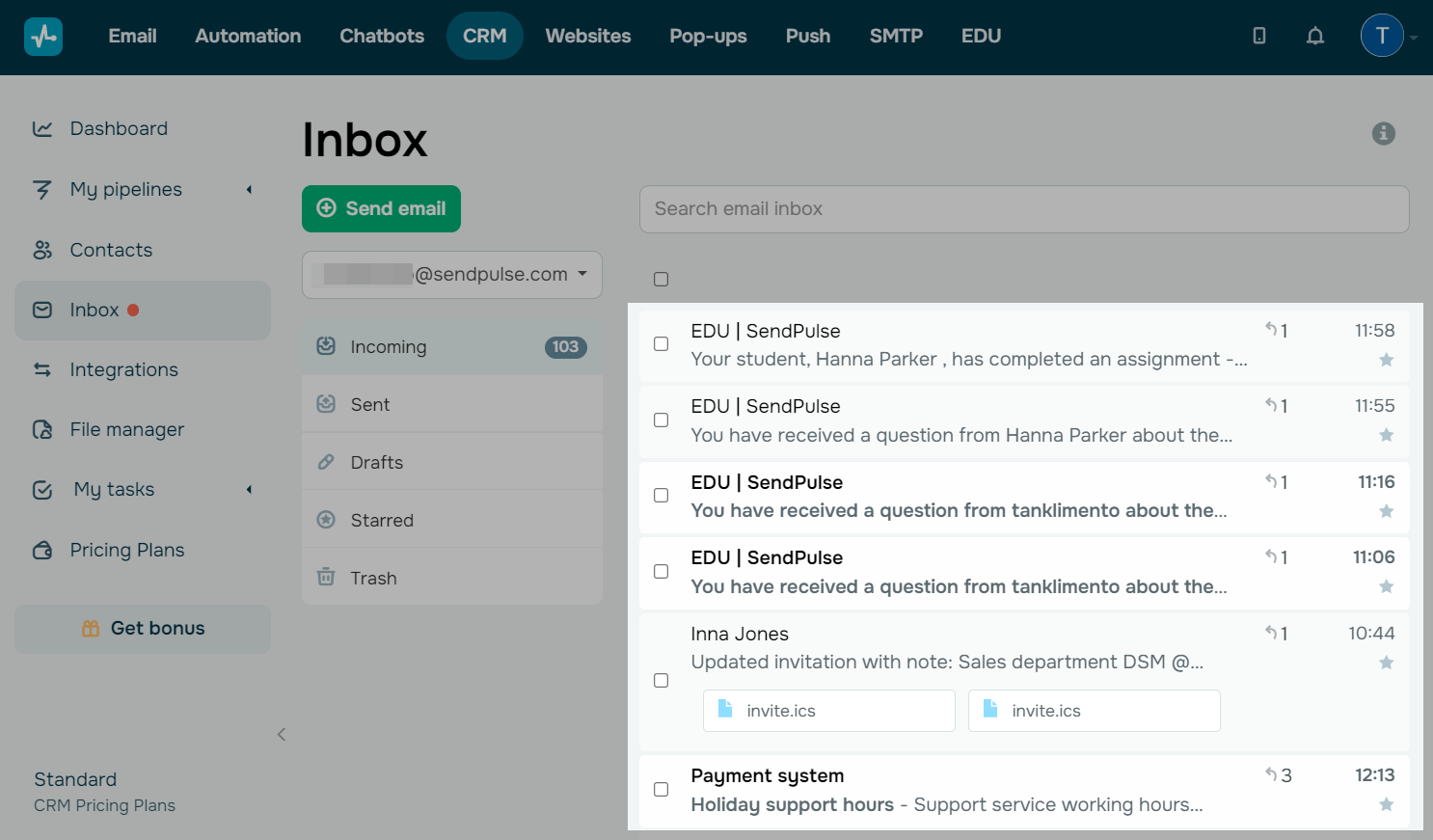
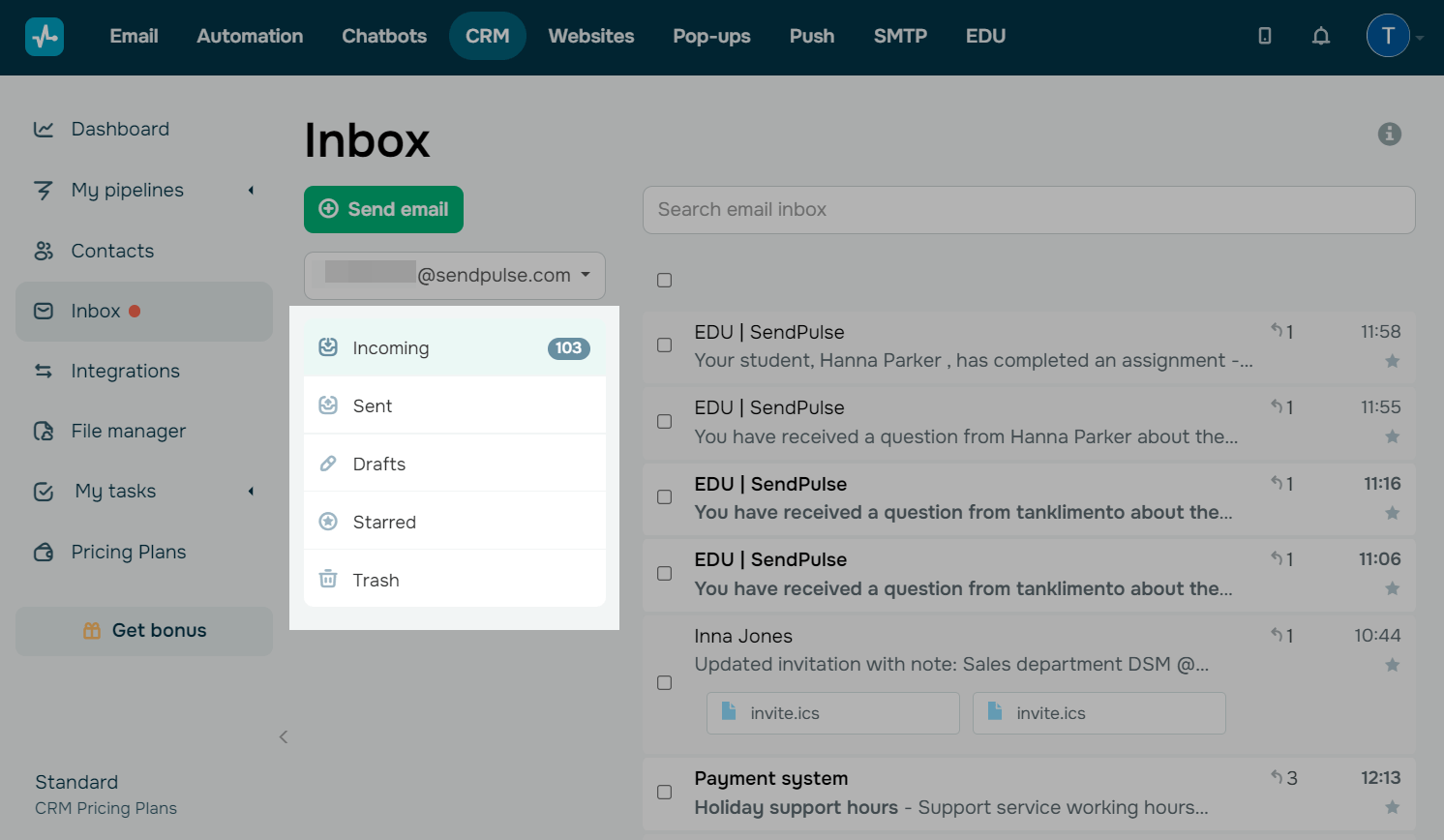
You can find all your emails in the following tabs: Inbox, Sent, Drafts, Starred, and Trash.
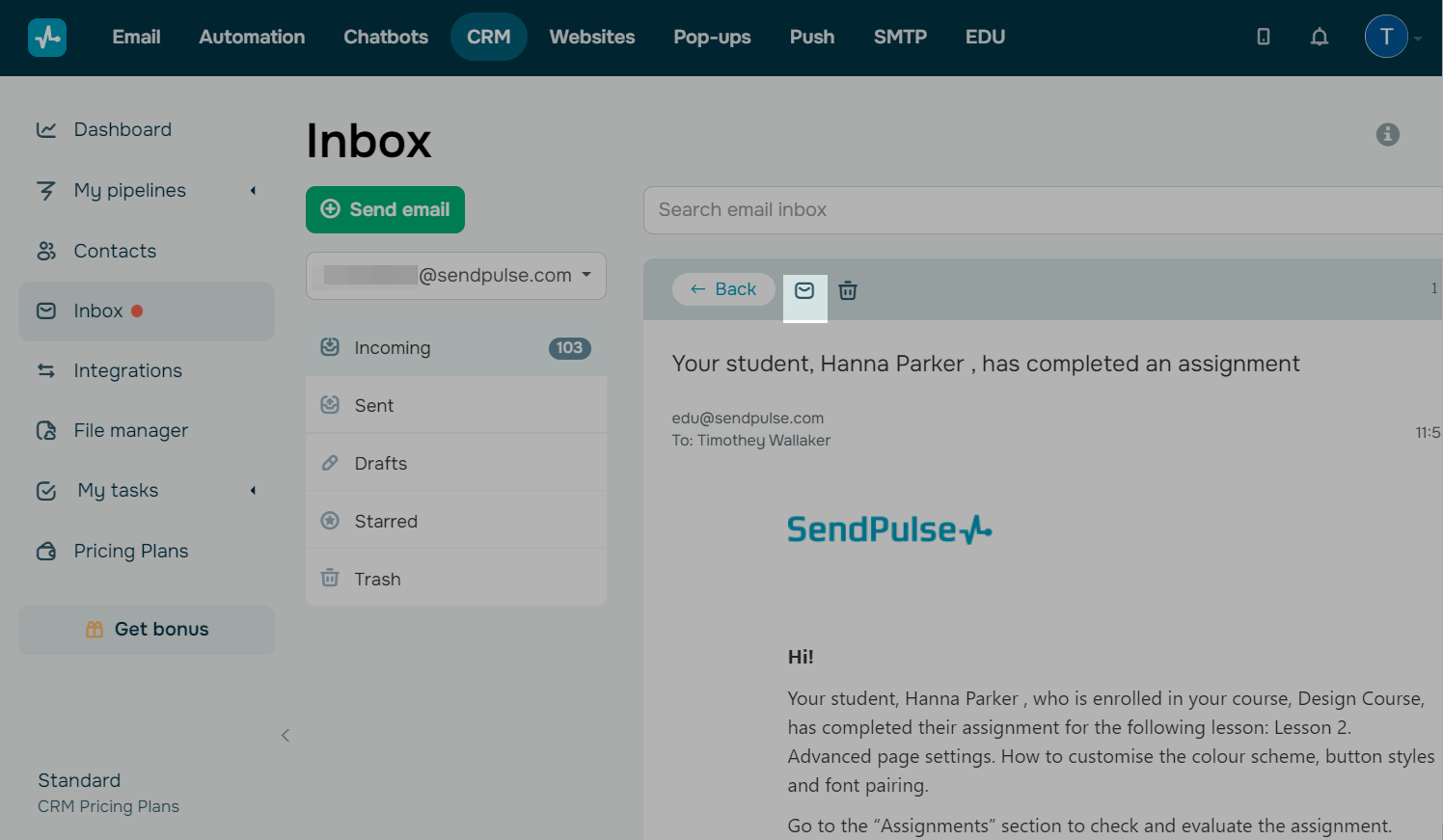
You can also mark an email as unread even if you have already opened it. To do this, open an email, and click the envelope icon.
Sending
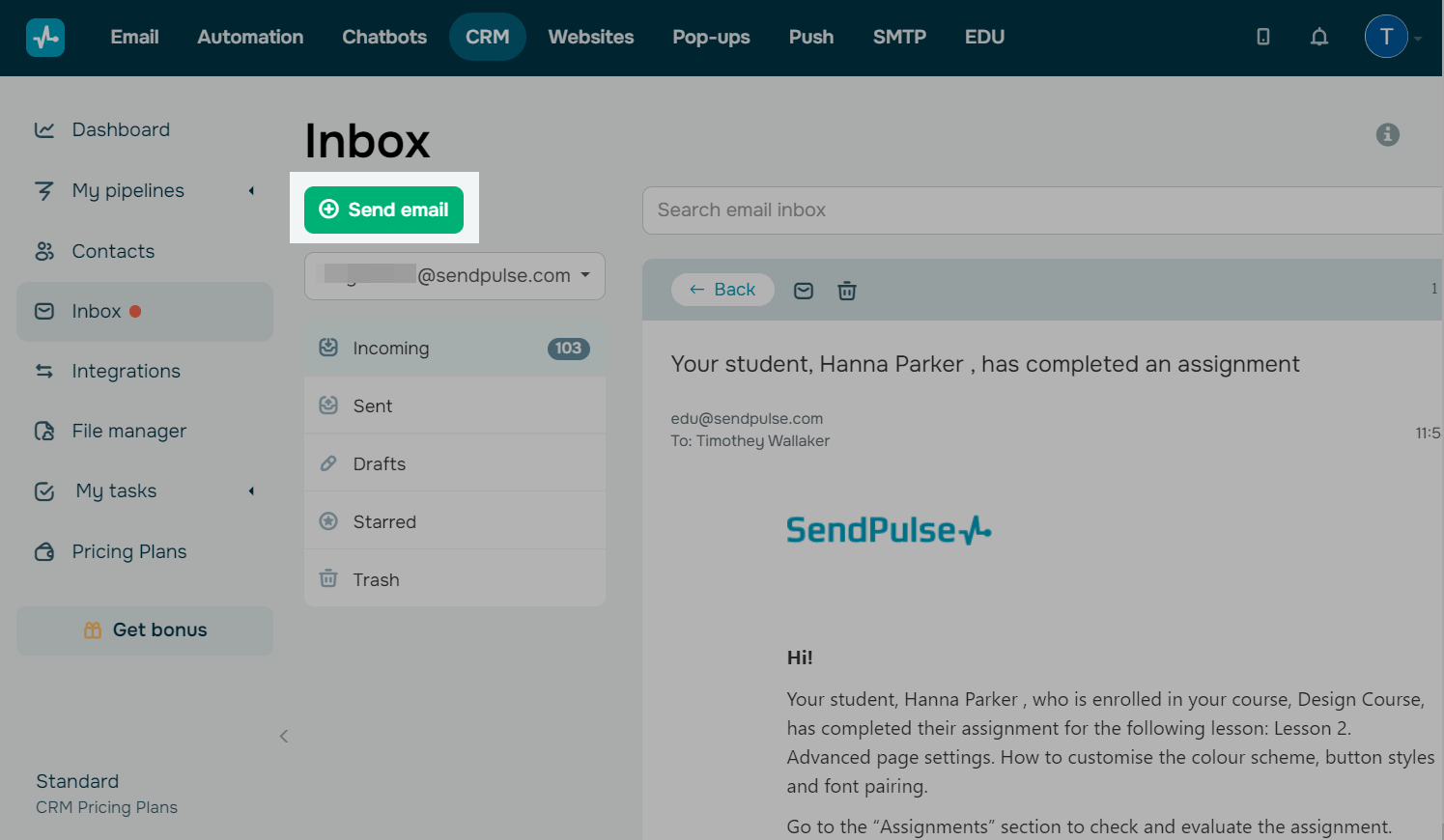
To create an email, click Send email.
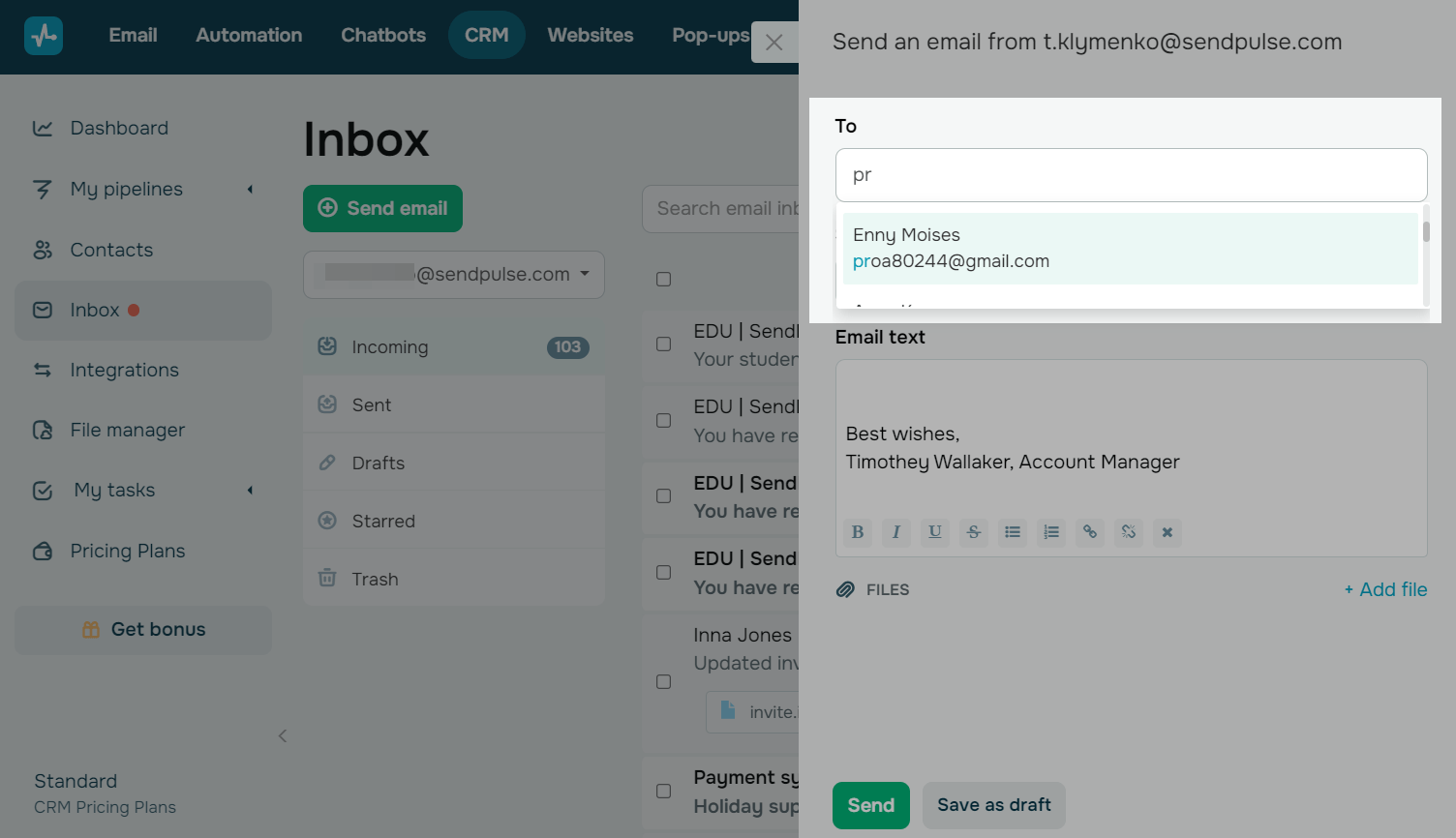
Enter your recipient's email address.
If you want to send an email to one of your contacts, start entering their email address — all email addresses with this letter combination will appear on the drop-down list.
You can add several email addresses visible to your recipients in the cc field, letting them know that others have also received this email.
Enter your email subject line and body in the corresponding fields. If you have an email signature, it will be added automatically.
You can also add an attachment — to do this, click + Add file.
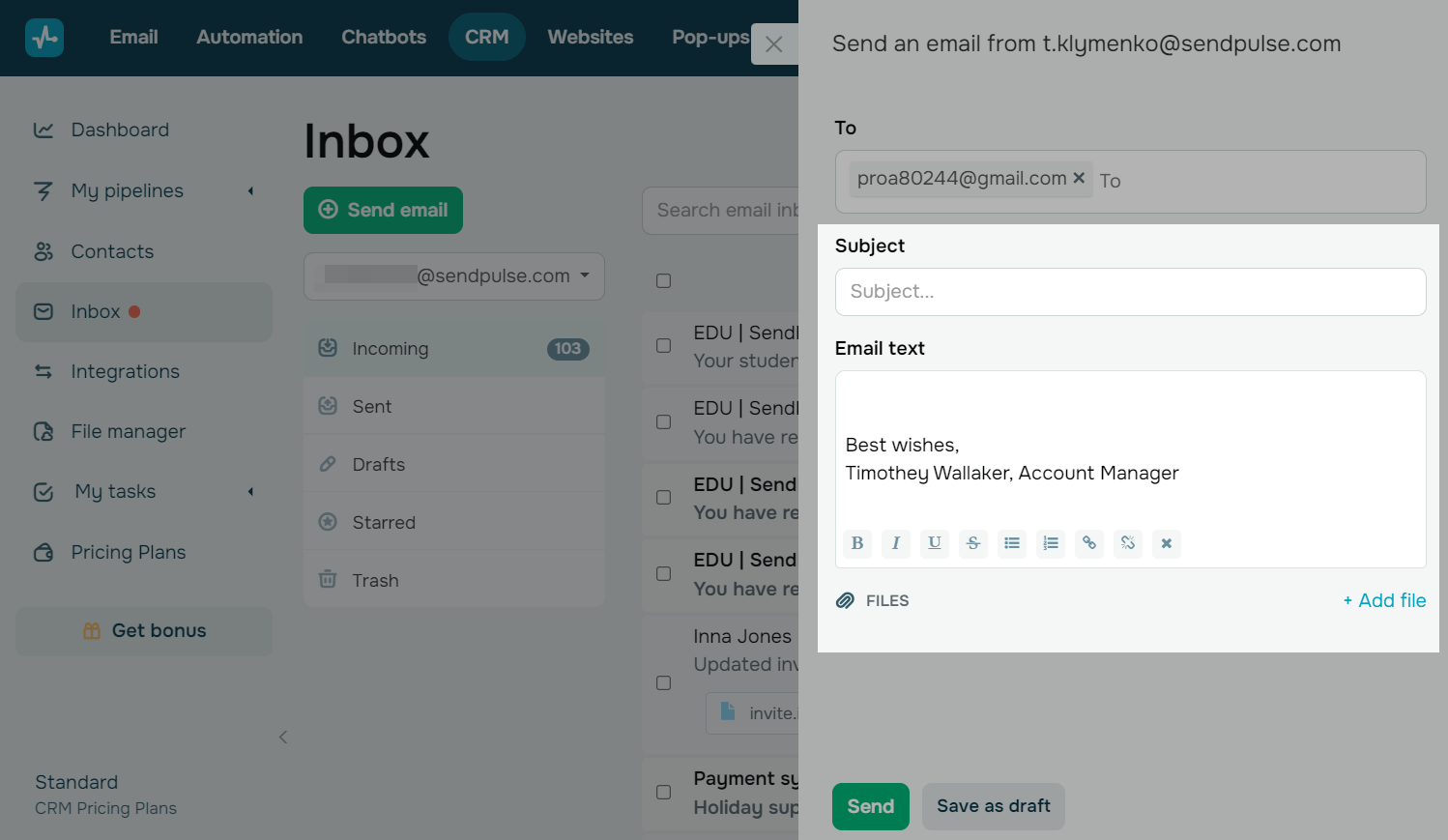
Click Send to send your email immediately, or click Save to add it to your drafts.
Searching
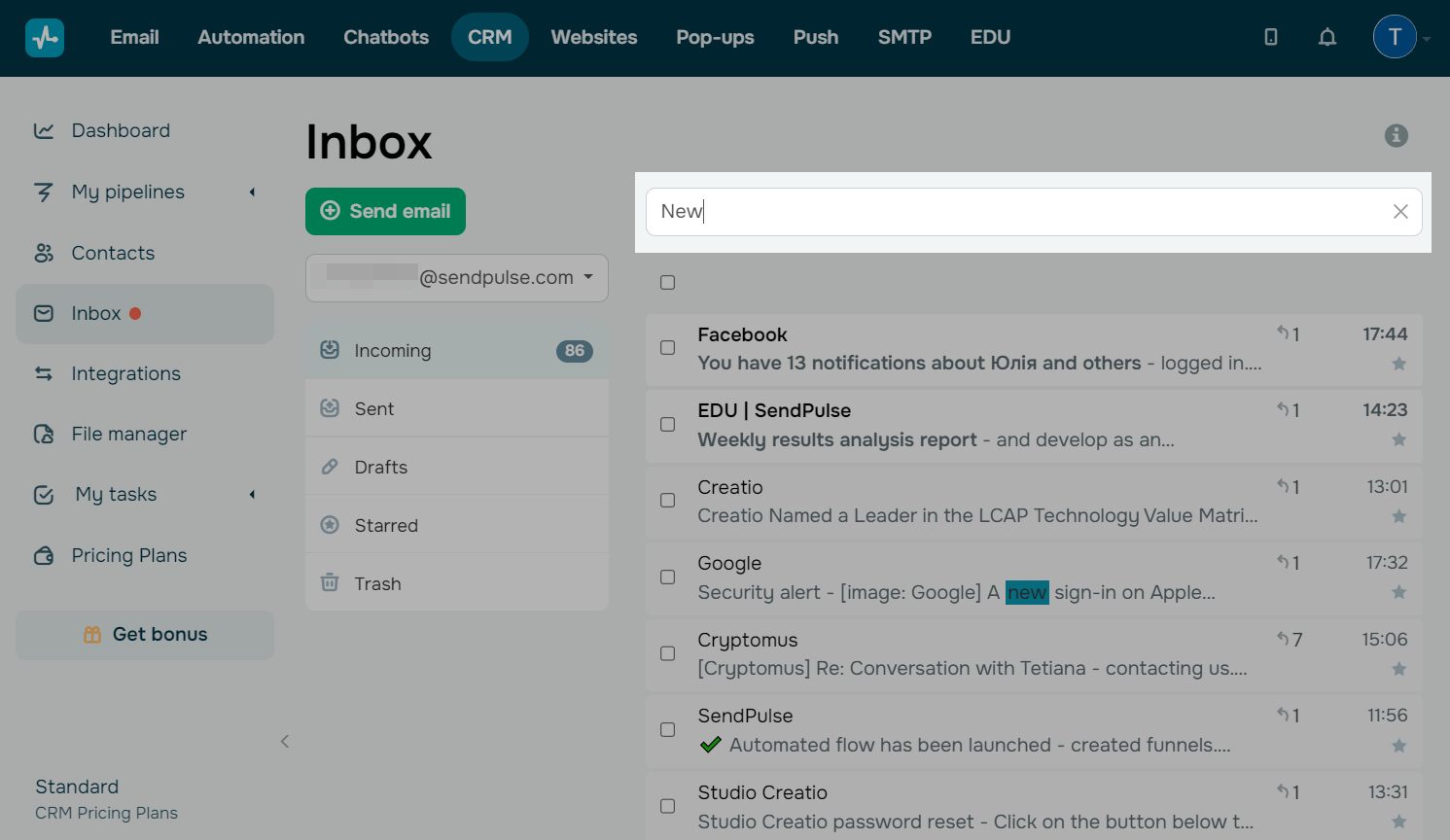
You can find emails by specific words used in them. To do this, enter a word in the search bar, and click Enter.
Deleting
Deleting an email only from the SendPulse CRM system will not remove it from Gmail.
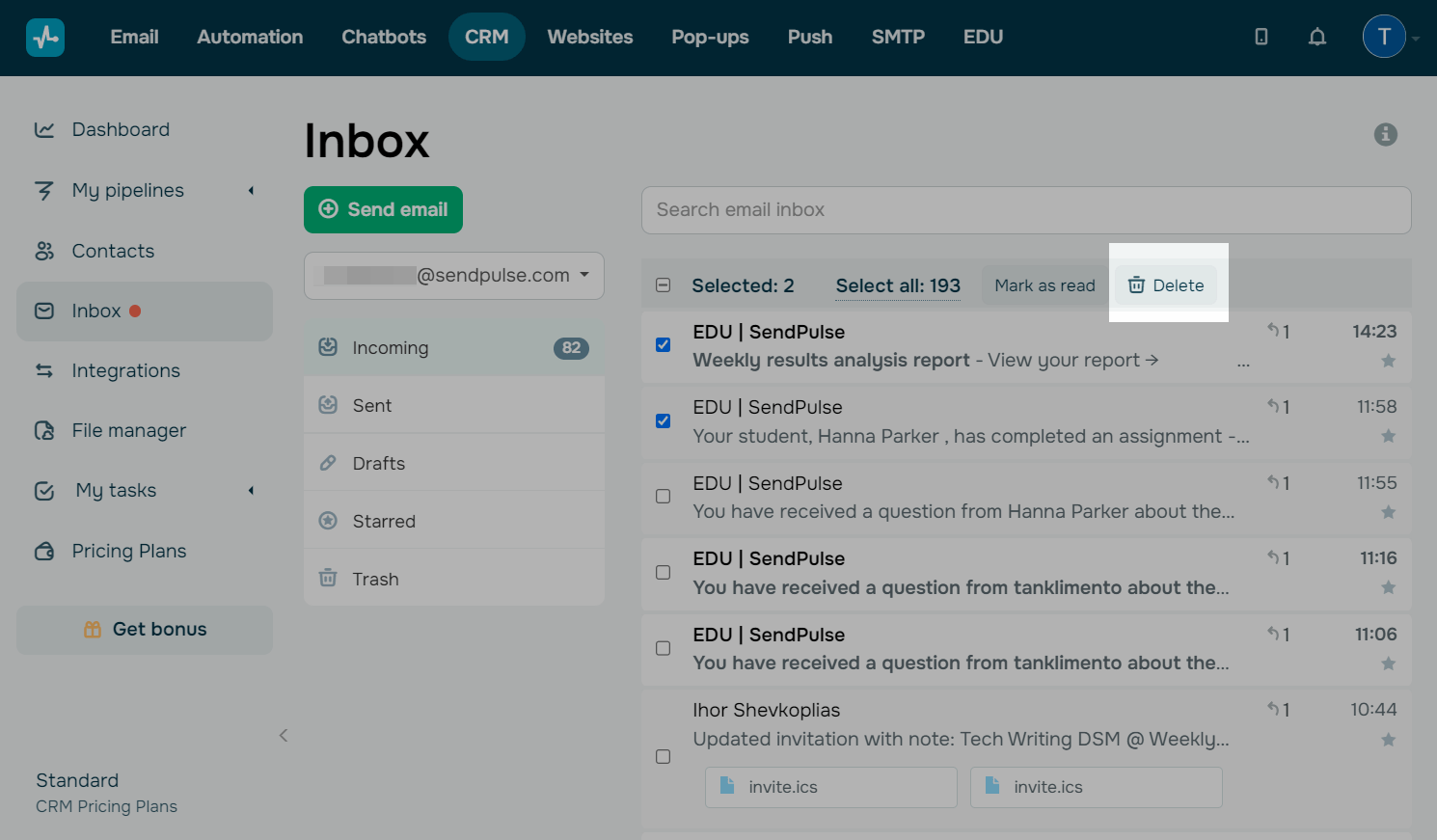
To remove one or more emails, select them, and click Delete.
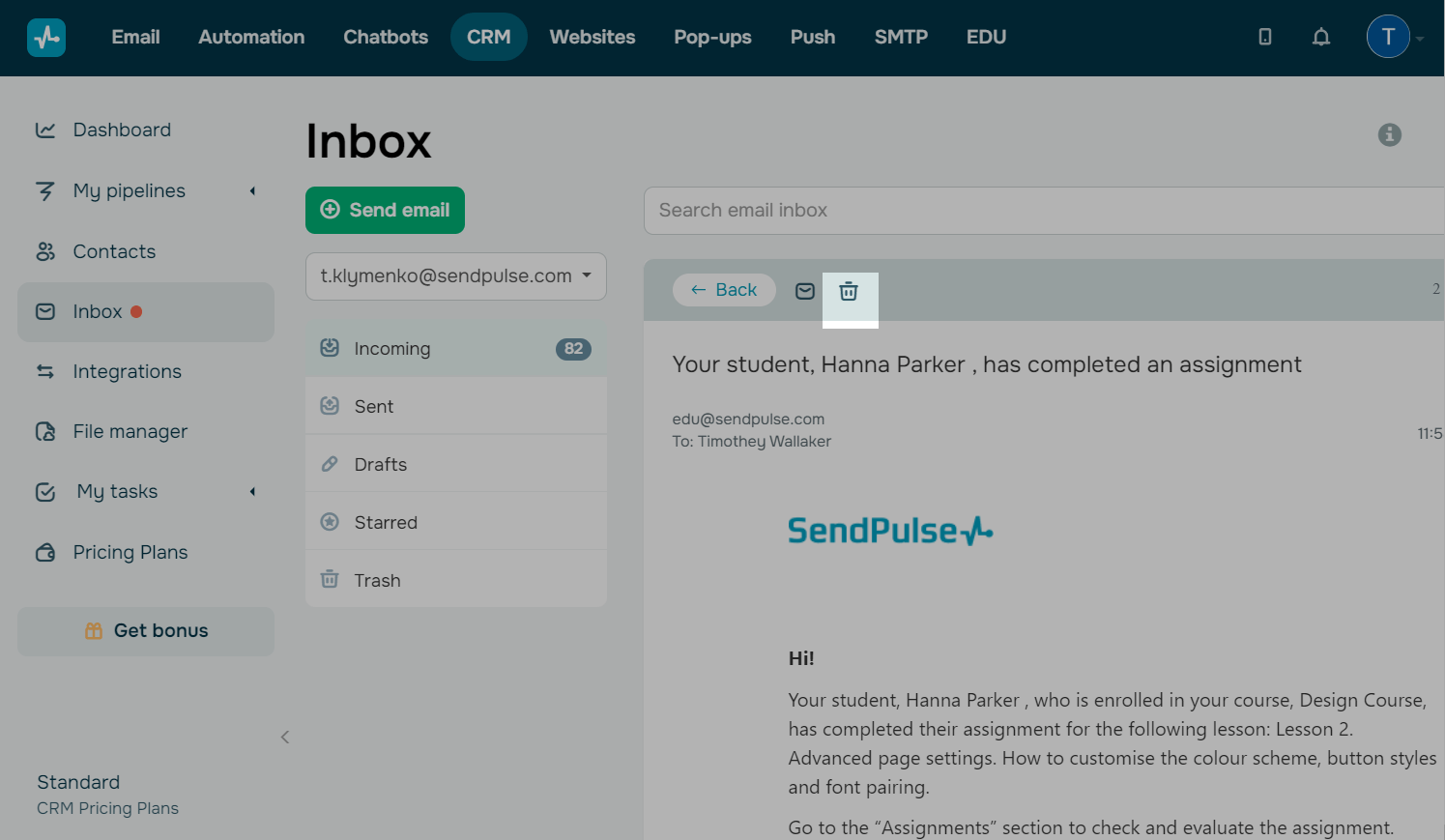
To delete a specific email, open it, and click the trash can icon.
Add emails to a task or deal
You can add your email history to a task or deal and automatically include all emails from your threads.
Open an email, scroll down, and select an action:
| Add deal |
To create a new deal based on this email, click Add new deal and fill in the fields in the right panel. A new deal will appear on your selected pipeline. Deal history shows all sent or received emails. To add all emails to an existing deal, click Add deal and start entering your deal name or ID. Select your deal from the dropdown list. |
| Add task |
To create a new task based on this email, click Add new task and fill in the fields in the right panel. A new task will appear on your board. Task history shows all sent or received emails. To add emails to an existing task, click Add task and start entering your task name. Select your task from the dropdown list. |

To unpin a deal or task, click the cross icon.
Add contacts from an email
If your inbox integration doesn’t automatically save new contacts, you can manually save contacts from a specific email.
To do this, click Add contact and select contacts. To add a single contact, click +, edit their data in the right panel, and save the contact. To add all contacts from an email without editing, click Add all email addresses to contacts — the names and email addresses of all users will be added as individual contacts.
All emails will automatically appear in your created contacts’ history.

 Last Updated: 15.08.2025





or