The Dropdown pop-up element
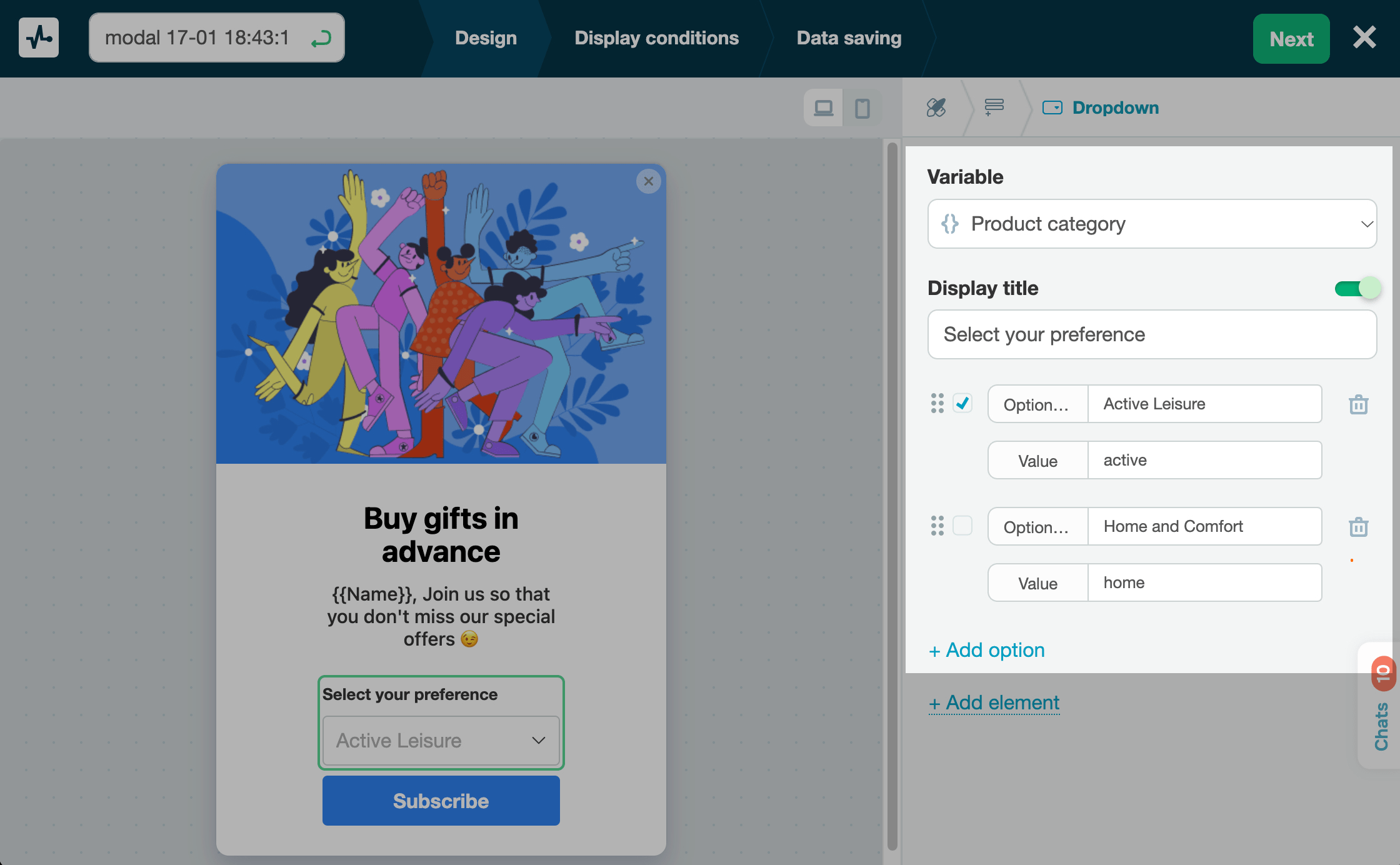
Use this element to add a dropdown list where users can select one option — for example, a preferred product category. It can also help you collect extra user data and personalize their experience more effectively.
In the pop-up builder, select the Dropdown element and go to its settings.
Choose where to store the data
In the Variable field, select or create the variable where you want to store the value.
You can store values with the following data types: String, Number, Date, and Link.
Add variables to your pop-up to collect user contact details, such as email or phone number, so you can reach out to them later.
In the variable list, default system variables appear above the divider, and custom variables you've created in the Pop-ups or CRM sections appear below it.
Customize the element
Adjust your element in the following sections:
| Display title | Turn on the toggle and name your dropdown field. |
| Option text | Enter the text visitors will see. |
| Value | Set the value that will be saved to your variable. |
To add more options, click + Add option.
 Last Updated: 18.06.2025





or