Create a gamified pop-up
Gamified elements in pop-ups are used as a tool to capture users’ attention and increase their engagement. They create a sense of excitement and offer a chance to win discounts or other bonuses, motivating users to leave their contact information or complete other target actions.
In this article, we will talk about how to create a gamified pop-up.
Add elements
Here’s a suggested user flow:
- Add an input field for customers’ email addresses to identify them.
- When a customer submits their info, the spin-to-win element will automatically start spinning and stop on a specific sector.
- You can also run an automated email or flow.
Go to your website and create a new pop-up or start editing an existing one.
Entry field
To recognize subscribers and add or update their data gathered from other elements, you need to add an Entry field requesting their email addresses.
In Elements, click + Add element and select Entry field.
Click the Variable field and select a variable to store values. You can choose an existing variable or create a new one.
Button
The Button element sends data from the filled-in fields to the Contacts section, and if configured, to the Email and CRM sections.
Enter a button text and choose an on-click action, for example, Spin.
Gamification element
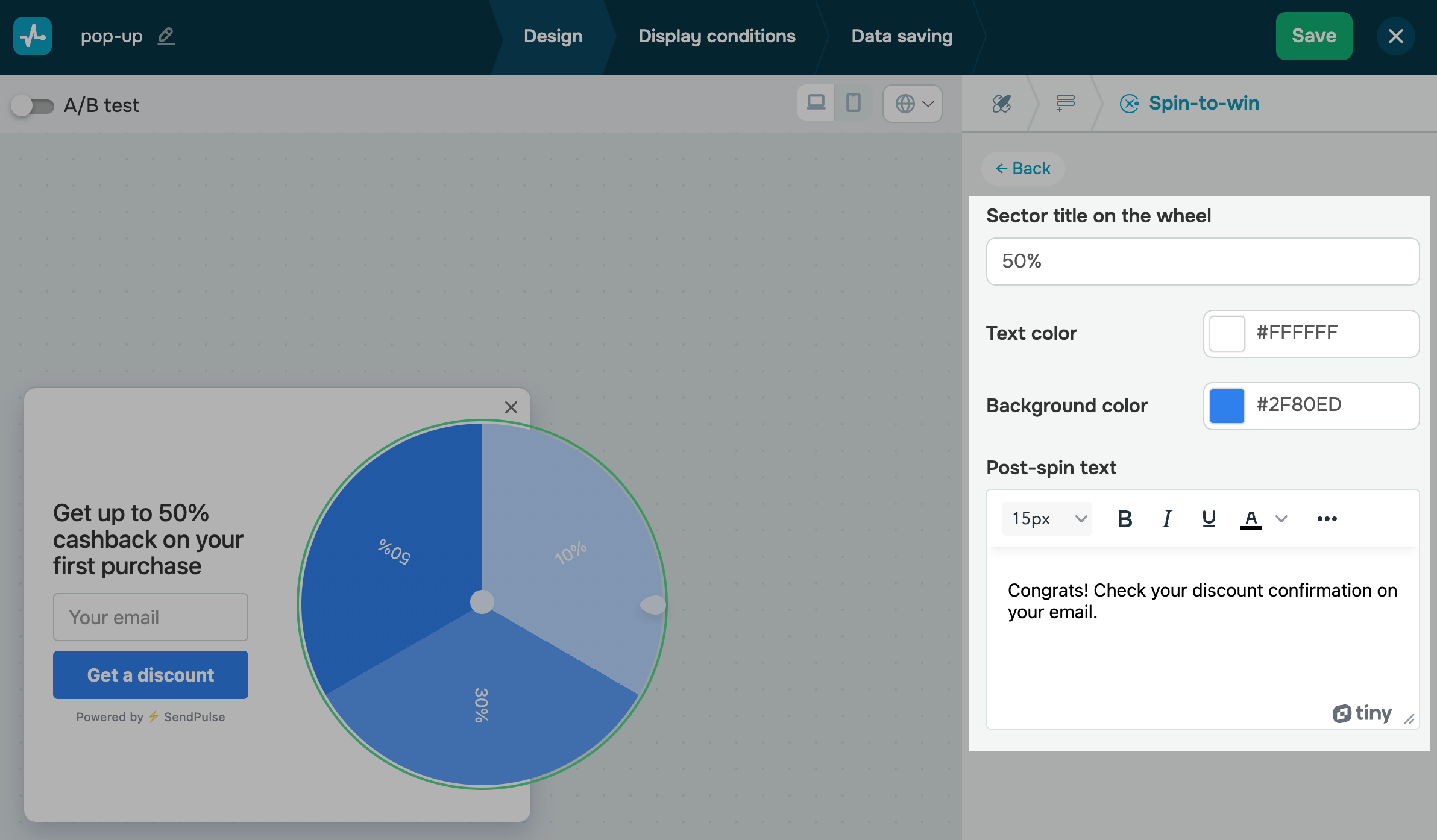
Add a gamification element. Click the pencil icon to access the element’s settings.
Finish up and save your pop-up
Once you’ve configured your pop-up design, click Next.
In the Display conditions tab, select a widget display scenario.
In the Data saving tab, choose where to store subscriber data in other sections.
When you finish configuring your pop-up, click Save and publish or Save and close.
Read more: Set up pop-up display conditions, Configure data saving options, and Publish your pop-up.
Once it's created, you can view your pop-up’s style, track statistics, and edit any settings in the Pop-ups section.
 Last Updated: 20.06.2025





or